Secured Microsoft Teams Messages and Users
Secured Microsoft Teams Messages
Avanan connects with Microsoft Teams using Microsoft APIs.
As Microsoft APIs are primarily designed to tackle DLP challenges and not malware/phishing messages, they allow different security levels based on whether the sender is within the organization and whether it is a direct message or part of a team channel conversation, and who initiated or owns the chat. These limitations affect both DLP and malicious message scenarios.
Message direction |
Message visible in the portal |
Generate events and alerts |
Block malicious messages and files |
|
|---|---|---|---|---|
|
Direct Messages |
||||
|
Messages within the organization (Internal > Internal) |
Yes |
Yes |
Yes |
|
|
Messages sent from the organization to outside the organization (Internal > External) |
Yes |
Yes |
Yes* |
|
|
Messages sent from outside the organization to the organization (External > Internal) |
Yes |
Yes |
No |
|
|
Messages sent in Microsoft Teams channels |
||||
|
Channels created by internal (protected) users |
Messages sent by internal users |
Yes |
Yes |
Yes |
Messages sent by external users |
Yes |
Yes |
Yes |
|
|
Channel created by external users |
Messages sent by internal users |
No |
No |
No |
Messages sent by external users |
No |
No |
No |
|
* Blocking malicious messages and files is not possible if an internal message is sent in a chat that was initiated or is owned by an external user. In this case, Avanan cannot block the malicious content.
Handling Partially Secured Messages
To protect the Microsoft Teams messages that cannot be inspected or tombstoned, administrators can do these:
-
Configure the Malware Policy and Configuring DLP Policy for Microsoft Teams to receive alerts and respond quickly to the detected malicious messages from external parties.
-
Enhance the security settings for external meetings and chat with people outside the organization. See Microsoft documentation.
Secured Users
Like in any application, to protect a user's Microsoft Teams messages, the user must have one of the supported licenses. For more information, see Minimum License Requirements to Activate SaaS Applications.
Avanan does not protect messages sent by users and sent from external parties to users without a supported license. Also, these messages do not appear in the Avanan Administrator Portal.
If Avanan detects users with unsupported Microsoft Teams licenses, it shows the status on the Overview page.
-
If there are no users with a supported license, Avanan shows an error indicator that Microsoft Teams is not secured.
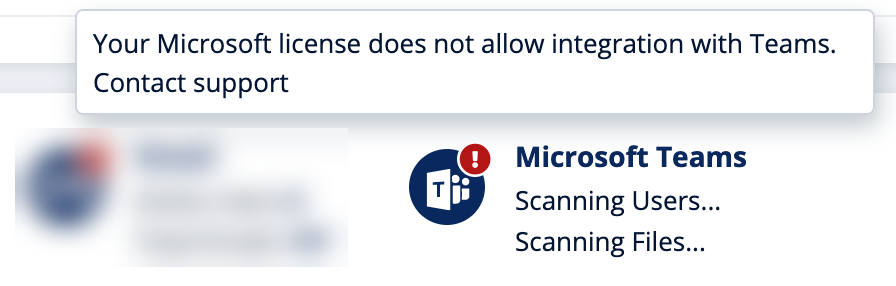
-
If there are some users with unsupported licenses, Avanan shows a warning indicator that some of the users are not protected.
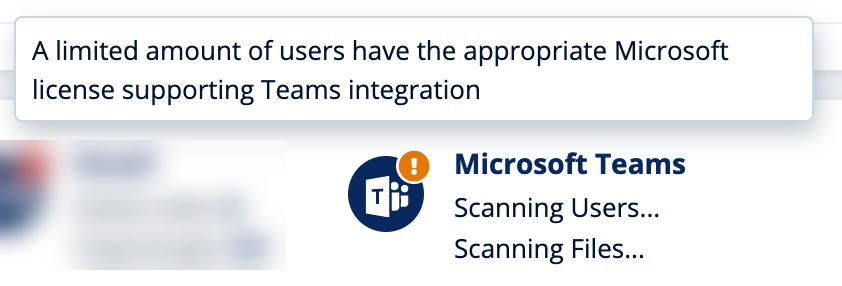
Unblocking Messages
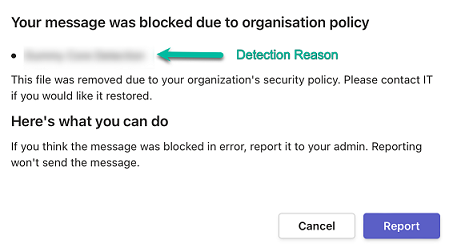
When malicious or sensitive information is detected, Avanan tombstones the messages.
To unblock the message, the user should click What can I do?.
-
If it is configured to allow unblocking the messages in Microsoft Teams Security Settings, the sender can select one of these.
-
To unblock the message:
-
Select Override and send.
-
Enter the justification for sending the message.
-
Click Confirm.
-
-
To unblock the message and also report it to the administrator, the sender can select Override and send and report it to my admin and click Confirm.
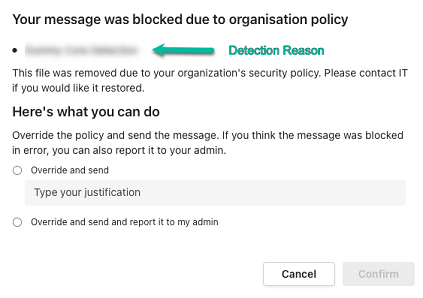
-
-
If it is not configured to allow unblocking the messages, the sender will see the following message: