
The Threat Emulation Solution
Limitations
-
3900 appliances do not support local emulation (Known Limitation PMTR-115010).
-
TE100X, TE250X, TE1000X, TE2000X models do not support R82 and higher versions.
-
In cluster
 Two or more Check Point Firewalls that work together in a redundant configuration - High Availability, or Load Sharing., Threat Emulation Software Blade on a Check Point Firewall that monitors the behavior of files in a sandbox to determine whether or not they are malicious. Acronym: TE. local cache is not synchronized.
 -
ThreatCloud
The cyber intelligence center of all of Check Point products. Dynamically updated based on an innovative global network of threat sensors and invites organizations to share threat data and collaborate in the fight against modern malware. emulation and remote emulation are not supported on Virtual Systems in Bridge Mode Check Point Firewall or Virtual System that works as a Layer 2 bridge device for easy deployment in an existing topology. because they have no IP address. -
When a file is processed over HTTP, UserCheck
Functionality in a Check Point Firewall and endpoint clients that gives users a warning when there is a potential risk of data loss or security violation. This helps users to prevent security incidents and to learn about the organizational security policy. cannot send messages in the browser after the download started.-
New malicious files require UserCheck agent to display the UserCheck message
-
For malicious files that are known to Threat Emulation, UserCheck messages can be displayed in the browser.
-
-
VSX
Virtual System Extension. Check Point virtual networking solution, hosted on a computer or cluster with virtual abstractions of Check Point Firewalls and other network devices. These Virtual Devices provide the same functionality as their physical counterparts. and VSNext do not support local emulation. -
For local emulation, Threat Emulation uses port 8080 and requires it to be free and available, and no other service is allowed to use it, including WebUI.
-
In the Monitor (SPAN / TAP) deployment:
-
The Prevent
UserCheck rule action that blocks traffic and files and can show a UserCheck message. action in the Threat Prevention policy is not supported. -
SMTPS over TLS inspection is not supported.
-
-
Threat Emulation is supported only on Private ThreatCloud Appliances with Gaia
Check Point security operating system that combines the strengths of both SecurePlatform and IPSO operating systems. OS 64-bit .Threat Emulation is not supported on:
-
IPSO OS.
-
Windows OS.
-
-
Custom OS images are not supported for cloud emulation.
-
Alternative OS images are not supported for local and remote emulation.
-
An appliance has a smaller data sample set compared to cloud emulation, which may impact detection accuracy.
-
Update of OS Images Local and Remote Emulation must be manual. You must download the required images and schedule the update to avoid disrupting operations.
-
In Local and Remote emulation, Shared Threat Database takes time to update which may result in potential delay in threat intelligence.
-
Not defining the topology in the Security Gateway object may cause:
-
Internal files sent to the cloud (potential privacy concern).
-
ThreatCloud quota overuse.
-
Impact on performance, because more files are emulated than necessary.
-
-
Multiple file execution is not supported with executable files, or CPU-Level images.
-
Running a local Threat Emulation appliance as a StandAlone
Configuration in which the Check Point Firewall and the Security Management Server products are installed and configured on the same server. (both a Security Management Server Dedicated Check Point server that runs Check Point software to manage the objects and policies in a Check Point environment within a single management Domain. Synonym: Single-Domain Security Management Server. and Security Gateway are installed on the same device) is not supported. -
If the Anti-Virus
Software Blade on a Check Point Firewall that uses real-time virus signatures and anomaly-based protections from ThreatCloud to detect and block malware at the Check Point Firewall before users are affected. Acronym: AV. blade is also enabled, there is an expected degradation in Threat Emulation performance of approximately 5-10%. -
VSNext does not support Threat Emulation archive scanning.
-
VSNext does not support using a Mail Transfer Agent
Feature on a Check Point Firewall that intercepts SMTP traffic and forwards it to the applicable inspection component. Acronym: MTA. for Threat Emulation.
Getting Started with Threat Emulation
-
If you use a Threat Emulation appliance, prepare the network and the Threat Emulation appliance, for local or remote emulation in the internal network
Step
Instructions
1
In SmartConsole
Check Point GUI application used to manage a Check Point environment - configure Security Policies, configure devices, monitor products and events, install updates, and so on., create the Security Gateway object for the Threat Emulation appliance.2
If you run emulation on HTTPS traffic, configure the settings for HTTPS Inspection (see HTTPS Inspection).
3
Make sure that the traffic is sent to the appliance according to the deployment:
-
Local Emulation - The Threat Emulation appliance receives the traffic. The appliance can be configured for traffic the same as a Security Gateway.
-
Remote Emulation - The traffic is routed to the Threat Emulation appliance.
-
-
Enable the Threat Emulation Software Blade on the Security Gateway
Step
Instructions
1
In the Gateways & Servers view, double-click the Security Gateway / Cluster object.
The Gateway Properties window opens.
2
In the General Properties > Network Security tab, select SandBlast Threat Emulation.
The Threat Emulation First Time Configuration Wizard opens and shows the Emulation Location page.
3
Select the Emulation Location:
-
ThreatCloud Emulation Service
-
Locally on this Threat Emulation appliance
-
Other Threat Emulation appliances - Click the + sign to add emulation appliances (you can select more than one appliance for the emulation).
4
Click Next.
The Activate Threat Extraction window opens, with this checkbox selected:
Clean potentially malicious parts from files (Threat Extraction)
-
To activate Threat Extraction
Software Blade on a Check Point Firewall that removes malicious content from files. Acronym: TEX., keep this checkbox selected: -
If you do not want to activate Threat Extraction, clear this checkbox.
5
Click Next.
The Summary page opens.

Note - If you selected the Emulation Location as Locally on this Threat Emulation appliance or Other Threat Emulation appliances, and you want to share Threat Emulation information with ThreatCloud, select Share attack information with ThreatCloud.
6
Click Finish to enable Threat Emulation (and if selected, Threat Extraction), and then close the First Time Configuration Wizard.
7
Click OK.
The Gateway Properties window closes.
Note - When a trial license is installed on the Security Gateway, a green "V" incorrectly appears next to the Threat Emulation Software Blade
Specific security solution (module): (1) On a Check Point Firewall, each Software Blade inspects specific characteristics of the traffic (2) On a Management Server, each Software Blade enables different management capabilities. (in SmartConsole, go to the Gateways & Servers view > right-click the Security Gateway / Cluster object > click Monitor) > the Device and License Information window opens > Device Status > Threat Emulation).To see the correct license status, go to the License Status tab in the Device and License Information window.
Using Cloud Emulation
Files are sent to the Check Point ThreatCloud over a secure TLS connection for emulation. The emulation in the ThreatCloud is identical to emulation in the internal network, but it uses only a small amount of CPU, RAM, and disk space of the Security Gateway. The ThreatCloud is always up-to-date with all available operating system environments.

Best Practice - For ThreatCloud emulation, it is necessary that the Security Gateway connects to the Internet. Make sure that the DNS and proxy settings are configured correctly in Global Properties.
-
-
Select deployment. See Selecting the Threat Emulation Deployment.
-
Configure Threat Emulation settings on the Threat Prevention profile. See Configuring Threat Emulation Settings on the Security Profile.
-
Optional: Configure Threat Emulation settings on the Security Gateway. See Configuring Threat Emulation on the Security Gateway - Custom Threat Prevention
-
Configure advanced Threat Emulation settings. See Configuring Advanced Threat Emulation Settings - Custom Threat Prevention.
-
Install the Threat Prevention policy on the Security Gateway. If you use a Threat Emulation appliance, install the Threat Prevention policy on the Threat Emulation appliance as well.
For information about Private ThreatCloud, see the following Secure Knowledge articles:
-
sk149692: Private ThreatCloud
-
sk113332: Private ThreatCloud - Engine Updates
-
sk161534: How to configure Private ThreatCloud (PTC) on Scalable Platform Appliances
ThreatCloud Emulation
You can securely send files to the Check Point ThreatCloud for emulation. The ThreatCloud is always up-to-date with the latest Threat Emulation releases.
The new Threat Emulation engine uses Internet-connected sandboxes to prevent multi-stage attacks at the earliest stage. The full infection chain is analyzed and is presented in the MITRE ATT&CK Matrix visualization in the Threat Emulation report. The Internet-connected sandbox capability is supported on Threat Emulation AWS cloud platform and all Threat Emulation vectors: Web download, Mail Transfer Agent, Cloud Firewall SaaS, SandBlast Agent and APIs.
Sample ThreatCloud Emulation Workflow
-
The Security Gateway gets a file from the Internet or an external network.
-
The Security Gateway compares the cryptographic hash of the file with the database.
-
If the file is already in the database, no additional emulation is necessary
-
If the file is not in the database, it is necessary to run full emulation on the file
-
-
The file is sent over a TLS connection to the ThreatCloud.
-
The virtual computers in the ThreatCloud run emulation on the file.
-
The emulation results are sent securely to the Security Gateway for the applicable action.
Sample ThreatCloud Deployment
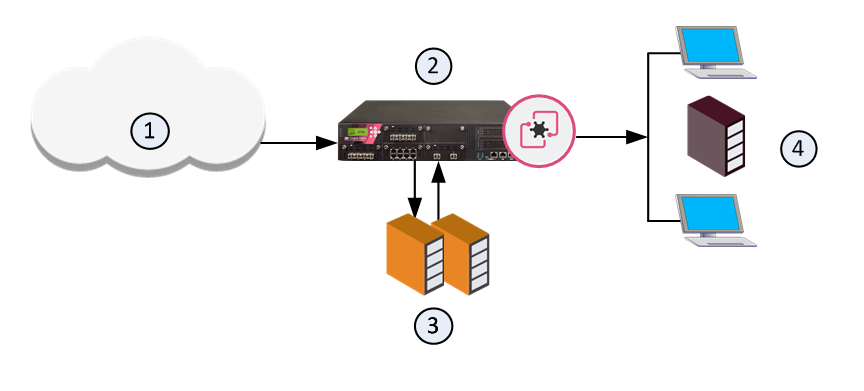
|
Item |
Description |
|---|---|
|
1 |
Internet and external networks |
|
2 |
Perimeter Security Gateway |
|
3 |
Check Point ThreatCloud servers |
|
4 |
Computers and servers in the internal network |
Threat Emulation Analysis Locations
You can choose a location for the emulation analysis that best meets the requirements of your company.
-
ThreatCloud - You can send all files to the Check Point ThreatCloud for emulation. Network bandwidth is used to send the files and there is a minimum performance impact on the Security Gateway.
-
Threat Emulation Appliance in the Internal network - You can use a Threat Emulation appliance to run emulation on the files, whether locally or on a remote appliance.
Local or Remote Emulation
You can install a Threat Emulation appliance in the internal network.
Sample workflow for local Threat Emulation-
The Security Gateway receives the traffic, and aggregates the files.
-
The Security Gateway compares the cryptographic hash of the file with the database.
-
The file is already in the database, no emulation is needed.
-
If the file is not in the database, the virtual computers in the Security Gateway run full emulation on the file.

|
Item |
Description |
|---|---|
|
1 |
Internet and external networks |
|
2 |
Security Gateway/Threat Emulation appliance |
|
3 |
Computers and servers in the internal network |
Sample workflow for Threat Emulation on a remote appliance
-
The Security Gateway aggregates the files, and the files are sent to the Threat Emulation appliance.
-
The Threat Emulation appliance compares the cryptographic hash of the file with the database. Files have unique cryptographic hashes. These file hashes are stored in a database after emulation is complete
-
If the file is already in the database, no emulation is needed.
-
If the file is not in the database, the virtual computers in the Threat Emulation appliance run full emulation on the file.
-
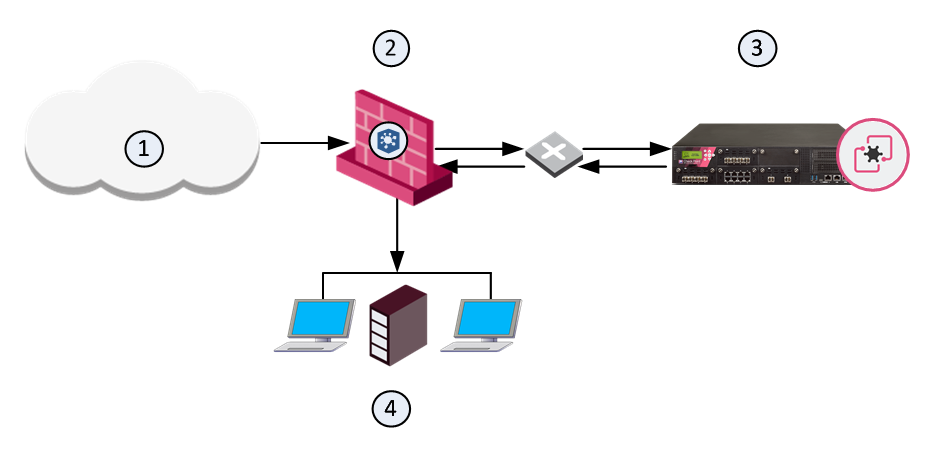
|
Item |
Description |
|---|---|
|
1 |
Internet and external networks |
|
2 |
Perimeter Security Gateway |
|
3 |
Threat Emulation Appliance |
|
4 |
Computers and servers in the internal network |
Selecting the Threat Emulation Deployment
What are my options to send traffic for emulation?
|
Option |
Description |
|---|---|
|
Inline |
Traffic is sent for emulation before it is allowed to enter the internal network. You can use the Threat Prevention policy to block malware. |
|
Monitor (SPAN/TAP) |
You can use a mirror or TAP port to duplicate network traffic. Files are sent to the computer in the internal network. If Threat Emulation discovers that a file contains malware, the appropriate log action is done. |
|
MTA (see Configuring the Security Gateway as a Mail Transfer Agent) |
SMTP traffic goes to the Security Gateway, and is sent for emulation. The MTA acts as a mail proxy, and manages the SMTP connection with the source. The MTA sends email files to emulation after it closes the SMTP connection. When the file emulation is completed, the emails are sent to the mail server in the internal network. |
To switch between the Inline and Monitor modes, see the R82 Gaia Administration Guide
Inline Deployments
The ThreatCloud or Threat Emulation appliance gets a file from the Security Gateway. After emulation is done on the file, if the file is safe, it is sent to the computer in the internal network. If the file contains malware, it is quarantined and logged. The computer in the internal network is not changed.
Sample Inline Emulation Workflow (Prevent Action)
|
ThreatCloud or Threat Emulation appliance gets the file from the Security Gateway |
|
Emulation is done on the file |
|
Does the file contain malware? |
Yes
|
File is quarantined |
|
|
|
|
|
No
|
|
|
|
|
|
|
|
File is sent to computer on the internal network |
|
|


Monitor (SPAN/TAP) Deployments
The Security Gateway gets a file from the Internet or an external network and lets it enter the internal network. The Threat Emulation appliance receives a copy of the file and the original file goes to the computer in the internal network. The Threat Emulation appliance compares the cryptographic the file with the database. If the file is already in the database, then no additional emulation is necessary. If the file is not in the database, the virtual computers in the Threat Emulation appliance do emulation of the file.
If the file is identified as malware, it is logged according to the Track action of the Threat Prevention rule Set of traffic parameters and other conditions in a Rule Base (Security Policy) that cause specified actions to be taken for a communication session.. Monitor deployments support only the Detect action.
Sample Monitor Emulation Workflow
|
Security Gateway gets the file from the Internet |
|
Threat Emulation appliance gets copy of the file. Original file goes to internal computer. |
|
Was emulation already done? |
Yes
|
No additional emulation is necessary |
|
|
|
|
|
No
|
|
|
|
|
|
If the file contains malware, it is logged |
|
Threat Emulation appliance does emulation of the file |
|
|

Threat Emulation Deployments with a Mail Transfer Agent
SMTP traffic goes to the Security Gateway, and is sent for emulation. The MTA acts as a mail proxy, and manages the SMTP connection with the source. The MTA sends email files to emulation after it closes the SMTP connection. When the file emulation is completed, the emails are sent to the mail server in the internal network.
For more information on how to work with the Mail Transfer Agent, see Configuring the Security Gateway as a Mail Transfer Agent.