
Account Units
An Account Unit represents branches of user information on one or more LDAP servers. The Account Unit is the interface between the LDAP servers and the Security Management Server Dedicated Check Point server that runs Check Point software to manage the objects and policies in a Check Point environment within a single management Domain. Synonym: Single-Domain Security Management Server. and Security Gateways.
You can have a number of Account Units representing one or more LDAP servers. Users are divided among the branches of one Account Unit, or between different Account Units.
Working with LDAP Account Units
Use the LDAP Account Unit Properties window in SmartConsole to create a new or to edit an existing Account Unit or to create a new one manually.
To create or edit an existing LDAP Account Unit:
-
-
Create: In the Objects tab, click New > More > User/Identity > LDAP Account unit.
-
Edit: In SmartConsole, open the Object Explorer (press the CTRL+E keys) > Users/Identities > go to the required LDAP Account Unit, right-click it and select Edit.
The LDAP Account Unit Properties window opens.
-
-
Edit the settings in these tabs:
-
General
Configure how the Security Management Server
Check Point Single-Domain Security Management Server or a Multi-Domain Security Management Server. uses the Account UnitThese are the configuration fields in the General tab:
-
Name - Name of the Account Unit
-
Comment - Optional comment
-
Color - Optional color associated with the Account Unit
-
Profile - LDAP vendor
-
Domain - Domain of the Active Directory servers, when the same user name is used in multiple Account Units (this value is also necessary for AD Query and SSO)
-
Prefix - Prefix for non-Active Directory servers, when the same user name is used in multiple Account Units
-
Account Unit usage - Select applicable options:
-
CRL retrieval - The Security Management Server manages how the CA sends information about revoked certificates to the Security Gateways
-
User Management - The Security Management Server uses the user information from this LDAP server (you must enable User Directory
Check Point Software Blade on a Management Server that integrates LDAP and other external user management servers with Check Point products and security solutions. on the Security Management Server).
Note - LDAP SSO (Single Sign On) is only supported for Account Unit objects that use User Management.
-
Active Directory Query - This Active Directory server is used as an Identity Awareness source.
Note - This option is only available if the Profile is set to Microsoft_AD.
-
-
Enable Unicode support - Encoding for LDAP user information in non-English languages
-
Active Directory SSO configuration - Click to configure Kerberos
An authentication server for Microsoft Windows Active Directory Federation Services (ADFS). SSO for Active Directory - Domain Name, Account Name, Password, and Ticket encryption method
-
-
Servers
Manage LDAP servers that are used by this Account Unit. You can add, edit, or delete LDAP server objects.
To configure an LDAP server for the Account Unit:
-
To add a new server, click Add.
To edit an existing one, select it from the table and click Edit.
The LDAP Server Properties window opens.
-
From the Host drop-down menu, select the server object.
-
Optional: If necessary, create a new LDAP server object:
-
Close the LDAP Server Properties window.
-
In SmartConsole, go to the Object Explorer.
-
Click New > Host.
-
In the New Host window that opens, enter the settings for the LDAP server.
-
Click OK.
-
Reopen the LDAP Server Properties window > Servers, and select the newly created host.
-
-
Fill in this information:
-
Port
-
Username
-
Login DN
-
Password
-
Default priority
-
Select access permissions for the Check Point Gateways:
-
Read data from this server
-
Write data to this server
-
Note - If you create the LDAP account unit to submit group queries, you do not need any special permissions.
-
-
In the Encryption tab, you can configure LDAPS.
Note - LDAPS is required for Active Directory integration on Windows Server 2025 and recommended for earlier versions.
Configure these settings:
-
Select Use Encryption (SSL) - Enables LDAPS.
-
Encryption port - The LDAPS port is automatically populated. You can modify it as needed.
Note - When you select Use Encryption (SSL), the Port field in the General tab is automatically greyed out, and only the Encryption port in the Encryption tab is used for LDAP communication.
-
Click Fetch to retrieve this information:
-
Server Name - The subject of the LDAPS server certificate.
-
CA - Certificate of the root CA that signed the LDAPS server certificate.
Note - If you renew or replace the LDAPS server certificate using the same CA and Server Name, Security Gateways version R82 or higher trust the new certificate automatically.
-
Server - Fingerprint of the LDAPS server certificate.
-
-
Verify that the fetched information is correct.
-
Optional: Select CRL check to have the Security Gateway
Dedicated Check Point server that runs Check Point software to inspect traffic and enforce Security Policies for connected network resources. verify that the server certificate is not revoked.
Note - If you enable CRL check, you must make sure that the LDAPS server certificate contains a CRL Distribution Point extension of type HTTP, and that the Security Gateway can access this URL.
-
Min/Max Encryption Strength - Use the default values provided:
-
Export for minimum encryption strength
-
Strong for maximum encryption strength
-
-
-
Click OK.
To remove an LDAP server from the Account Unit:
-
Select a server from the table.
-
Click Remove.
If all the configured servers use the same login credentials, you can modify them simultaneously.
To configure the login credentials for all servers simultaneously:
-
Click Update Account Credentials.
The Update Account to All Servers window opens.
-
Enter the login credentials.
-
Click OK.
-
-
Objects Management
Configure the LDAP server for the Security Management Server to query and the branches to use
Note - Make sure there is LDAP connectivity between the Security Management Server and the LDAP Server that holds the management directory.
To configure LDAP query parameters:
-
From the Server to connect drop-down menu, select the LDAP server object.
-
Click Fetch branches.
The Security Management Server queries and shows the LDAP branches.
-
Configure Branches in use:
-
To add a branch, click Add and in the LDAP Branch Definition window that opens, enter a new Branch Path
-
To edit a branch, click Edit and in the LDAP Branch Definition window that opens, modify the Branch Path
-
To delete a branch, select it and click Delete
-
-
Select Prompt for password when opening this Account Unit if necessary (optional).
-
Configure the number of Return entries that are stored in the LDAP database (the default is 500).
-
-
Authentication
Configure the authentication scheme for the Account Unit. These are the configuration fields in the Authentication tab:
-
Use common group path for queries - Select to use one path for all the LDAP group objects (only one query is necessary for the group objects)
-
Allowed authentication schemes - Select one or more authentication schemes allowed to authenticate users in this Account Unit - Check Point Password, SecurID, RADIUS, OS Password, or TACACS
-
Users' default values - The default settings for new LDAP users:
-
User template - Template that you created
-
Default authentication scheme - One of the authentication schemes selected in the Allowed authentication schemes section
-
-
Limit login failures (optional):
-
Lock user's account after - Number of login failures, after which the account gets locked
-
Unlock user's account after - Number of seconds, after which the locked account becomes unlocked
-
-
IKE pre-shared secret encryption key - Pre-shared secret key for IKE users in this Account Unit
-
-
-
Click OK.
-
Install the Access Control Policy.
Account Units and High Availability
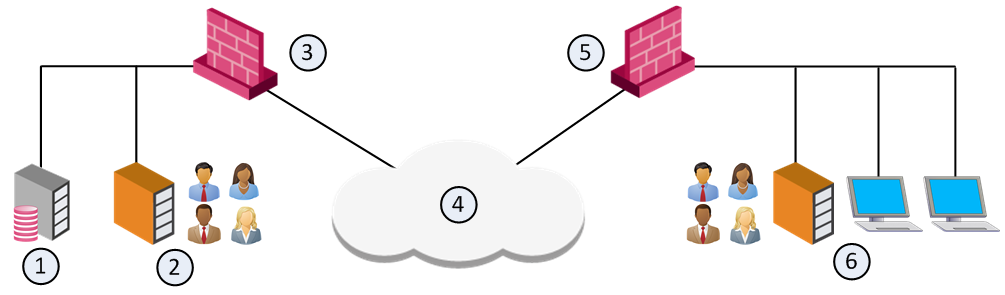
With User Directory replications for High Availability, one Account Unit represents all the replicated User Directory servers. For example, you can define two User Directory server replications on one Account Unit, and two Security Gateways can use the same Account unit.
|
Item |
Description |
|---|---|
|
1 |
Security Management Server - Manages user data in User Directory. It has an Account Unit object, where the two servers are defined. |
|
2 |
User Directory server replication. |
|
3 |
Security Gateway - Queries user data and retrieves CRLs from nearest User Directory server replication (2). |
|
4 |
Internet |
|
5 |
Security Gateway - Queries user data and retrieves CRLs from nearest User Directory server replication (6). |
|
6 |
User Directory server replication. |
Setting High Availability Priority
With multiple replications, define the priority of each LDAP server in the Account Unit. Then you can define a server list on the Security Gateways.
Select one LDAP server for the Security Management Server to connect to. The Security Management Server supports only one LDAP server replication. You must synchronize all other replications for standby purposes.
To set priority on the Account Unit
-
Open the LDAP Account Unit Properties window.
-
Open the Servers tab.
-
Add the LDAP servers of this Account Unit in the required order of priority.