
Integration with Microsoft Intune
Preparing UEM Platform for Integration
Prerequisites
Mobile Security service integrates with Microsoft Intune through Azure Portal.
To enable integration:
-
Configure Microsoft Intune for UEM
 Unified Endpoint Management. An architecture and approach that controls different types of devices such as computers, smartphones and IoT devices from a centralized command point. Authority. For more information, see Android device enrollment guide for Microsoft Intune | Microsoft Learn.
 -
Configure Microsoft Intune with an Apple Push Certificate (APNS). For more information, see iOS/iPadOS device enrollment guide for Microsoft Intune | Microsoft Learn.
-
Valid Microsoft license that allows the integration with Mobile Security. The following components should be included in the Microsoft license:
-
Conditional Access
-
Microsoft Intune plan1
-
Microsoft Entra ID P1
Check Point recommends Enterprise Security (EMS) E3 or E5 license.
-
|
|
Best Practice - For integration with Check Point Mobile Security, use Security groups to set up the same UEM hierarchy as in your organization's internal hierarchy, or set up groups based on Microsoft Intune features and content. |

High-Level Workflow
-
Create Security Group(s) for the Mobile Security users to organize users and devices and connect them to Mobile Security. See Creating a User Group for Mobile Security.
-
Assign Microsoft Intune licenses for the Mobile Security users to enroll the devices in Microsoft Intune. See Adding User Licenses to the Security Group.
-
Add the Mobile Security users to Microsoft Intune. See Adding Users to the Security Group.
-
Enroll devices to Microsoft Intune. See Enrolling Devices to Microsoft Intune.
-
Create an Administrator account for integration between the Mobile Security and Microsoft Intune. See Creating Administrator Account for Integration with the Mobile Security.
Creating a User Group for Mobile Security
To deploy the Mobile Security policies, configurations, apps, and more in Microsoft Intune, you must create special Security Group(s) for the Mobile Security users and add these users to the Mobile Security Dashboard.
Creating Security Group for your Devices
-
In the Microsoft Intune Admin Center, go to Groups > All groups and click New Group.

-
In the New Group window, enter these:
-
Select Group type as Security.
-
In the Group name field, enter a name for the group. For example, Harmony_Users.
-
Select Membership type as Assigned.
-
-
Click Create.
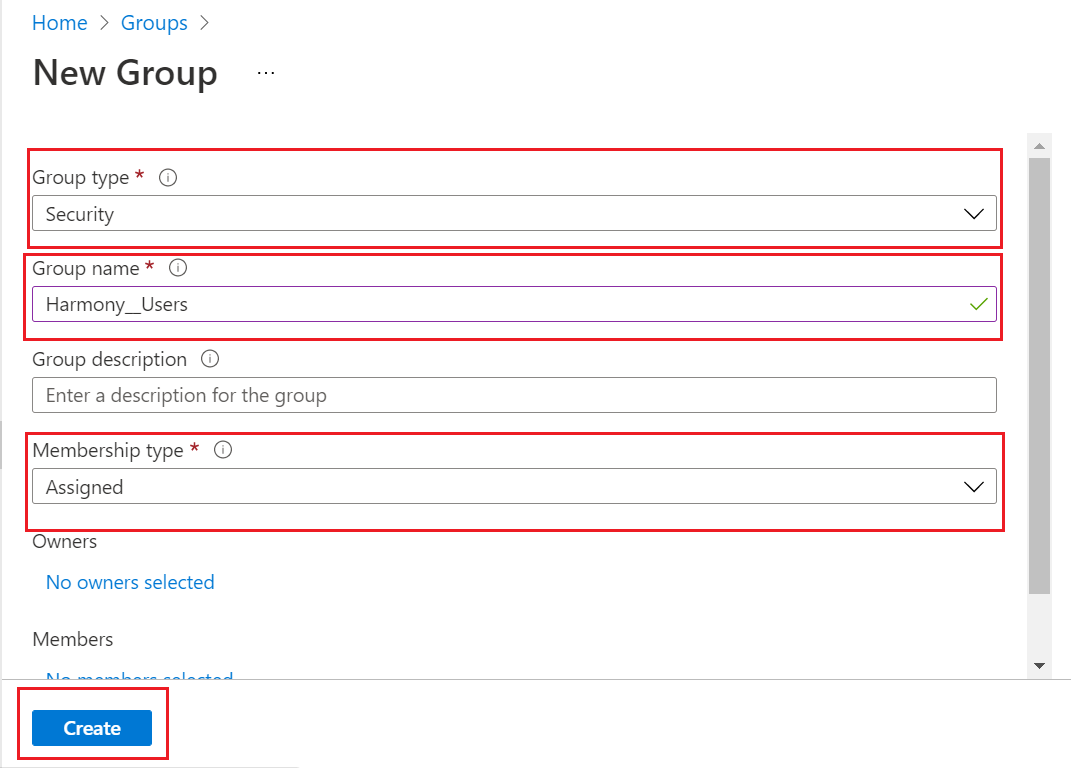
For more information, see the Microsoft Intune online guide.
Adding User Licenses to the Security Group
-
In the Microsoft Intune Admin Center, go to the group created in the previous step:
Groups > All groups > Harmony_Users.
-
Click Licenses.
-
Select the Enterprise Mobility + Security E5 license.

-
Go to the Groups tab and click Assign licenses.

-
On the right panel, select the security group you created and click Assign licenses.
Adding Users to the Security Group
-
In the Microsoft Intune Admin Center, go to Users > All users. Click + New User > Create new user.
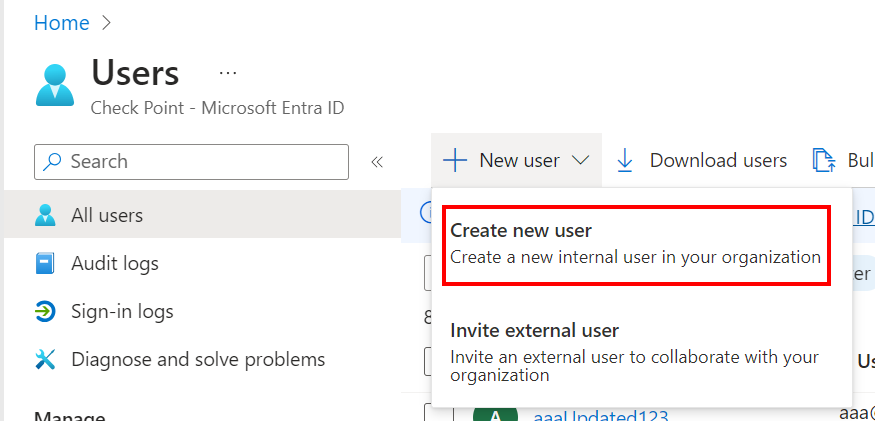
-
In the Create new user window, enter these:
-
User principal name - An email address (for example, harmony_user@checkpointtrial.onmicrosoft.com)
-
Display name - Name to display.
-
Password - Password for the user.
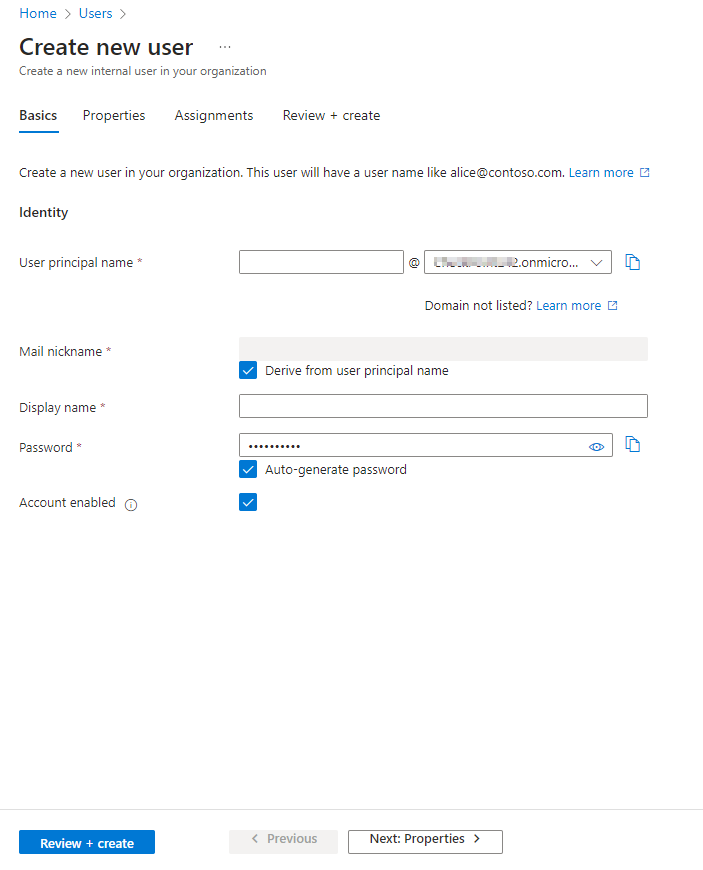
-
-
Go to the Assignments tab and click + Add group.
-
Select the security group you created.
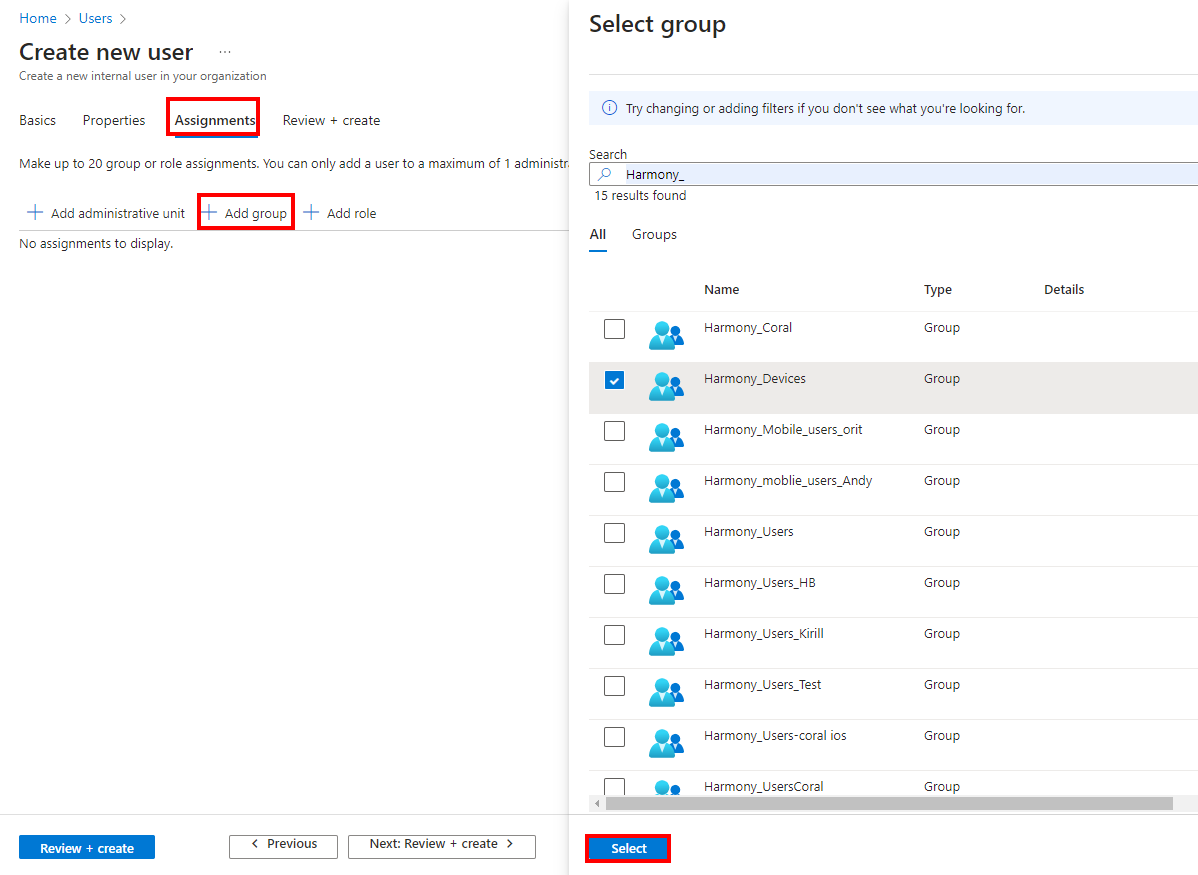
-
Click Review + Create.
-
Click Create.
|
|
Note - Repeat these steps to add additional users. |
For more information, see the Microsoft Intune online guide.
Enrolling Devices to Microsoft Intune
To manage your devices and apps and their access to your company data, you must enroll them in the Microsoft Intune service.
For more information, see the Microsoft Intune online guide.
Creating Administrator Account for Integration with the Mobile Security
To create an Administrator Account for Mobile Security:
-
In the Microsoft Intune Admin Center, go to Users > All users.
-
Click + New User > Create new user.
-
In the Create new user window, enter these:
-
User principal name - An email address (for example, harmony_admin@checkpointtrial.onmicrosoft.com)
-
Display name - Name to display.
-
Password - Password for the administrator user.
-
-
Go to the Assignments tab and click + Add role.
-
Select Global Administrator role in the right pane.
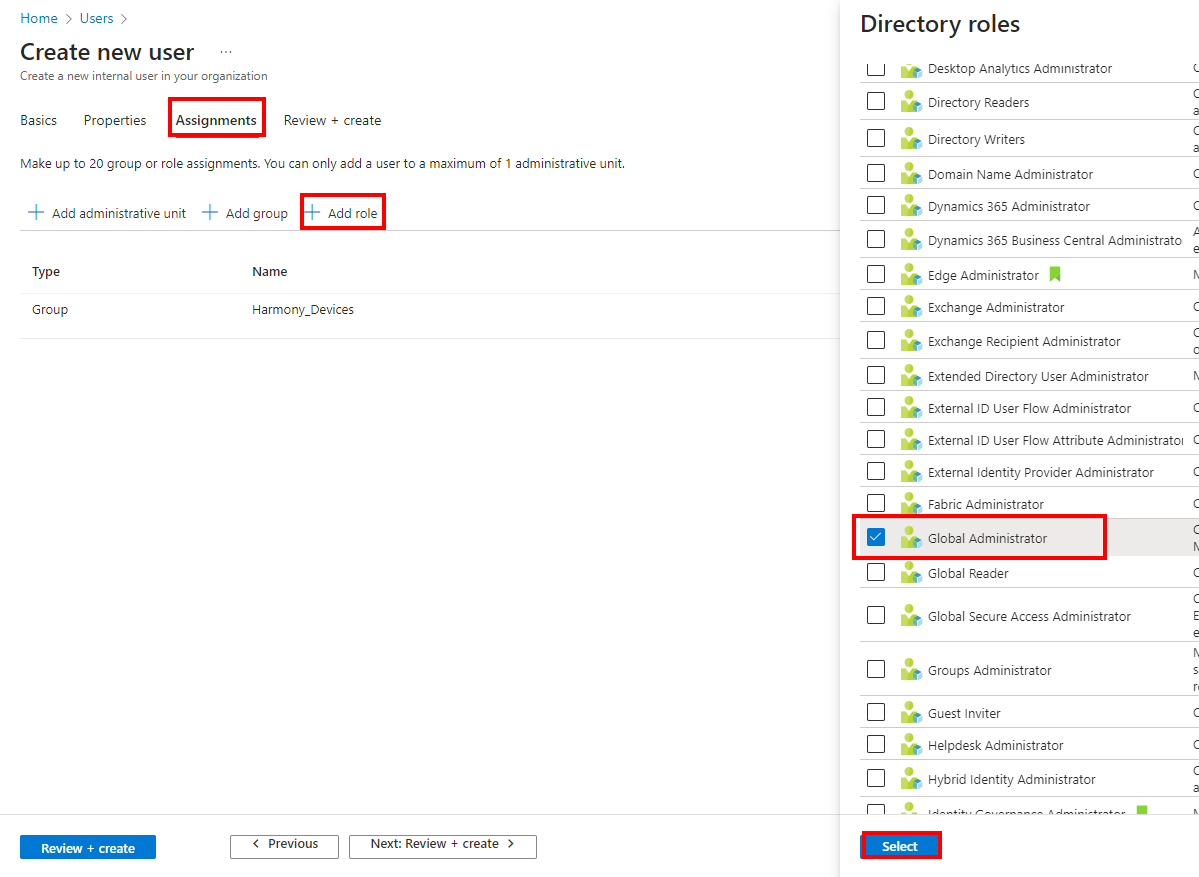

Note - We recommend that you create a Global administrator role. This role is required to grant the required permissions for these apps, created on Azure through APIs, after the integration is set:
-
Mobile Security Enterprise App
-
Mobile Security – Android
-
Mobile Security – iOS
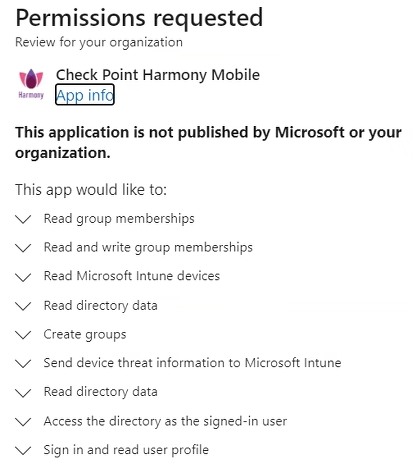
After the permissions are granted, you may delete the Global administrator role.
You can also complete the integration with Privileged Role Administrator. For more information, see the Microsoft Intune online guide.
-
-
Click Review + Create.
-
Click Create.