
Testing High Risk Activity Detection and Policy Enforcement
If the device is at risk either due to a malicious app or activity, the Mobile Security system notifies the user through in-app notifications, and updates the risk level custom attribute value to the Jamf Pro system for that device. Jamf Pro receives the risk state change, recognizes the risk level value tied to a Configuration Profile, and enacts that policy.
For example, if the administrator blocked an app HeyWhatsApp, then all the devices with HeyWhatsApp are identified as High Risk (“risk_level”=”CHKP_Risk_High”). The Mobile Security dashboard notifies the user and marks the device with risk_level set to CHKP_Risk_High in Jamf Pro. This adds the device to the Smart Mobile Device Group CHKP_Risk_High. Then the Jamf Pro system enforces policy actions specified in the Configuration Profile.
Blocking a Test App
-
Log in to the Mobile Security dashboard.
-
Go to Forensics > Application and click
 for the app you want to block.
 -
Select Edit app exception and click the policy you want to modify.
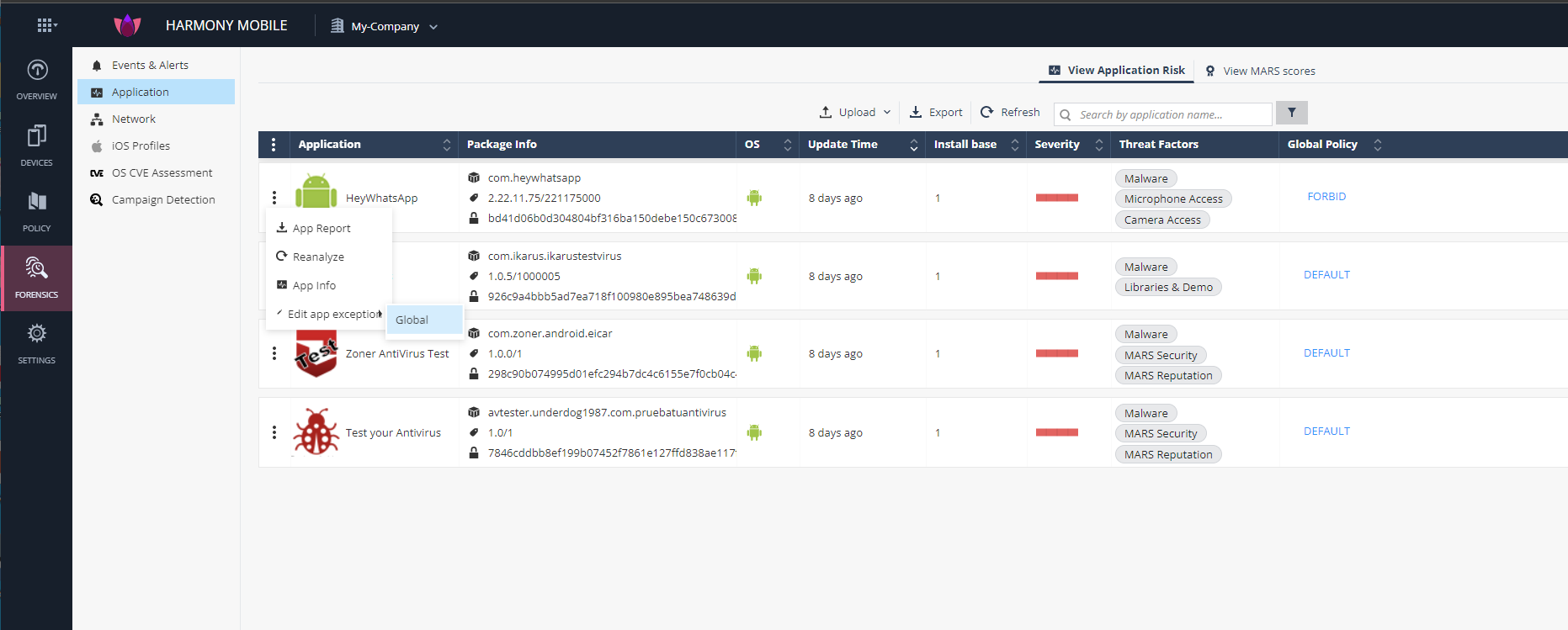
The Application Exceptions section in the Application policy appears.
-
From the Action drop-down list, select Block.

-
Click Add.
-
To save the policy changes, click Save.

View of a Non-Compliant Device
The device with the blocked app (for example, Waze) must be added in the group defined in section: Creating Smart Group for Devices with High Risk.
To add the non-compliant device to the Smart Mobile Device Group:
-
Go to Devices > Smart Device Groups > <Your defined Smart Mobile Device Group>.

-
Click View.
The system shows the device.


|
Note - You receive an email from Jamf Pro if you configured an email notification. |
Viewing the Mobile Security Dashboard
The administrator can see the devices at high risk on the Mobile Security Dashboard.
-
Go to Device Risk > High Risk.
A table shows the list of devices at high risk.
-
Select the device.
The blocked app (for example, XYZ) causes the High Risk state.
