
Prerequisites - BlackBerry UEM On-Premises
-
BlackBerry UEM
 Unified Endpoint Management. An architecture and approach that controls different types of devices such as computers, smartphones and IoT devices from a centralized command point. 12.6 or higher.
 -
For on-premise BlackBerry UEM Deployments, the port used for the UEM Web Services API (default: TCP 18084) must be accessible remotely by the Mobile Security servers through your firewall before trying to connect.
For more information regarding BlackBerry UEM, refer to BlackBerry UEM documentation.
|
|
Note - For easy reference during configuration, you can record your settings in the special table. See Integration Information. |

Creating an Administrator User
To add a new user:
-
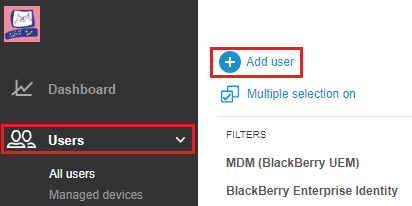
On the BlackBerry UEM Console, go to Users, click Add user.
-
In the Add a user window, in the Local tab, enter these details:
-
In the Display name field, enter a display name.
-
In the Username field, enter a username.
-
In Additional user details > Group membership, select the user groups that you want to add the user to.
-
In the Password field, enter a temporary password for this user. When you login the first time with these credentials, you will be prompted to set a new password.
-
Click Save.
Assigning New User to Administrator Role
-
On the BlackBerry UEM Console, go to Settings > Administrators > Users.
-
Click the Add an administrator icon on the top-right corner.

-
In the Add an administrator window, search and select the administrator user you created.
-
Under Assign a role, select the role as Security Administrator.
-
Click Save.
-
Log out of the BlackBerry UEM console to complete the creation of the new admin account.
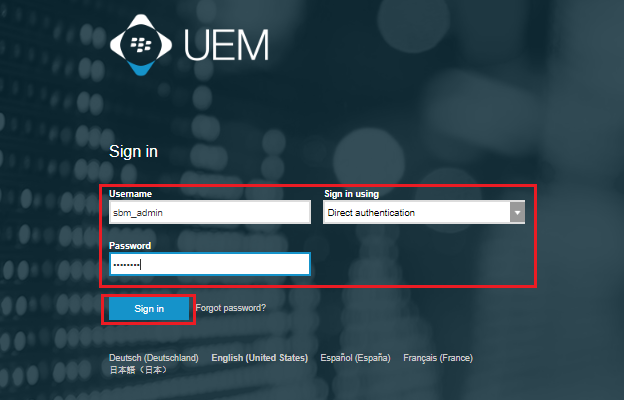
Then, log in using the temporary credentials you assigned to this new admin. This forces the admin user to select a new unique password.
-
Click Sign In.
-
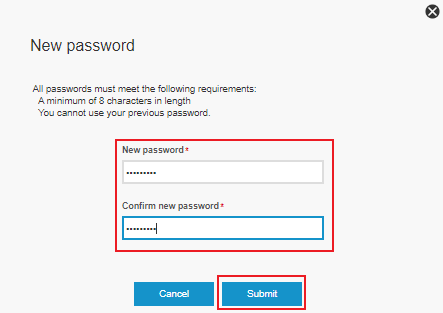
In the New password window, enter in a new password.
-
Click Submit.
-
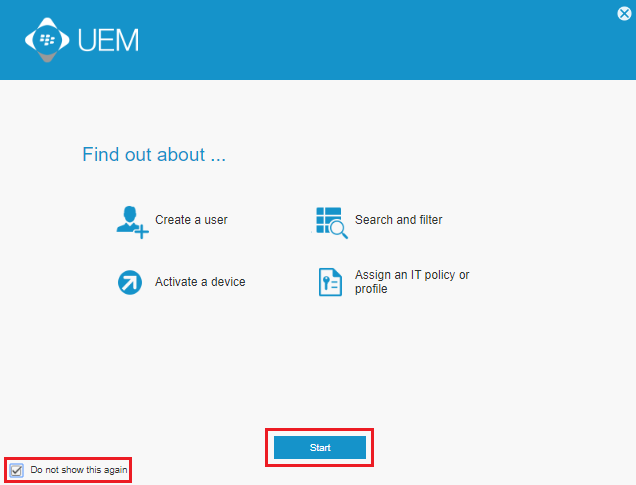
In the Find out about window, select Do not show this again.
-
Click Start.
-
Click Log out.
Log out and log in to the BlackBerry UEM console with your original Admin credentials to continue with the configuration.