Administrators
Security Group Roles
Security Group Roles allows you to add, remove, or edit Administrator roles.
To create security group roles restricted to specific groups and policy profiles, click +New and select:
-
Role Name
-
Role between Group Security Manager and Group Security Manager Viewer
-
Select the device groups the admin can access
-
Select the policy profiles the admin can access
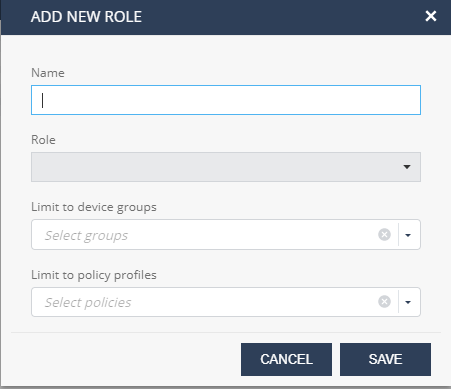
This new role will be available under Specific Mobile Security roles when creating a new Admin User in the Check Point Portal (under Global Settings).
Other admin roles are available such as Basic Support or Device Administrator. For more information about these roles, go to Settings > Administrators > Roles Definitions.
Notifications
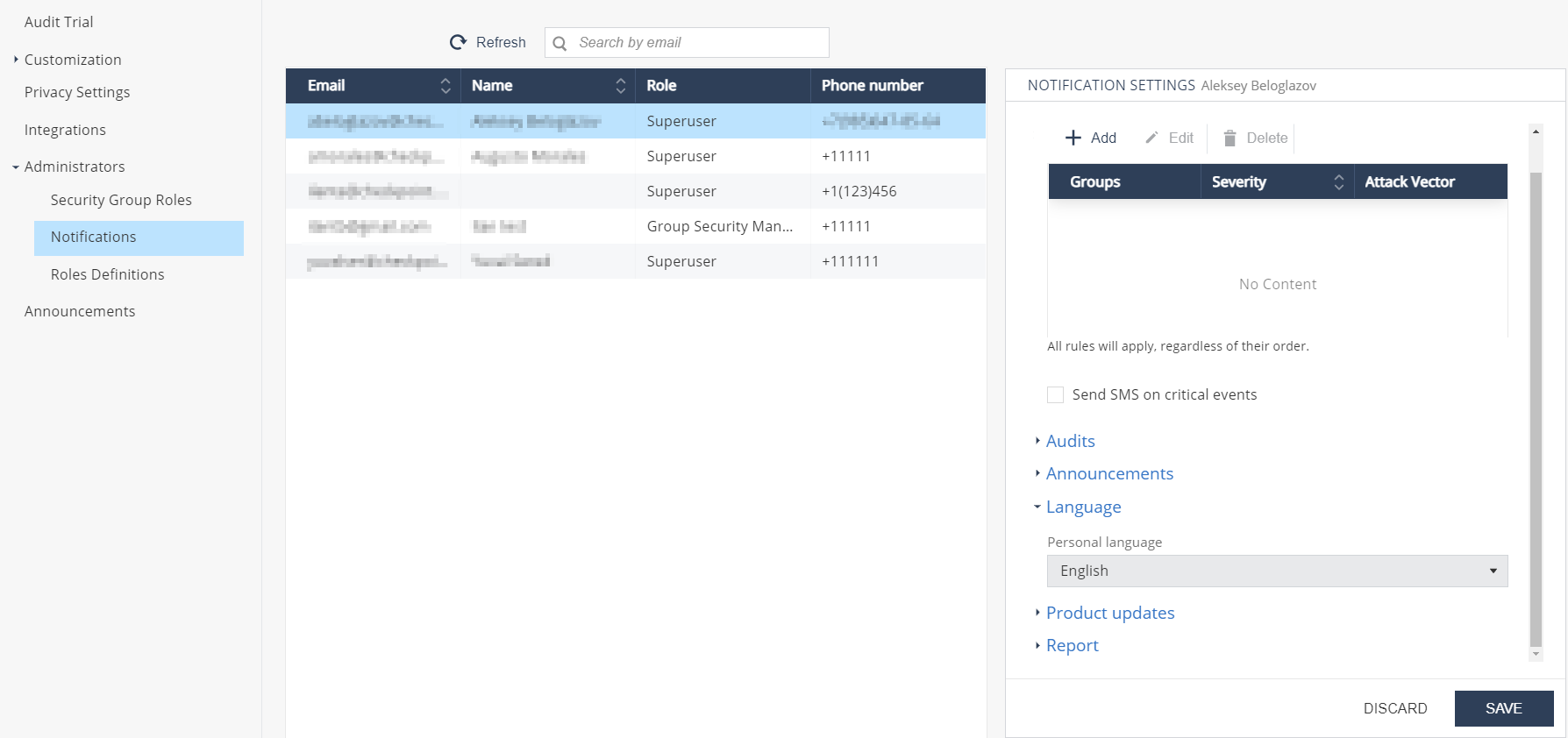
In the Notifications tab, you can configure, how the administrator want to be alerted in case of security or audit events, dashboard announcements, product updates, scheduled mobile security reports and so on.
You can send Mobile Security notifications to a Microsoft Teams channel. For more information, see sk183491.
Scheduling Mobile Security Report
|
|
Note - You can also generate and download the Mobile Security report in PDF format whenever needed. To do that, go to Forensics > Events & Alerts and click PDF Report above the Events & Alerts table. For more information, see Generating Mobile Security Report. |
To schedule a Mobile Security Report:
-
Go to Settings > Administrators.
-
Click Notifications.
The Notification Settings pane appears.
-
Expand Report.
-
Select the Send scheduled report checkbox.

-
From the Report type list, select one of these:
-
Full report
-
Operational report
-
-
Select the weekly or monthly option and set the day or date to generate the report.
-
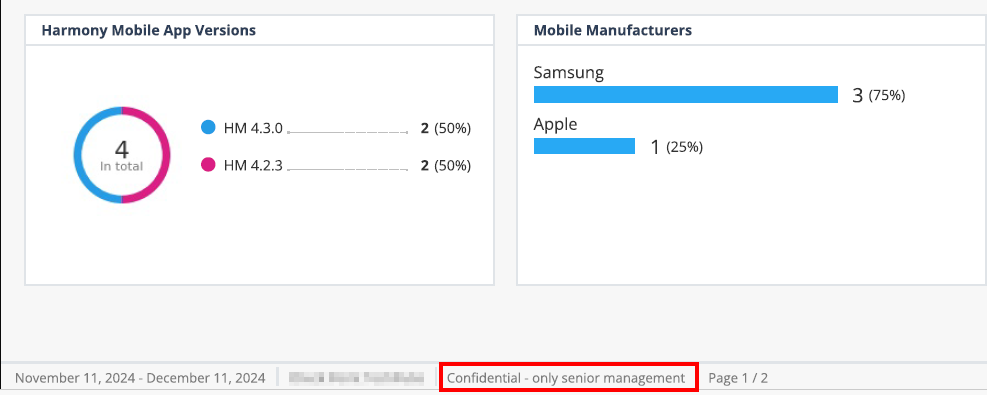
From the Classification Level list, select the audience with whom you can share the report.

Note - The Classification Level does not impact the content of the generated report. It is for informational purpose only and is displayed in the PDF report.
-
Click Save.
The system generates the report at 00:00 UTC on the scheduled day and sends it through email to the administrator who set up the schedule.
Usage Report
Usage reports give Managed Security Service Providers (MSSPs) full visibility into the number of devices and license status across their child tenants. This helps them:
-
Accurately bill customers based on active, inactive, or provisioned devices.
-
Align their license usage (based on active and provisioned devices) to avoid unnecessary costs.
Admins can generate and download this report in CSV format whenever needed, or set up a schedule to automatically generate and receive it on a weekly or monthly basis.
To schedule or generate a Usage Report:
-
Go to Settings > Administrators.
-
Click Notifications.
The Notification Settings pane appears.
-
Expand Report.
-
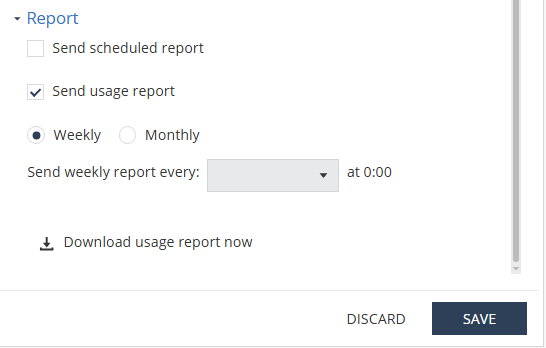
Select the Send usage report checkbox.
-
To schedule the report, select the weekly or monthly option and set the day or date to generate the report.
The system generates the report at 00:00 UTC on the scheduled day and sends it through email to the administrator who set up the schedule.
-
To generate and download the usage report instantly, click Download usage report now.
The system generates and downloads the report in CSV format.
-
Click Save.
Roles Definitions
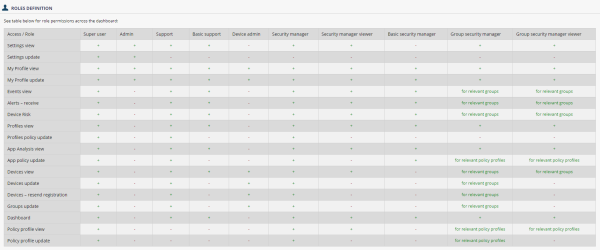
The Roles Definitions tab shows the different roles and their permissions in the Mobile Security Administrator Portal.