
Events and Alerts
The Events & Alerts tab shows an audit trail of incidents and actions that occurred on the devices, for example, Application installation and Profiles detected on devices.

Events & Alerts table:
|
Item |
Description |
||
|---|---|---|---|
|
Date/Time |
Displays the date and time when the event occurred. |
||
|
Severity level |
|
||
|
Attack Vector |
Specifies the nature of the Event/Alert:
|
||
|
Threat Factors |
Specifies the threat factor for the event that occurred. Explains the reason for the severity level. |
||
|
Event |
Specifies the user or the action taken by the Mobile Security solution.
|
||
|
Event Details |
Additional details about the Event, such as name of application installed or removed Wi-Fi SSID |
||
|
OS |
Operating System of the device (iOS/Android). It is determined by the information received from the device when the application is installed. |
||
|
Device ID |
The device ID in the Mobile Security dashboard. |
||
|
User email |
Device user's email address. It is manually set by the Admin or automatically by UEM |


|
|
Note - For Android devices, you get a Phishing alert on the dashboard when Mobile Security detects and blocks a SMS phishing attempt on the mobile device. This feature works only if the end-user has granted access to Harmony Mobile Protect app to scan the SMS received on the device.
For more information on how to grant the access on the device:
|

Filtering the Events & Alerts Table
-
Click the
 icon above the Events & Alerts table.
The Filters pane appears on the right side.
-
Expand the required category and select the filter.
Exporting Events Data to CSV File
To export Events data to a CSV file, click Export above the Events & Alerts table.

The system creates a comma separated values file that can be opened in spreadsheet applications such as Microsoft Excel. Use filter to select the required information for the file.
If the number of events exceeds 10,000, processing the data may take time. So the export is performed offline and an email is sent to the registered address with the link to download the CSV file. The link is valid for 7 days. For privacy reasons, PII data is obfuscated in the CSV file.
Generating Mobile Security Report
The Mobile Security Report provides an overview of the security status of all the mobile devices associated with your account. You can generate and download this report in PDF format whenever you need it, or set up a schedule to automatically generate and receive it on a weekly or monthly basis.
There are two types of security reports:
-
Operational report - Contains the Operational Overview details such as Device Status, Licensing Information, Mobile Models and so on.
-
Full report - Contains both the operational overview and the detailed security status of all mobile devices in your account. It provides full visibility to the Mobile Security usage.
To generate the report, click PDF Report above the Events & Alerts table.

The system generates and downloads the report in this format:
mobile-security-report-yyyy-mm-dd-hh-mm
To select the report type and schedule the Mobile Security Report, go to Settings > Administrators > Notifications. See Scheduling Mobile Security Report.
Viewing Events by Device Risk
In addition to Events view, you can view the events according to device risk (not available when privacy mode is enabled):
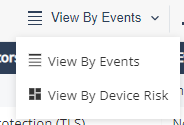
This view shows all the necessary risk information per device in the system, and the number of the devices with a specific risk level.
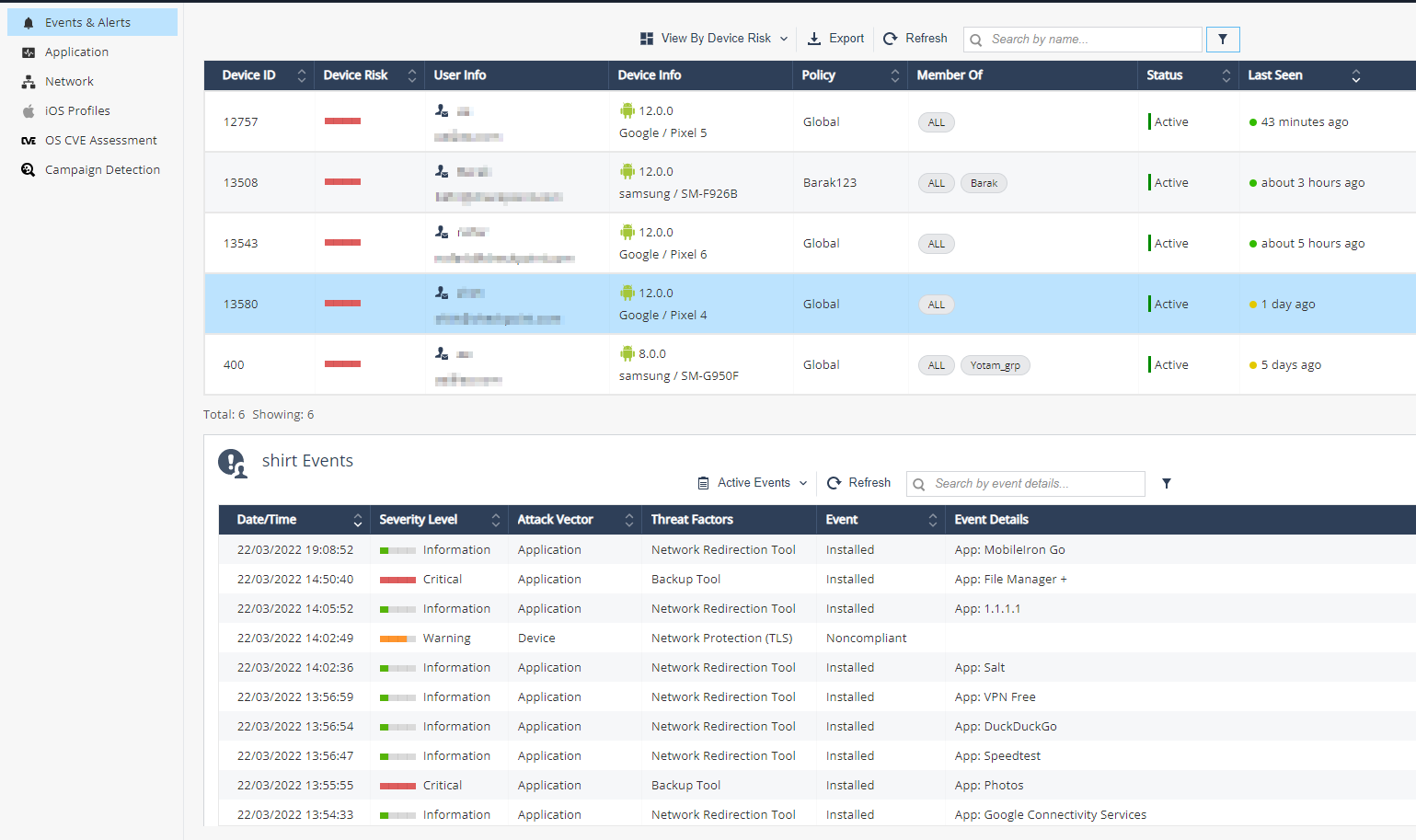
The top table shows the list of devices with their risk levels and the number of devices.
|
Item |
Description |
|---|---|
|
Device Risk |
Device risk is determined by both the accumulative threats risk levels found on it and different settings present on the device. (Debugging tools, Jailbreak, Developer Tools, and so on). Risk levels:
|
|
User Info |
User name and email as configured in the devices screen. |
|
Device Info |
Device Info determined by the information received from the device post the Protect installation:
|
|
Policy |
The device policy, determined according to the device group. Can be Global or custom. |
|
Member Of |
The device groups. |
|
Status |
Indicates the device current state:
|
|
Last Seen |
Last seen field indicates the last time the device communicated with Mobile Security servers. |
You can filter every column in the table:
-
Click Filter
above the table. -
On the Filters pane on the right side, select the information you want to view.
-
You can also export
 the mobile devices information from the table to CSV file, which creates a comma separated values file that can be opened in spreadsheet applications such as Microsoft Excel. Use filter to select the required information for the file. Later you can use those details to approach end-users and instruct them how to remove the risk off their mobile devices, or other related actions.
The lower table on the screen shows the chosen device row events details.
This table has two modes:
-
Active Events (default): Shows only the active events on the device.
-
All Events: Shows active and historic events.
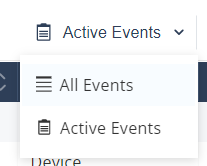
You can filter every column in the table:
-
Click Filter
above the table. -
On the Filters pane on the right side, adjust information you want to view.