
Onboarding Procedure
Automatic onboarding enables Check Point Firewalls to securely connect to the Check Point Portal through the Gateways Connector.
Note:
For more information, see sk180557.
Onboarding AIOps in Smart Console - Procedure
- Log in to SmartConsole.
-
Go to Infinity Services and click Get
Started.
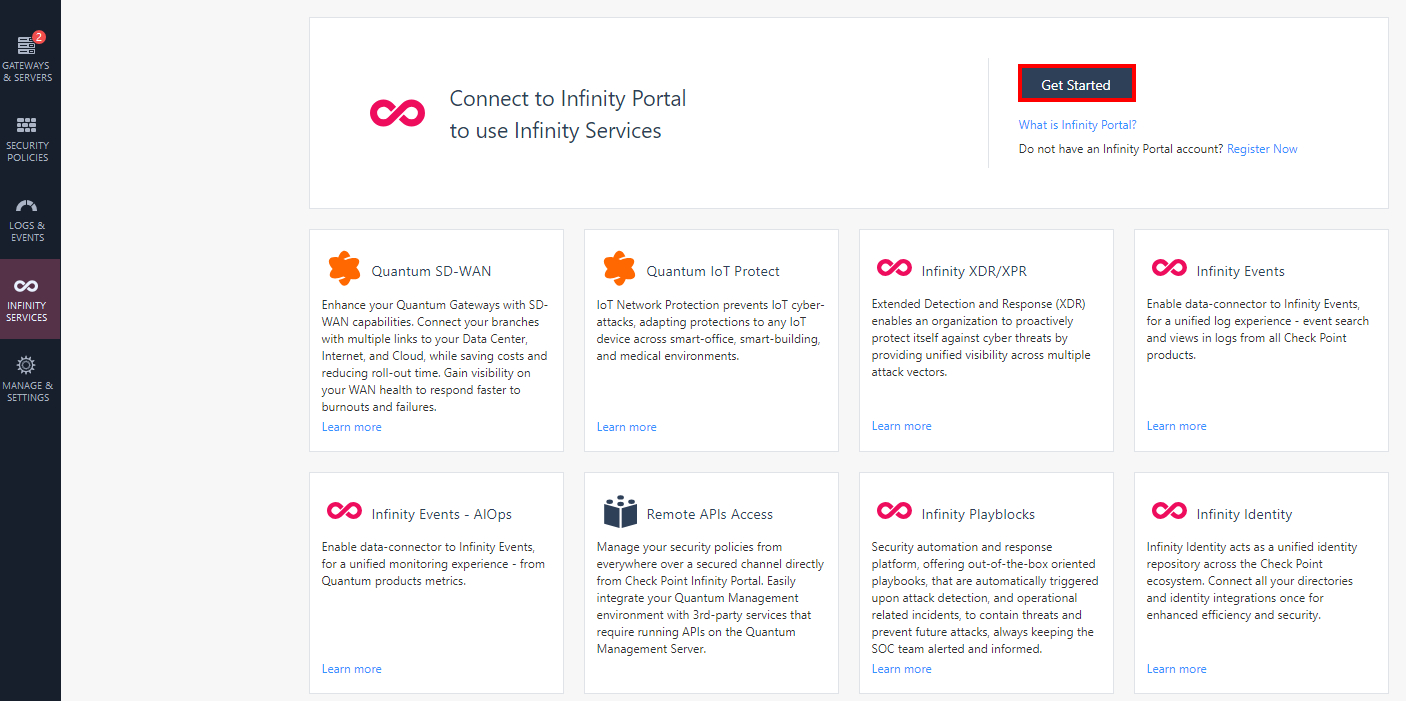
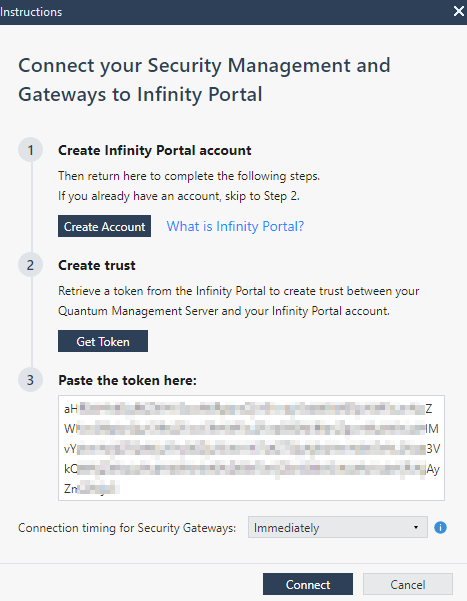
The Instructions window appears.
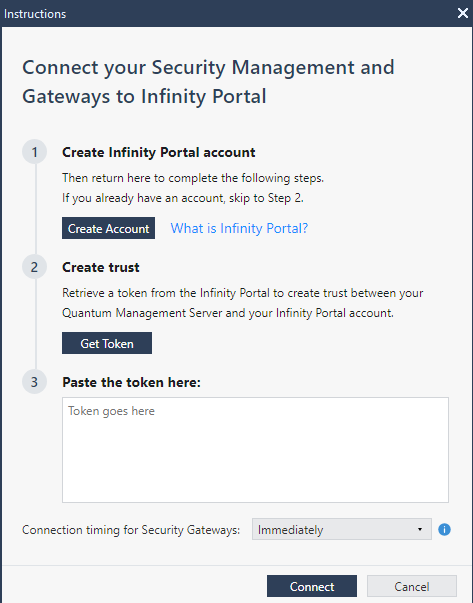
-
To connect your Security Management Server and Check Point Firewalls to
Check Point Portal, click Get Token.
The Check Point Portal Sign In page appears.

- Click Next.
-
Select your Check Point Portal account and click
Next.
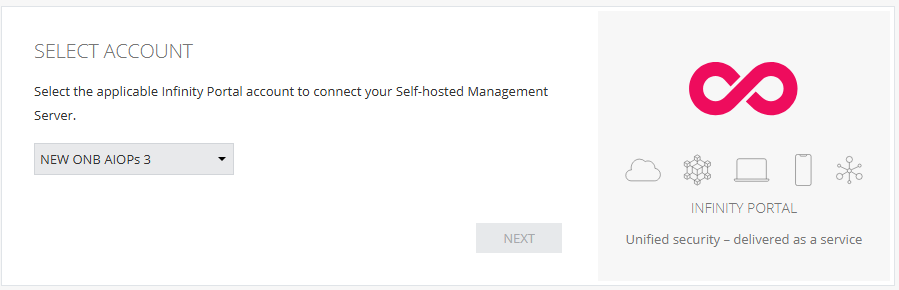
-
Accept the terms of service and click Next.
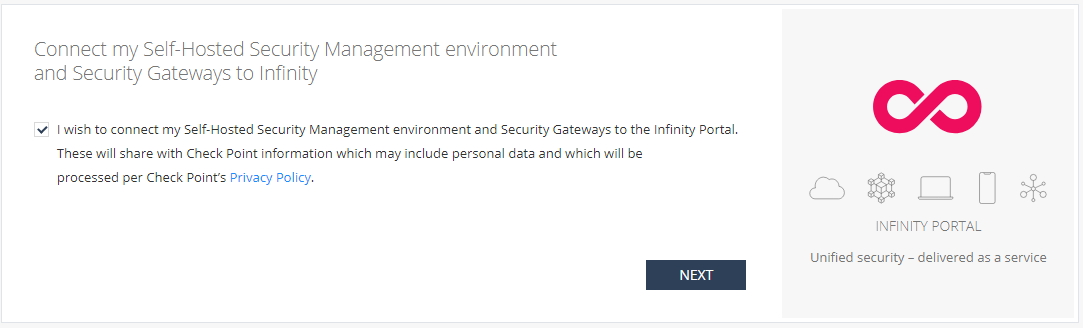
-
Click Copy Token.
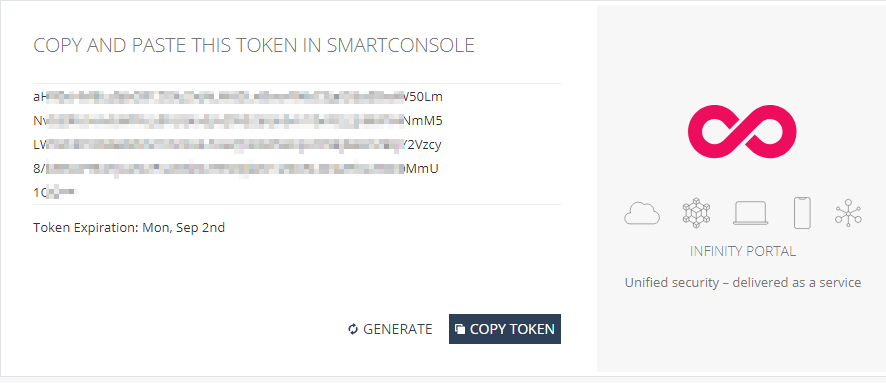
-
In the SmartConsole
Instructions window, paste the token and click
Connect.
When the Management Server is connected to your Check Point Portal account, the Status changes to Active.
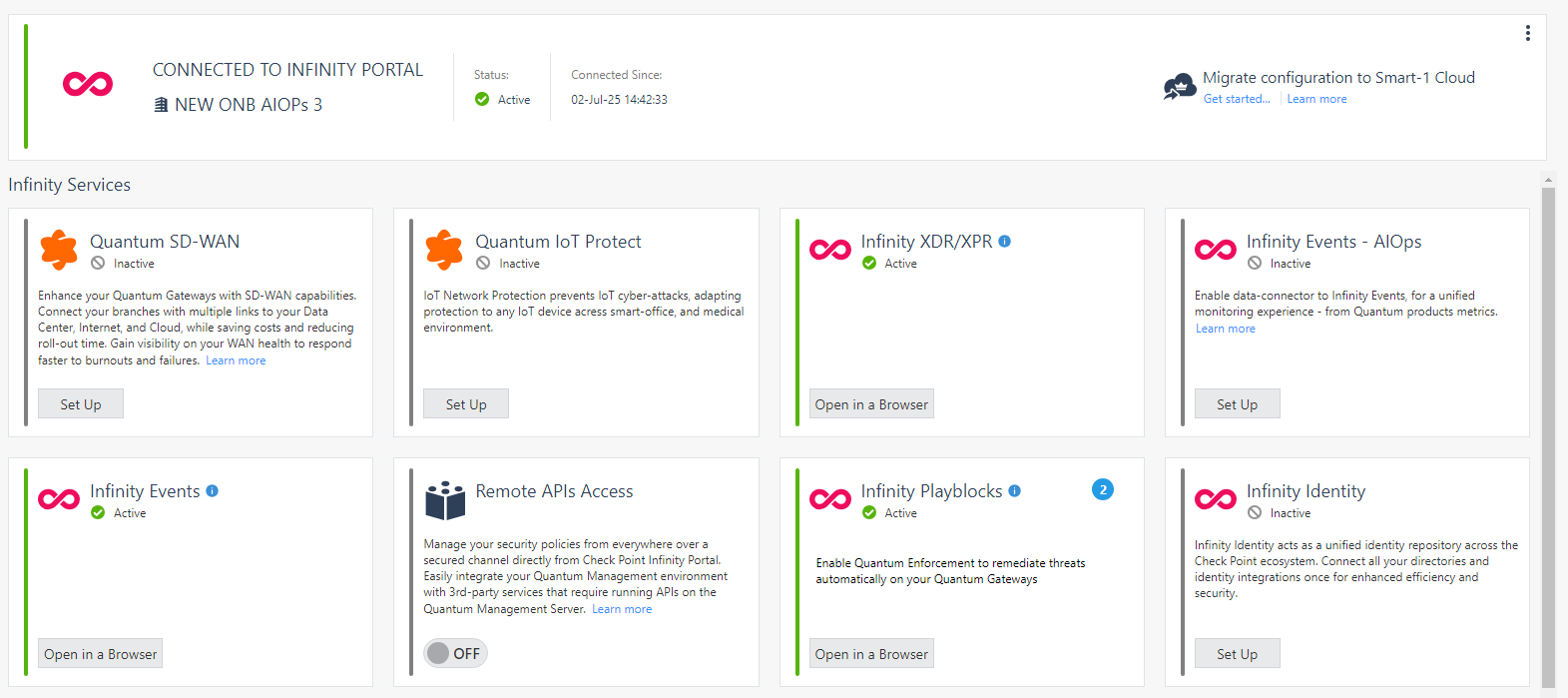
- To activate AIOps, in the Infinity Events - AIOps widget, click Set Up.
-
In the dialog box, select Configuration Sharing and
Gateways Connector and then click I
Agree.
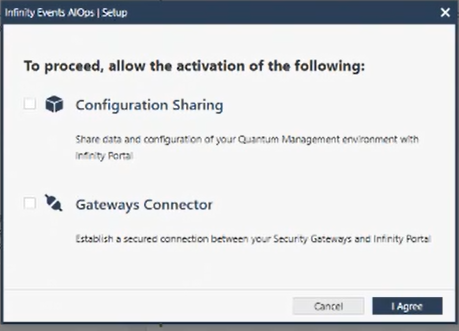
When the setup is completed, the status of Infinity Events - AIOps card becomes Active.
Note:The initialization process may take some time. To monitor the progress, click the
 icon on the top-right corner.
 - Log in to Check Point Portal and access the Events & AIOps Administrator Portal.
-
From the left navigation panel, click AIOps.
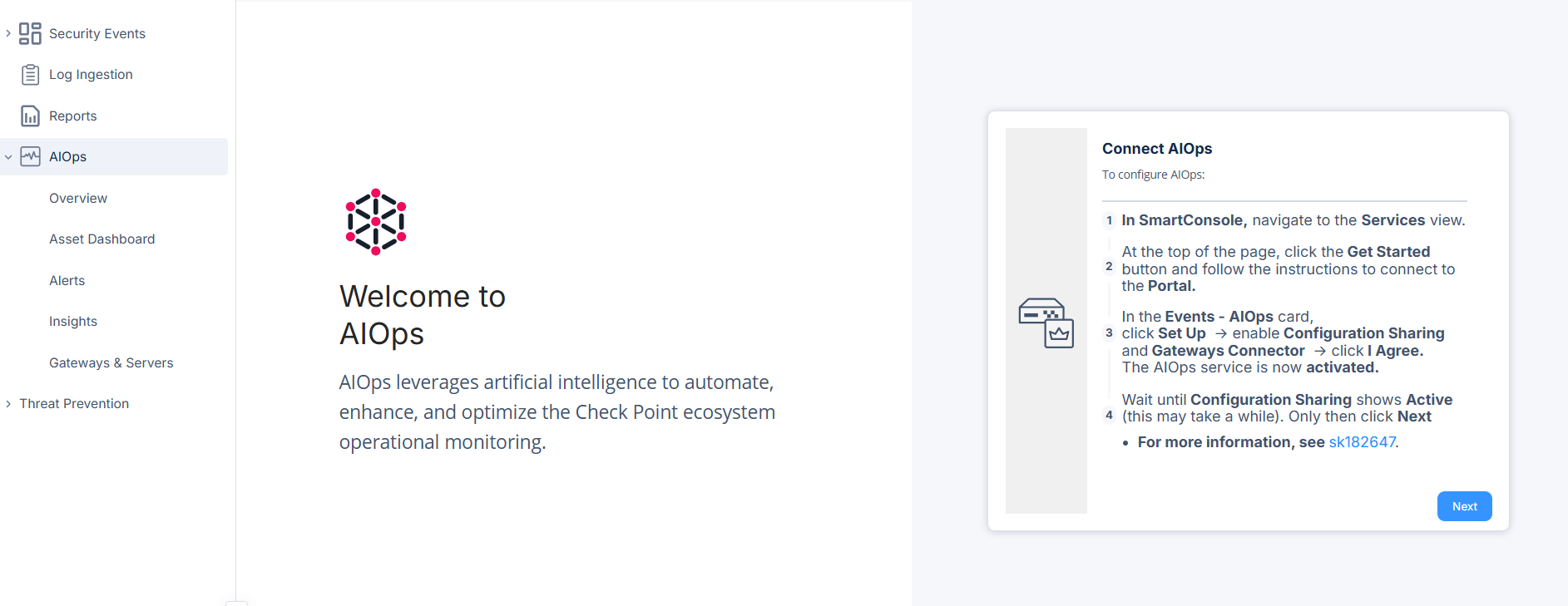
- In the Connect AIOps widget, click Next.
-
In the Monitored Security Groups and Servers widget,
select the required gateways and servers and then click Start
Monitoring.
