
Secure Browsing Policy
Secure Browsing protects users from web based threats by inspecting browser activity and enforcing protections such as phishing prevention and password reuse protection.
Creating a Secure Browsing Rule
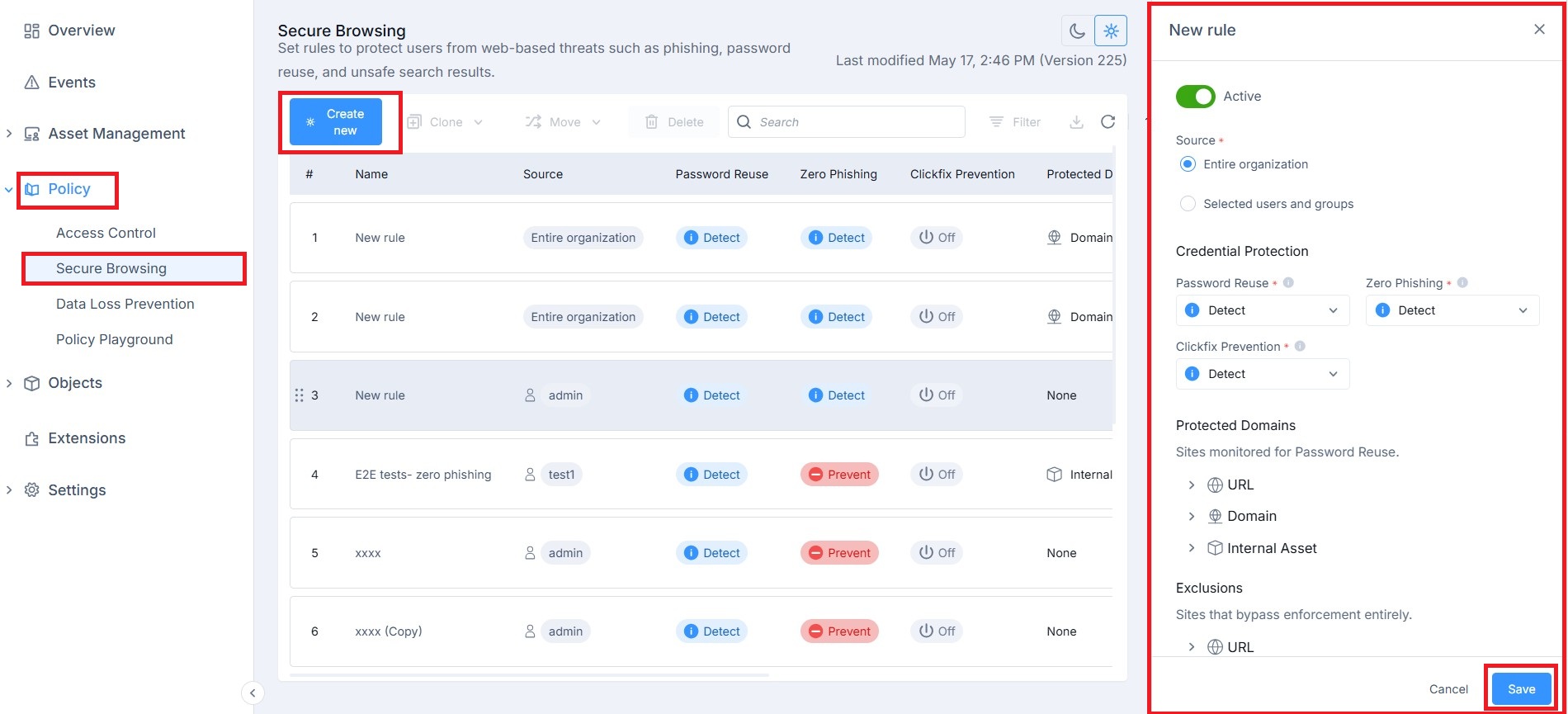
To create a Secure Browsing rule:
-
Go to Policy > Secure Browsing.
-
Click Create new.
-
In the New rule pane, configure the following:
-
Set the Status toggle to Active.
-
In the Source field, select one of the following options:
-
Entire organization
-
Selected users and groups
-
-
From the Password Reuse drop-down, select Off/ Detect/ Prevent/ Ask.
Password Reuse protection monitors the use of corporate passwords and enforces actions when users reuse them on unapproved websites.
-
From the Zero Phishing drop-down, select Off/ Detect/ Prevent/ Ask.
-
In the Protected Domains, select one or more domains or internal assets to define where Password Reuse protection applies.
Internal assets can be selected to define protected domains or exclusions in Secure Browsing policies.
-
In the Exclusions, select one or more URLs, domains, or internal assets to define sites that bypass Secure Browsing enforcement.
-
Under Web Protection:
-
Set Safe Search to On or Off.
-
Safe Search helps enforce safer search results in supported search engines.
-
Set Search Reputation to On or Off.
-
Search Reputation helps identify and warn about low‑reputation or risky search results.
-
-
From the Logging drop-down, select Enabled/ Disabled.
-
-
Click Save.
Editing a Secure Browsing Rule
To edit a Secure Browsing rule:
-
Go to Policy > Secure Browsing.
-
Update capability actions, profiles, or logging.
-
Click Save.

Deleting a Secure Browsing Rule
To delete a Secure Browsing rule:
-
Go to Policy > Secure Browsing.
-
Select the rule.
-
Click Delete.
-
In the Delete Rule pop-up, click Confirm.