
Configuring Access Control Policy
Access Control defines which websites, applications, categories, and GenAI websites users' are permitted to access.
Access Control also defines file protection behavior. In addition to controlling access to websites, applications, and GenAI platforms, Access Control policies define how file downloads and uploads are handled, including whether files are allowed, blocked, emulated, or inspected using file profiles.
Creating an Access Control Policy
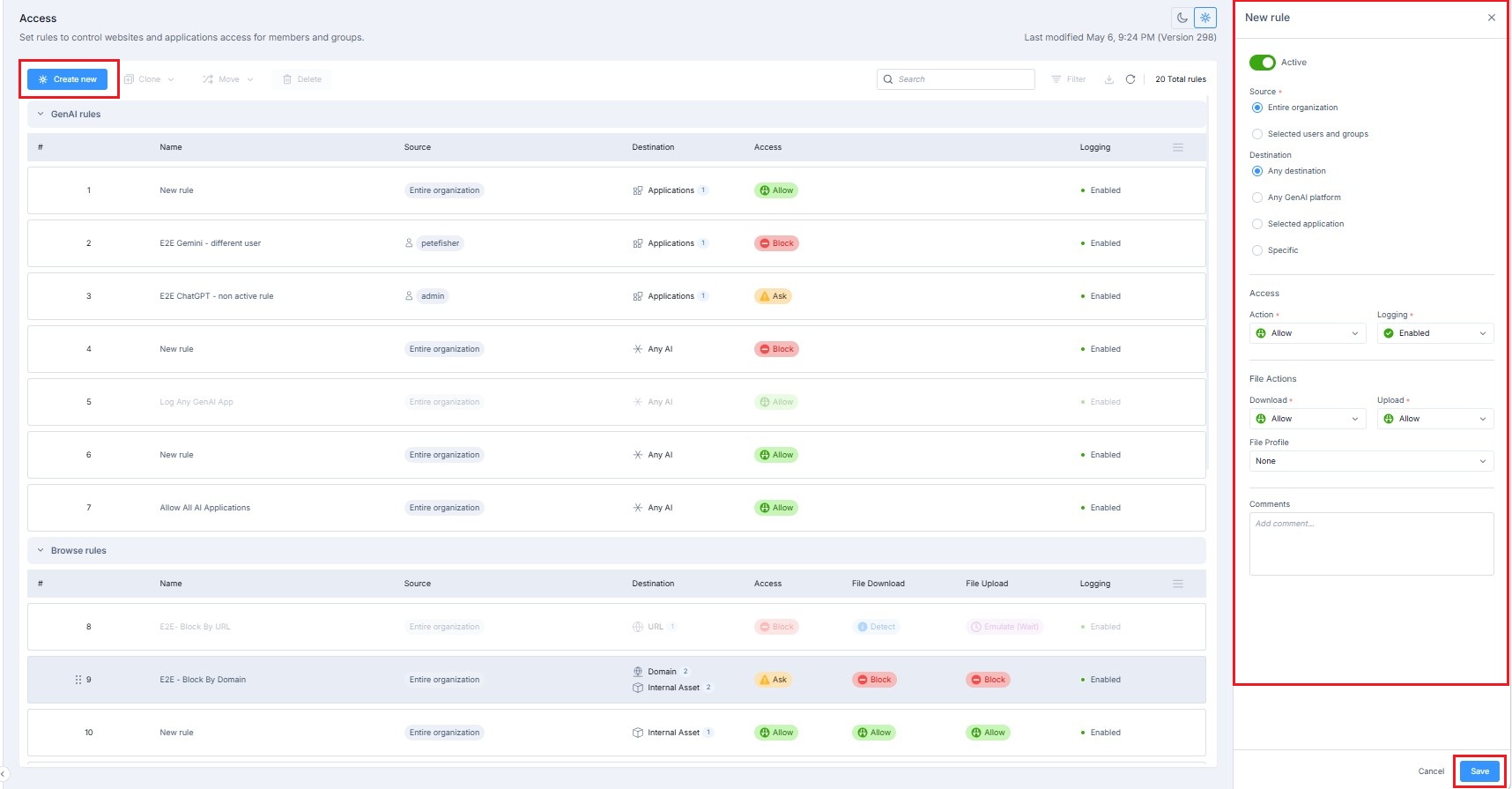
To create an Access Control Policy:
-
Go to Policy > Access Control.
-
Click Create new.
-
In the New rule pane, configure the following:
-
Set the Status toggle to Active.
-
In the Source field, select one of the following options:
-
Entire organization
-
Selected users and groups
-
-
In the Destination field, select one of the following options:
-
Any destination (Internal assets can be selected as destinations in Access Control policies).
-
Any GenAI platform
-
Selected application
-
Specific (URL, domain, or category)
Internal assets can be selected as destinations in Access Control policies.

Note - You can select internal assets as destinations in Access Control policies.
-
-
From the Action drop-down, select Allow/ Block/ Ask.
-
From the Logging drop-down, select Enabled or Disabled.
File protection settings in Access Control define how files are handled when users download or upload content from allowed destinations. These settings let administrators allow, block, or inspect files, and apply file profiles to enforce consistent file security.
-
From the Download drop-down, select Allow/ Block/ Emulate (background)/ Wait for emulation/ Detect/ Extract.
-
From the Upload drop-down, select Allow/ Block/ Emulate (background)/ Wait for emulation/ Detect.
-
From the File Profile drop-down, select a profile.
A file profile defines how files are inspected and handled, including emulation behavior and actions for unsupported or risky file types.
-
(Optional) In the Comments field, enter your comments.
-
-
Click Save.
Editing an Access Control Rule
To edit an Access Control rule:
1. Go to Policy > Access Control.
2. Select a rule Set of traffic parameters and other conditions in a Rule Base (Security Policy) that cause specified actions to be taken for a communication session. from the policy table.
3. Update the required fields in the rule details pane.
4. Click Save.
Cloning an Access Control Rule
Cloning allows you to create a new rule using an existing rule as a template.
-
Go to the relevant policy page.
-
Select the rule you want to copy.
-
Click Clone.
-
Select one of the following options:
-
Clone above
-
Clone below
-
Deleting an Access Control Rule
To delete an Access Control rule:
1. Go to Policy > Access Control.
2. Select the rule.
3. Click Delete.
4. In the Delete Rule pop-up, click Confirm.