
Scaling In and Scaling Out in Cloud Firewall for AWS Auto Scaling Groups
AWS Amazon Web Services. Public cloud platform that offers global compute, storage, database, application and other cloud services. Auto Scaling adjusts the number of Cloud Firewall Gateways in the Auto Scaling Group based on the traffic load.
It uses two main events:
-
Scale Out: Adds Cloud Firewall Gateways to the Auto Scaling Group when the traffic load increases.
-
Scale In: Removes Cloud Firewall Gateways from the Auto Scaling Group when the traffic load decreases.
Default Cloud Firewall Gateway Check Point Virtual Security Gateway that protects dynamic virtual environments with policy enforcement. Cloud Firewall Gateway inspects traffic between Virtual Machines to enforce security, without changing the Virtual Network topology. CPU thresholds to trigger autoscaling events:
-
Scale Out: Triggers at 80% CPU use (5-minute average).
-
Scale In: Triggers at 60% CPU use (5-minute average).
|
|
Note - You can use Cloud Firewall metrics as triggers for scale-in and scale-out events. For more information, see Using Custom Check Point Metrics to Trigger AWS Auto Scaling Events. |
Scale-Out Process
When a scale-out event triggers:
-
AWS Auto Scaling launches new Cloud Firewall Gateways.
-
New Cloud Firewall Gateways automatically run the First Time Configuration Wizard and reboot.
-
-
Detects new Cloud Firewall Gateway instances.
-
Creates a Secure Internal Communication (SIC
Secure Internal Communication. The Check Point proprietary mechanism with which Check Point computers that run Check Point software authenticate each other over SSL, for secure communication. This authentication is based on the certificates issued by the ICA on a Check Point Management Server.) channel with these Cloud Firewall Gateway instances. -
Makes the necessary changes to the Security and Network Address Translation (NAT) policies.
-
Installs a Security Policy
Collection of rules that control network traffic and enforce organization guidelines for data protection and access to resources with packet inspection. on each new Cloud Firewall Gateway.
-
-
The External Load Balancer starts sending traffic to these new Cloud Firewall Gateways.
|
|
Note - New Cloud Firewall Gateways report their status and send logs to the Security Management Server |
Scale-In Process
When a scale-in event triggers:
-
AWS Auto Scaling marks one or more Cloud Firewall Gateways as candidates for termination.
-
The External Load Balancer stops sending traffic to marked Cloud Firewall Gateways.
-
AWS Auto Scaling terminates marked Cloud Firewall Gateways.
-
The Security Management Server:
-
Cleans up any automatically created rules in the Security and Network Address Translation (NAT) policies.
-
Removes terminated Cloud Firewall Gateways from its database.
-
|
|
Important - Keep at least two Cloud Firewall Gateways (one in each Availability Zone) running for redundancy and availability. |
Testing Scale-In and Scale-Out Processes
The initial solution deployment process includes these steps:
-
When the Check Point Cloud Firewall for AWS Auto Scaling Group solution is deployed, it creates Cloud Firewall Gateways.
-
Each new Cloud Firewall Gateway automatically runs the First Time Configuration Wizard. This usually takes 10 minutes to complete. Large Virtual Machines may require additional time.
-
After configuration completes, the Security Management Server automatically installs the Security Policy on these Cloud Firewall Gateways.
-
To verify deployment success, use SmartConsole
Check Point GUI application used to manage a Check Point environment - configure Security Policies, configure devices, monitor products and events, install updates, and so on. to:-
Confirm the Security Policy installation.
-
Verify log generation and transmission by Cloud Firewall Gateways.
-
To test scale-in and scale-out processes, simulate high CPU load on Cloud Firewall Gateways
|
Step |
Description |
||
|---|---|---|---|
|
1 |
Connect to the Cloud Firewall Gateway command line interface (CLI) over SSH. |
||
|
2 |
Enter Expert mode. |
||
|
3 |
Create a script to load the CPUs of Cloud Firewall Gateways at
|
||
|
4 |
Set execute permissions to the script:
|
||
|
5 |
Execute the script to simulate high CPU load:
|
||
|
6 |
Monitor CPU load in a separate terminal (it must be at a high level):
|
||
|
|||
|
7 |
After the new Cloud Firewall Gateway is provisioned, press any key to stop the simulation script on the original Cloud Firewall Gateway. |
||
|
8 |
Monitor CPU load in a separate terminal (it must return to normal levels):
|
||
|
|||
Using Custom Check Point Metrics to Trigger AWS Auto Scaling Events
Cloud Firewall Gateways can report their statistics to the AWS CloudWatch service. For more information, see sk108769: Amazon Web Services (AWS) CloudWatch integration.
To use metrics in AWS Auto Scaling Groups, Cloud Firewall Gateways report their metrics as a group by adding a unique CloudWatch dimension to each metric. The Dimension field allows the user to view Cloud Firewall metrics in CloudWatch as a group.
It is also possible to use those group metrics to trigger AWS Auto Scaling Group scaling events. In Auto Scaling Group deployment, by default, scaling policies are created based on the AWS EC2 CPU Utilization metric.
There are situations in which different Cloud Firewall Gateway statistics are required based on custom metrics: The Cloud Firewall Gateway can report different aspects of performance measuring that might be more relevant to and accurate for the user. For a list of all available custom metrics, refer to sk108769.
In order to properly use Cloud Firewall custom metrics in AWS Auto Scaling Groups, do the following:
-
In AWS CloudWatch Service: Create a new CloudWatch Alarm based on the Cloud Firewall custom metric.
-
In AWS EC2 Service: Replace the Auto Scaling Group Scaling Policy to be triggered from the new CloudWatch Alarm.
Create a new CloudWatch Alarm
|
|
Note - To create a CloudWatch Alarm, you must have metrics that are already reported by instances. You cannot create an Alarm before the Auto Scaling Group is already deployed and reporting metrics. |
-
Open your AWS CloudWatch Console.
-
Under Alarms, create a new Alarm.
-
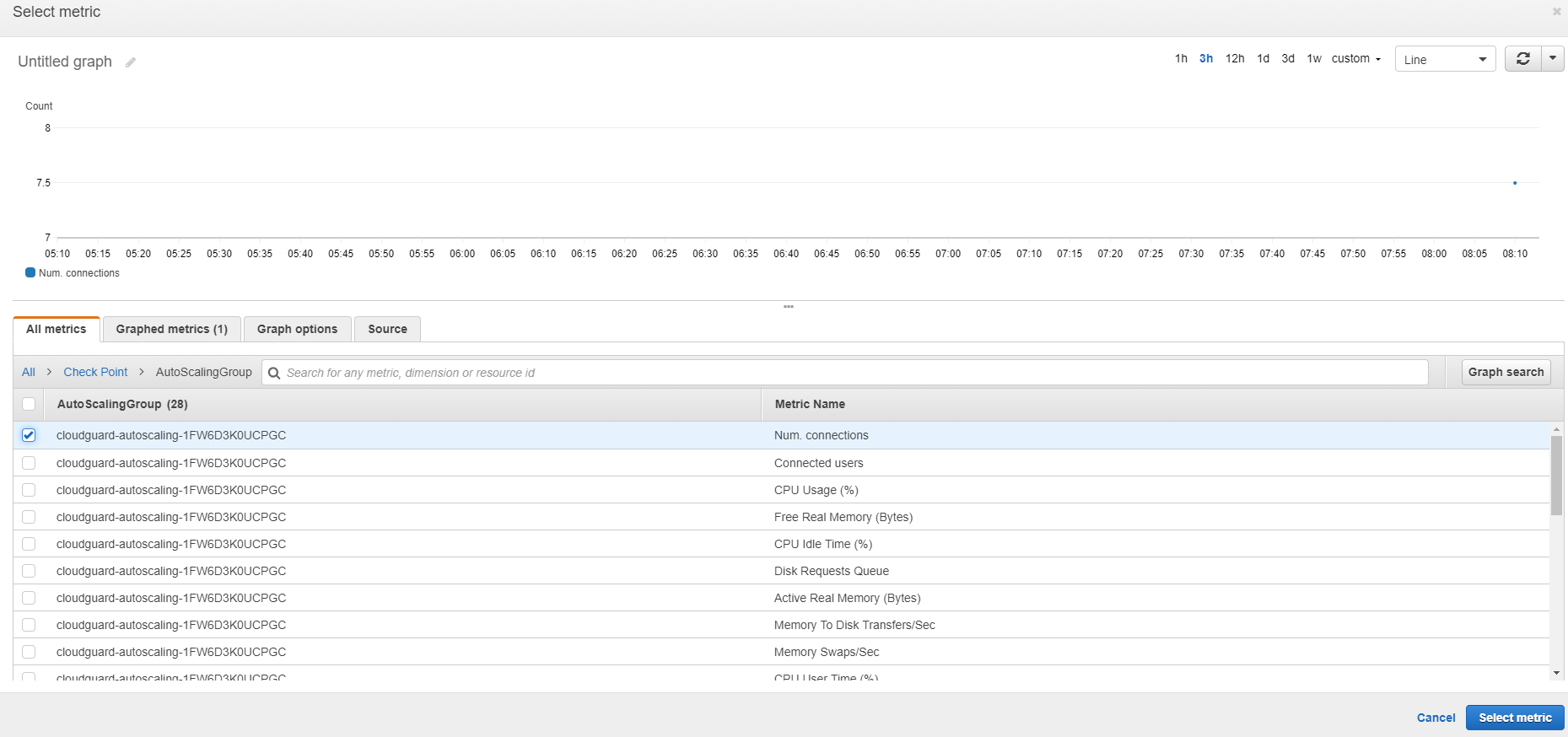
Choose select metric and select custom namespace Check Point.
-
Select the AutoScalingGroup dimension.
You should now see all metrics reported by Cloud Firewall Gateways with the Auto Scaling Group identifier.

Note - Cloud Firewall Auto Scaling Group identifier combined out of the instances CloudFormation stack name with generated random suffix.
-
Select the required metric for the alarm and click select metric.
-
Under Specify metric and conditions, define your threshold and conditions:
-
Keep the statistics field on average.
-
Use static threshold type.
-
-
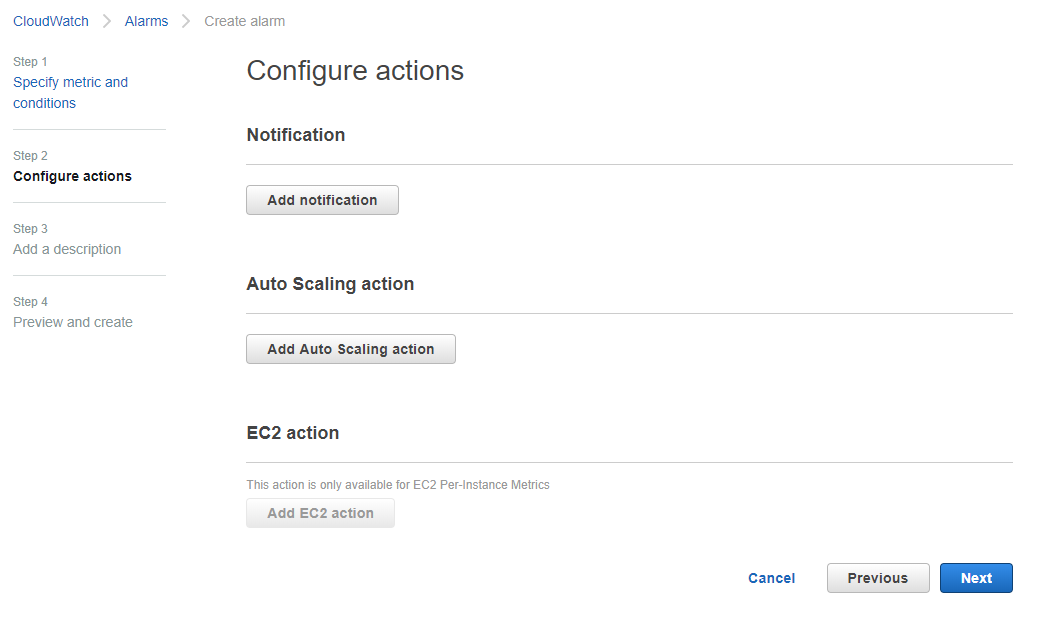
In the Configure actions section, make sure to remove all actions (scaling actions will be linked from the auto scaling menu).
-
Add a description for the alarm (unique name and description.)
-
Preview and create the new alarm.
The new Alarm should appear with its status in the AWS CloudWatch Alarms view.
Configure the Auto Scaling Group in EC2
This section describes how to link the new alarm to an Auto Scaling Group 'scaling policy' instead of to the default scaling policy:
-
In AWS EC2 console, find and select the required Auto Scaling Group and go to the Scaling policies tab.
-
Delete all existing Scaling policies to set up the new alarm.
-
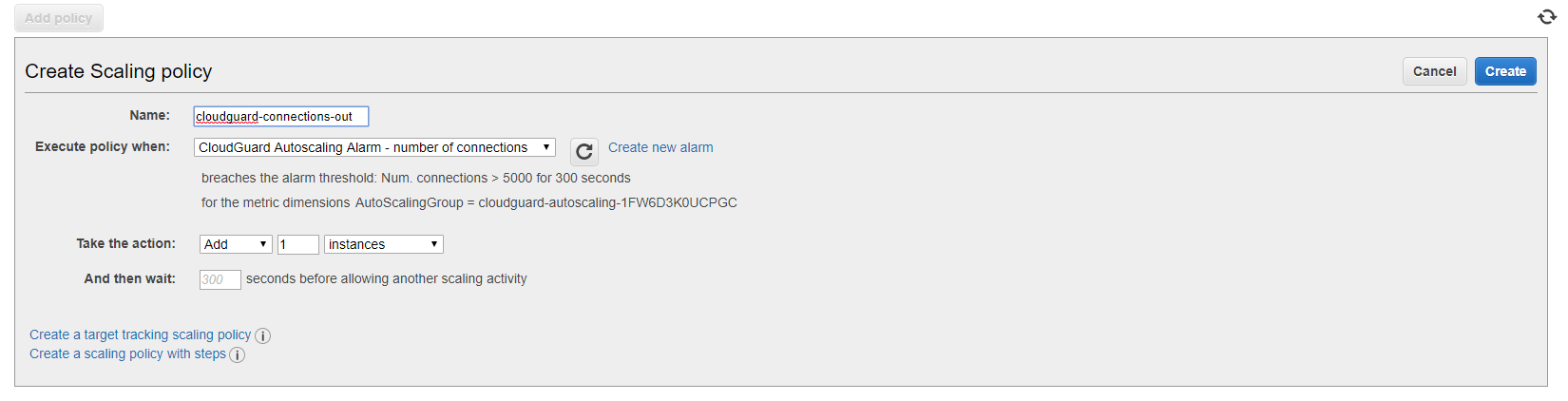
Select Add Policy to create a new Scaling Policy.
-
Select create a simple scaling policy or create a scaling policy with steps which supports Alarms (refer to the AWS documentation to learn more about types of scaling policies)
-
Under execute policy when select the new custom Alarm you created in the section above.
-
Complete the policy name and action to take.
-

Important - To complete the scaling behavior for scale down flows, repeat the two sections above with an additional Alarm for the state in which the Cloud Firewall Gateways group should reduce its size and an additional Scaling Policy action defining how to scale down.
|
|
Notes:
|

Notifications on Scale-in and Scale-out Events
The Cloud Firewall Auto-Scaling CloudFormation template takes an email address as a parameter. When the template is deployed, an SNS (Simple Notification Service) topic is created and the email address is subscribed to that topic. Amazon EC2 Auto Scaling sends a notification to this SNS topic whenever a new instance is added or terminated. You can add, remove, or change this list of subscribers through the AWS SNS web portal.