
Dual-stack (IPv4/IPv6) Architecture inCloud Firewall for Azure VMSS
|
|
Note - The Cloud Firewall for Azure VMSS dual-stack (IPv4/IPv6) deployment requires CME Take 320 or higher. |

Azure's IPv6 connectivity makes it easy to provide dual-stack (IPv4/IPv6) Internet connectivity for applications hosted in Azure. It allows for simple deployment of VMs with load-balanced IPv6 connectivity for both inbound and outbound initiated connections.
Dual-Stack Architecture
The dual-stack configuration uses two network interfaces with both IPv4 and IPv6 addresses.
- eth0 (External) - Dual-stack interface with a private IPv6 and public and private IPv4.
- eth1 (Internal) - Internal-only interface with a private IPv6 and IPv4, no public exposure.
Traffic Flows
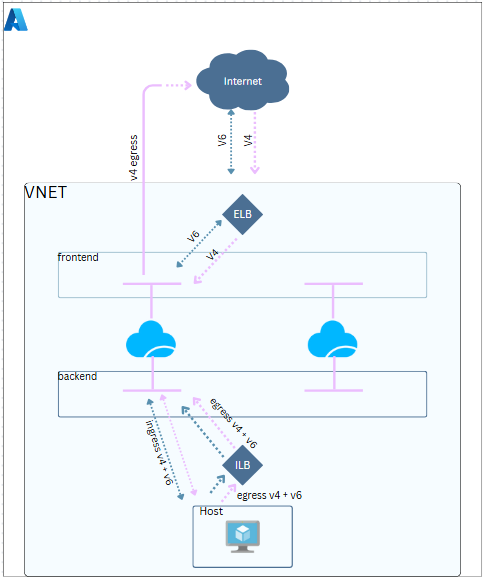
Inbound Traffic Configuration
Configure load balancing rules for IPv6 traffic. Do these steps:
-
In Azure portal, go to Load balancers and select [frontend-lb].
-
Go to Settings> Load balancing rules.
-
Click Add.
-
Configure these parameters:
-
Set IP version to
IPv6. -
Set Frontend IP address to the
IPv6 address. -
Set Backend pool to
frontend-lb-pool-v6. -
Set Health probe to
TCPon8117. -
Set Session persistence to
Source IP and protocol(recommended).
-
The inbound traffic follows this path:
-
Traffic originates from the Internet.
-
Traffic reaches the External Load Balancer (public IPv6 address).
-
Traffic is forwarded to the Cloud Firewall Gateway (
eth0interface). -
The Cloud Firewall Gateway applies policy rules and NAT as required.
-
Traffic is sent to the Host through the
eth1interface. -
Return traffic goes back through the Cloud Firewall Gateway.
-
The Cloud Firewall Gateway forwards the return traffic to the External Load Balancer.
-
The External Load Balancer sends the response to the Internet.
Configure the Inbound NAT rule Set of traffic parameters and other conditions in a Rule Base (Security Policy) that cause specified actions to be taken for a communication session.:
| Original Source | Original Destination | Original Services | Translated Source | Translated Destination | Translated Service |
|---|---|---|---|---|---|
| All_Internet | External LB | Any |
H LocalGatewayInternal |
Host | = Original |
Outbound Traffic Configuration
Configure outbound rules for IPv6 traffic. Do these steps:
-
In Azure portal, go to Load balancers and select [frontend-lb].
-
Go to Settings> Outbound rules.
-
Click Add.
-
Configure these parameters:
-
Set IP version to
IPv6. -
Set Frontend IP address to the
IPv6 address. -
Set Backend pool to
frontend-lb-pool-v6.
-
The outbound traffic follows this path:
-
Traffic originates from the Host.
-
Traffic is sent to the Internal Load Balancer.
-
Traffic reaches the Cloud Firewall Gateway through the
eth1interface. -
The Cloud Firewall Gateway applies Hide NAT on the
eth0interface. -
Traffic is forwarded to the External Load Balancer (using Outbound rules).
-
The External Load Balancer sends the traffic to the Internet.
Configure the Outbound NAT rule:
|
Original Source |
Original Destination |
Original Services |
Translated Source |
Translated Destination |
Translated Service |
|---|---|---|---|---|---|
| Host Server (or Host Clients) | All_Internet | Any |
H LocalGatewayExternal |
= Original | = Original |
Health Probe Configuration for IPv6
A workaround is required to make Azure health probes work with IPv6. Complete these steps to add the required access rule:
-
Create Custom Service:
-
Go to New > More > Service > Other Service.
-
Set Name to
HP_service_V6. -
Set IP Protocol to
6. -
Go to Advanced settings.
-
Set Match to
IPV6_VER tcp,dport=8117,direction=0. -
Set Action to
(call KFUNC_XLATE_FOLD <443, 2; ::> or drop).
-
-
Add Access Rule. Use these parameters:
|
# |
Name |
Source |
Destination |
VPN |
Services |
Action |
Track |
|---|---|---|---|---|---|---|---|
4
|
hp - both elb and ilb
|
fe80::1234:5678:9abc
|
LocalGatewayExternal, LocalGatewayInternal
|
Any
|
HP_service_V6
|
Accept
|
None
|
Validation
-
To test IPv6 connectivity through the External Load Balancer, run this command:
curl -g -6 http://[<External LB IPaddress>]Replace <External LB IP address> with the actual IPv6 address of your External Load Balancer.
-
To verify outbound IPv6 connectivity from the server, run these commands:
curl -6 -I http://example.comcurl -6 http://api64.ipify.org ; echoThe first command tests connectivity to an external website. The second command shows the public IPv6 address that external servers see.
Limitations
-
You cannot assign public IPv6 addresses to instances.
-
VPN connections over IPv6 are not supported.