
CrowdStrike Integration
This document describes the steps to integrate Email Security with CrowdStrike Falcon Next‑Gen SIEM.
High-Level Procedure
Step 1 - Create a CrowdStrike Data Connection
To create a crowdstrike data connection:
-
Log in to the Falcon portal.
-
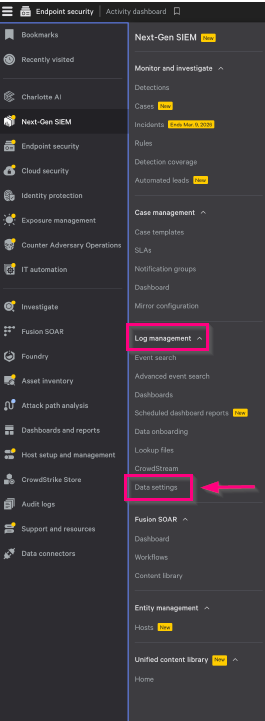
Click the Menu icon and go to Next-Gen SIEM > Log management > Data settings.
-
Go to the Data connections tab and click Add connection.

-
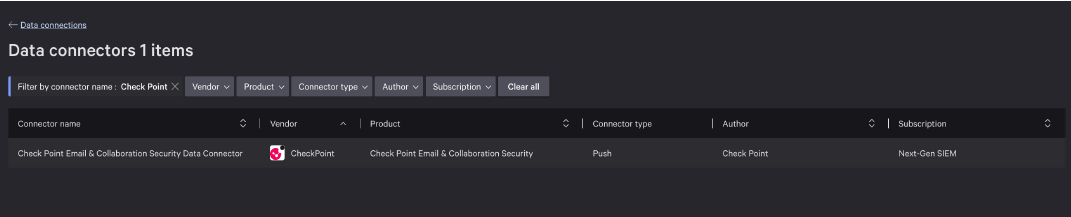
In the Data connections page, enter Check Point in the search bar and filter by connector name.
-
Select Check Point Email & Collaboration Security Data Connector.
The New Connection details page appears.

-
In the Connection name field, enter the required connector name.
-
In the Description (Optional) field, enter the required description.
-
In the Parsing and enrichment section:
-
By default, Check PointEmail Security parser is selected.
-
Select the Enable host enrichment checkbox.
-
Select checkbox for terms and conditions.
-
-
Click Create connection.
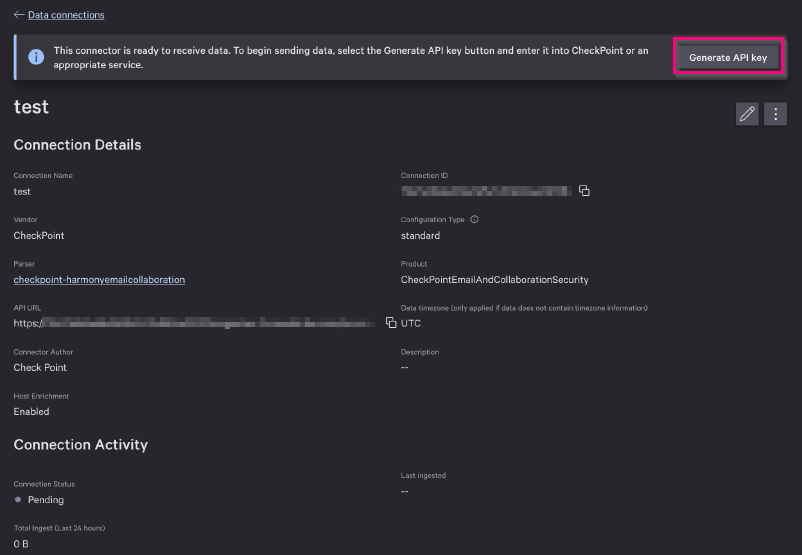
In the Connection Details page, Generate API key banner appears.
-
Click Generate API key.
-
In the Connection setup page, copy the API URL and API Key to configure SIEM integration.


Note - Make sure to note down the API URL and API Key, as they will not be available again.
Step 2 - Configure CrowdStrike SIEM Integration
To configure crowdstrike SIEM integration with Email Security:
-
Access the Email Security Administrator Portal.
-
From the left navigation panel, go to Security Settings > Security Engines.
-
Scrolldown to the SIEM Integration and click Configure.
The Configure SIEM Integration pop-up appears.

-
From the Transport dropdown, select Crowdstrike NG-SIEM.
-
In the CrowdStrike Event Collector Host / URL field, enter the API URL copied in Step 1.
-
In the Bearer Token field, enter the API Key copied in Step 1.
-
From the Format dropdown, select JSON (Crowdstrike ECS compatible).
-
To allow SIEM to collect your system logs, select the Collect System logs checkbox.
-
(Optional) If you want to add custom fields to every event forwarded from CrowdStrike to your SIEM platform:
-
Select the Add custom field checkbox.
-
In the Custom field name field, enter the required name.
-
In the Custom field value field, enter the required value.

Note - You can add only up to five custom fields.
-
-
Click Save.
After you configured the CrowdStrike SIEM integration, Email Security sends logs to CrowdStrike.