
Configuring Malware Policy for Microsoft Teams
By default, the Microsoft Teams malware policy scans for malicious content in the files sent using Microsoft Teams.
Supported Actions
Microsoft Teams malware policy supports these actions:
-
Tombstone of files and text messages that contain malicious content.
-
If malicious content is found, the sender will get the tombstoned message.
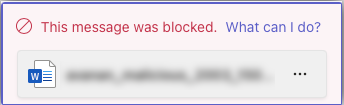
For information about unblocking the tombstoned message, see Unblocking Messages.
-
If malicious content is found, the recipient(s) will get the tombstoned message.

-
-
Alert sender: Sends an email notification to the sender of a file or message that contains malicious content.
-
Alert admin(s): Sends an email notification to the admin(s) about the malicious files or messages.
To configuring Malware Policy for Microsoft Teams:
-
Configure Actions required from the policy.
-
To tombstone messages, enable the Tombstone Message checkbox.
Note:This option will be available only in Detect and Remediate protection mode and when URL Reputation threat detection blade is enabled.
-
To tombstone files, enable the Tombstone File checkbox.
Note:This option will be available only in Detect and Remediate protection mode and when the Anti-Malware threat detection blade is enabled.
-
To send email alerts to the sender about malware in messages and files, enable the Alert sender - messages and Alert sender - files checkbox.
-
To send email alerts to admins about malware in messages and files, enable the Alert admin(s) - messages and Alert admin(s) - files checkbox.

Note:-
Even when the alerts are enabled here in the policy, the administrator only receives email alerts for security events when Receive Alerts role is enabled in the Specific Service Role. For more details about managing roles and permissions in the Check Point Portal, refer to Global Settings > Users in Check Point Portal Administration Guide.
-
To customize the email alert templates, click on the gear icon to the right of the alert.
-