
Click-Time Protection - End-User Experience
After Configuring Click-Time Protection Engine and Click-Time Protection Policy, Email Security replaces all URLs in the incoming emails and their attachments with a Check Point URL.
The URL also provides a tool-tip with the original URL, indicating that the link is protected by Check Point.

Formatted tool tips are available on Microsoft Outlook for Mac, Outlook Web Access, and many other clients. Some clients, such as Outlook for Windows, limit the ability to present tool tips and will present the raw rewritten URL.
Clicks on Malicious Websites - User Experience
When a user clicks on the URL of a website, Email Security checks the target URL.
-
If the URL is not found to be malicious, the user will be redirected to the original URL.
-
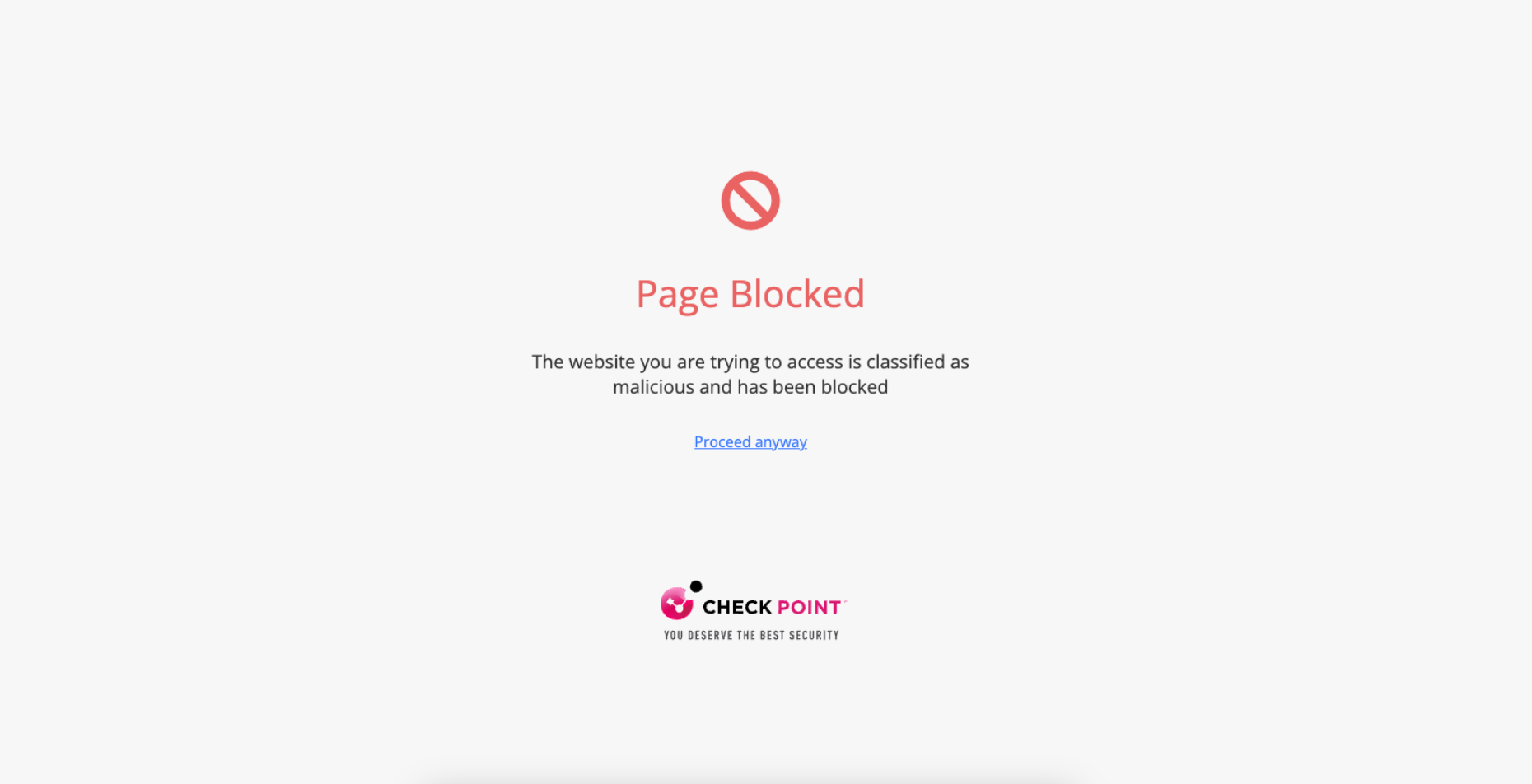
If the URL is found to be malicious, the user will be forwarded to a warning page.
-
If the workflow for malicious URLs is to Prevent access to the malicious URL. User has option to proceed in the Click-Time Protection security engine, an additional Proceed anyway link will be available in the warning page.
-
Clicks on Direct Download Links - User Experience
When a user clicks a direct download link, the Anti-Malware security engine emulates the file.
-
If the file is detected as malicious:
-
If the configured workflow is Prevent download of malicious file. User cannot proceed, it blocks the file and shows the warning page.

-
If the configured workflow is Prevent download of malicious file. User has the option to proceed and download, it blocks the file and shows the warning page. However, the user can click Download anyway to download the file.

-
-
If the file is detected as clean, it shows the notification and downloads the file.

Google Drive Preview Links
By default, in the Gmail interface, when there is a link to a file in Google Drive, the email shows the file preview as if it was attached to the email.

But, when Email Security rewrites the link, the system does not show the file preview.
Forensics
Each stage of the Click-Time Protection process is recorded for forensic and auditing purposes, from the original URL replacement to the result of the time-of-click scan.
Click-Time Protection processes the events as Malicious Url Click and Proceed to Malicious Url.
-
Malicious Url Click event is recorded when a user clicks on the rewritten URL and is redirected to the warning page or block page.
-
Proceed to Malicious Url event is recorded when the user clicks Proceed anyway in the warning page. See Configuring Click-Time Protection Engine.
For multiple recipients, each URL click would generate an event. Events are aggregated by default.

Viewing Emails with the Replaced Links
You can view these details in the Emails with Modified Attachments page.
-
Emails with attachments, where the links in the attachments were replaced. See Click-Time Protection.
-
Emails with attachments that were cleaned. See Attachment Cleaning (Threat Extraction).
The page does not show emails where links in the email body were replaced.
Sending the Unmodified Emails to End Users
To send the original email to the end-user, do one of these.
-
Go to User Interaction > Modified Attachments.
-
To send an original email, click the icon for the email from the last column of the request table and select Send Original.
-
To send multiple emails at a time, select the emails and click Send Original from the top-right corner of the page.
-
Click OK.
-
Open the email profile page.
-
In the Email Profile section, click Send for Send Original Email.
-
Click OK.
Viewing Replaced Links and User Clicks
From the Email Profile page
-
Under Security Stack, for Click-Time Protection, administrators can view:
-
Replaced Links - All the links replaced by Click-Time Protection engine in the email body and its attachments
-
User Clicks - All the clicks performed by users (for clean and malicious websites)

-
-
Under Email Attachments, attachments with replaced links will be marked with a small icon.
From the Attachment Info page
-
Under Security Stack, administrators can see all the Replaced Links in the attachment.
The list of User Clicks on links inside the attachments and in the email body is available only on the Email Profile page and not on the Attachment info page.
Determining which User Clicked a Link
Identification of the user that clicked a link is based on a cookie Email Security adds to the clicking user's browser.
Identification procedure:
-
When a user clicks on a replaced link in an email sent to only one email address (click number 1), Email Security adds a cookie to the user's browser.
-
If the user clicks (click number 2) on another replaced link in an email using the same browser within 30 days of the previous click, and the email is sent to the same email address, the user's identity will be linked to that browser.
-
Click number 2 and all future clicks on replaced links (that are opened on the same browser) within the next 365 days will be attributed to the user, regardless of the number of email recipients.
-
After 365 days from click number 1, the cookie is removed from the browser, and the procedure restarts.
Example: Every row in this table describes a click on a replaced link by John Smith:
|
Date |
Email recipients |
John Smith's browser |
Reported clicked user |
Why the user is reported as the clicked user? |
|---|---|---|---|---|
|
01 January 2023 |
John Smith |
Cookie is added |
Undetermined |
One click is not enough to determine the user as John Smith. |
|
02 January 2023 |
John Smith Mary Brown James Wilson |
Cookie is still valid |
Undetermined |
Waiting for another click from this browser on links in emails with a single recipient. |
|
03 January 2023 (or any date before 30 January 2023) |
John Smith |
Cookie is still valid |
John Smith |
John Smith clicked the replaced link (click number 2) in an email (sent only to one person) using the same browser within 30 days from the previous click. So, John Smith is reported as the clicked user. |
|
20 February 2023 (or any date before 01 January 2024) |
John Smith Mary Brown James Wilson |
Cookie is still valid |
John Smith |
As the cookie is still valid, John Smith is reported as the clicked user though the email is sent to multiple users. |
|
01 January 2024 |
John Smith |
New cookie is added |
Undetermined |
Now, as 365 days are complete from the first click (click number 1), the old cookie is removed, a new cookie is added, and the user identification procedure starts again. |