2. SASE-Based Access to Private Corporate Resources
Goal
Provides secure and seamless access to private web resources without added latency or dependency on centralized gateways. Mobile device security ensures advanced threat prevention while maintaining an optimal user experience.
Important Points
-
User access to non-corporate web destinations is routed directly from the mobile device
-
Access to private corporate resources from non-compromised device is allowed only after user authentication and authorization
|
Step |
Instructions |
|---|---|
|
1 |
Launch the Harmony Mobile application from the home screen. |
|
2 |
The lower section of the client displays the option to connect to the private corporate network through SASE infrastructure.
|
|
3 |
If the user is not connected to the SASE network, the private resource is inaccessible; return to the home screen and open the Private Site link. |
|
4 |
Launch the Harmony Mobile application and click Connect to connect to SASE network. Note the GW user is connected to and the Internal IP address used to access private resources on internal network |
|
5 |
a. Return to the home screen and open again the Private Site link. b. Since the user is connected to SASE network he’s is able to access the internal Web server
|
|
6 |
The next steps will demonstrate administrator perspective on monitoring SASE activities and checking |
|
7 |
To confirm the login from the Infinity Portal:
|
|
8 |
After a successful login, ensure you are in the demopoint-demo tenant.
|
|
9 |
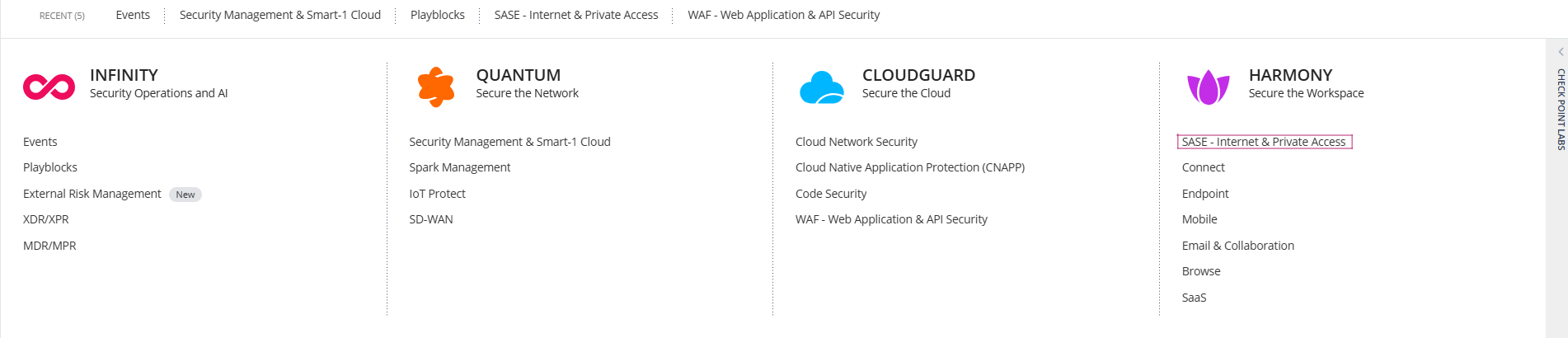
Navigate to Harmony → SASE.
|
|
10 |
Go to Monitor & Logs → Member Activity. Verify that the last successful login of MobileUser SASE to the SASE network is displayed.
|
|
11 |
In the Infinity Portal, navigate to Security Management & Smart-1 Cloud.
|
|
12 |
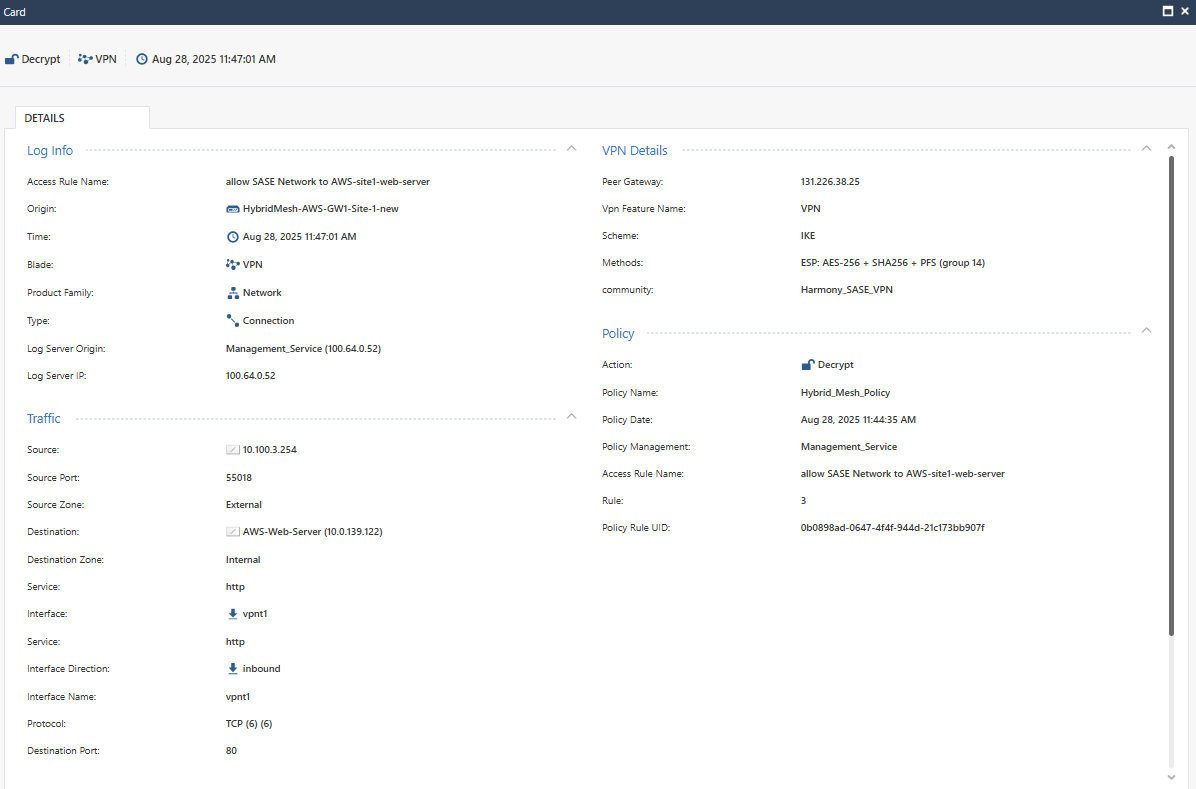
Click Logs & Events, then apply the following filters: Blade: VPN Origin: HybridMesh-AWS-GW1-Site-1 This will display traffic from the SASE PoP to the Web Server behind the Cloud Firewall.
When users access resources through the SASE Client, the session logs will show traffic originating from a reserved internal gateway IP (e.g., 10.100.7.254 or 10.100.3.254) rather than the client IP. This is because the Harmony SASE reverse proxy initiates the request on behalf of the authenticated user. This design is intentional and aligns with Zero Trust principles, the user has already passed authentication and security checks before traffic is proxied through the gateway. The reserved .254 addresses are consistently used across gateways for this purpose, providing a trusted and controlled source of traffic into the VPN infrastructure. |
|
13 |
Double-click on the log entry to view more details.
|