
Pairing
Pairing is when you make a connection between the Security Gateway and your mobile device.
When you generate a pairing code in the Security Gateway WebUI, the Security Gateway automatically enables the Reach My Device feature in WebUI (Device view > System section > DDNS and Device Access page) and in Gaia Clish.
You can also enable and disable the Reach My Gateway service in WatchTower from the Settings page. If the Reach My Gateway service is disabled, the app can only connect locally to the Security Gateway (only from the Security Gateway's local/wireless network) and not through the Internet.
Pairing methodologies:
-
Scan a QR code.
-
Tap an invite link (opens the app) sent to your phone.
-
Manual process.
Paring with a QR code
-
In the Security Gateway WebUI, go to the Device view > System section > Administrators page and click Mobile Pairing Code.
Note - The Pairing button also appears on the Overview page.
-
This WebUI page generate and shows a QR code.
-
In WatchTower, tap Add Gateway and scan the QR code.
You are redirected to the login page.

Notes:
-
The QR code can only be used one time.
-
The QR code is temporary. The default time before expiration is 1 hour.
-
Example:
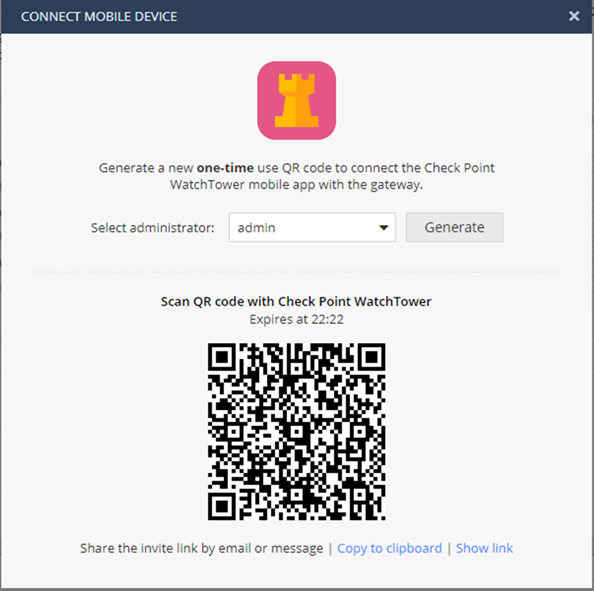
Paring with an Invite Link
-
In the Security Gateway WebUI, go to the Device view > System section > Administrators page and click Mobile Pairing Code.
Note - The Pairing button also appears on the Overview page.
-
A QR code and the invite link are generated and displayed.
-
Click Copy to clipboard.
You can now paste the link and send it to your mobile device.
-
If WatchTower is already installed, the link opens the Security Gateway login page. After you log in, the app is paired to the Security Gateway.
-
If WatchTower is not installed, you are redirected to the relevant App Store.
-
The invite link is temporary. The default time before expiration is 1 hour.
Example:
Manual Pairing
To allow pairing, your mobile device must be connected to the wireless network of the Security Gateway, or to an external wireless network that is connected to the LAN of the Security Gateway.
If you pair the Security Gateway and the app manually, you must configure these settings in the Security Gateway WebUI > Device view:
-
In the Network section > on the Wireless page, configure a Standard wireless network.
-
In the System section > on the Administrator Access page, in the Select the sources from which to allow administrator access section, select Trusted Wireless.
Alternatively, all you need is an external WiFi transmitter connected to the Security Gateway through a LAN port.
To manually pair your mobile device to the Security Gateway:
-
Open the WatchTower app.
-
Create a mobile account if you did not do so already.
-
On the Connect to your Security Gateway page, enter these credentials:
-
Wireless - The wireless network to which you are currently connected. To access a different wireless network, tap Change.
-
Gateway IP address. If you use a port other than the standard 4434, you must add the port to the IP address.
For example:
192.168.1.1:<Port_Number> -
Administrator Name
-
Password
-
-
Tap Connect.
Troubleshooting
If the Security Gateway pairing fails:
-
Verify that your mobile device is connected to the Internet and try again (might be a momentary disconnection).
You can also move to cellular (3G/4G) to evade the wireless if it is disconnected from the Internet.
-
Verify that this Security Gateway is not already connected to your app.
-
Generate a new QR code and try again (the temporary QR code may be expired).
Note - If there is a problem in connectivity to the Reach My Gateway service, the QR code generation fails with a relevant message.