AI Auditor
Introduction
Watch the Video
AI Auditor is a policy analysis and auditing tool that helps strengthen your organization's security posture. It compares access control policies against organizational requirements, enabling you to identify policy violations, detect inconsistencies, and ensure policies are implemented as intended. Use AI Auditor to verify compliance with corporate security standards and maintain consistent policy enforcement across your environment.
AI Auditor Workflow
-
The administrator defines network segments.
First, the administrator selects the network segments to audit. Each segment is defined by a network group, which is a collection of IP addresses and networks that represent a distinct part of the network. For example: DMZ, Branch Offices, and Data Center.
After the administrator selects the network segments to audit, AI Auditor creates a table that contains the selected network segments. Each cell in the table represents a traffic flow between a source segment and a destination segment or within a segment.
-
The administrator defines the guidelines
For each cell in the table, the administrator specifies whether traffic is allowed between the source and destination segments. By default, all traffic between two segments is blocked and all traffic within a network segment is allowed.
You can create multiple sets of guidelines, each focused on a different network area, based on your needs and the required level of granularity.
For example:
One set of guidelines focuses on the traffic flow between key segments, such as Data Center, DMZ, Public Cloud, Branch Offices, User Networks, and OT Network.
Another set of guidelines focuses exclusively on traffic between the Branch Offices, with selected segments including, for example, the New York Office, Tokyo Office, London Office, and Paris Office.
-
AI Auditor analyzes the Rule Base
AI Auditor evaluates the rules in each table cell against the guidelines:
-
For each rule
 Set of traffic parameters and other conditions in a Rule Base (Security Policy) that cause specified actions to be taken for a communication session., AI Auditor determines whether or not it complies with the guidelines.
 -
A rule that does not comply with the guidelines is marked as violating the guidelines.

Notes:
-
AI Auditor marks an Accept rule as violating the guidelines if no Drop rule above it, in the same cell scope, fully covers its source, destination, and services.
-
AI Auditor does not mark an Accept rule as violating the guidelines when a single Drop rule located above it in the Rule Base
All rules configured in a given Security Policy. Synonym: Rulebase. blocks all traffic allowed by that Accept rule. -
AI Auditor does not mark the Accept rule as a violation if multiple Drop rules above it collectively cover its source, destination, and services, even when no single Drop rule provides full coverage.
-
-
-
The administrator audits the rules
For each violating rule, the administrator can decide whether to:
-
Approve the violation.
-
Modify the rule to comply with the guidelines.
-
Modify the guidelines.
-
Prerequisites
-
R82.10 Jumbo Hotfix Accumulator Take 19 or higher.
-
R82.10 SmartConsole Releases Build 424 or higher.
-
A valid AI Auditor license. For more information, contact Account Services.
Supported Objects
In a network group, supported objects include:
-
Network objects with IPv4 addresses
-
Hosts with IPv4 addresses
-
Network objects with IPv6 addresses
-
Hosts with IPv6 addresses
Known Limitations
-
You can include up to 12 segments in one set of guidelines.
-
AI Auditor does not preserve calculations after an upgrade to another version or migration to another server. After an upgrade or a migration, you must recalculate all sets of guidelines. Calculations are preserved when installing a Jumbo Hotfix
Software package installed on top of the current software version to fix a wrong or undesired behavior, and to add a new behavior..
Creating AI Auditor Guidelines
To create AI Auditor guidelines
-
In SmartConsole
Check Point GUI application used to manage a Check Point environment - configure Security Policies, configure devices, monitor products and events, install updates, and so on., go to the Security Policies view > Access Control policy > AI Auditor. -
Click Create guideline.
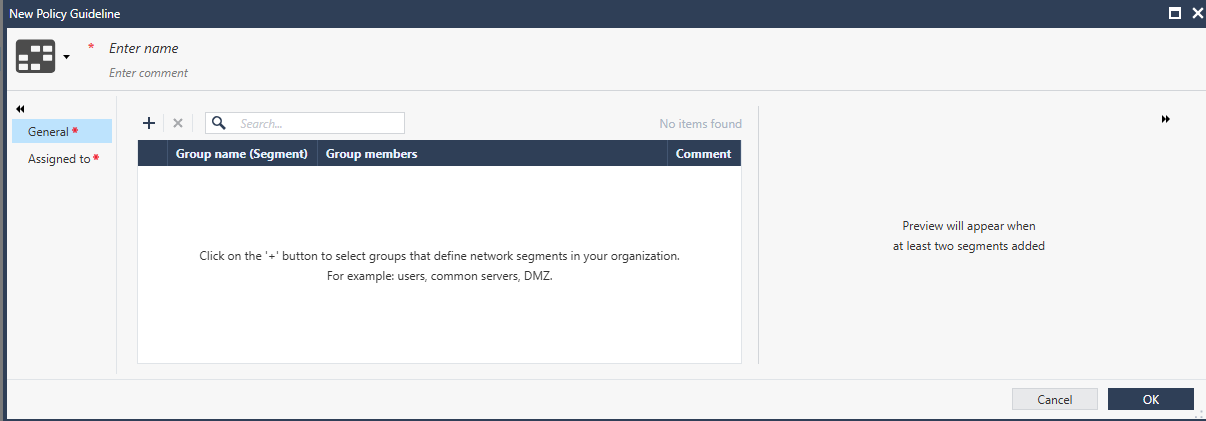
The New Policy Guideline window opens.
-
Enter a name for the guidelines.
-
In the General tab:
-
Click the plus sign (+).
-
From the drop-down list, add the relevant segments to include in the guidelines.
Segments are represented by Network Group objects. For each segment, select a Network Group object, which is a collection of IP addresses and networks.
Note - After assigning a global policy in a Multi-Domain environment, you can also select global network groups as network segments for your guidelines.
-
-
Optional: To create a new group, click the
 icon.
icon. -
In the Assigned to tab, select the Policy Layer
Layer (set of rules) in a Security Policy. to which the guidelines apply.
Note - You can assign the same policy guidelines to multiple Policy Layers.
-
Click OK.
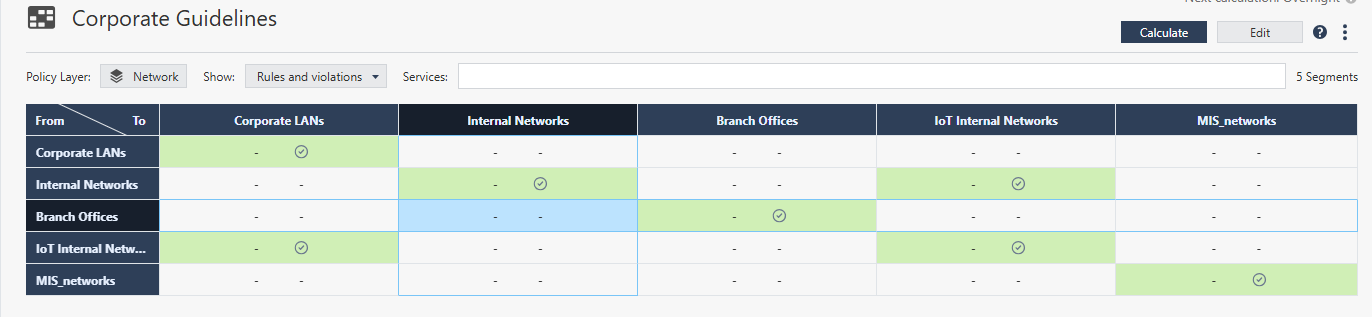
AI Auditor creates a table in which each cell represents traffic between two segments.
By default:
-
All traffic within a segment is allowed (cells marked in green).
-
All traffic between two different segments is not allowed.

-
-
In each cell, click the drop-down menu and select one of these options:
-
All traffic is allowed - Allow all traffic between these segments. Do not flag any rule as a violation.
-
All traffic is not allowed - Do not allow traffic between these segments. Flag all Accept rules as violations.
You can exclude specific services from violation detection. Rules that include an excluded service are not flagged as violations.
To exclude services:
-
Click Manage allowed services.

-
Click the plus (+) sign and select the required services.
-
Click OK.
Traffic that matches the selected services is allowed and is not considered a violation.
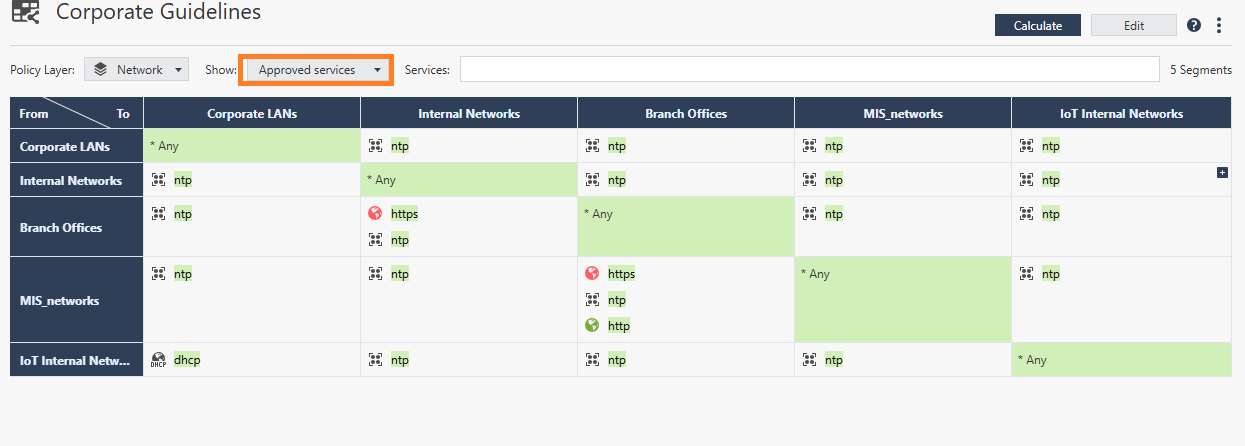
To see the services that you excluded from inspection, from the Show drop-down menu, select Approved Services:
-
-
Decide later - Do not evaluate rules for this cell.
The guidelines are created.
-
-
To edit the guidelines, click Edit in the top-right corner of the screen.
Auditing Policy Rules Based on the AI Auditor Guidelines
To audit the policy rules based on the AI Auditor guidelines:
-
In the Policy Layer field above the guidelines, click the drop-down menu to select the Policy Layer you want AI Auditor to audit.
-
In the top toolbar of AI Auditor, click Calculate.
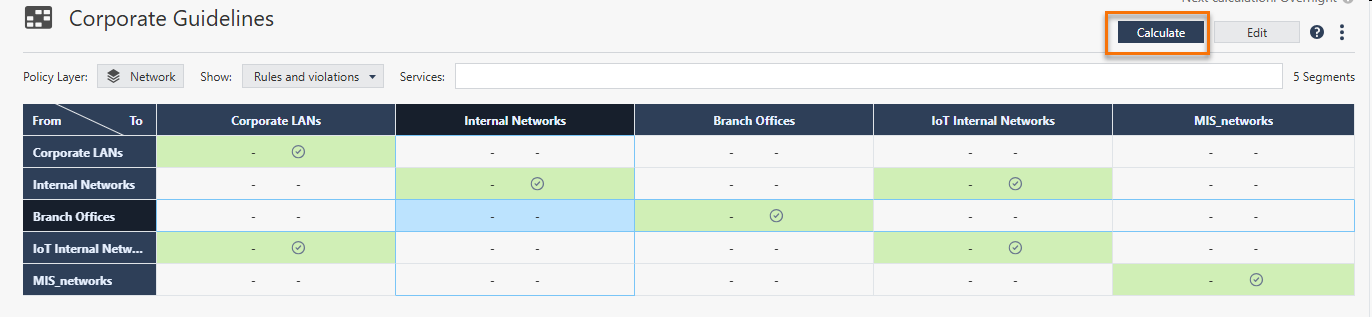
AI Auditor calculates the rules based on the guidelines that you created.

Notes:
-
If you have unpublished changes, AI Auditor prompts you to Publish & Calculate.
-
Last and next calculation times are displayed above the Calculate button:

-
-
Select a cell in the calculated results.
Note - You can use the Services search box to filter the results by service.
For example:
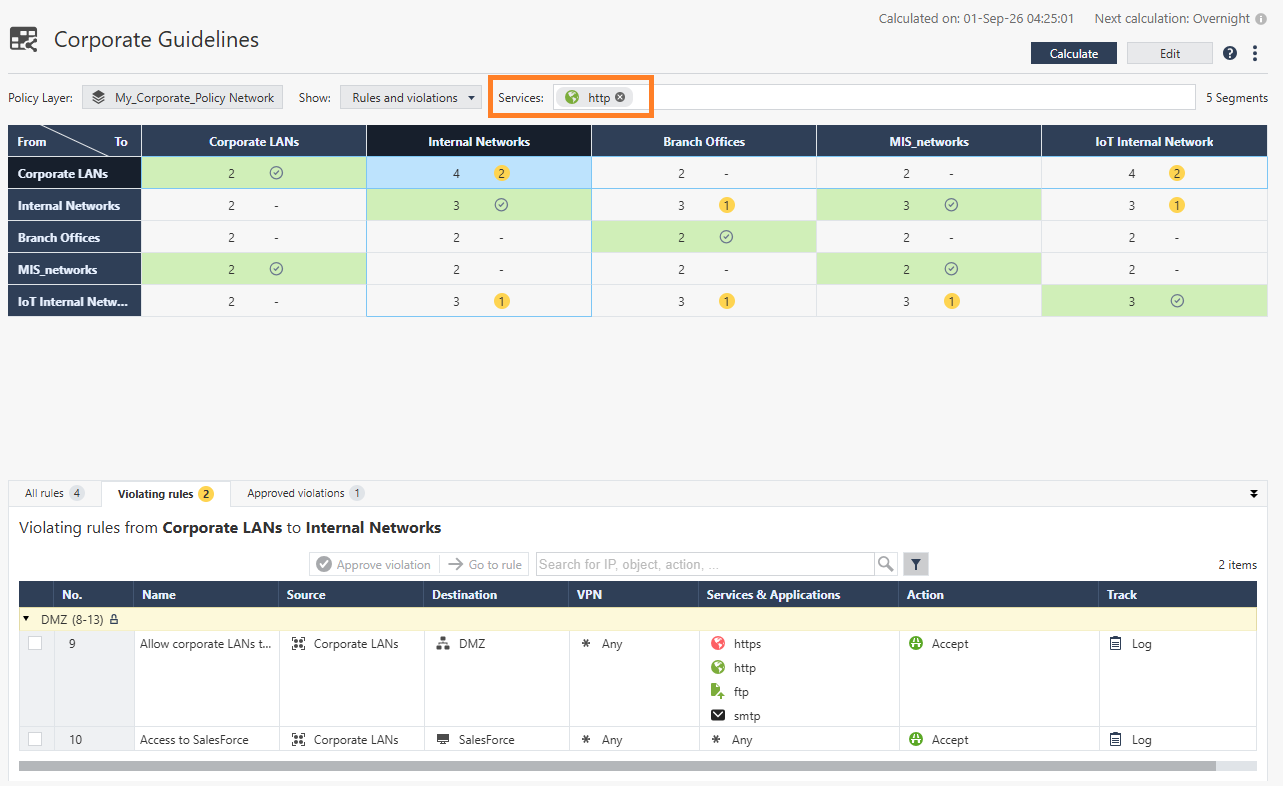
For each selected cell, the bottom pane of the AI Auditor window shows these tabs:
-
For each selected cell, see the Violating rules tab at the bottom pane of AI Auditor.

-
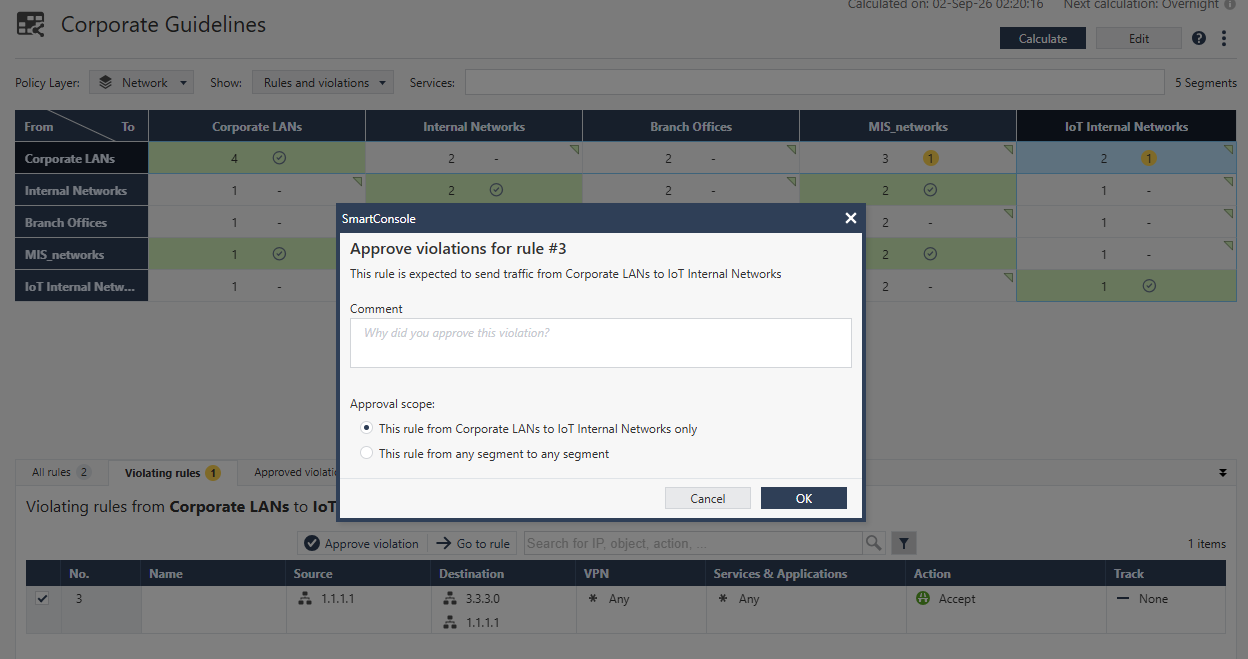
To approve a violation:
-
Select the rule and click Approve violation in the toolbar.
-
In the window that opens, enter the reason for the approval, and select the scope of approval:
-
This cell only
-
All cells in this guideline from now on - Applies also to any future change made to the guidelines.
-
-
Click OK.
-
-
To modify a rule:
-
You can edit the Source or Destination columns of a rule from the AI Auditor page. Double-click the applicable network object in the Source or Destination cell and change its value as needed.
-
For all other changes, select Go to rule to open the Access Control Rule Base, where you can make the required changes.
-
-
|
|
Notes:
|
Filtering Options
To change the guidelines view, go to the show filter, and from the drop-down menu select one of these options:
- Rules and violations - Show all rules and violations for the selected cell.
-
Approved violations - Show only violations that were approved by an administrator.
-
Approved services - Show traffic that is allowed because the service was explicitly approved, even when traffic between the related segments is otherwise not allowed.

Support for Global Policy Assignment
AI Auditor supports the assignment of global policy in a Multi-Domain environment. It keeps your guideline data accurate when global policies are assigned, reassigned, or removed from a local Domain.
After assigning global policy rules in a Multi-Domain environment, click Recalculate.
AI Auditor recalculates the guidelines while including any changes introduced by the global policy.
|
|
Note - If you have guidelines for a Shared Layer that is used in two or more policy packages, click Recalculate in each policy package. This is because the location of the Shared Layer may differ in each package after assigning global rules. |
AI Auditor Scheduler
AI Auditor scheduler automatically recalculates guidelines once every 24 hours. It recalculates all sets of guidelines according to the order in which they were most recently calculated. Each scheduled run operates within a defined time frame that you set. There is a cool down period (the default is 5 minutes) between each calculation of a set of guidelines. In a Multi-Domain environment, AI Auditor scheduler processes one set of guidelines per Domain at a time.
Configuration Parameters
|
Parameter |
Default value |
Description |
|---|---|---|
|
|
|
Sets the time when the scheduler runs |
|
|
|
Maximum duration of a scheduler run in hours (the maximum value is 23 hours). |
|
|
|
Pause between calculations of each set of guidelines in milliseconds (the default is 5 minutes) |
|
|
|
In a Multi-Domain environment, the maximum number of parallel recalculation tasks |
|
|
|
Stops or starts the AI Auditor scheduler. Set to |
Applying Changes
To apply immediate and temporary changes:
|
|
Note - These changes take effect immediately, but are lost when the Security Management Server |
-
Open an SSH connection to the Security Management Server
Check Point Single-Domain Security Management Server or a Multi-Domain Security Management Server.. -
Switch to Expert mode.
-
Run:
/opt/CPsuite-<version_of_management_server>/fw1/scripts/reload_env_vars.sh -e "VARIABLE=value"
To apply persistent and permanent changes:
|
|
Note - These changes survive restart of the Security Management Server, but require a reboot to take effect. |
-
Open an SSH connection to the Security Management Server.
-
Switch to Expert mode.
-
Run:
-
For a Security Management Server, run:
$FWDIR/scripts/override_server_setting.sh -e VARIABLE value -
For a Multi-Domain Server, run:
$MDS_FWDIR/scripts/override_server_setting.sh -e VARIABLE value
-
|
|
Note - For urgent changes (for example, an emergency stop), use both methods together to apply the changes immediately and make sure they persist. |
Examples
|
Goal |
Command |
|---|---|
|
Schedule AI Auditor calculation to 02:00 AM |
|
|
Set the calculation window to 4 hours |
|
|
Emergency stop |
|
|
Resume after stop |
|
Troubleshooting
|
Symptom |
Likely Cause |
|---|---|
|
Scheduler not running |
Kill switch is on or invalid the cron expression |
|
Scheduler stops before completing the calculations of all sets of guidelines |
The time window is too short. Increase |
|
Tasks are queued but not starting |
All slots are occupied, increase |
|
Configuration change has no effect |
|