
Blocking TLS Connections
You can block inbound TLS 1.0 and TLS 1.1 connections through a Security Gateway to internal networks, and outbound TLS 1.0 and TLS 1.1 connections from internal networks to a Security Gateway.
Prerequisites
-
Management Server
 Check Point Single-Domain Security Management Server or a Multi-Domain Security Management Server. R80 and higher.
 -
Security Gateway R80.10 and higher.
-
Enable the Application & URL Filtering
Software Blade on a Check Point Firewall that allows granular control over which web sites can be accessed by a given group of users, computers or networks. Acronym: URLF. Layer in the Access Control Policy. -
Enable the Application & URL Filtering blade on the Security Gateway.
-
This procedure works in all these configuration combinations:
HTTPS Inspection is enabled
HTTPS Inspection is disabled
Categorize HTTPS websites
is enabled
Yes
Yes
Categorize HTTPS websites"
is disabled
Yes
Yes

Notes:
-
To enable categorize HTTPS websites: In SmartConsole
Check Point GUI application used to manage a Check Point environment - configure Security Policies, configure devices, monitor products and events, install updates, and so on., go to the Manage & Settings view > Blades > Application Control & URL Filtering, click Advanced Settings > URL Filtering > Select Categorize HTTPS websites. -
To enable HTTPS Inspection
Feature on a Check Point Firewall that inspects traffic encrypted by the Secure Sockets Layer (SSL) protocol for malware or suspicious patterns. Synonym: SSL Inspection. Acronyms: HTTPSI, HTTPSi.: in SmartConsole, go to the Gateways & Servers view, double click the required Security Gateway or Security Cluster Two or more Check Point Firewalls that work together in a redundant configuration - High Availability, or Load Sharing. object, in the Security Gateway or Security Cluster editor, go to the HTTPS Inspection page, and select Enable HTTPS Inspection. -
When HTTPS Inspection is enabled, blocking TLS connections works in both Kernel Space Firewall (KSFW) and User Space Firewall (USFW). For more information about these Firewall modes, see sk167052.
-
Procedure
Part 1 - Create User-Defined Services
-
Use SmartConsole to connect to the Security Management Server
Dedicated Check Point server that runs Check Point software to manage the objects and policies in a Check Point environment within a single management Domain. Synonym: Single-Domain Security Management Server. or the Domain Management Server that manages this Security Gateway. -
In the top-right corner in SmartConsole, click Objects and the
 icon, which opens the Object Explorer window.
 -
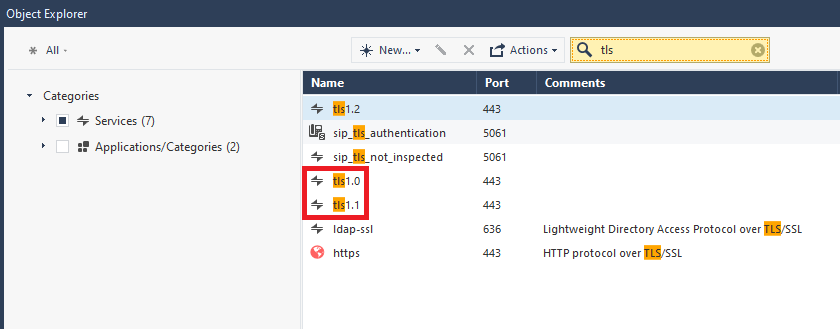
In the top search field, search for:
tls
-
To block TLS 1.0 connections:
-
Right-click the predefined service tls1.0, and click Clone.
The New TCP Service window opens.

-
In the Name field, change the name from tls1.0_Clone to the required name.
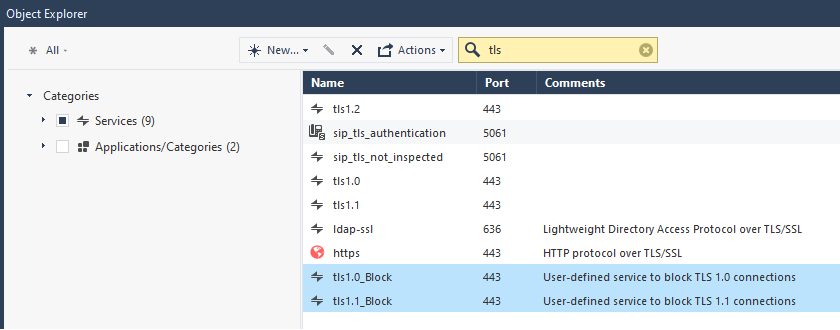
For example: tls1.0_Block
-
Optional: In the Comment field, enter the applicable text.
For example: User-defined service to block TLS 1.0 connections
-
In the left panel, click Advanced.
-
In the top section, select Protocol Signature.

-
Click OK.
-
-
To block TLS 1.1 connections:
-
Right-click the predefined service tls1.1, and click Clone.
The New TCP Service window opens.

-
In the Name field, change the name from tls1.1_Clone to the required name.
For example: tls1.1_Block
-
Optional: In the Comment field, enter the applicable text.
For example: User-defined service to block TLS 1.1 connections.
-
In the left panel, click Advanced.
-
In the top section, select Protocol Signature.

-
Click OK.
Example result:
-
-
Close the Object Explorer window.
Part 2 - Configure the Security Gateway
-
In SmartConsole, go to the Gateways & Servers view.
-
Double-click the applicable Security Gateway or Security Cluster object.
The Security Gateway or Security Cluster editor opens.
-
In the General Properties page, go to the Network Security tab.
-
Select the Application Control
Software Blade on a Check Point Firewall that allows granular control over specific web-enabled applications by using deep packet inspection. Acronym: APPI. Software Blade Specific security solution (module): (1) On a Check Point Firewall, each Software Blade inspects specific characteristics of the traffic (2) On a Management Server, each Software Blade enables different management capabilities.. -
Click OK.
Part 3 - Enable the Application & URL Filtering Layer
-
In the top left corner of SmartConsole, click
 , and select Manage policies and layers.
 -
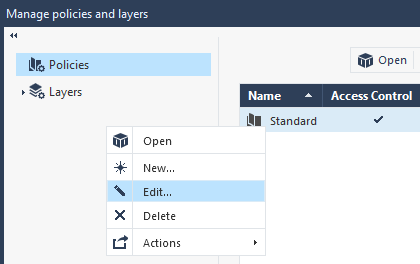
Right-click the applicable policy that you installed on the Security Gateway or Security Cluster > click Edit.
-
In the Access Control row, click
in the top right corner, and select Edit Layer. 
-
On the General page, in the Blades section, select Application & URL Filtering.

-
Click OK to close the Layer Editor window.
-
Click OK to close the Policy window.
-
Close the Manage policies and layers window.
Part 4 - Configure the Access Control Policy
-
In the left navigation panel in SmartConsole, click Security Policies.
-
In the Access Control section, click Policy.
-
Publish the session.
-
Install the Access Control policy on the Security Gateway or Security Cluster object.