
Tenable.sc Integration with TEM
Tenable Security Center (also known as Tenable.sc) is an on-premises vulnerability management platform that provides comprehensive visibility into an organization’s security posture by collecting, analyzing, and visualizing vulnerability data from various network assets.
Threat Exposure Management (TEM) enhances Tenable.sc to correlate vulnerabilities with other controls and prioritize remediation of critical risks.
Integrating Tenable.sc with TEM
Step 1 - Configuring the Tenable Security Center Portal
To integrate Tenable.sc with TEM, you need to create a dedicated API for TEM with the required permissions using a Security Manager account.
Procedure:
-
Log in to Tenable Security Center portal as a user with Security Manager privileges.
-
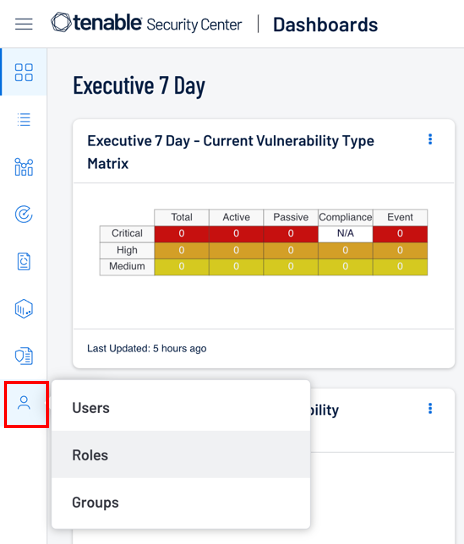
On the left menu, navigate to Users and click Roles.
-
Go to the Roles tab and click Add.
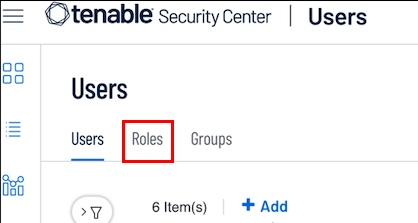
The Add Role page appears.
-
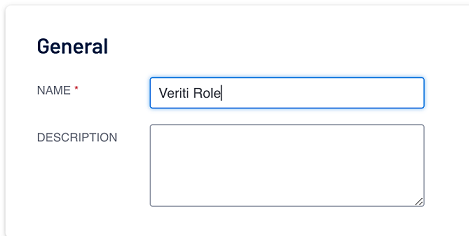
In the Name field, enter a name for the role.
-
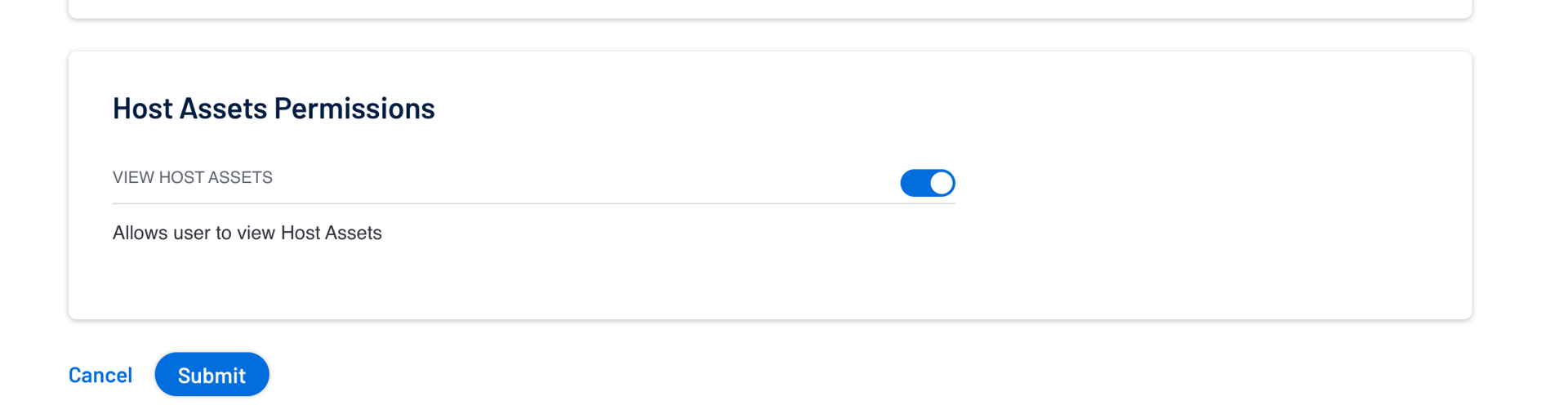
In Host Assets Permissions, enable the View Host Assets permission.
-
Click Submit.
-
Go to the Users tab and click Add.
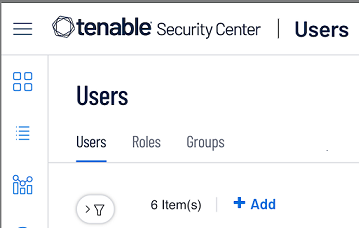
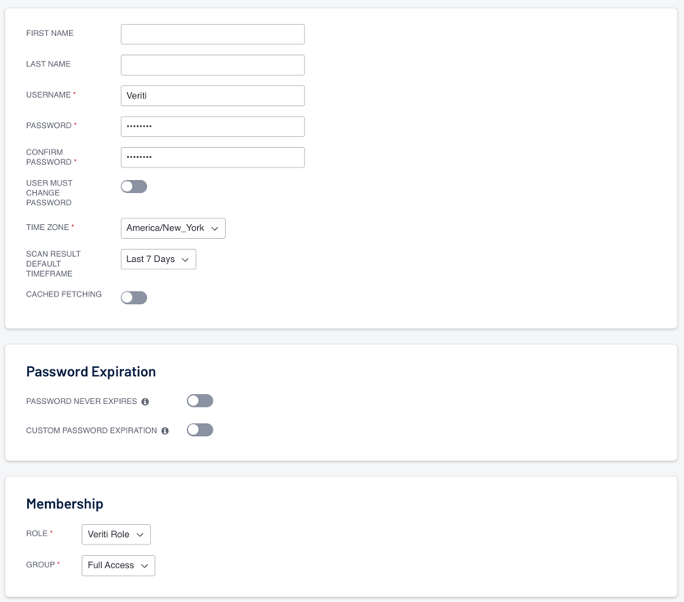
The Add User page appears.
-
Enter these details:
-
Username – Veriti
-
Password - Enter a password.
-
In the Membership section:
-
From the Role list, select the role you created in step 3.
-
From the Group list, select Full Access.
-
-
-
Click Submit.
The system creates a user.
-
In the Users table, right-click the row of the user you created and select Generate API Key.

-
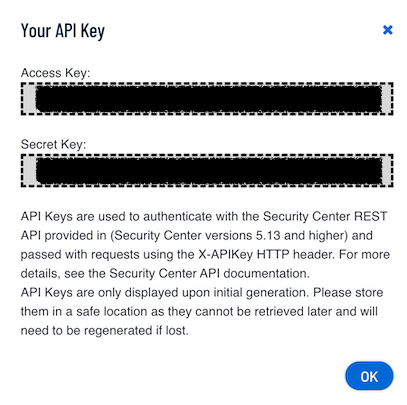
Click Generate.
The Your API Key window appears.
-
Copy and save the values in Access Key and Secret Key.
Step 2 - Configuring the TEM Portal
-
Log in to the TEM portal.
-
Go to Settings > Integrations > Catalog and select Tenable Security Center.

The Tenable Security Center pop-up appears.
-
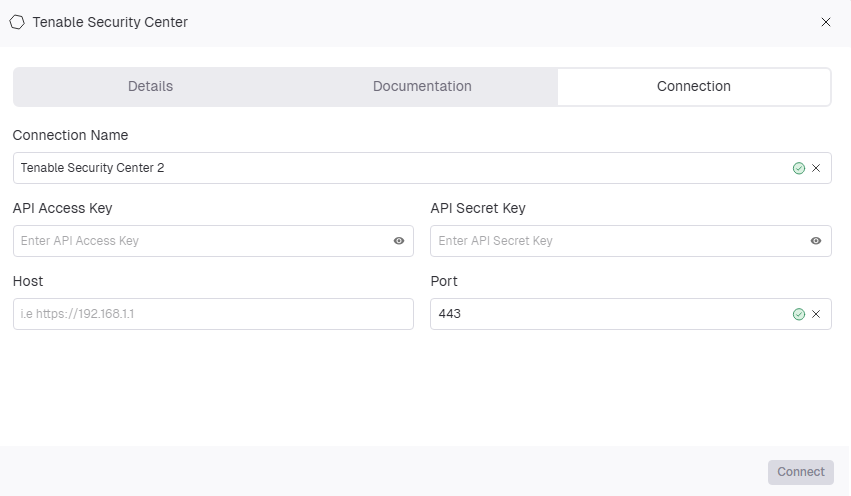
Go to the Connection tab and enter these details:
-
In the Connection Name field, enter a unique name to identify the integration.
-
In the API Access Key field, enter the Access Key generated in the Tenable Security Center portal.
-
In the API Secret Key field, enter the Secret Key generated in the Tenable Security Center portal.
-
In the Host field, enter the hostname or IP address of the Tenable Security Center portal.
-
In the Port field, enter the port number used for the connection.
-
-
Click Connect.