
SentinelOne Endpoint Integration with TEM
Overview
The SentinelOne integration with Threat Exposure Management (TEM) helps centralize visibility into endpoint-related indicators and vulnerability findings. It enables correlation of vulnerabilities with other security controls to support exposure analysis, prioritization, and remediation workflows.
Supported Capabilities
-
Indicators of Compromise - Manages threat intelligence across all integrated security controls, ensuring consistent alignment and protection across the organization.
Supported IoC Types include IP Addresses, Domains, and File Hashes (SHA1).
-
Vulnerability Remediation
-
Identifies, correlates, and prioritizes vulnerabilities across your environment.
-
Provides actionable insights to remediate vulnerabilities effectively through compensating controls, such as configuration changes, access restrictions, or virtual patching.
-
Ensures that remediation actions are tracked and verified, supporting continuous risk reduction and improved security posture.
-
Integrating SentinelOne with TEM
Prerequisites
Verifying Firewall Control
Firewall Control must be enabled in SentinelOne, as it is required for IoC enforcement.
To verify:
-
Log in to the SentinelOne Management Portal.
-
From the left navigation panel, select Sentinels.
-
From the top navigation panel, click Network Control.
-
Confirm that Firewall Control is turned on.
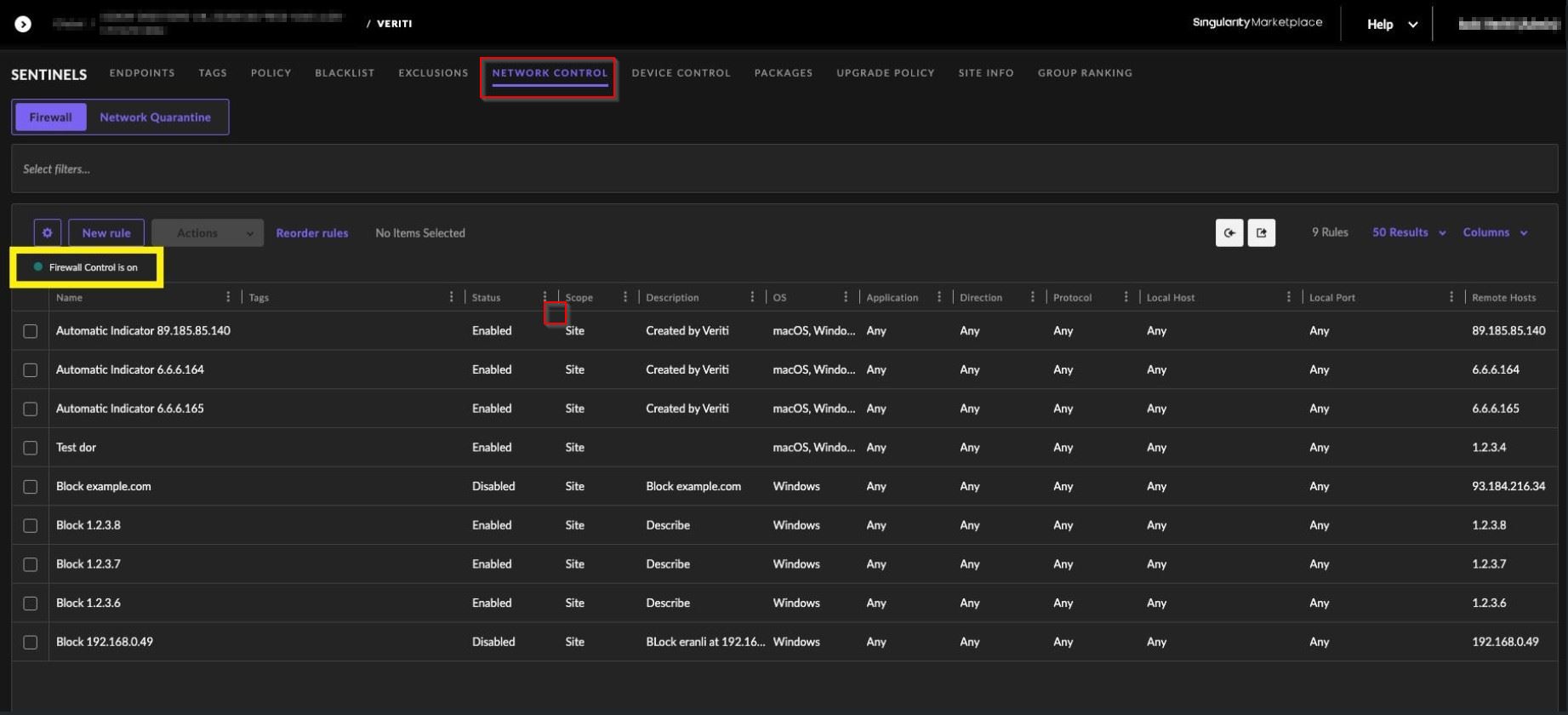
Service User and Permissions
Create or use a dedicated service user in SentinelOne with the permissions listed below. These permissions must be assigned before generating the API token.
Permissions for IoC Management
The following permissions are required to allow TEM to create, update, and verify IoCs using SentinelOne Network Control:
-
Firewall:
-
View
-
Modify Settings (Preferences tab)
-
Manage Rules and Tags
-
-
Sites: View
Permissions for Vulnerability Visibility
The following permissions are required to allow TEM to retrieve vulnerability and risk information:
-
Applications
-
View
-
View Risks
-
-
Endpoints: View
Integration Flow
Step 1 - Collecting SentinelOne Domain
-
Log in to the SentinelOne Management Portal.
-
Copy the domain from the browser URL, for example: https://<domain>.sentinelone.net/dashboard. Save this value for later use.
Step 2 - Generating an API Token
-
In the SentinelOne Management Portal, click your username on the top-right corner.
-
Select My User.
-
Click Actions > API Token Operations > Generate API Token.

Save the generated token securely for further use in the integration.
|
|
Note -
|

Minimum Required Permissions (Service User)
-
Firewall (all sub-permissions) - IoC
-
Sites (all sub-permissions) - IoC
-
Applications (all sub-permissions) - Vulnerabilities
-
Endpoints (all sub-permissions) - Vulnerabilities
Step 3 - Configuring the TEM Portal
-
Log in to the TEM portal.
-
Go to Settings > Integrations > Catalog > Singularity.

-
In the Singularity pop-up that appears, navigate to the Connection tab and enter the following details.

-
In the Connection Name field, enter a name for this connection.
-
In the API Key field, enter the API key generated from SentinelOne Management Console.
-
In the Host field, enter the hostname or IP address of the SentinelOne Management Console.
-
-
Click Next.
-
(Optional) In the Configuration section, enable the Import Indicators created before this integration was set up checkbox to backfill existing indicators into the integration.

-
Click Connect to establish a connection.
IoC Behavior
-
IoCs defined in TEM are synchronized to SentinelOne based on the integration configuration.
-
Indicators are enforced using SentinelOne Network Control and blocklist mechanisms.
-
If an indicator already exists in SentinelOne, it is skipped automatically.
Verifying Indicator Deployment
-
Log in to the SentinelOne Management Portal.
-
Navigate to Sentinels > Network Control.
-
Review firewall rules created by TEM.
-
Verify rules with the description Created by Veriti.
-
From the top menu, select Blocklist.
-
Verify blocklist entries with the description Created by Veriti.
|
|
Note - IoCs that already exist in SentinelOne are skipped during synchronization. |