
Rapid7 InsightVM Integration with TEM
Overview
Rapid7 InsightVM is a robust vulnerability management solution that delivers comprehensive visibility, risk prioritization, and remediation capabilities to secure enterprise IT environments.
Integration with Threat Exposure Management (TEM) enhances security by automating the collection and correlation of vulnerability and asset data from InsightVM into the TEM platform. This integration ensures consistent risk visibility, accelerates incident response workflows, and supports centralized governance, enabling scalable and resilient protection across complex infrastructures.
Supported Capability
Vulnerability Remediation
-
Identifies, correlates, and prioritizes vulnerabilities across your environment.
-
Provides actionable insights to remediate vulnerabilities effectively through compensating controls, such as configuration changes, access restrictions, or virtual patching.
-
Ensures that remediation actions are tracked and verified, supporting continuous risk reduction and improved security posture.
Integrating Rapid7 InsightVM with TEM
Step 1 - Configuring a New Management API Profile for a TEM User
To generate a dedicated API key for integration in Rapid7 InsightVM:
-
Log in to the Rapid7 InsightVM Cloud portal.
-
From the left navigation panel, click API Key Management.
-
In the API Key Management section, click User Keys.

The User Keys screen appears.
-
Click Generate New User Key.
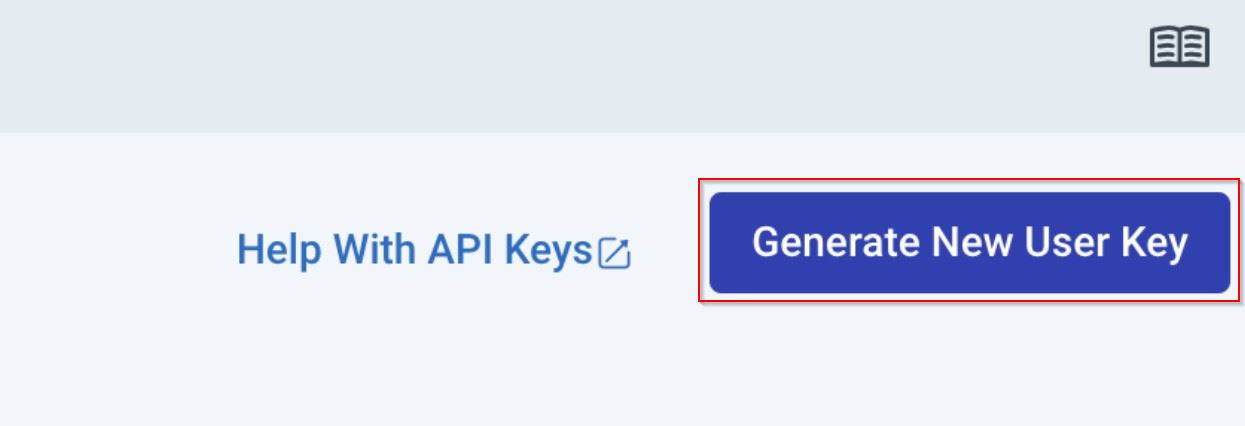
In the pop-up that appears, select the organization and enter a name for the new key.
-
Click Submit.
The new API key will be displayed.

Note - After you close the pop-up, the API key will no longer be visible. Ensure you copy and save it securely before proceeding, as it cannot be retrieved later.
Step 2 - Configuring the TEM Portal
-
Log in to the TEM portal.
-
Go to Settings > Integrations > Catalog > Rapid7 Insight VM.

-
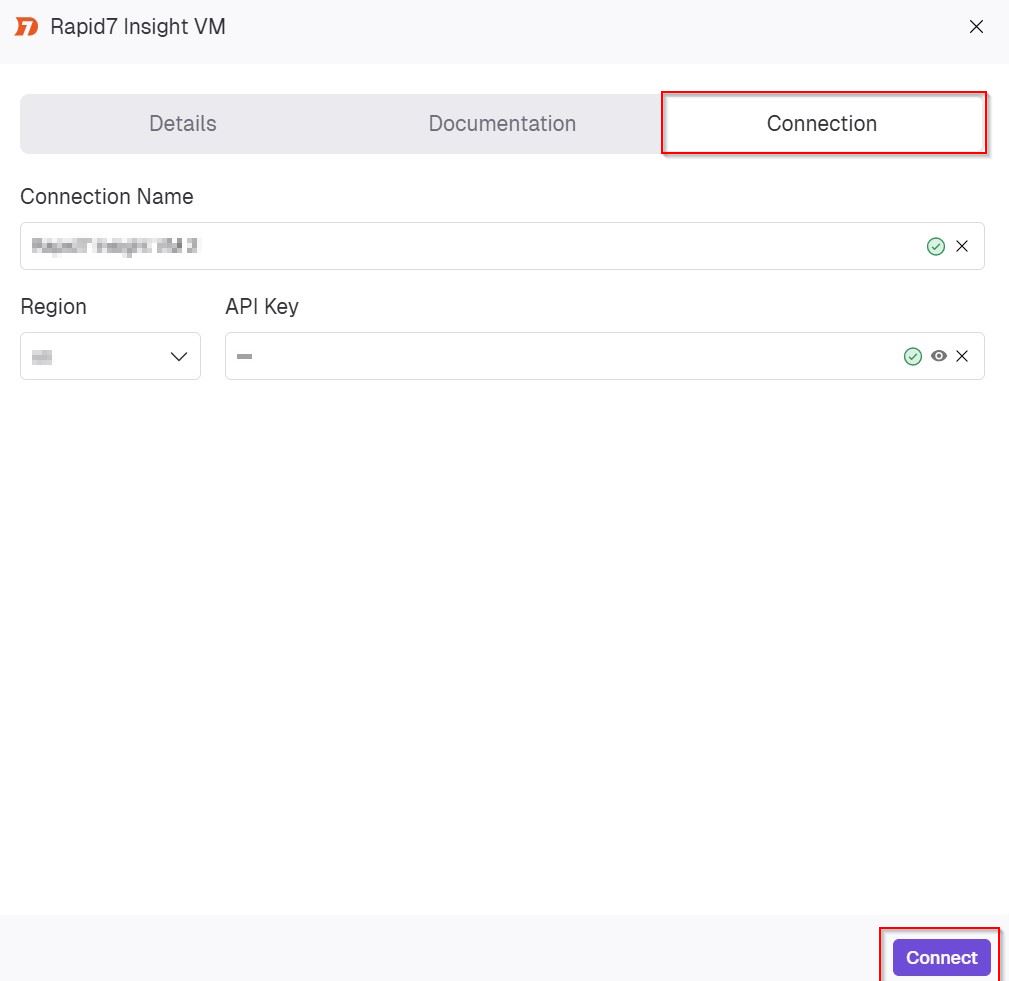
In the Rapid7 Insight VM pop-up that appears, navigate to the Connection tab and enter the following details.
-
In the Connection Name field, enter a name for this connection.
-
In the Region section, select the appropriate region from the drop-down where your Rapid7 InsightVM instance is hosted.
-
In the API Key field, enter the API key generated from your Rapid7 Insight VM console.
-
-
Click Connect to establish the integration.