
Palo Alto - Panorama Firewall Management Integration with TEM
Overview
Check Point Threat Exposure Management (TEM) integrates with Palo Alto Panorama Firewall Management by delivering Indicators of Compromise (IoCs) to its centralized management layer, ensuring consistent threat intelligence and policy enforcement across all managed Next Generation Firewalls (NGFWs).
Administrators must enable Threat Prevention security profiles (including Vulnerability Protection, Anti-Spyware, and IPS features) on all managed firewalls and configure Log Forwarding to Panorama for centralized visibility, logging, and policy enforcement across the Palo Alto firewall infrastructure.
-
IPS Enforcement
Administrators must enable Intrusion Prevention System (IPS) enforcement on the Panorama-managed Firewalls (FWM) to ensure that threat protections are applied consistently across all managed devices.
Traffic-Based Insights
-
IPS logs capture real-time threat activity, including intrusion attempts, exploit signatures, and suspicious payloads.
-
TEM uses these logs to correlate traffic patterns and surface risk-based exposures.
Log Requirements
-
Enable IPS and actively log events.
-
Retain logs for at least 7 days and ensure TEM can continuously access them for analysis.
To verify IPS Enforcement logs, see Verifying IPS Enforcement Logs for TEM.
-
-
Access Policy Rules for TEM - For All Supported Panorama Firewall Management Deployments
Source
Destination
Port
Protocol
Purpose
Palo Alto
TEM VM
Panorama Server
TCP/443
HTTPS
Configuration Fetch / Remediations
TEM VM
Panorama Server / Log Collector
TCP/443
HTTPS
Logs Fetch
Panorama Server / Log Collector
TEM VM
TCP/30030
TCP
Logs Fetch
Firewalls / Clusters
TEM VM
TCP/30003
TCP
IoC Enforcement
TEM VM
Firewalls / Clusters
UDP/161
SNMP
CPU and RAM
Supported Capabilities
TEM supports the following capabilities as part of its integration with Panorama Firewall Management:
-
Protection Hardening - Controlled Transition of IPS protections to Block mode strengthens security while minimizing operational impact.
-
Attack Analysis - Uses machine learning to identify real attacks and provides one-click remediation to contain threats quickly.
-
Security Hygiene - Keeps systems updated with the latest patches and security updates to reduce vulnerabilities.
-
Business Disruption Prevention - Detects and mitigates security events that could disrupt operations, helping maintain continuity.
-
Indicators - Manages threat intelligence across all integrated security controls, ensuring consistent alignment and protection across the organization.

Note - Supported indicator types include IP Addresses and Domains.
Integrating Palo Alto - Panorama Firewall Management with TEM
Step 1: Configuring a New Panorama Administrator Profile for a TEM User
To configure a new Management API Profile for a TEM user:
-
Log in to Panorama.
-
On the top toolbar, click Panorama.
-
From the left navigation panel, click Admin Roles.
-
Click Add to create a new Admin Role Profile and enter the following details:
-
Name: TEM Profile
-
Role: Panorama
-
XML API: Select the following permissions:
-
Log
-
Configuration
-
Operational Requests
-
Commit
-
Click OK.
-
From the left navigation panel, click Administrators.
-
Select the user created for TEM, assign the newly created profile, and click OK.
-
On the top navigation panel, click Commit to Panorama to apply the changes.
Step 2: Configuring the TEM Portal
-
Log in to the TEM portal.
-
Navigate to Settings > Integrations > Catalog > Panorama Firewall Management.

-
In the Panorama Firewall Management pop-up that appears, navigate to the Connection tab.
-
Choose a User Configuration Method:
-
 Option A: Create a new user on your own
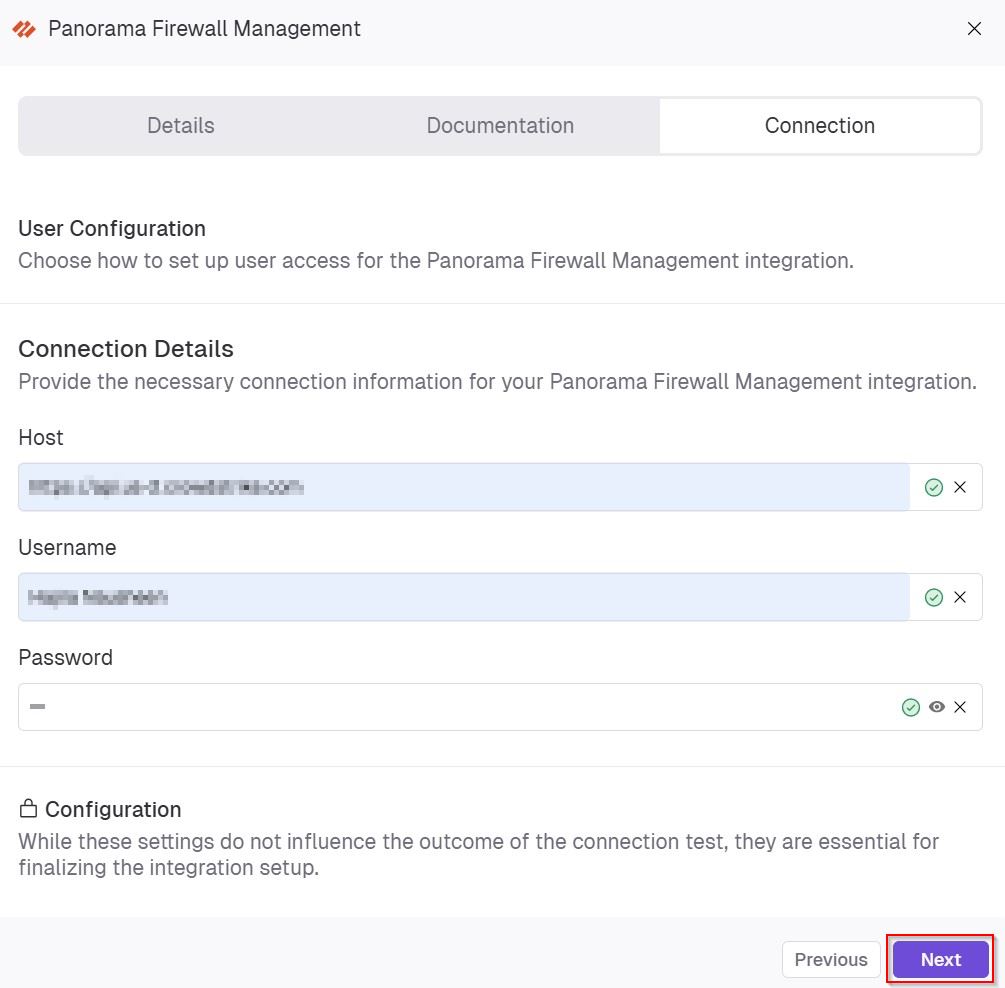
In the User Configuration section, choose Create a new user on your own option and click Next.

In the Connection Details section, enter the following details and click Next.
-
In the Host field, enter the hostname or IP address of the system you are connecting to.
-
In the Username field, enter the admin name to authenticate the connection.
-
In the Password field, enter a secure password for the specified username.
-
(Optional) In the Configuration section, enable Backfill Indicators to import existing indicators into the integration.

-
Click Connect to establish a connection.
-
-
Option B: Allow Veriti to create a new user
In the User Configuration section, choose Allow Veriti to create a new user option and click Next.
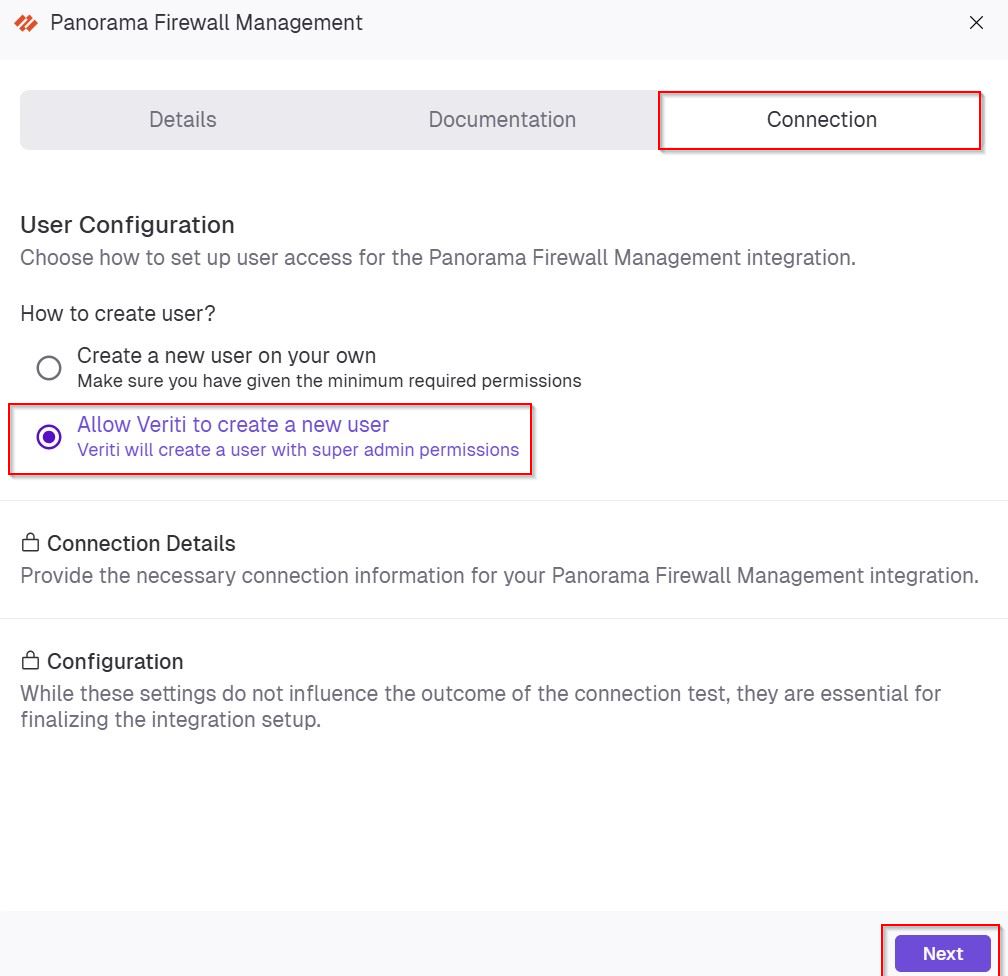
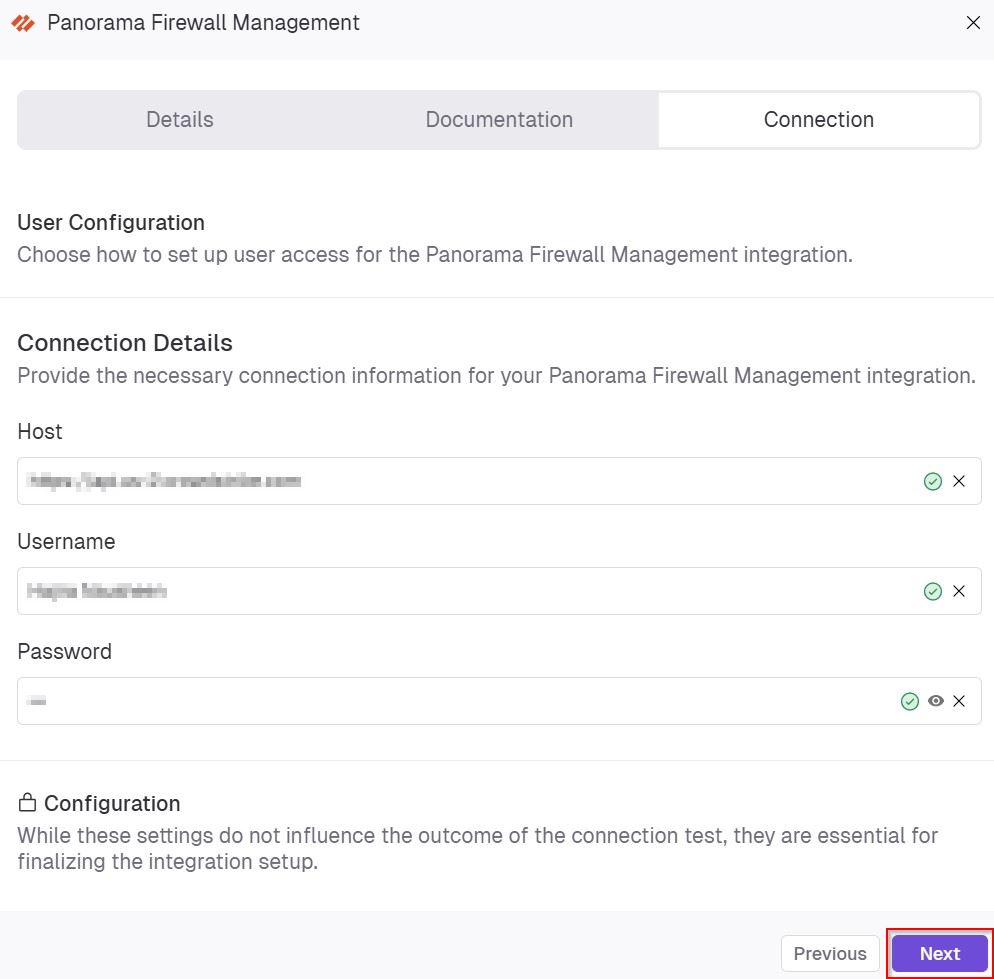
In the Connection Details section, enter the following details and click Next.
-
In the Host field, enter the hostname or IP address of the system you are connecting to.
-
In the Username field, enter the admin name to authenticate the connection.
-
In the Password field, enter a secure password for the specified username.
-
(Optional) In the Configuration section, enable Backfill Indicators to import existing indicators into the integration.
-
Click Connect to establish a connection.
-
-
Limitations
-
REST API users
REST API users are not supported in this deployment.
-
High Availability (HA):
HA environments are not supported for this deployment.
-
Panorama Cloud Management:
Panorama Cloud Management is not supported.
-
SNMP
SNMP configuration through templates is not supported.
Verifying IPS Enforcement Logs for TEM
Prerequisite:
User Creation Requirements:
-
Automatic User Creation requires a Panorama user with the panorama-administrator profile.
-
Manual User Creation requires a Panorama user with a dedicated user profile.
|
|
Notes -
|
Setting the Log Retention Rate for TEM
-
Log in to Panorama.
-
From the top navigation panel, click Monitor > Threat.
-
In the search bar:
-
Set the time range to Last 7 Days.
-
Enter threat-type eq vulnerability
-
|
|
Note - If IPS logs are unavailable, create a dedicated IPS profile set to Alert mode only. This allows TEM to collect traffic data and generate insights without blocking traffic, ensuring complete visibility into potential exposures while keeping business operations uninterrupted. |