
Check Point's Multi-Domain Security Management Integration with TEM
Overview
Check Point Threat Exposure Management (TEM) reinforces security across Multi-Domain Next Generation Firewall (NGFW) environments by automating the distribution of Indicators of Compromise (IoCs) to individual domains. This automation ensures uniform threat prevention, accelerates incident response workflows, and supports centralized policy governance—enabling scalable and resilient protection across complex enterprise infrastructures. TEM also delivers advanced capabilities such as Protection Hardening, Attack Analysis, Security Hygiene, Business Disruption, Indicators, and Custom Protections (Snorts) to strengthen overall security posture.
Administrators must enable Intrusion Prevention System (IPS) enforcement and configure local logging on each domain within a Multi-Domain Security Management device. This setup ensures comprehensive threat visibility across all domains and facilitates effective integration with TEM for centralized analysis and coordinated response.
-
IPS Enforcement
By enabling IPS on each domain, the firewall can inspect traffic using signature-based methods to identify and block known threats. This distributed enforcement model ensures that each domain contributes accurate threat intelligence, which is essential for centralized analysis and effective integration with TEM. The result is a unified security posture that supports scalable incident response and policy orchestration across complex enterprise architectures.
Traffic-Based Insights
-
IPS logs capture real-time threat activity, including intrusion attempts, exploit signatures, and suspicious payloads.
-
TEM uses these logs to correlate traffic patterns and surface risk-based exposures.
Log Requirements
-
Enable IPS and actively log events.
-
Retain logs for at least 7 days and ensure TEM can continuously access them for analysis.
To verify IPS Enforcement logs, see Verifying IPS Enforcement Logs for TEM.
-
-
Managing API Access
Management API Access allows the TEM Virtual Machine (VM) to securely query the Management Server through its API, enabling centralized retrieval of configuration data, policy information, and security events. Within a multi- domain security management framework, this access supports automated monitoring, threat analysis, and streamlined policy enforcement across network assets.
To verify API access, see Verifying API Access.
-
Trusted Client Permission
Defining the TEM VM as a trusted GUI client allows it to securely interact with the Multi-Domain Security Management Server.
To verify trusted client permissions, see Verifying Trusted Client.
-
Access Policy Rules for TEM - For All Supported Multi-Domain Security Management Deployments
Source
Destination
Port
Protocol
Purpose
Check Point
TEM VM
Multi-Domain Management Server (MDS)
Multi-Domain Log Server (MLM)
TCP/22
TCP/443
SSH
HTTPS
Configuration Fetch / Remediations
Multi-Domain Log Server (MLM)
TEM VM
TCP/30030
TCP
Logs Fetch
Firewalls / Clusters
TEM VM
TCP/30003
TCP
IoC Enforcement
TEM VM
Firewalls / Clusters
UDP/161
SNMP
CPU and RAM Monitoring Fetch
Supported Capabilities
TEM supports the following capabilities as part of its integration with Multi-Domain Security Management:
-
Protection Hardening - Controlled Transition of IPS protections to Block mode strengthens security while minimizing operational impact.
-
Attack Analysis - Uses machine learning to identify real attacks and provides one-click remediation to quickly contain threats.
-
Security Hygiene - Keeps systems up to date with the latest patches and security updates to reduce vulnerabilities.
-
Business Disruption Prevention - Detects and mitigates security events that could disrupt operations, helping maintain continuity.
-
Indicators - Manages threat intelligence across all integrated security controls, ensuring consistent alignment and protection across the organization.

Notes -
-
Supported indicator types include IP Addresses, File Hashes, and Domains.
-
For Security Management Server running R81.10 or older indicators will be enforced only if Anti-Virus and Anti-Bot are enforced. In MDS and R81.20 and later, even if these security products are unavailable, it is possible to configure an External Network Feed as described here.
-
-
Custom Protections (Snorts) - This feature allows the use of custom Snort-based protections.
Note - Automatic support is not available in High Availability (HA) environments. Manual configuration is required in such setups.
Integrating Multi-Domain Security Management with TEM
Step 1: Configuring a New Management API Profile for a TEM User
To configure a new Management API Profile for a TEM user:
-
Log in to the MDS Domain.
-
From the left navigation panel, click Multi-Domain.
-
In the Permissions & Administrators section, click Permission Profiles, and click New and choose New Domain Permission Profile.
-
Click OK.
-
Enter a name for the profile.
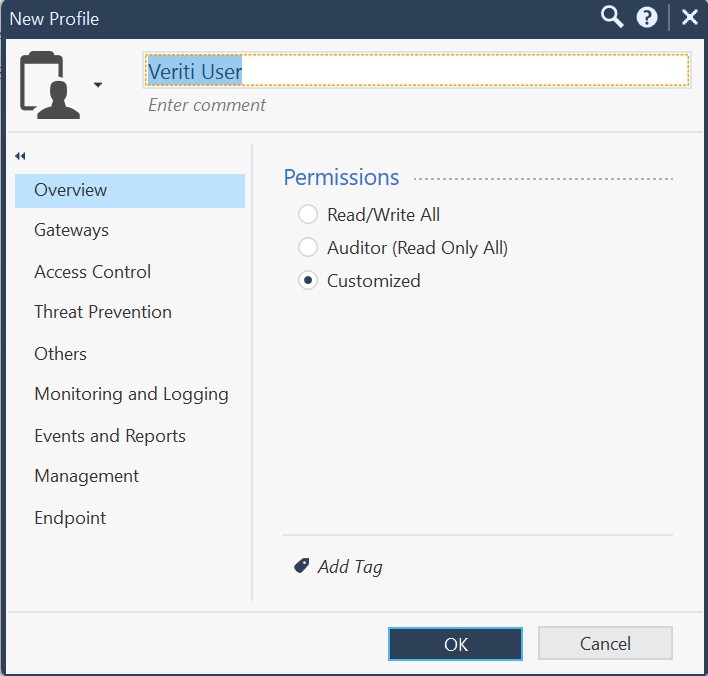
-
Configure the permissions as follows:
-
In the Overview tab, select Permissions as Customized.
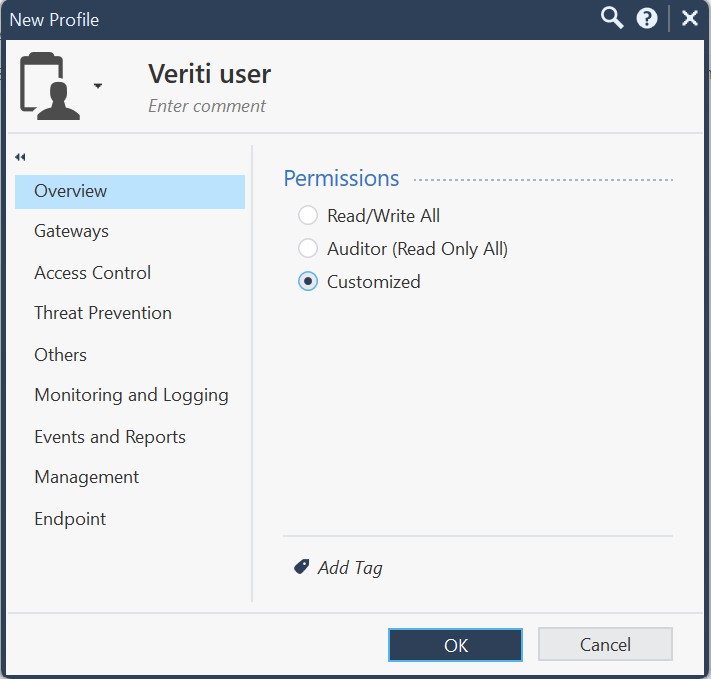
-
In the Gateways tab, navigate to Scripts and enable the Run One Time Script checkbox.
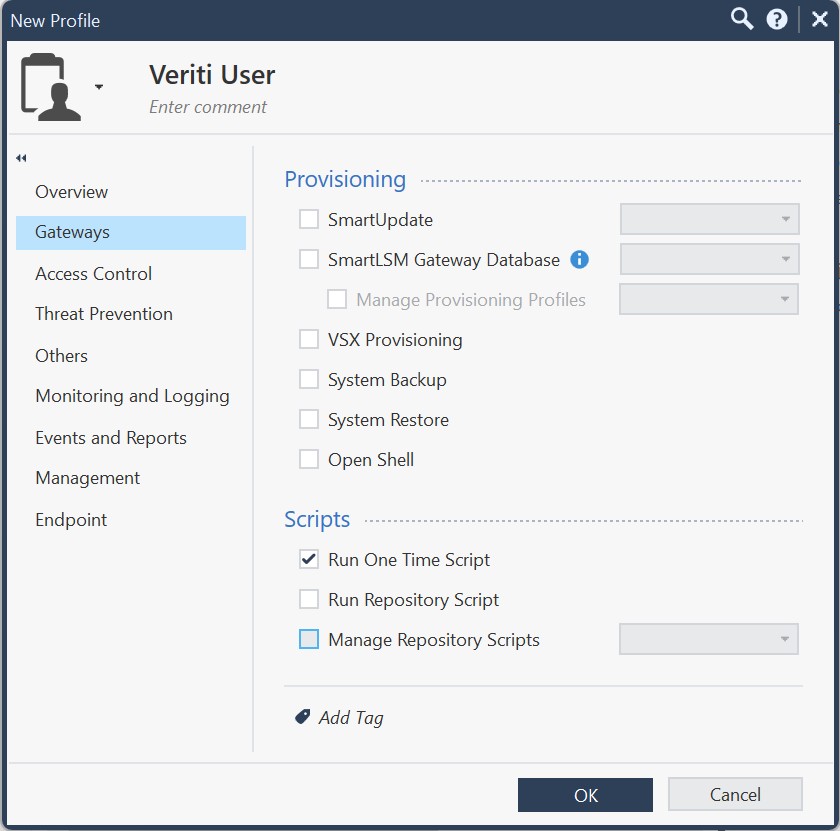
-
Configure the Access Control tab.

-
In the Policy section, enable the Show Policy checkbox.
-
Select the Edit layers by Software Blades option and enable the Firewall, Application Control and URL Filtering checkboxes.
-
In the Additional Policies section, enable the NAT Policy checkbox and select Read from the drop-down.
-
In the General section, enable the Access Control Objects and Settings checkbox and select Read from the drop-down.
-
-
Configure the Threat Prevention tab.

-
In the Policy section, select the following options:
-
Policy Layers: Read
-
Policy Exceptions: Write
-
-
In the Permissions section, select the following options:
-
Profiles: Read
-
Protections: Write
-
Settings: Write
-
-
In the Actions section, enable the Install Policy checkbox.
-
-
In the Others tab, configure the following Permissions.
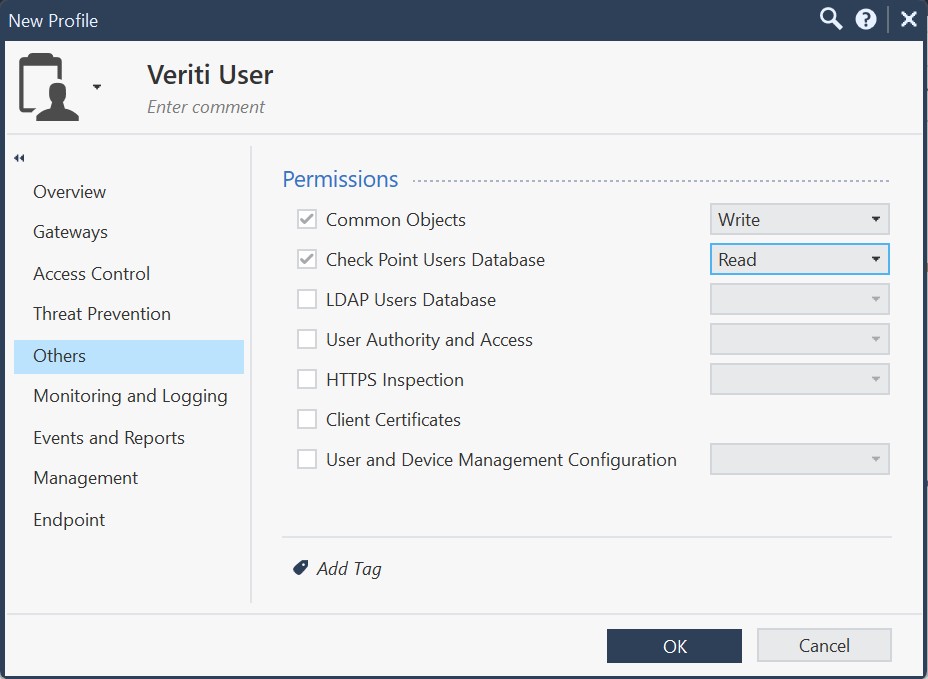
-
Common Objects: Write
-
Check Point Users Database: Read
-
-
In the Monitoring and Logging tab, configure the Monitoring and Logging section as follows:

-
Monitoring: Read
-
Management Logs: Read
-
Track Logs: Read
-
Select the Application and URL Filtering Logs checkbox.
-
Select the HTTPS Inspection Logs checkbox.
-
-
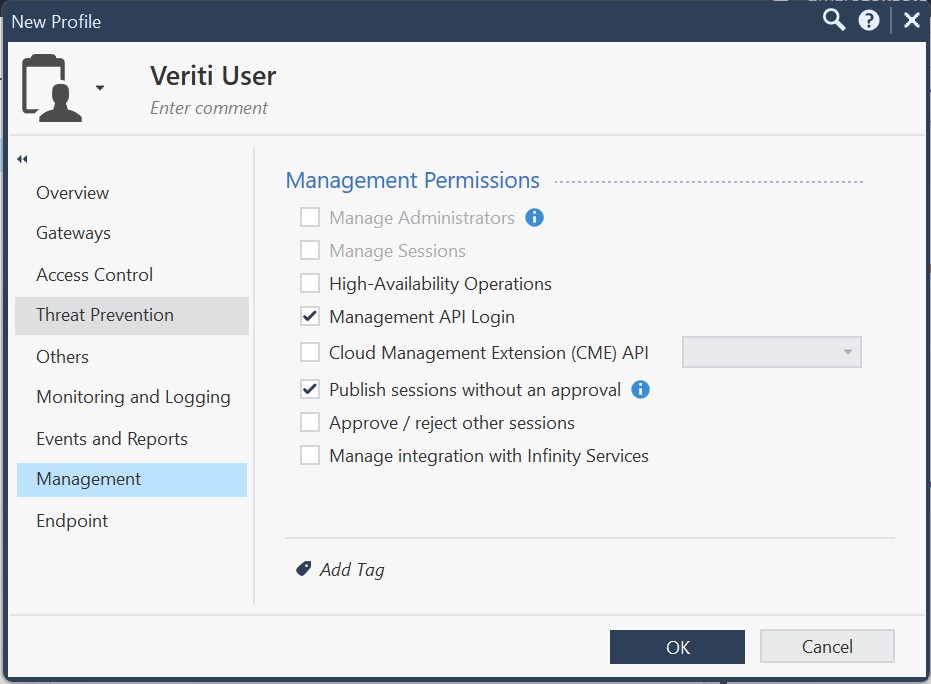
In the Management tab, enable the following Management Permissions.
-
Management API Login
-
Publish sessions without an approval
-
-
Click OK.
-
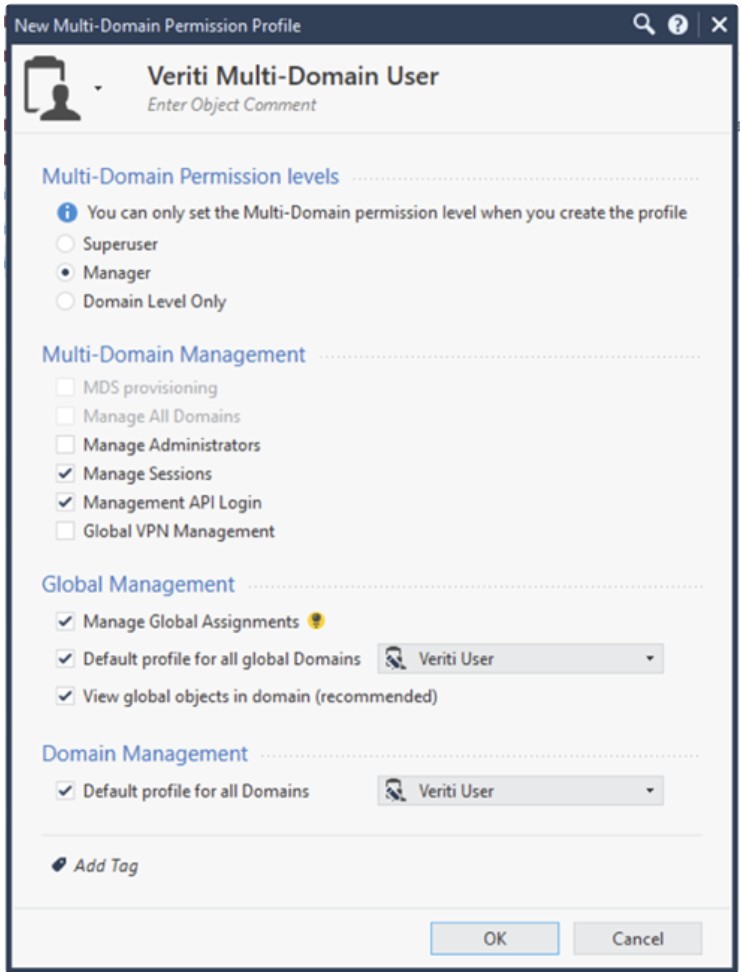
Click New and choose New Multi-Domain Permission Profile.
-
Enter a name for the profile.
-
Configure the permissions as follows:
-
In the Multi-Domain Permission levels section, select Manager.
-
In the Multi-Domain Management section, enable the following checkboxes:
-
Manage Sessions
-
Management API Login
-
-
In the Global Management section, enable the following checkboxes:
-
Manage Global Assignments
-
Default profile for all global Domains, and select Veriti User from the dropdown.
-
View global objects in domain (recommended)
-
In the Domain Management section, enable the Default profile for all Domains checkbox and choose Veriti User from the drop-down.
-
- Click OK.
-
-
Step 2: Configuring the TEM Portal
-
Log in to the TEM portal.
-
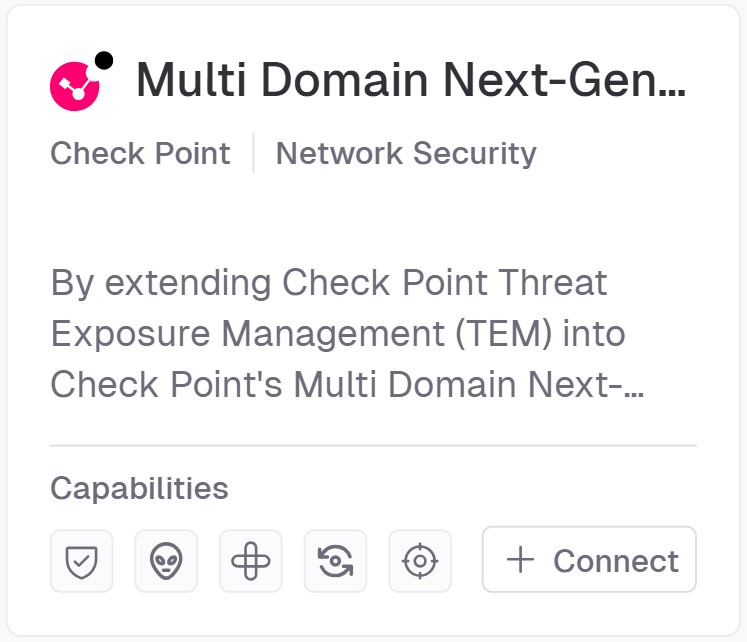
Navigate to Settings > Integrations > Catalog > Multi-Domain Next-Generation Firewall (NGFW).
-
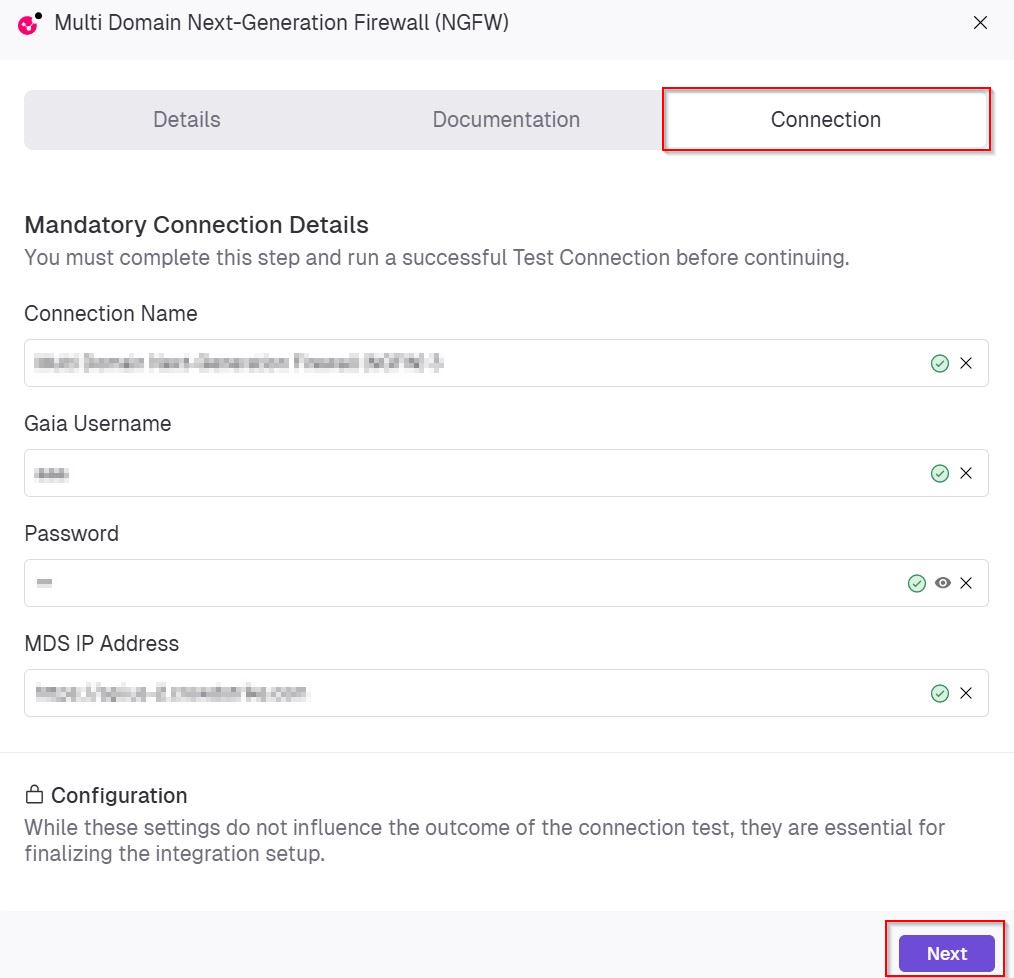
In the Multi-Domain Next-Generation Firewall (NGFW) pop-up that appears, navigate to the Connection tab.
-
In the Mandatory Connection Details section, enter the following details:
-
In the Connection Name field, enter a unique name to identify this integration.
-
In the Gaia Username field, specify the username of a Gaia account that has the Super User role assigned.
-
In the Password field, enter the password associated with the Gaia administrator account.
-
In the MDS IP Address, enter the IP address of the Multi-Domain Server (MDS) that will be used for this integration.
-
-
Click Next.
-
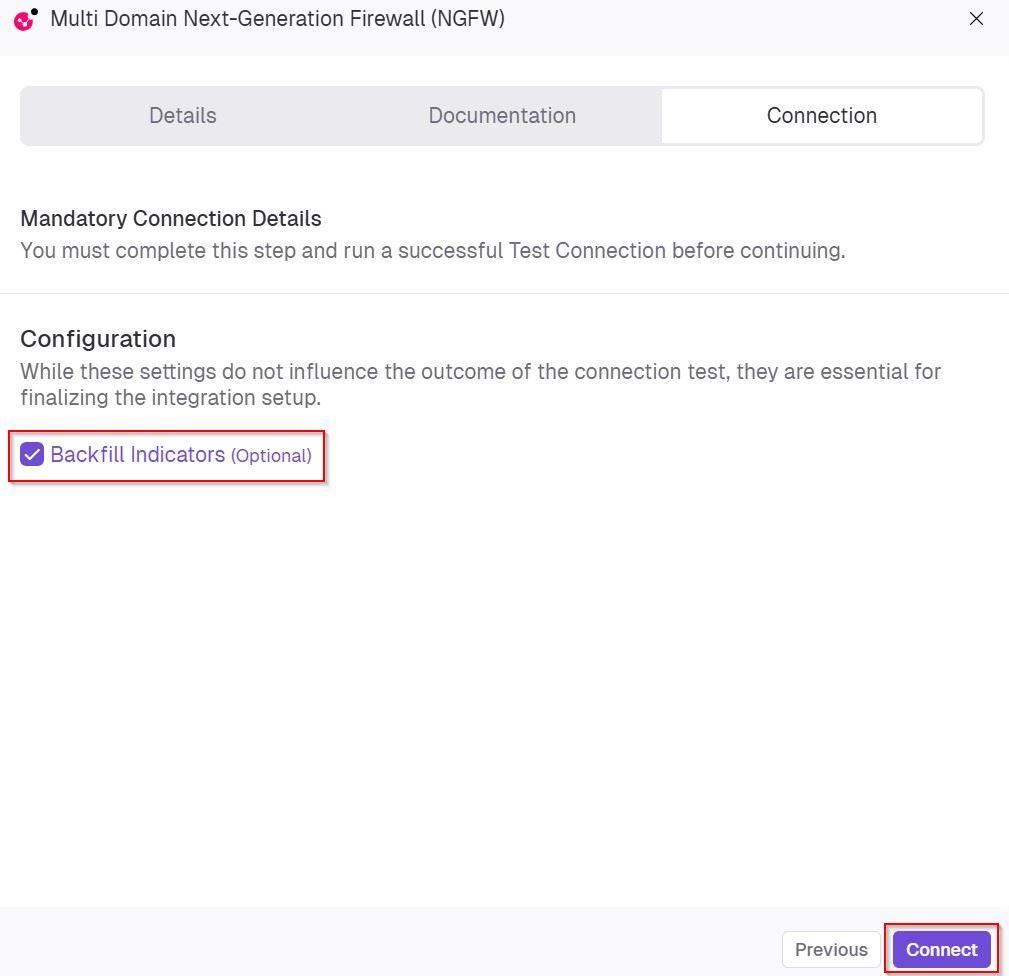
(Optional) In the Configuration section, enable Backfill Indicators to import existing indicators into the integration.
-
Click Connect to establish a connection.
Limitations
-
SMB Restrictions:
Due to limitations in the Check Point API, fetching license / version information and configuring SNMP are not supported on Spark Firewall deployments.
Impact: Capabilities related to Security Hygiene, such as automated license checks and SNMP-based monitoring, will not be available.
-
High Availability (HA):
HA environments are not supported for this deployment.
Impact: Features that rely on failover or redundancy cannot be implemented in this setup.
-
IPv6:
IPv6 addresses are not supported.
Verifying IPS Enforcement Logs for TEM
Prerequisite:
User Creation Requirements:
A Gaia user with the Super User role.
|
|
Note - The Management API permission is required only for the initial integration (one-time use). After the initial setup, you can create a dedicated profile instead of the Super User profile. |
Setting the Log Retention Rate for TEM
-
Log in to the SmartConsole.
-
From the left navigation panel, click Logs & Monitor> Logs.
-
In the search bar:
-
Set the time range to Last 7 Days.
-
Enter blade:IPS and protection_type:IPS
-
|
|
Note - If IPS logs are unavailable, create a dedicated IPS profile set to Detect mode only. This allows TEM to collect traffic data and generate insights without blocking traffic, ensuring complete visibility into potential exposures while keeping business operations uninterrupted. |
Verifying API Access
To verify API Access for the TEM VM:
-
Log in to Multi-Domain Server (MDS) SmartConsole.
-
From the left navigation panel, click Multi-Domain > Blades.
-
In the Management API section, click Advanced Settings.
-
In the Management API Settings dialog box that appears, ensure that one of these options is selected:
- All IP addresses
-
All IP addresses that can be used for GUI clients
-
Click OK.
Verifying Trusted Client
To verify or configure a trusted client in Supported Multi-Domain Security Management:
-
Log in to the SmartConsole.
-
From the left navigation panel, click Multi-Domain.
-
Go to the Permissions & Administrators section and click Trusted Clients.
-
Click the
 icon.
icon. -
In the New Trusted Client pop-up, enter a name for the profile. In the IPV4 Address field add the TEM VM IP address as a permitted client.
-
Click OK.