
Harmony Endpoint Integration with TEM
Overview
Threat Exposure Management (TEM) integrates with Harmony Endpoint to correlate vulnerability data with endpoint security controls. This correlation helps prioritize critical risks and validate remediation using existing endpoint protections.
Supported Capabilities
-
Vulnerability Remediation
-
Identifies, correlates, and prioritizes vulnerabilities across your environment.
-
Provides actionable insights to remediate vulnerabilities effectively through compensating controls, such as configuration changes, access restrictions, or virtual patching.
-
Ensures that remediation actions are tracked and verified, supporting continuous risk reduction and improved security posture.
-
-
Indicators - Manages threat intelligence across all integrated security controls, ensuring consistent alignment and protection across the organization.
-
Supported IoC Types include IP Addresses, File Hashes (MD5, SHA1), and URLs.
-
Indicator Flow - Indicators are pushed from TEM to Harmony Endpoint through the cloud management server.
To verify:
-
Log in to the Check Point Infinity Portal.
-
From the left navigation menu, click Policy.
-
Under Threat Prevention, select Policy Capabilities.
-
From the top navigation bar, click Manage > Manage IoCs.
-
Look for indicators with the comment Created by Veriti.
-
-
-
Endpoint Hardening - This feature enhances endpoint security by enforcing policy‑based hardening controls that limit exposure to identified risks. These controls work in conjunction with vulnerability remediation and indicator management, applying preventive configurations that help block potential threats and reduce the overall attack surface.
Integrating Harmony Endpoint with TEM
Step 1 - Creating an API Key in Infinity Portal
-
Log in to the Check Point Infinity Portal.
-
Click Settings icon > API Keys.

-
Click New and configure the API key:
-
Service: Endpoint
-
Role: Admin

Note - A Read-Only role can be used, but remediation actions for indicators will fail if attempted.
-
Expiration: Optional
-
Description: Optional
-
-
Click Create.
Note - Save the Client ID, Secret Key, and the Authentication URL for later use.
Step 2 - Configuring the TEM Portal
-
Log in to the TEM portal.
-
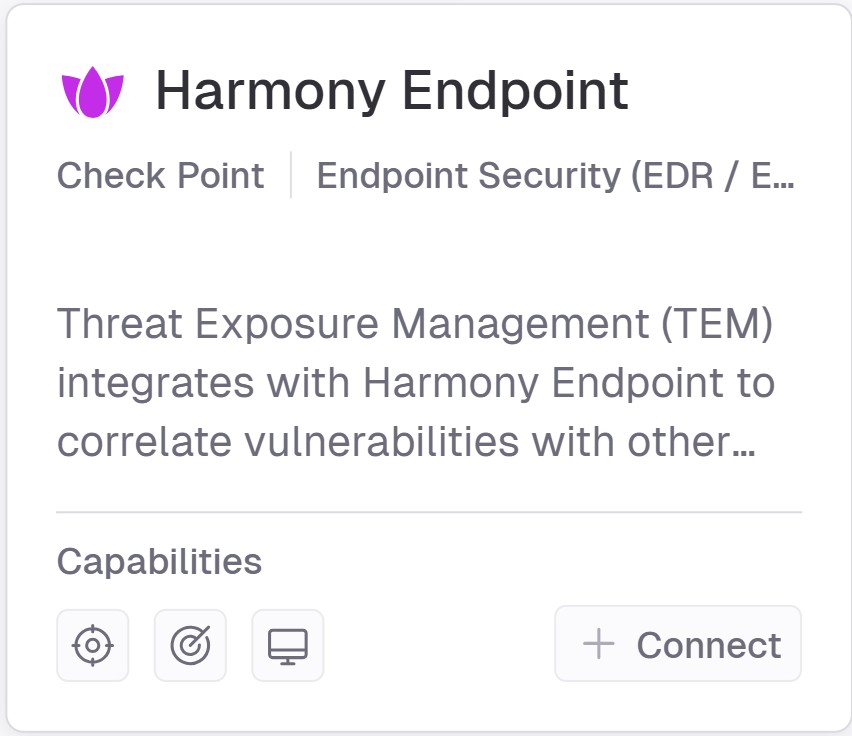
Go to Settings > Integrations > Catalog > Harmony Endpoint.
-
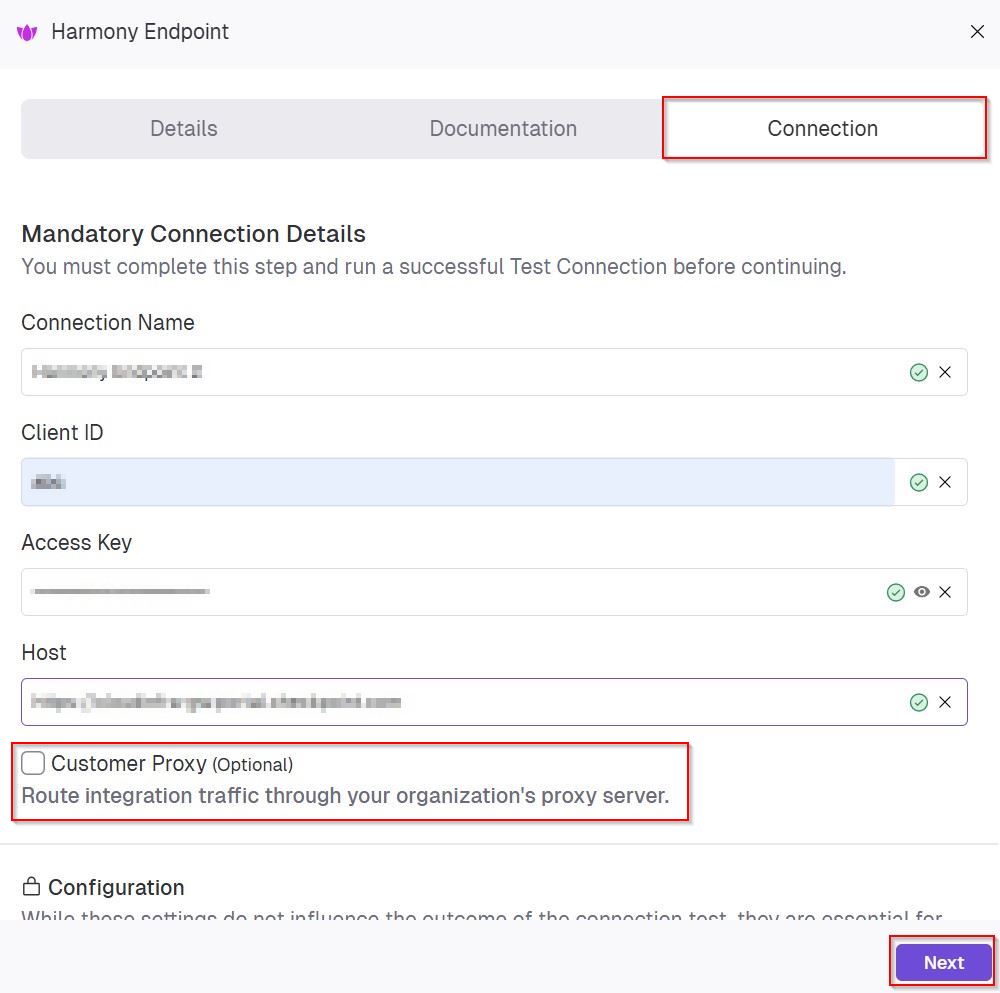
In the Harmony Endpoint pop-up that appears, navigate to the Connection tab and enter the following details.
-
In the Connection Name field, enter a name for this connection.
-
In the Client ID field, enter the Application (client) ID from the Infinity portal.
-
In the Access Key field, enter the API key generated from the Infinity portal.
-
In the Host field, enter the hostname or IP address provided by Check Point.
-
(Optional) Enable the Customer Proxy checkbox if the integration traffic must be routed through your organization’s proxy server.
-
-
Click Next.
-
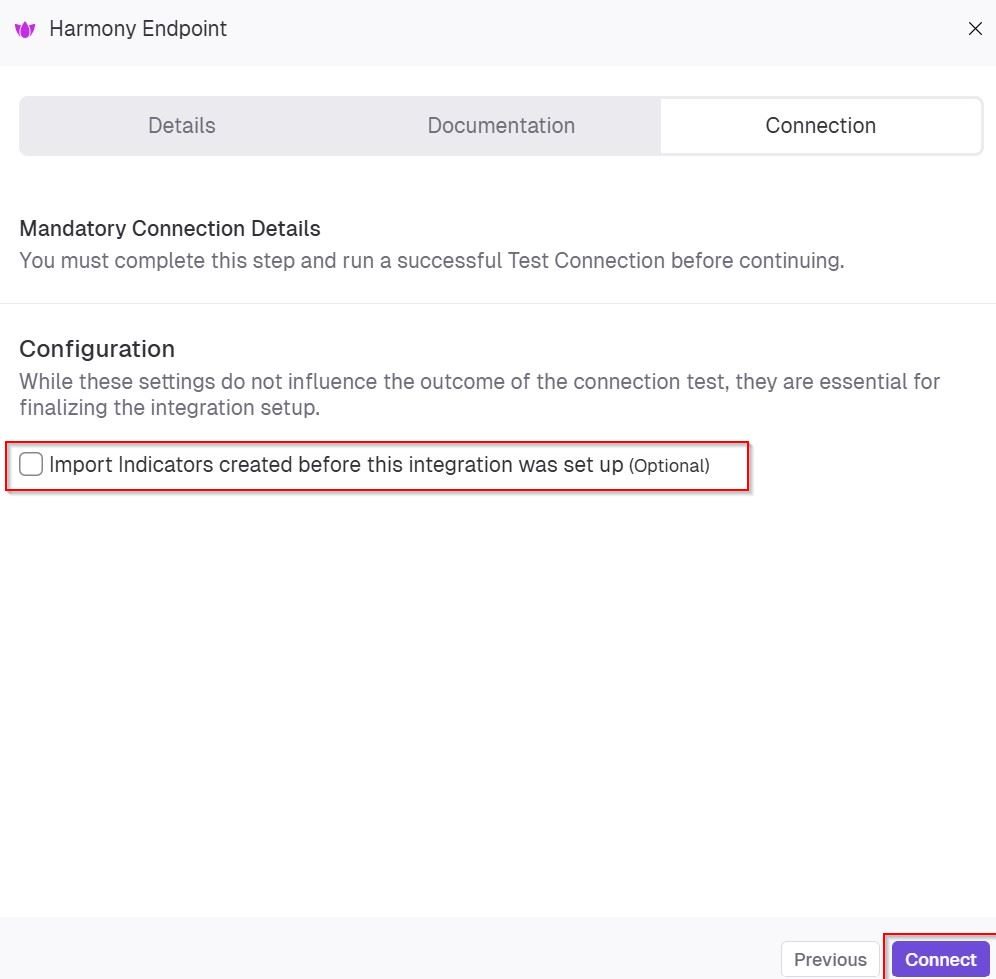
(Optional) In the Configuration section, enable the Import Indicators created before this integration was set up checkbox to backfill existing indicators into the integration.
-
Click Connect to establish a connection.