
F5 BIG-IP Advanced WAF Application Security Integration with TEM
Overview
BIG-IP by F5 is a traffic management and security platform that combines Web Application Firewall (WAF Application Security) capabilities with advanced traffic routing. Using modules like the Application Security Manager (ASM) for HTTP/HTTPS inspection and the Advanced Firewall Manager (AFM) for Layer 4 protection, BIG-IP detects threats, enforces security policies, and routes requests through a virtual server to backend application servers, ensuring both security and availability.
Check Point Threat Exposure Management(TEM) enhances F5 BIG-IP Advanced WAF by automatically pushing Indicators of Compromise (IoCs) from feeds and generating Protection Activation and Hardening insights. These insights do not originate from F5 itself, but are based on Check Point’s analysis of the WAF configuration to identify potential security leaks and misconfigurations. They serve as guidance based on detections, not as detection mechanisms themselves.
Supported Features
-
Virtual IPs Mapping
BIG-IP allows virtual IPs to be mapped to backend servers or services. These mappings are used in load balancing and application delivery.
-
Indicators
All security policies use indicators such as IP addresses and threat intelligence data to help detect and mitigate threats across applications.
-
Types – IP Addresses
IP addresses can be categorized and used as indicators. They can be added to allowlist, blocklist, or used for custom rules.
-
Verifying Indicators in Security Policies
To verify that indicators are pushed to all security policies:
-
Log in to the F5 BIG-IP portal.
-
Navigate to Application Security > Application Security > Security Policies > Policies List.
-
Select the relevant policy and click on IP Address Exceptions to view or manage indicators.
-
-
Integrating F5 BIG-IP Advanced WAF Application Security with TEM
Step 1 - Configure the F5 BIG-IP Advanced WAF Application Security User Access
-
Log in to the F5 BIG-IP portal.
-
From the left navigation panel, go to Main > System > Users > User List.

-
Click Create.
-
In the Create User form that appears, fill in the required details:
-
In the Username field, enter the admin name used to authenticate the connection.
-
In the Password field, enter a secure password for the specified username.
-
In the Role field, select Application Security Editor.
-
Click Add to assign the role to the Partition Access box.
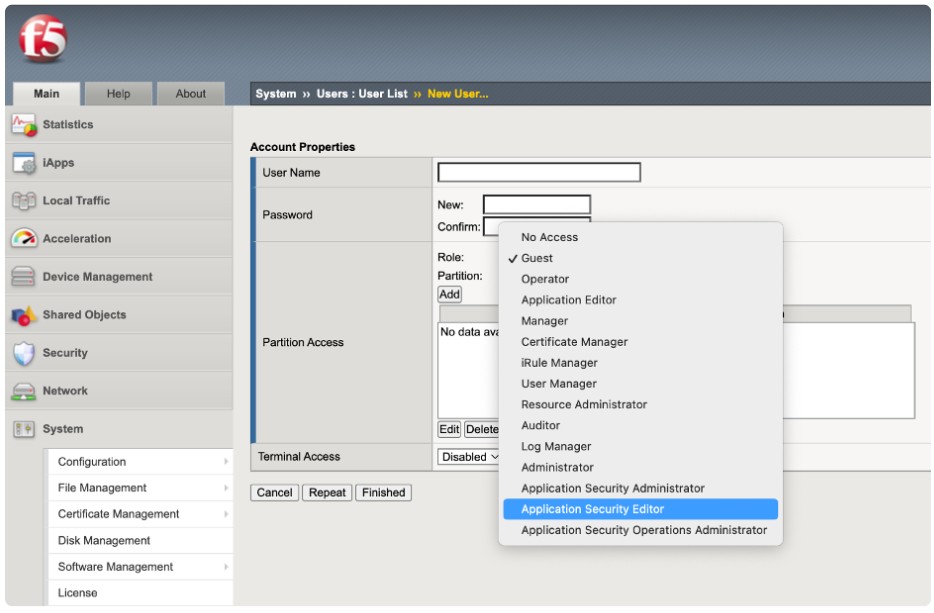
-
-
Click Finished to create the user.
-
Sign out of the admin account and sign in with the newly created user credentials.
Confirm that the user can log in successfully, the password works as expected, and the correct Application Security Editor access is applied.
Step 2 - Configure the TEM Portal
Prerequisite:
The user account must have the Application Security Editor role to connect F5 BIG-IP Advanced WAF with the TEM portal.
To connect F5 BIG-IP Advanced WAF in the TEM Portal:
-
Log in to the TEM portal.
-
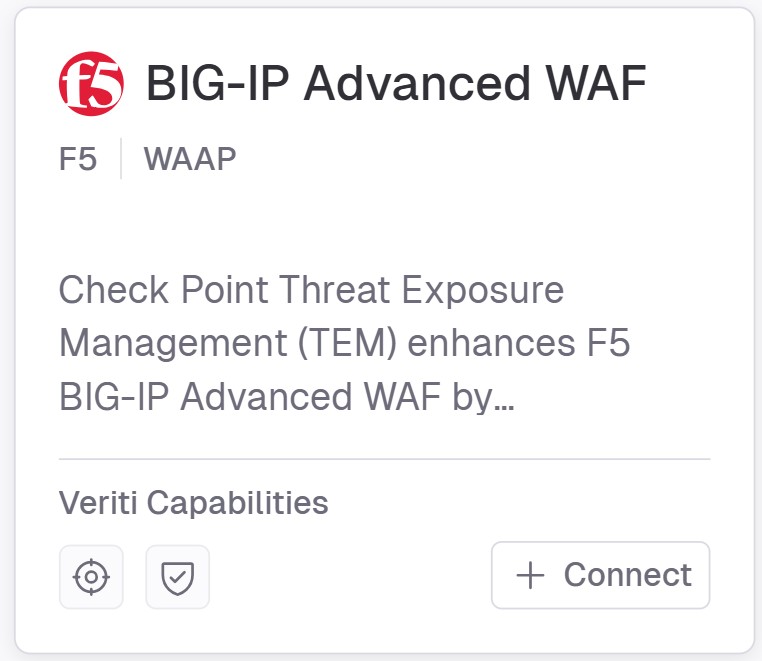
Go to Settings > Integrations > Catalog and select F5 BIG-IP Advanced WAF.
-
In the F5 BIG-IP Advanced WAF pop-up that appears, navigate to the Connection tab.
-
In the Mandatory Connection Details section, enter the following details:
-
In the Connection Name field, enter a unique name to identify this integration.
-
In the Username field, enter the admin name used to authenticate the connection.
-
In the Password field, enter a secure password for the specified username.
-
In the Host field, enter the hostname or IP address of the system you are connecting to.
-
In the Port field, enter the port number used for the connection.

Note - These settings do not affect the result of the connection test. However, they are required to complete the integration setup. Before proceeding to the next step, make sure all mandatory fields are filled and that the Test Connection runs successfully.

-
-
Click Next.
-
(Optional) In the Configuration section, enable the Backfill Indicators checkbox to import existing indicators into the integration.

-
Click Connect to establish a connection.
Limitations
-
High Availability (HA) Environment:
Each member in an HA setup must be registered individually.
-
Access to iControl (F5 REST API):
For versions earlier than 13.0.x, only users with the Administrator role can access iControl.
Unsupported Versions of F5 BIG-IP
The following table highlights specific versions of F5 BIG-IP that are considered unsupported due to a critical issue affecting API functionality.
|
Version Range |
Explanation |
|---|---|
|
17.1.2 – 17.5.0 |
These versions contain a bug that renders the API completely unusable. |
|
|
Note -
|