
CrowdStrike Falcon Integration with TEM
Overview
CrowdStrike Falcon is a cloud-based platform that helps organizations detect, prevent, and respond to cybersecurity threats. It offers real-time protection and visibility across endpoints using advanced analytics and threat intelligence.
Integrating CrowdStrike Falcon with TEM
Step 1 - Creating an API Client in the CrowdStrike Falcon Console
To create an API Client in the CrowdStrike Falcon Console:
-
Log in to the CrowdStrike Falcon Console.
-
Navigate to Support and Resources > API Clients and Keys.
-
Click Add API Client.
-
Enter Client Details:
-
In the Client Name field, enter a name.
-
(Optional) In the Description field, add the relevant description.
-
-
Set Required Permission Scopes:

Note - Not all customers have the Spotlight (Vulnerabilities) module enabled. Therefore, vulnerability-related scopes are optional and should be configured only if Spotlight is active.
Scope
Read
Read-Write
Collect Vulnerabilities Vulnerabilities 
Push Indicators Capability IoC Management
Firewall Management
Fetch Hash Indicators Capability Alerts
Indicator Relations Capability
Indicators (Falcon Intelligence)
Endpoint Hardening
Hosts
Zero Trust Assessment
Prevention Policies
-
Copy the API Credentials.
From the pop-up that appears, copy the Client ID, Secret, and API Base URL.
|
|
Note - This secret is displayed only once. Ensure you save it securely, as it cannot be retrieved again. |
Step 2 - Configuring the TEM Portal
-
Log in to the TEM portal.
-
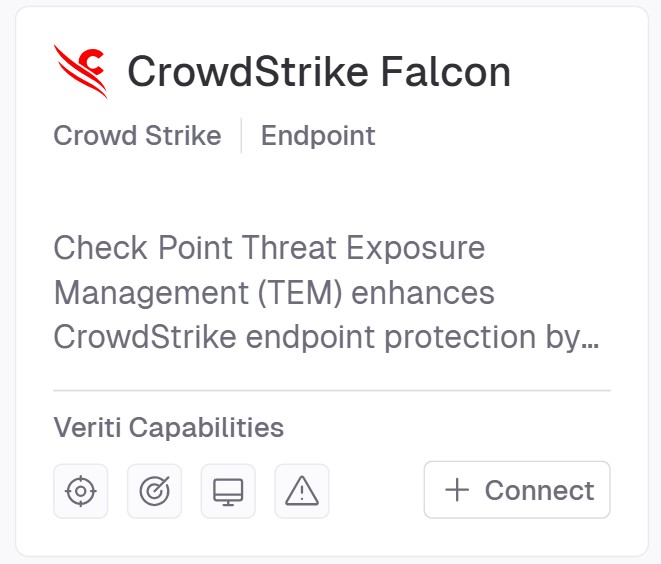
Go to Settings> Integrations > Catalog and select CrowdStrike Falcon.
-
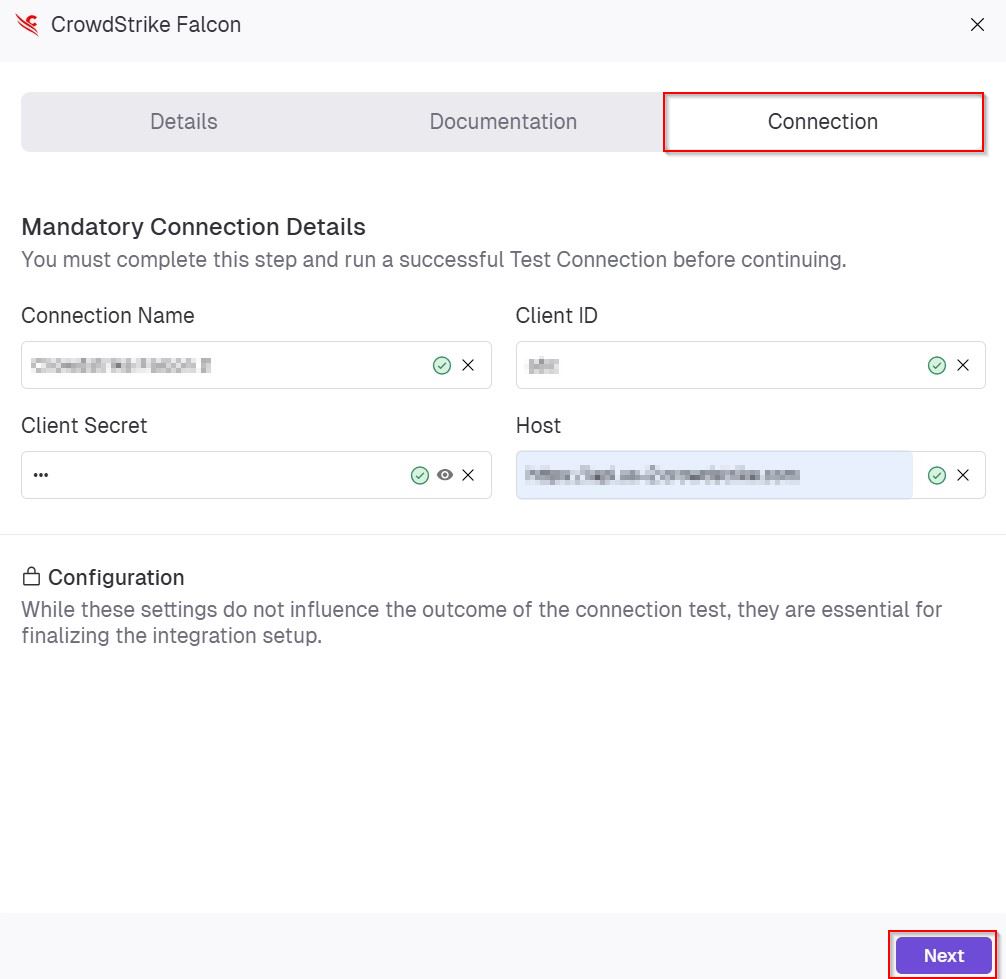
In the CrowdStrike Falcon pop-up that appears, navigate to the Connection tab.
-
In the Mandatory Connection Details section, enter these details:
-
In the Connection Name field, enter a unique name to identify this integration.
-
In the Client ID field, enter the client identifier provided by CrowdStrike for API access.
-
In the Client Secret field, enter the secure secret key associated with the Client ID.
-
In the Host field, enter the API base URL for your CrowdStrike region.
-
-
Click Next.
-
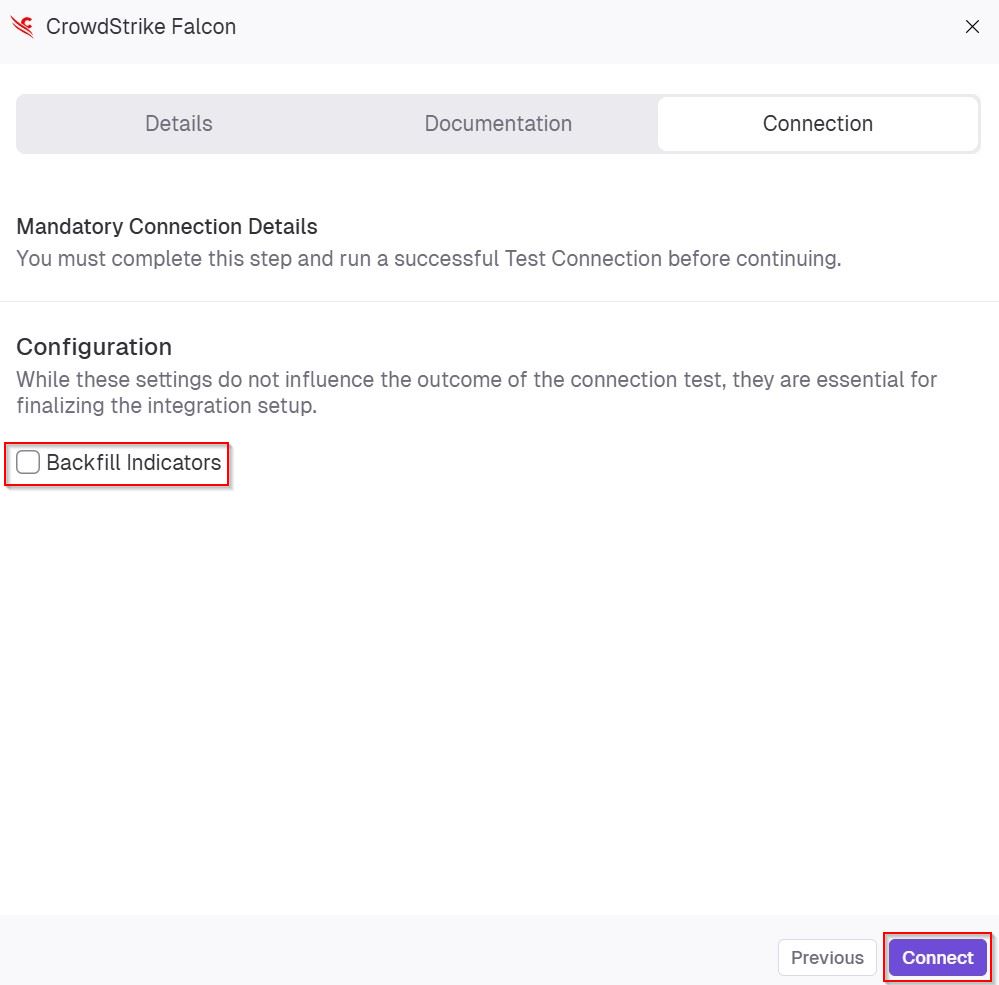
(Optional) In the Configuration section, enable Backfill Indicators to import existing indicators into the integration.
-
Click Connect to establish a connection.