
Cisco Umbrella Integration with TEM
Overview
Check Point Threat Exposure Management (TEM) integrates with Cisco Umbrella to enhance visibility, minimize exposures, and streamline security operations.
The integration provides centralized Indicators Management, enabling consistent management and distribution of threat intelligence across all integrated security controls. This ensures unified enforcement and alignment of threat policies throughout the organization.
Integrating Cisco Umbrella with TEM
Step 1 - Assigning the VeritiBlockList to a Policy
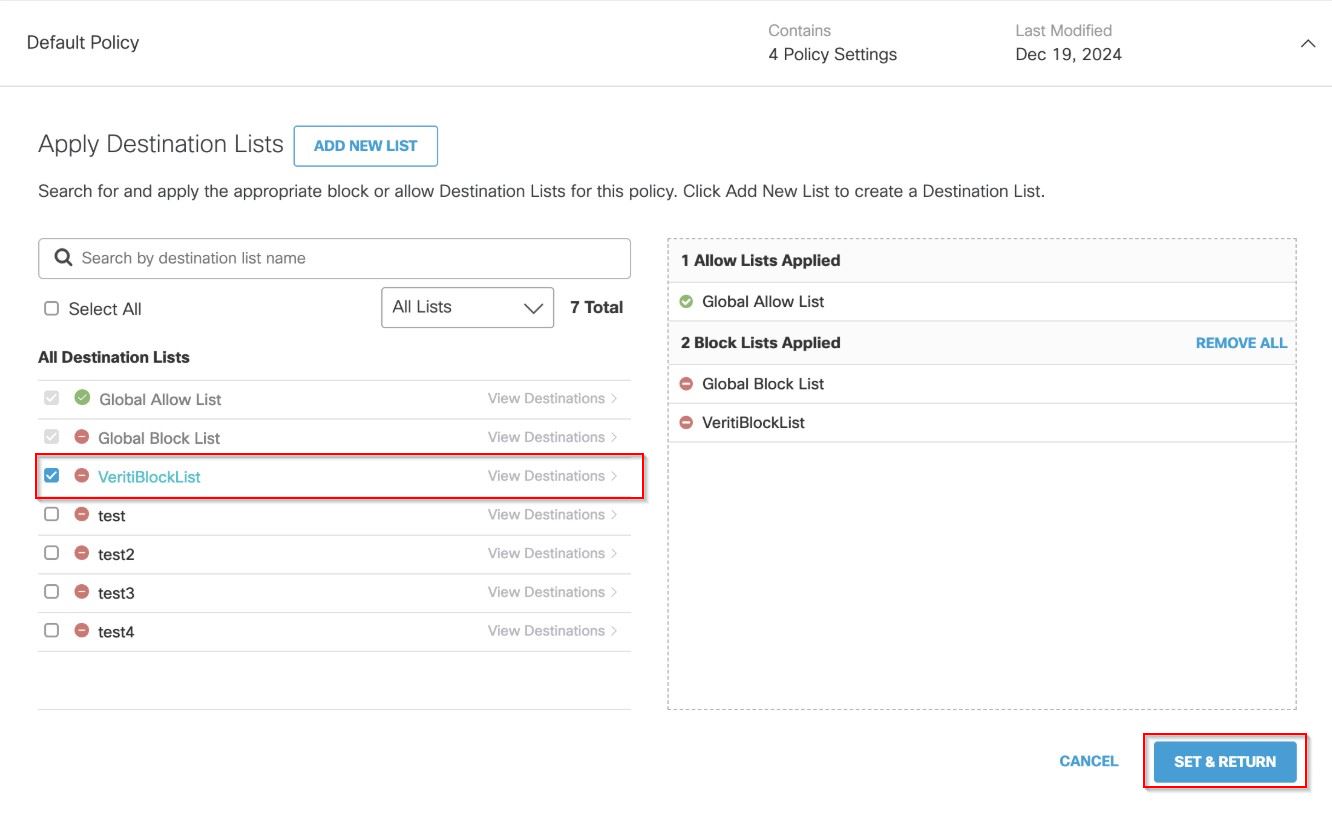
TEM automatically creates and maintains a destination list named VeritiBlockList in Cisco Umbrella.
However, to enforce the indicators in this list, you must manually assign VeritiBlockList to a policy:
-
Log in to the Cisco Umbrella Dashboard.
-
From the left navigation panel, go to All Policies and click on a policy from the list.

-
In the Destination Lists Enforced section, click Edit.
The Apply Destination List page appears.
-
In the All Destination Lists section, enable the VeritiBlockList checkbox.
-
Click Set & Return.
-
Click Save.
Step 2 - Generating an API Token in Cisco Umbrella
-
Log in to the Cisco Umbrella dashboard.
-
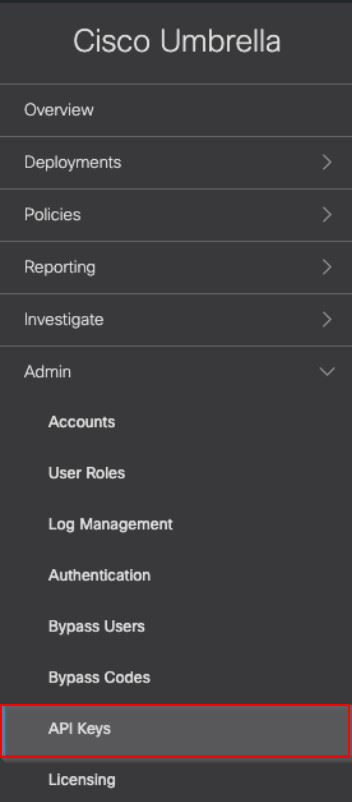
Go to Admin > API Keys.
-
Click Add at the top right corner.

-
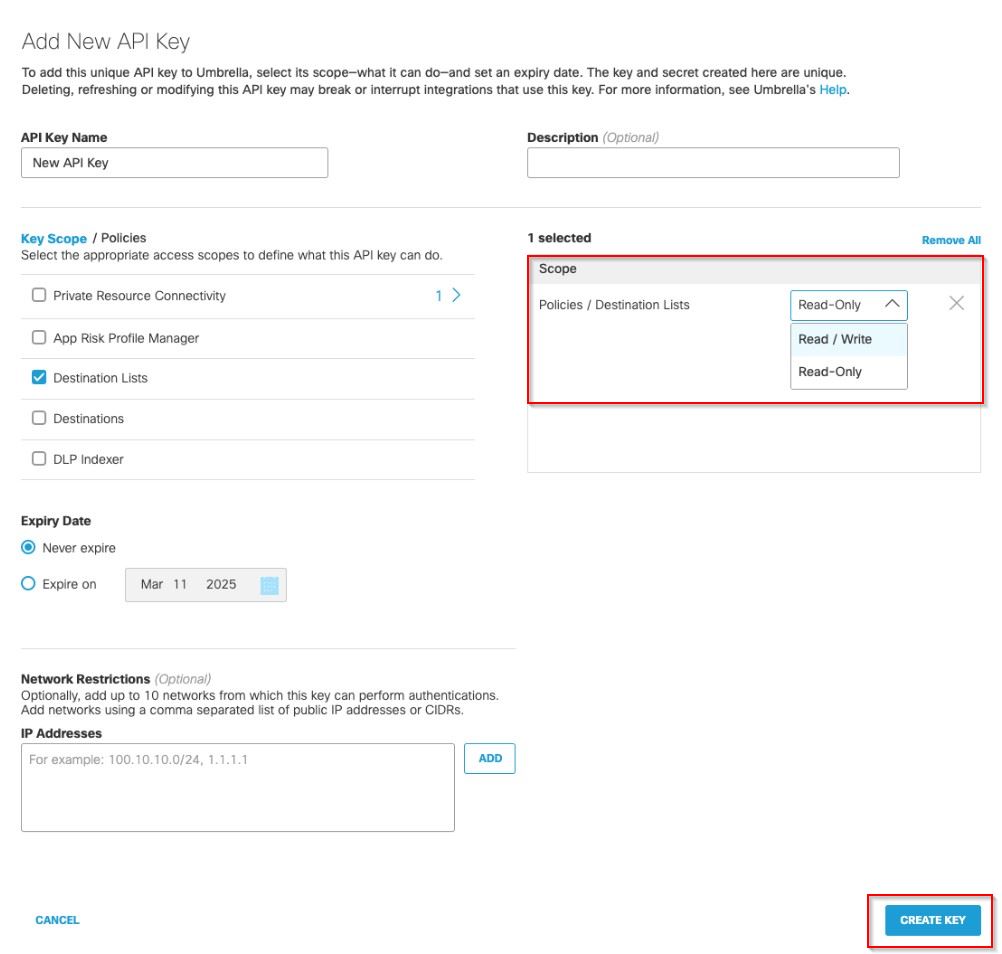
In the Add New API Key pop-up that appears, enter a new API key.
-
In the Key Scope section, expand Policies and enable the Destination Lists checkbox.
-
In the selected Scope section, set the permission to Read / Write.
-
Click CREATE KEY.


Note - Ensure you copy and securely store both the API Key and Key Secret immediately after creation, as they cannot be retrieved later if lost.
Step 3 - Configuring the TEM Portal
-
Log in to the TEM portal.
-
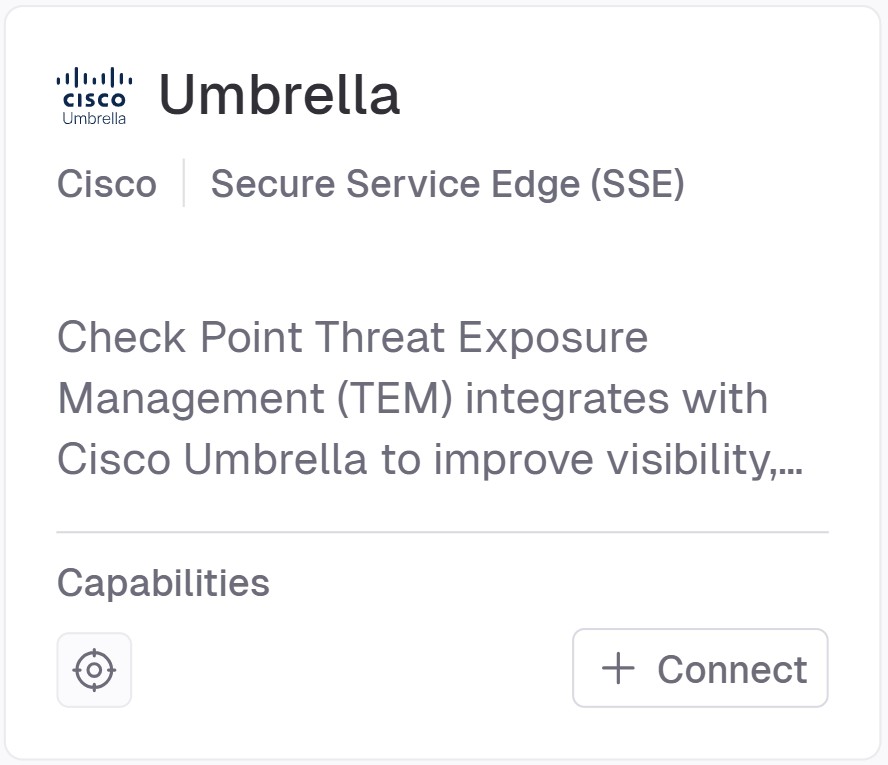
Go to Settings> Integrations > Catalog and select Umbrella.
-
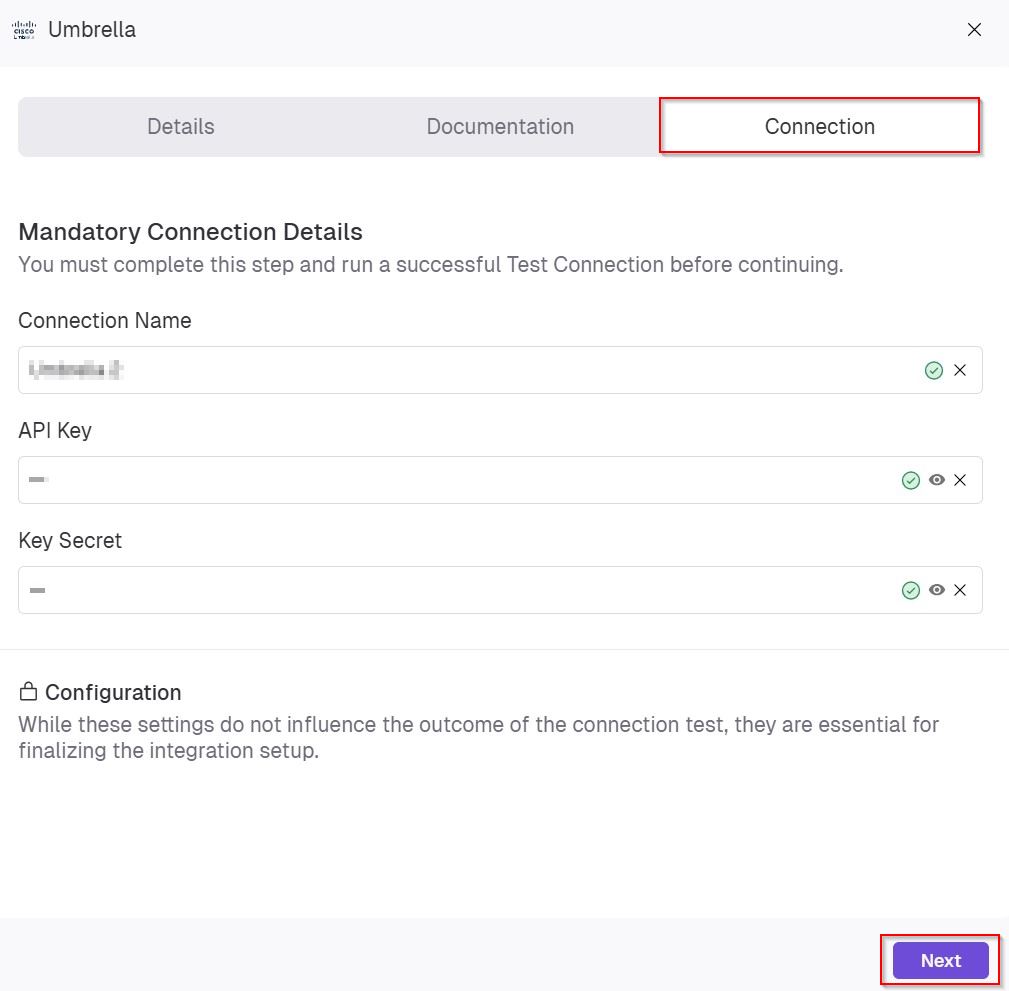
In the Connection tab, enter the following details to establish integration with Umbrella.
-
In the Connection Name field, enter a name for this integration instance.
-
In the API Key field, paste the API Key generated from the Cisco Umbrella dashboard.
-
In the Key Secret field, paste the corresponding Key Secret.
-
-
Click Next.
-
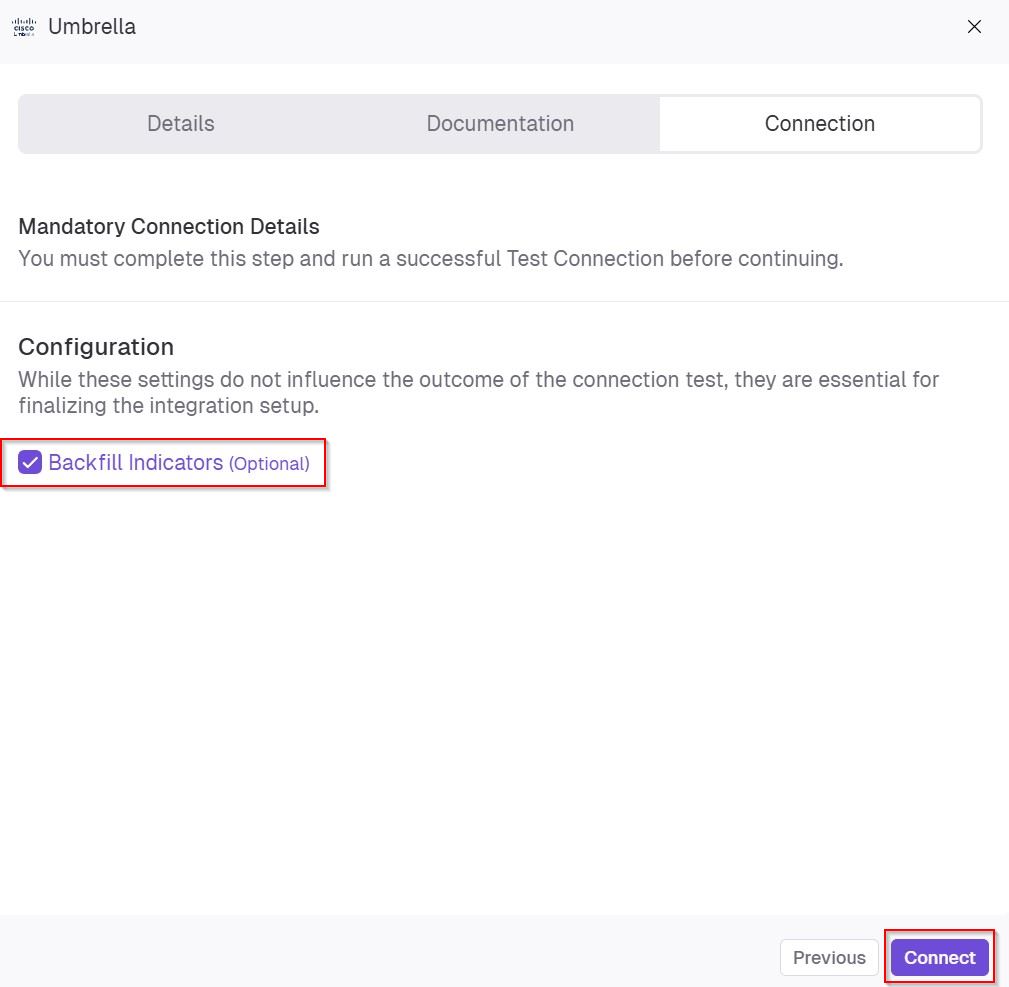
(Optional) In the Configuration section, enable the Backfill Indicators checkbox to import existing indicators into the integration.
-
Click Connect to establish a connection.