
Trend Micro Apex One Integration with TEM
Overview
The Trend Micro Apex integration with Threat Exposure Management (TEM) enables organizations to extend Apex capabilities by providing unified visibility into vulnerabilities and threats. This integration helps reduce exposure, optimizes security operations, and improves visibility.
Supported Capability
Indicators - Manages threat intelligence across all integrated security controls, ensuring consistent alignment and protection across the organization.
Integrating Apex One with TEM
Step 1 - Generating API Credentials in Apex Central
-
Log in to Trend Micro Apex Central.
-
Navigate to Administration > Settings > Automation API Access Settings.

-
Click Add to create a new Application Access.

-
Enable the Enable application integration using Apex Central Automation APIs checkbox.
-
In the Enable Access Settings pop-up that appears, enter an application name and click Save.


Note - Ensure you copy and securely save the generated App ID and API key for further use in the integration setup.
Step 2 - Configuring the TEM Portal
-
Log in to the TEM portal.
-
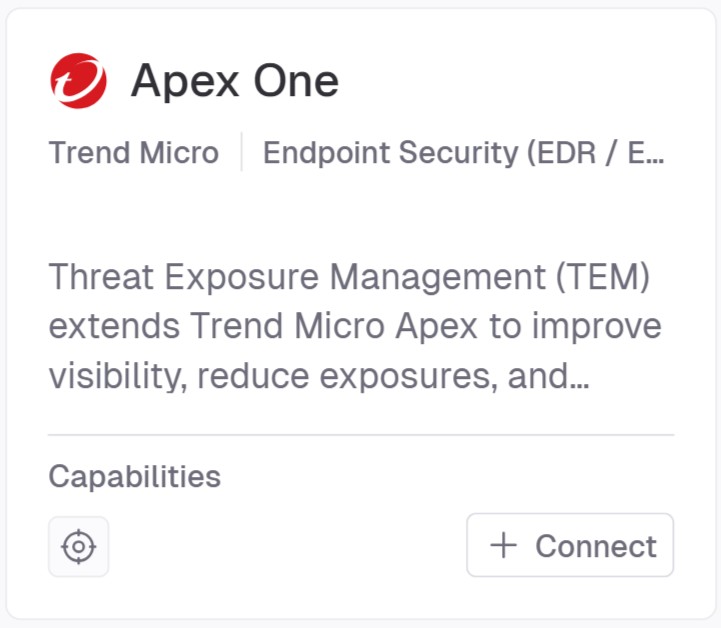
Go to Settings > Integrations > Catalog > Apex One.
-
In the Apex One pop-up that appears, navigate to the Connection tab and enter the following details.

-
In the Connection Name field, enter a name for this connection.
-
In the App ID field, enter the Application ID copied from the Trend Micro Apex Central portal.
-
In the API Key field, enter the API key generated from Trend Micro Apex Central portal.
-
In the Host field, enter the hostname or IP address of the Trend Micro Apex Central portal.
-
In the Port field, enter the port number used for the connection.
-
-
Click Next.
-
(Optional) In the Configuration section, enable the Import Indicators created before this integration was set up checkbox to backfill existing indicators into the integration.

-
Click Connect to establish a connection.