
OpenAI
OpenAI is an AI research and deployment organization. The platform gives access to AI models, tools, and APIs for tasks such as natural language processing and image generation.
Prerequisites
Before you start, make sure that you have these prerequisites:
-
An OpenAI Organization Owner account on
https://platform.openai.com. Only Organization Owners can create and use Admin API keys. -
(Optional) Owner or admin access to a ChatGPT Enterprise workspace on
https://chatgpt.com. You need this access to collect compliance data. -
Approval from OpenAI for the Compliance key. Before you can use the Compliance key, OpenAI must verify the key and grant the requested scopes. Unlike the Admin key, the Compliance key is not usable immediately after you create it.
Integrating OpenAI
OpenAI uses two token types to integrate with SaaS Security:
-
An Admin (Platform) token - for the organization-level data. You create this token in the OpenAI API Platform. The key has the prefix
sk-admin. -
A Compliance (Chat) token - for the ChatGPT Enterprise workspace data.
At least one token is required. You can add both tokens independently.
To integrate OpenAI with SaaS Security, do these steps:
-
Log in to the SaaS Security Administrator Portal.
-
From the top navigation bar, select Integration Manager.
-
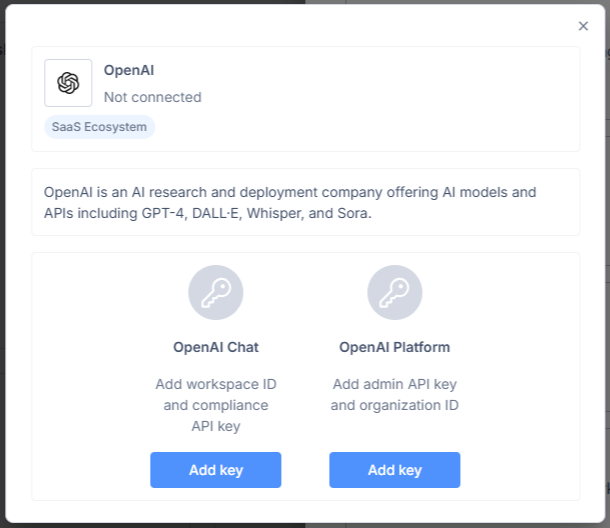
In the OpenAI widget, click Connect. The OpenAI window opens.
-
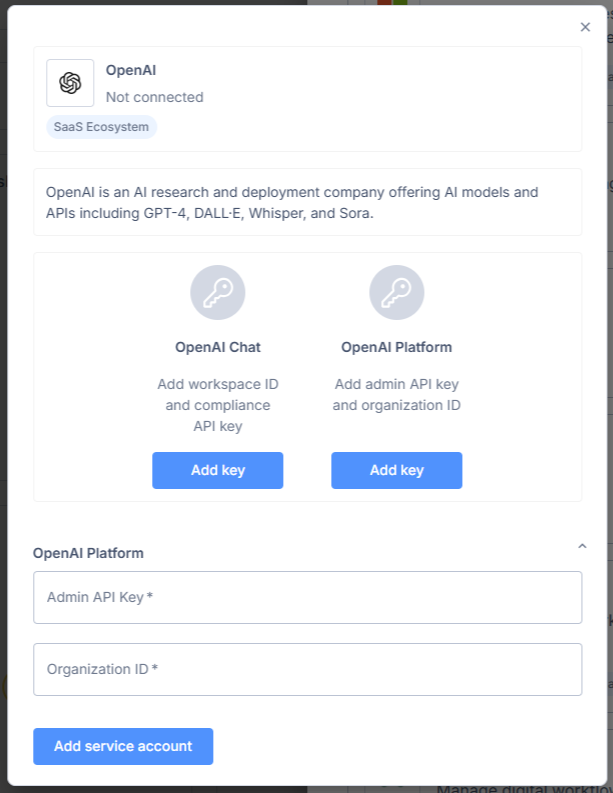
Add the OpenAI Platform API key. For that, click Add key in the corresponding column and fill out the Admin API Key and Organization ID fields.
-
In a separate browser tab, log in to
https://platform.openai.comas an Organization Owner. -
In the API Platform dashboard, select Admin keys in the left panel. Then click Create new admin key. Copy the key and store it in a secure location. OpenAI shows the key only one time.
-
Get your Organization ID from Settings > Organization.
-
Return to the SaaS Security Administrator Portal. Enter the Admin API key and the Organization ID. Then click Add service account. A confirmation notification shows, and the system accepts the Admin API key.
Connecting a ChatGPT Enterprise Workspace (Compliance Key)
To also connect your ChatGPT Enterprise workspace, do these steps:
-
Log in to the OpenAI API Platform as an owner or admin. Make sure that the correct Organization is selected: the Organization that corresponds to the administered workspace, not your personal Organization. If you select the wrong Organization, the key cannot see the workspace.
-
Create a new API key with the required project and permission settings for compliance access.
-
The key must be a new key. After OpenAI grants the Compliance API scopes, all other scopes on that key are revoked. Do not reuse this key for other purposes.
-
You can view and copy the key only one time. Store it in a secure location.
-
-
Send an email to
support@openai.com. Include this information:-
The last 4 digits of the API key.
-
The key name.
-
The "created by" name.
-
The requested scope: read, delete, or both.

Note - The delete scope lets the integration remove workspace data.
-
-
Wait for OpenAI to verify the key and grant the requested Compliance API scopes. You can use the key for the Compliance integration only after OpenAI approves it.
-
After OpenAI grants the scopes, return to the SaaS Security Administrator Portal. Click Add key in the OpenAI Chat column and fill out the API Key and Workspace ID fields. Then click Add service account.
In the SaaS Security Administrator Portal, the Successfully connected message shows.
|
|
Note - If only the Admin token is present, SaaS Security collects the users, the projects, and the service accounts. If only the Compliance token is present, SaaS Security collects the data from that ChatGPT Enterprise workspace only. The Compliance key is functional only after OpenAI verifies it and grants the requested scopes. Unlike the Admin key, you cannot use it immediately after you create it. |
|
|
Note - The ChatGPT Compliance API is part of the OpenAI Compliance Logs Platform. The base URL is |