
Anthropic
Anthropic is an AI safety and research company. It builds reliable, interpretable, and steerable AI systems.
Prerequisites
Before you start, make sure that you have these prerequisites:
-
An Anthropic Enterprise plan. This integration is available to Enterprise customers only.
-
An Anthropic organization admin account. You need the admin role to create an Admin API key in the Claude Console.
-
The Primary Owner role, or access to the Primary Owner of your organization. Only the Primary Owner can enable the Compliance API and create a Compliance Access Key.
-
The permission to create Admin API keys in the Claude Console, at Organization settings > Admin keys.
-
Your Organization ID.
-
The Compliance API, enabled for your organization. Before you create a Compliance Access Key, you must enable the Compliance API. Enablement is not self-serve, and it does not backfill past activity:
-
For claude.ai: the Primary Owner enables the Compliance API in the Data and Privacy section of the organization settings at
https://claude.ai. -
For the Console or the API: the organization admin sends a request to the Anthropic representative to enable the Compliance API.
-
Integrating Anthropic
Anthropic uses two separate credentials to integrate with SaaS Security. You obtain each credential from a different Anthropic surface, and you must submit each one independently:
-
An Admin API key - for the users and the workspace data. You create this key in the Claude Console. The key has the prefix
sk-ant-admin. Do not use a standard workspace API key (prefixsk-ant-api). -
A Compliance Access Key - for the audit and activity logs. The Primary Owner creates this key in claude.ai after the Compliance API is enabled.
To integrate Anthropic with SaaS Security, do these steps:
-
Log in to the SaaS Security Administrator Portal.
-
From the top navigation bar, select Integration Manager.
-
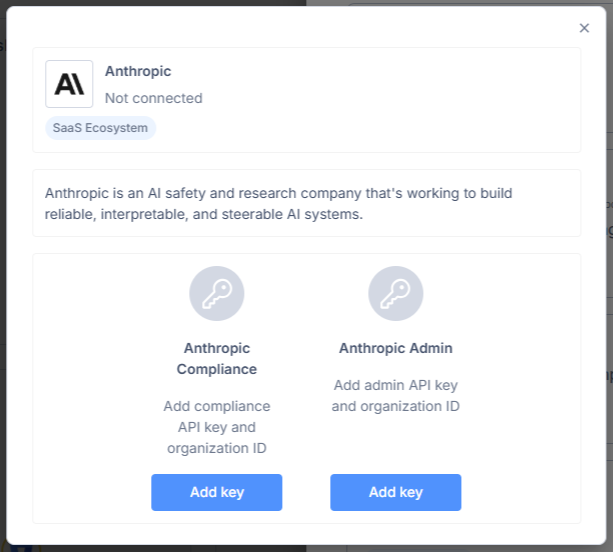
In the Anthropic widget, click Connect. The Anthropic window opens.
-
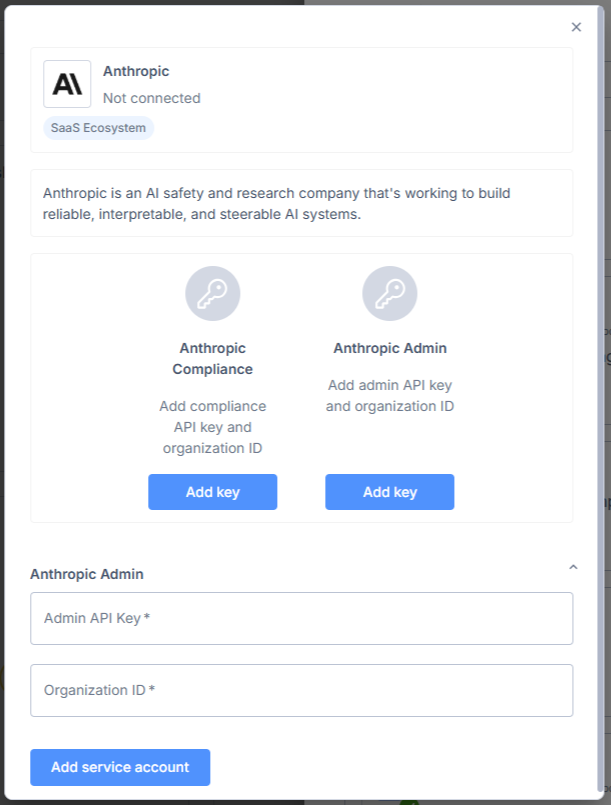
First, add the Anthropic Admin API key. For that, click Add key in the corresponding column and fill out the Admin API Key and Organization ID fields.
-
In a separate browser tab, log in to the Claude Console at
https://console.anthropic.comas an organization admin. -
Go to Organization settings > Admin keys and create an Admin API key. Copy the key and store it in a secure location. Anthropic shows the key only one time.
-
Get your Organization ID.
-
Return to the SaaS Security Administrator Portal. Enter the Admin API key and the Organization ID. Then click Add service account. A confirmation notification shows, and the system accepts the Admin API key.
-
After that, add the Anthropic Compliance API key. For that, click Add key in the corresponding column and fill out the API Key and Organization ID fields.
-
Before you create the Compliance Access Key, make sure that the Compliance API is enabled for your organization.
-
As the Primary Owner, log in to claude.ai and create a Compliance Access Key. Copy the key and store it in a secure location.
-
Return to the SaaS Security Administrator Portal. Enter the Compliance Access Key and the Organization ID. Then click Add service account. A confirmation notification shows, and the system accepts the API key.
In the Anthropic widget window, the Successfully connected message shows.
|
|
Note - You must do two separate key submissions to complete the integration: one for the Admin API key and one for the Compliance Access Key. You can create the Compliance Access Key only after the Compliance API is enabled for the organization. This applies to Enterprise customers only. |

|
|
Note - The Admin API key and the Compliance Access Key are different credentials from different Anthropic surfaces. You create the Admin API key in the Claude Console. The Primary Owner creates the Compliance Access Key in claude.ai. Do not use the same key for both submissions. |
Troubleshooting
If the Successfully connected message does not show, make sure that the key type is correct, that your account has the required role, and that the Compliance API is enabled for your organization.