
Palo Alto Redundant Tunnel
This guide explains how to configure a Site-to-Site High Availability (HA) redundant VPN tunnel between your SASE network and a Palo Alto Firewall, including both firewall and SASE console configuration.
Pre-requisites
Before you begin, ensure that you have:
-
An active SASE account and a functioning network.
-
The SASE application installed on your devices.
-
An active Palo Alto Firewall account with administrative permissions.
Configuration in Palo Alto WebGUI
Step 1: Configure Tunnel Interfaces
-
Open the Palo Alto WebGUI and go to Network.
-
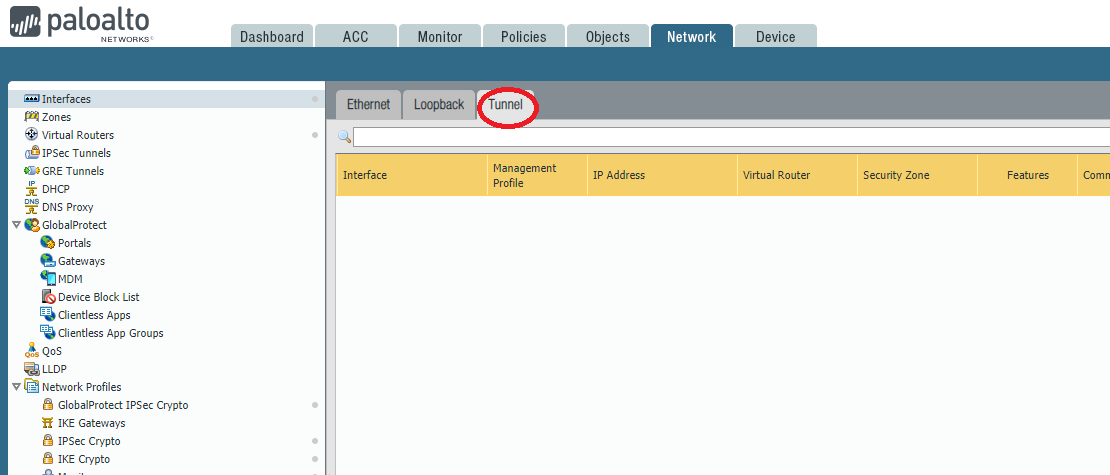
Select Interfaces and go to Tunnel.
-
Click Add.
-
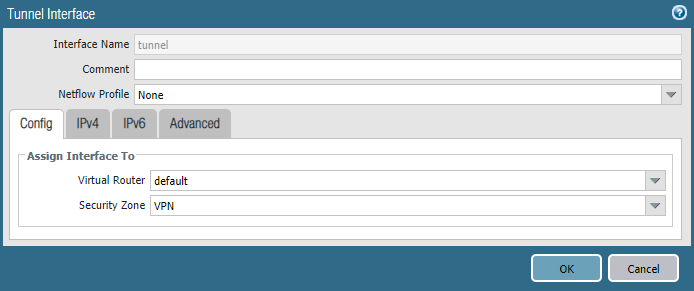
Configure these parameters:
-
Virtual Router: Select the virtual router for the tunnel interface.
-
Security Zone: Create a dedicated zone for tunnel traffic. If the tunnel interface is in a different zone than the source or destination, create a security policy to allow the traffic.
-
-
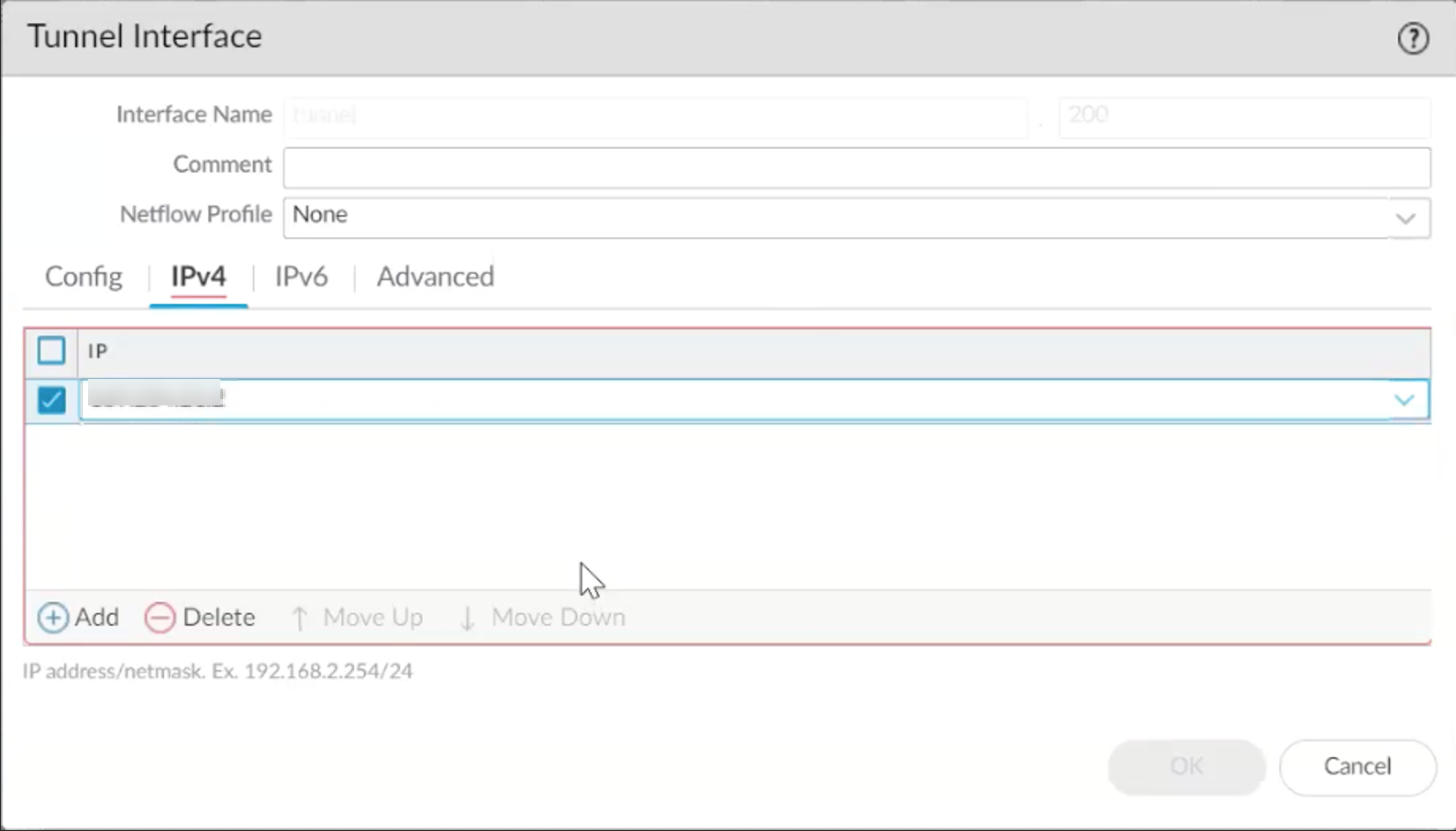
Click the IPv4 tab and click Add. Enter the internal address for the first tunnel (use the 169.254.x.x range).
-
Click OK.
-
Repeat the steps to create the second tunnel interface.
Step 2: Configure IKE Crypto Profile
-
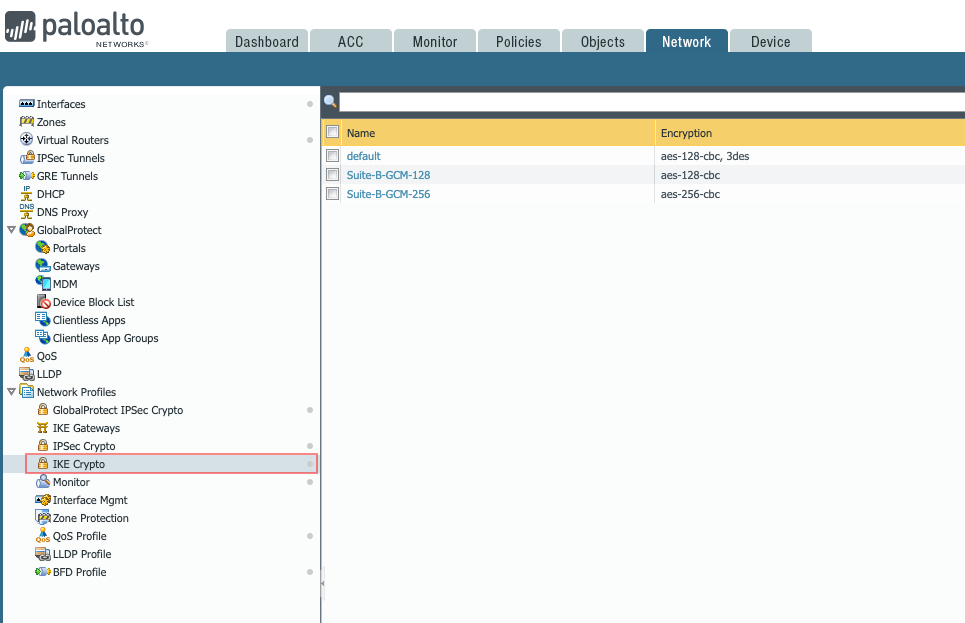
Go to Network Profiles > IKE Crypto.
-
Click Add and define the IKE Crypto profile (IKEv1 Phase 1) parameters:
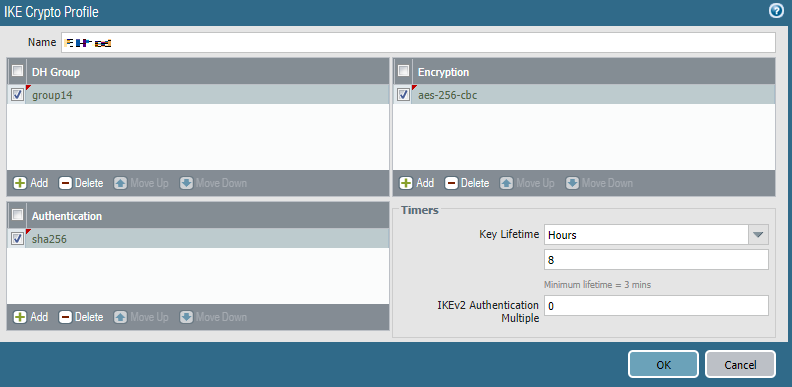
Field
Enter
Name Enter a descriptive name DH Group 14 Encryption aes-256-cbc Authentication sha256 Key Lifetime 8 Hours IKEv2 Authentication Multiple 0
Step 3: Configure IKE Gateway
-
Go to Network Profiles > IKE Gateway.
-
Click Add and fill these details:
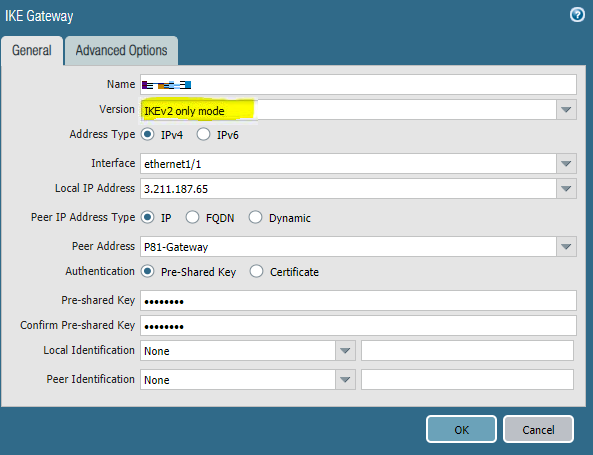
Field
Enter
Name Name for the gateway. Version Select IKEv2 (or IKEv1 if unsupported)
Address IPv4 Interface External interface connected to the internet. Local IP Address External IP address. Peer IP Address Type IP Peer Address
Public IP address of the Check Point SASE gateway.
Authentication
Pre-Shared Key
Pre-shared Key
Enter a strong key (mix of uppercase, lowercase, and numbers). Make a note of the key.
Local Identification
None (Gateway uses the local IP as the local identification value)
Peer Identification
None (Gateway uses the peer IP as the peer identification value)
-
Repeat the steps for the second SASE gateway.
Step 4: Configure IPsec Crypto Profile
-
Go to Network Profiles > IPsec Crypto.
-
Click Add and enter these details:
Field
Enter
Name P81-Phase2 IPsec Protocol ESP DH Group 14 Encryption aes-256-cbc Lifetime 1 hour Authentication sha256
Step 5: Configure IPsec Tunnels
-
Go to Network Profiles > IPsec Tunnels.
-
Click Add and enter these details:
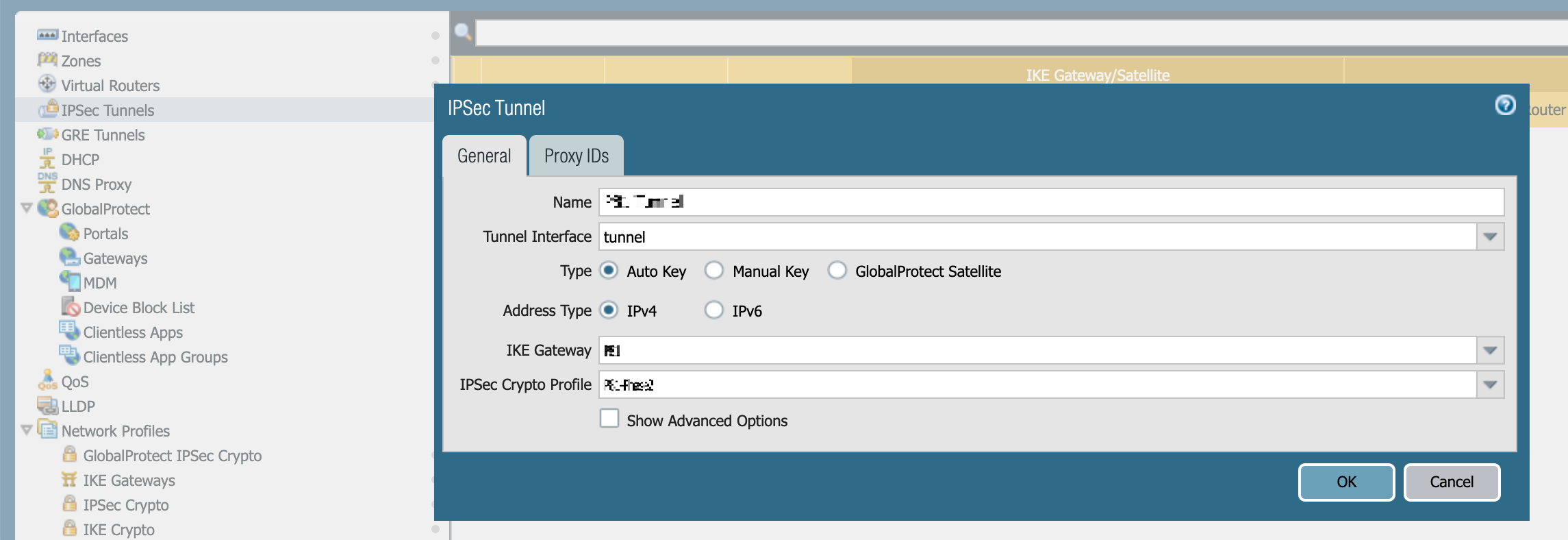
Field
Enter
Name Name for the tunnel. Tunnel Interface An appropriate interface. Type Auto Key Address IPv4 IKE Gateway Select the previously defined gateway. IPsec Crypto Profile Select the previously defined profile. -
Repeat the steps for the second IPsec tunnel.
Step 6: Configure BGP
-
Go to Network Profile > Virtual Routers.
-
Click BGP and enter these details:
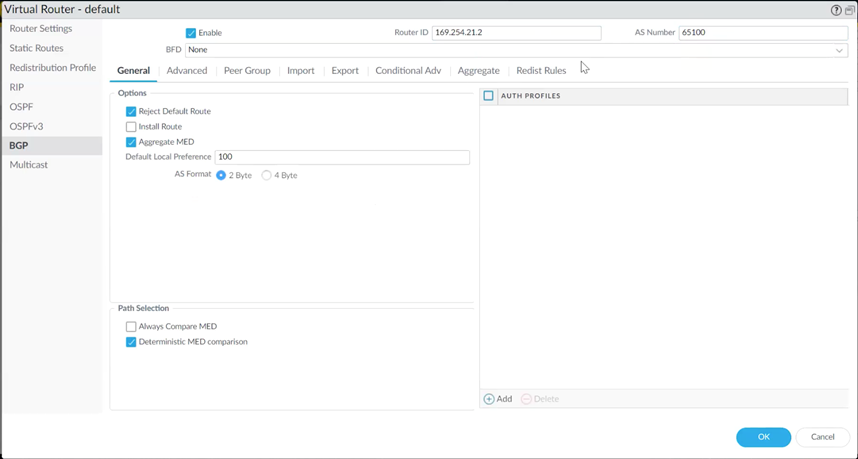
-
Router ID: Internal address for the first tunnel (from Step 1).
-
AS Number: AS number for the Palo Alto Firewall.
-
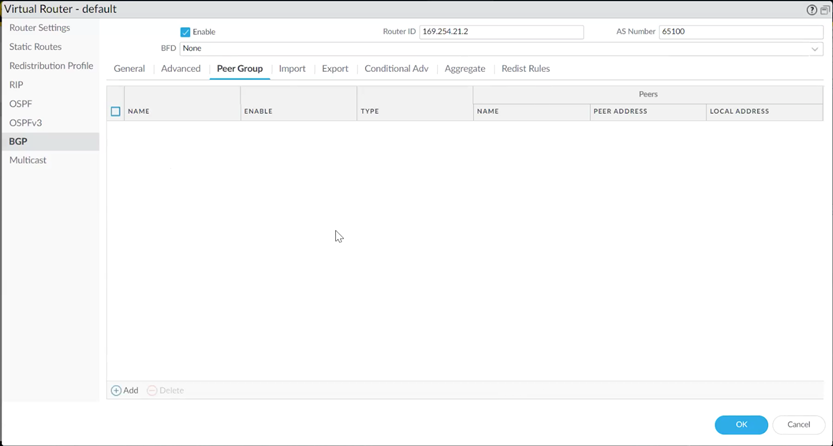
Add BGP Peer Group and Peers (for redundancy)
-
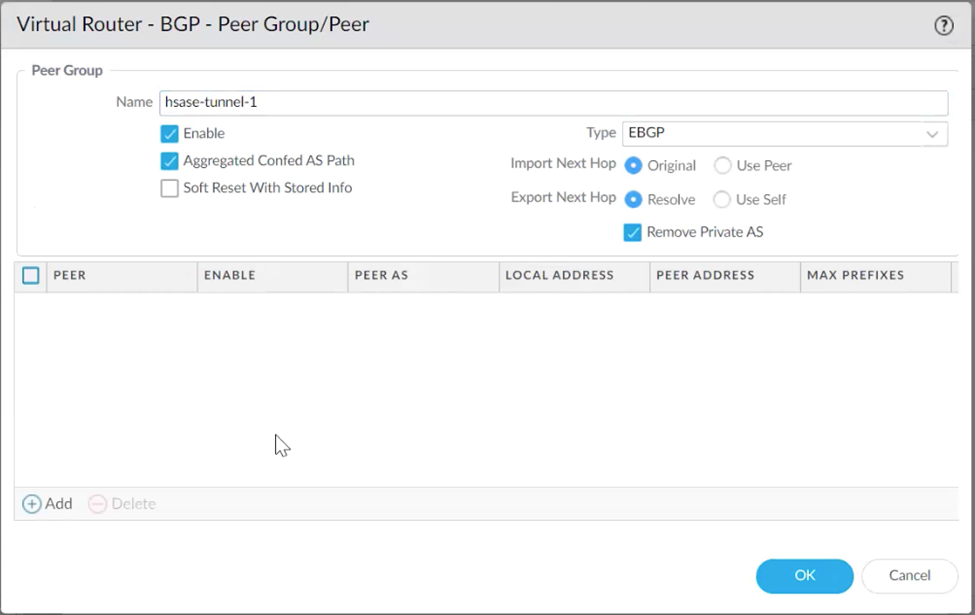
Under Peer Group, click Add and enter a name for the Peer Group.
-
Under Peer, click Add.
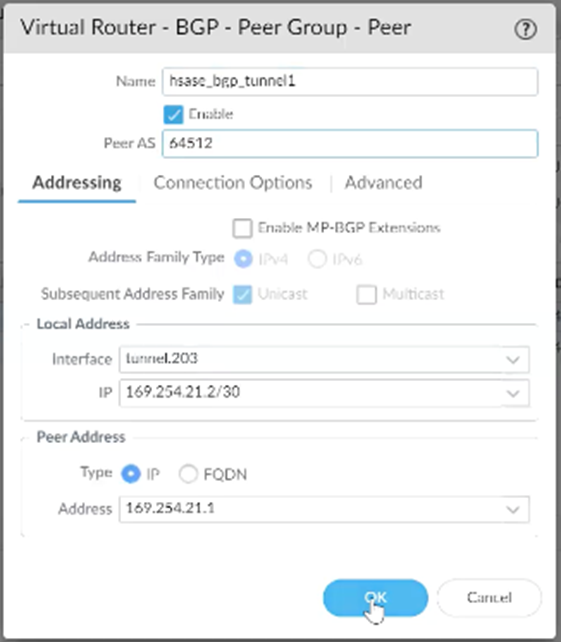
In the Peer window, configure these details:
Field
Enter
Name Enter a descriptive name. Peer AS SASE AS number (default: 65000). Local Address -
Interface: Select the first tunnel interface created in Step 1.
-
IP: Select the internal address assigned to the first tunnel.
Peer Address Internal (BGP) address for the first SASE gateway.
-
-
Go to Connection Options, set Multi Hop to 3.
-
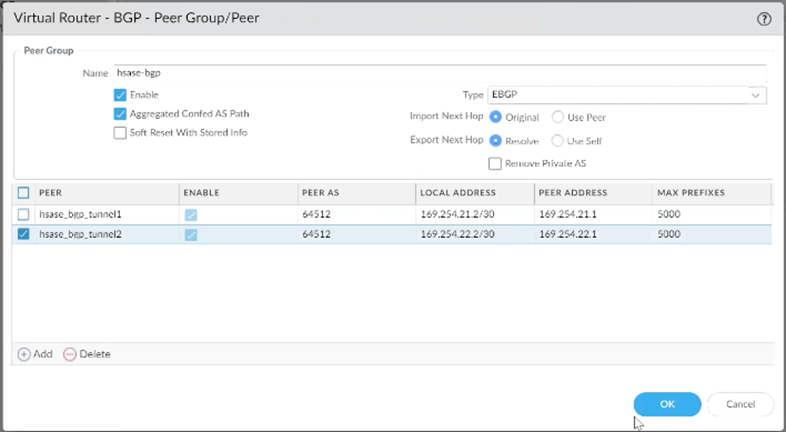
Repeat for the second tunnel interface.
The Peer Group configuration should resemble the example shown below.
Step 7: Configure Redistribution Profile and BGP Import Rules
Redistribution Profile
-
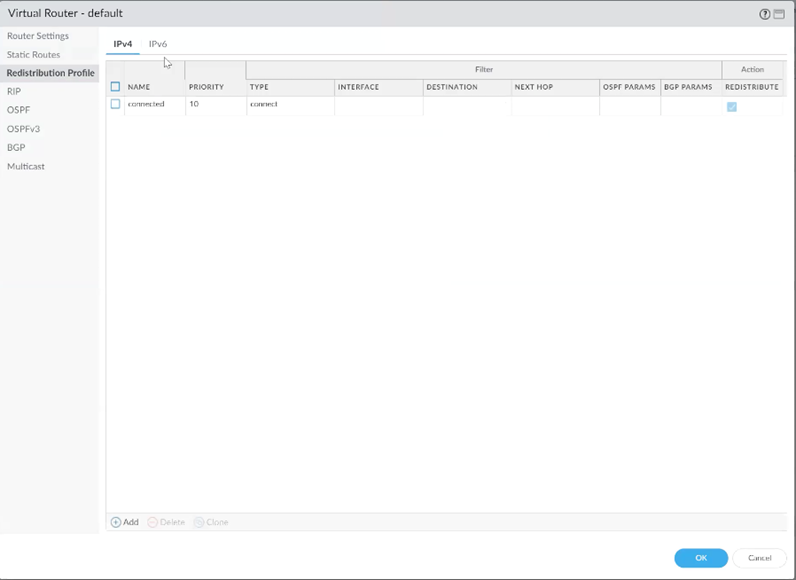
Go to Virtual Router > Redistribution Profile > Add.
-
Configure:
-
Name and Priority
-
Enable Redist
-
Under General Filter, check Static
-
-
Click OK.
BGP Import Rules
-
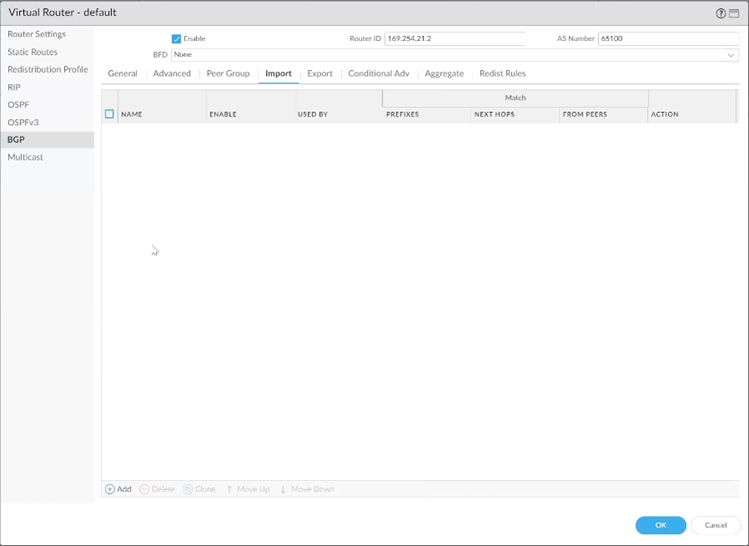
Go to BGP > Import > Add.
-
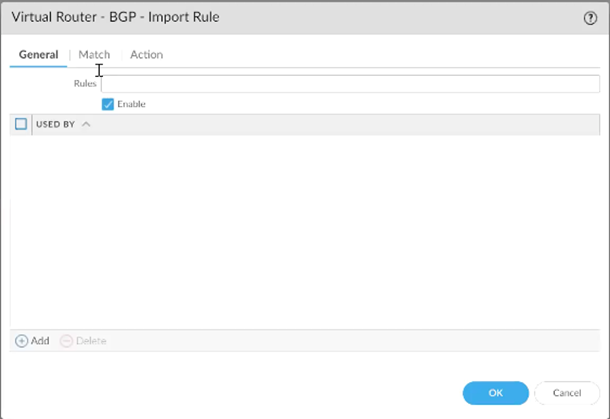
Enter a Name for the rule.
-
Click Add and select the created peer group.
-
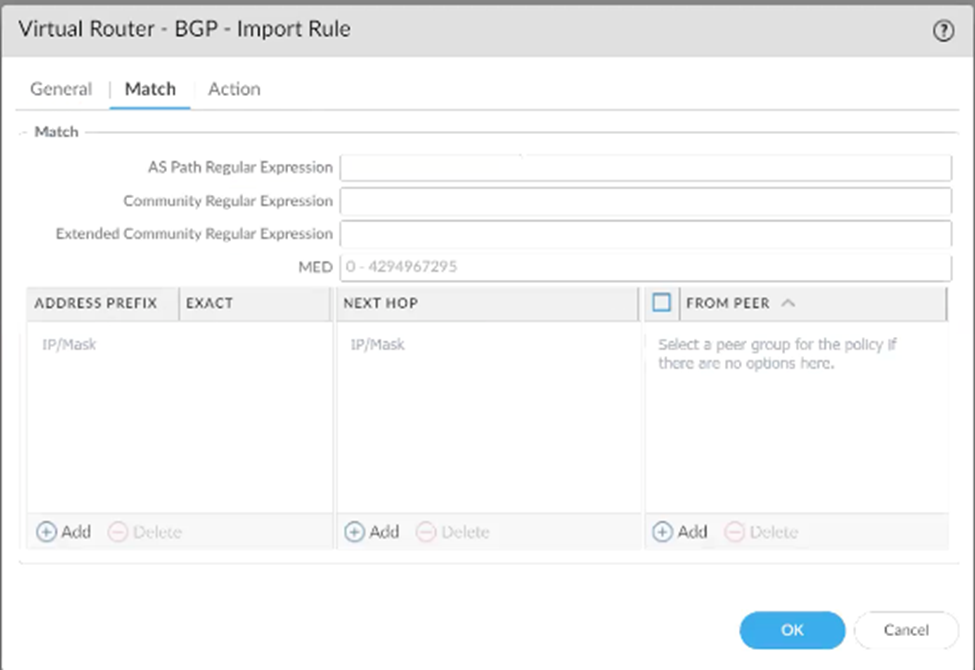
Under Match, configure:
-
AS Path Regular Expression: _<SASE AS>$ (replace with the actual SASE AS)
-
FROM PEER: Select the two tunnel interfaces created previously.
-
-
Under Action, choose Allow.
-
Under Redist Rules, click Add and select the redistribution profile created earlier.
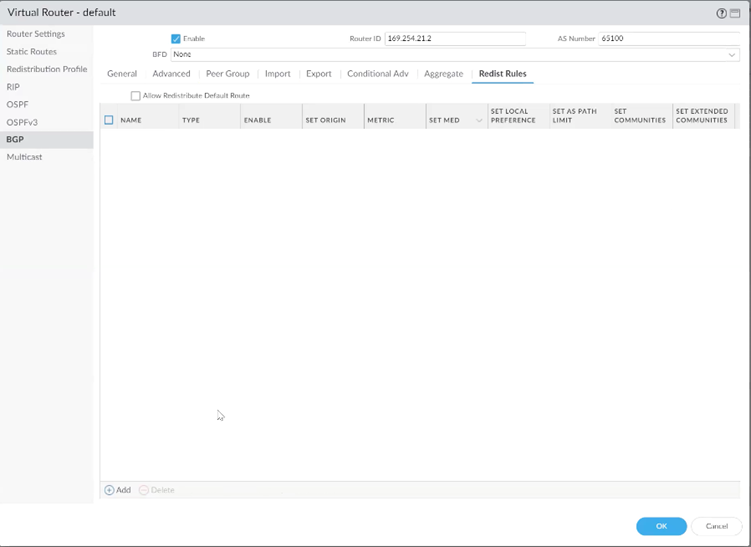
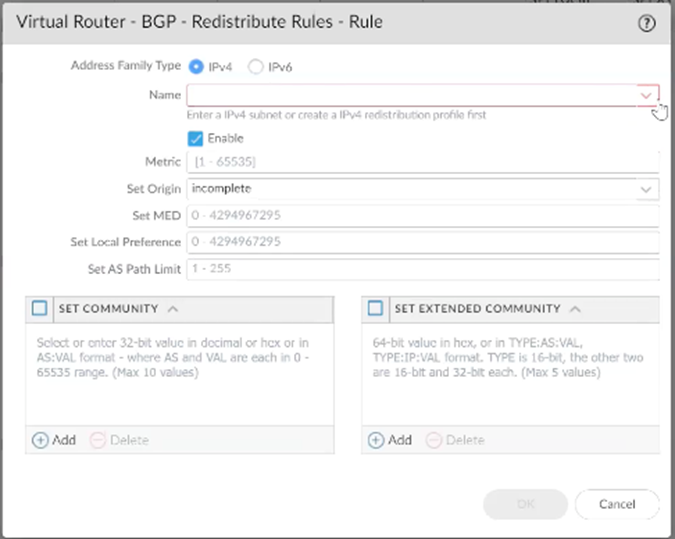
-
Click OK.
Step 8: Configure Security Policies
-
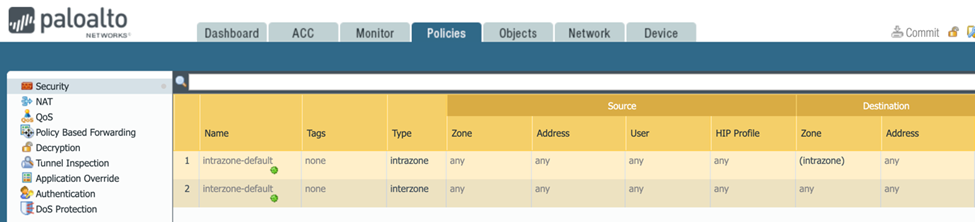
Open the Policies tab and select Security.
-
By default, IKE negotiation and IPsec/ESP packets are permitted.
-
If behavior differs or if you require more granular traffic control, click Add and create an appropriate Security policy rule.
-
Click Commit to apply the configuration changes.
Configuring the tunnel in the Management Platform
Step 1 : Configuring Tunnel and Routes Table
-
Access the SASE Administrator Portal and click Networks.

-
Select the network.
-
Click
 .
. -
Select Add Tunnel for the gateway from which you want to add the IPsec Site-to-Site VPN tunnel.
-
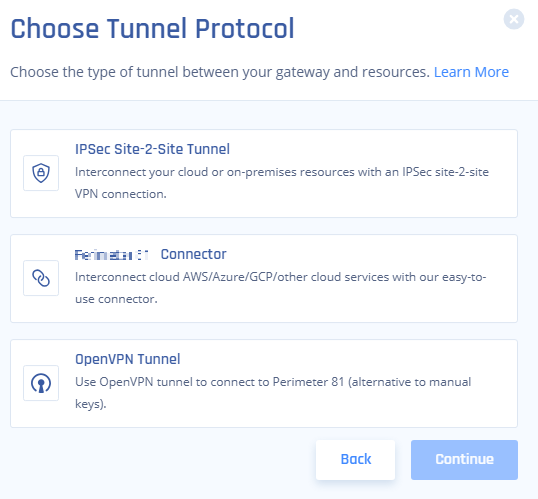
Click IPsec Site-2-Site Tunnel and click Continue.
-
Click Redundant Tunnels and click Continue.

-
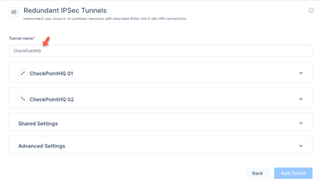
In the Tunnel name field, enter a logical name.
-
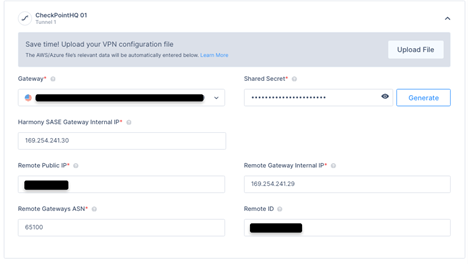
Expand Tunnel 1 and specify these:
-
Shared Secret – The value previously set on the first IKE Gateway.
-
SASE Gateway Internal IP - The SASE internal IP address as you configured in the first PEER Group.
-
Remote Public IP - Enter the firewalls external Interface IP. This can be found in Palo Alto WebGUI under Network /Interfaces /Ethernet.

-
Remote Gateway Internal IP - The firewall internal IP address as you configured in the first PEER Group.
-
Remote Gateway ASN - The ASN of the Palo Alto Firewall.
-
Remote ID - Enter the same value as per Public IP. If behind NAT, enter the internal LAN IP of the Palo Alto Device (example 192.168.1.1).
-
-
Expand Tunnel 2 and specify these:
-
Gateway - Select the second SASE Gateway for the tunnel.
-
Shared Secret - The value previously set on the second IKE Gateway.
-
SASE Gateway Internal IP - The SASE internal IP address as you configured in the second PEER Group.
-
Remote Public IP - Enter the firewalls external Interface IP.
-
Remote Gateway Internal IP - The firewall internal IP address as you configured in the second PEER Group.
-
Remote Gateways ASN - The ASN of the Palo Alto Firewall.
-
Remote ID - Enter the same value as you did Public IP. If behind NAT, enter the internal LAN IP of the Palo Alto Device (example 192.168.1.1).

-
-
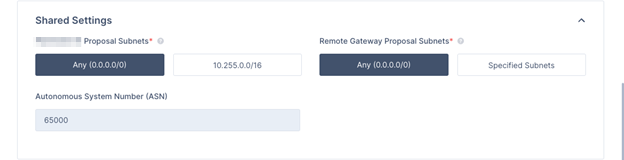
Expand Shared Settings and specify these:
-
SASE Gateway Proposal Subnets - Leave Any (0.0.0.0/0) selected.
-
Remote Gateway Proposal Subnets - Leave Any (0.0.0.0/0) selected.
-
Autonomous System Number (ASN) - Default value is 64512, if not set, enter the AS Number for the SASE network.
-
-
In the Advanced Settings section, specify these:
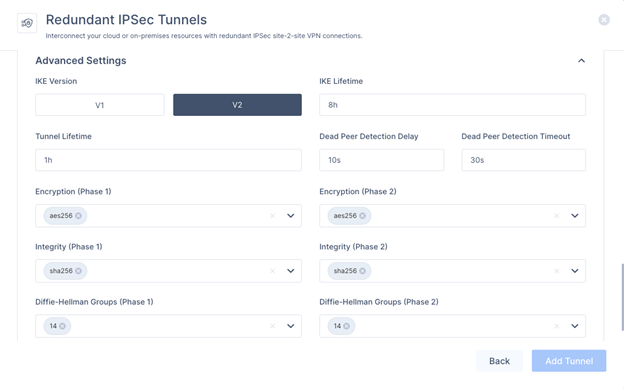
Field
Enter
IKE Version V2 IKE Lifetime 8h Tunnel Lifetime 1h Dead Peer Detection Delay 10s Dead Peer Detection Timeout 30s Phase 1 - Encryption (Phase 1): aes256
-
Integrity (Phase 1): sha256
-
Key Exchange Method: modp2048
Phase 2
- Encryption (Phase 2): aes256
-
Integrity (Phase 2): sha256
-
Key Exchange Method: modp2048
-
Click Add Tunnel.
-
-
Select Routes Table:
-
Click Add Route.
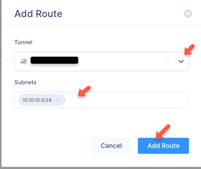
The Add Route window appears.
-
Enter all the Subnets on the remote side of the tunnel and then click Add Route.

Note - Make sure that in the Tunnel list, you have selected the previously entered Tunnel name.
-
-
Click Apply Configuration.

Step 2: Verifying the Setup
Once you complete the above steps, the tunnel becomes active.
-
Verify the setup in the SASE Administrator Portal:
-
Click Networks.
-
Locate the tunnel you created, and check the tunnel status.
It should indicate that the tunnel is Up, signifying a successful connection.
-
-
Verify the setup in the SASE Agent:
-
Connect to your network using the SASE Agent.
-
Access one of the resources in your environment.
-