
Enhanced Network
An Enhanced Network offers better scalability and easier management.
Benefits
-
Improved scalability:
-
Support for more users per network
-
Higher throughput per tunnel
-
Up to eight parallel terminations for redundant IPsec tunnels. This offers better resiliency, load sharing, and overall scale compared to Standard Networks, which support only two parallel terminations.
-
-
Simplified management:
-
Each region uses a single public IP address, regardless of scale. This removes the need to manage multiple public IP addresses.
-
Capacity in a region can be quickly adjusted by adding or removing Scale Units, the virtual equivalent of gateways in Standard Networks.
-
-
Enhanced user interface:
Improved network management interface, making it easier to create and maintain IPsec tunnels.
-
Early access to features:
New features and bug fixes are released first or exclusively to Enhanced Networks.
Enhanced Networks vs Standard Networks
The table below compares Enhanced Networks and Standard Networks.
|
|
Enhanced Networks |
Standard Networks |
|---|---|---|
|
Number of Regions |
Total: 51 (Unique: 43) | Total: 85 (Unique: 52) |
|
Site Connectivity |
Improved IPsec |
IPsec, WireGuard Connector, OpenVPN |
|
Network Scale |
|
|
|
Tenant Scale |
Up to 40K users across multiple networks |
Up to 40K users across multiple networks |
|
Check Point Integration |
1-Click VPN Setup (R82.20) |
Manual |
|
Resiliency |
Region level tunnels |
Gateway bounded tunnels |
|
IP Reputation |
Check Point public IPs |
Check Point and cloud provider public IPs |
|
Simpler Management |
|
|
Supported Regions
Enhanced Networks are supported in these regions:
|
North America |
EMEA |
APAC |
LATAM |
|---|---|---|---|
|
|
|
|
Creating an Enhanced Network
-
Access the SASE Administrator Portal and click Networks.
-
Click Create Network.

-
Select Enhanced Network and click Continue.

-
Enter the network details:

-
Network name: Name for your network. For example, HQ, Finance, or Staging.
-
Icon: By default the network icon
 is applied. If you do not choose one, click Browse to select an icon.
 -
Region: Region to deploy the SASE gateway.
 Note - Recommended to choose a region closest to your sites and members.
 -
Scale Units: The number of gateways you want to deploy in the region.
Notes - -
Scale Unit is a virtual network component that allows defining the expected capacity in each network region.
-
One Scale Unit's expected capacity is similar to the capacity of a single Standard Network Gateway.
-
Each Scale Unit consumes one Gateway License.
-
-
(Optional) Add Region: To add more regions, click Add Region and repeat steps c and d.
-
(Optional) Network Tags: Add tags to identify the purpose or team.
-
(Optional) Subnet: By default the network Subnet IP address is 10.255.0.0/16. For information on possible Subnet and bit masks, see sk182225.
Note - You cannot change the Subnet after creation. Ensure it does not overlap with SD-WAN device Subnets. -
By default the Activate Regions For Users checkbox is selected. If you want to deactivate the region, disable it.
-
-
Click Create Network.
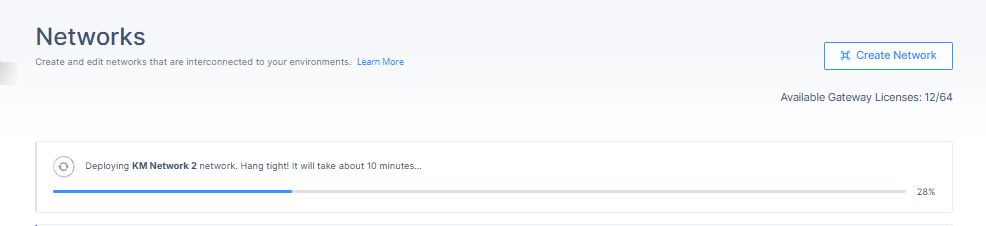
The system shows the progress of the network status on the Networks page. After the network is created, proceed with Adding a Tunnel.
Adding a Tunnel
-
In the Networks page, select your Enhanced Network.
-
For the region to which you want to add the tunnel, click
 and click Add Tunnel.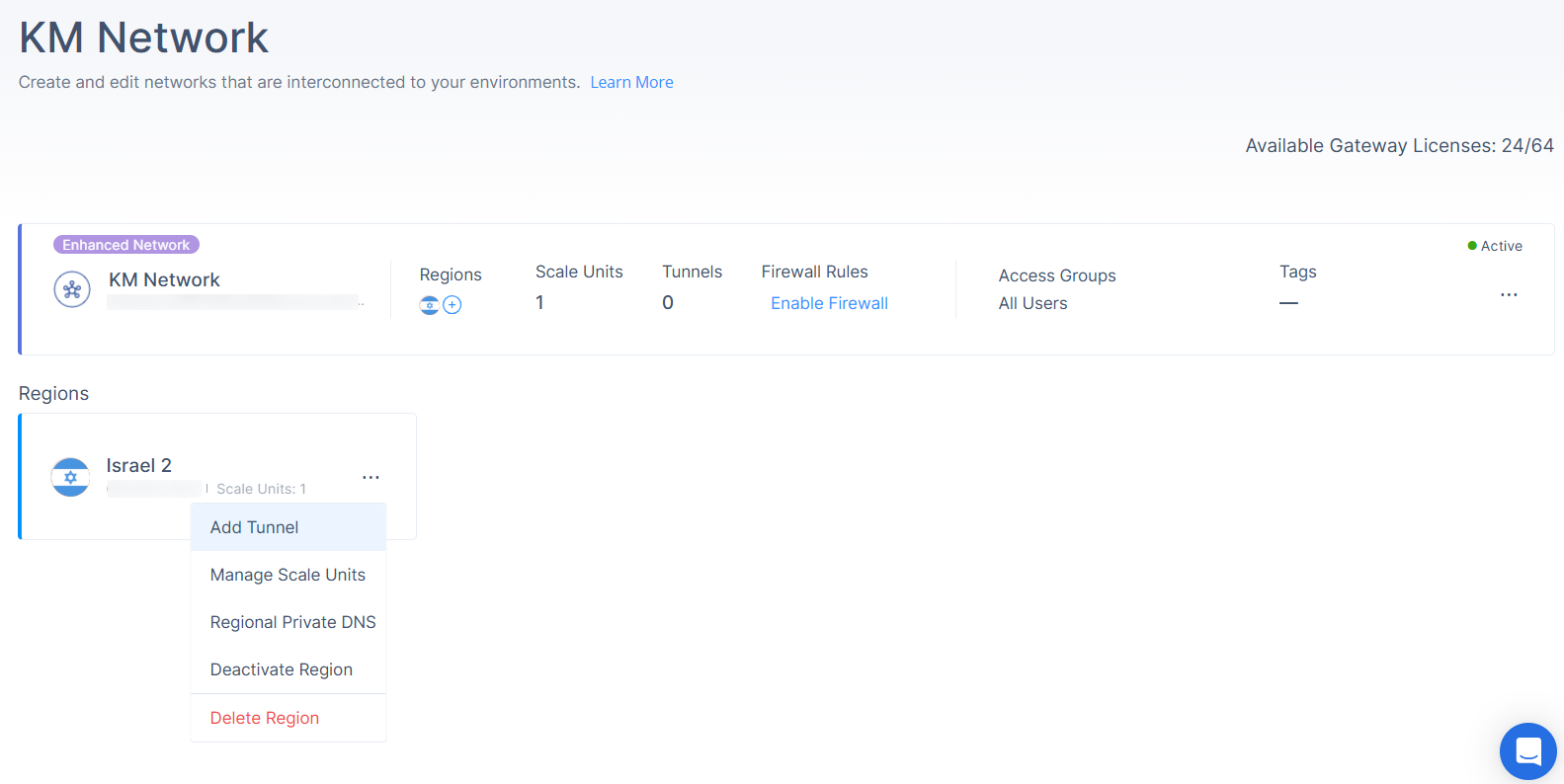
-
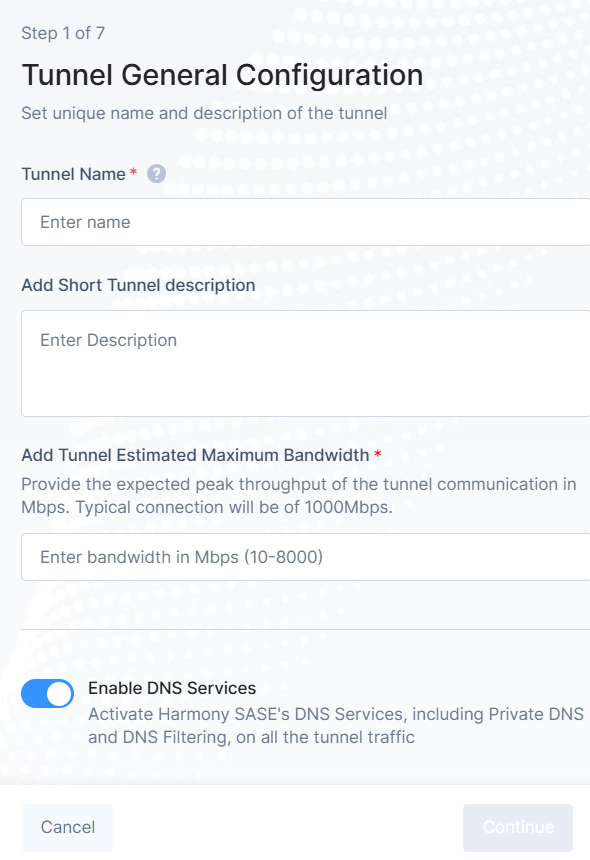
Enter these details:
-
Tunnel Name
-
Add Short Tunnel description
-
Add Tunnel Estimated Maximum Bandwidth
Specify the expected peak throughput of the tunnel communication in Mbps.
-
Range: 10–8000 Mbps
-
Typical connection: 1000 Mbps
-
By default the Enable DNS Services is enabled. Disable if you want to deactivate the DNS services.
-
Enable: Activates SASE's DNS services, including Private DNS and DNS Filtering on all tunnel traffic.
-
Disable: No DNS services for Site to Site tunnel traffic.
-
-
Click Continue.
The Choose Tunnel Type window appears.
-
Select your preferred Tunnel Type.
Choosing Tunnel Type
-
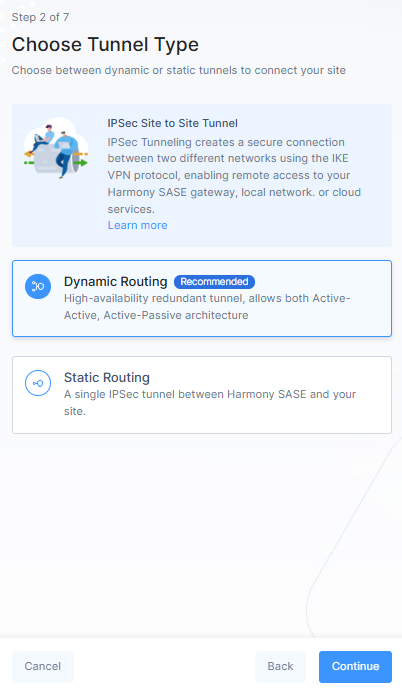
In the Choose Tunnel Type window, select one of these:
-
Dynamic Routing (Recommended):
-
High availability, active-active architecture.
-
Requires at least two regions.
-
Supports up to eight IPsec terminations for resiliency and load sharing.
-
-
Static Routing:
Single IPsec tunnel between SASE and your site.
-
-
Click Continue.
Refer:
Dynamic Routing
-
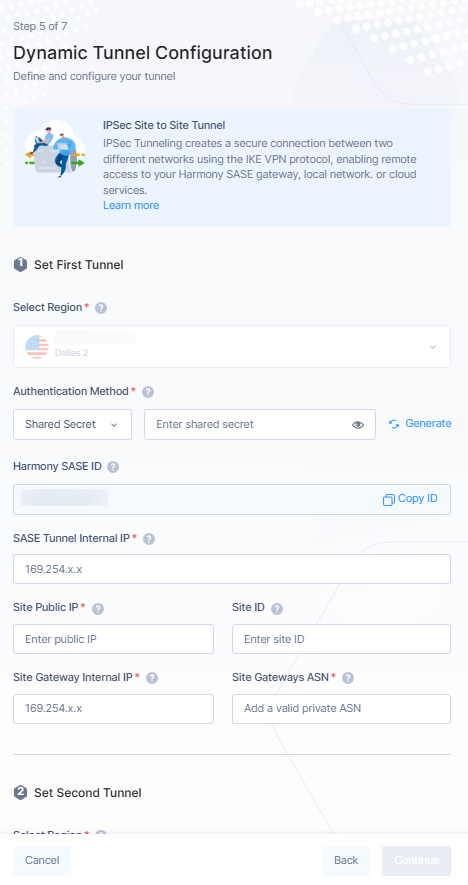
In Dynamic Tunnel Configuration window, Select Region section:
-
For the first tunnel, the Region is selected by default.
-
For the second tunnel, select the Region from the list.
-
Make sure Authentication Method is Shared Secret and enter Shared Secret key.
-
Enter these details:
-
SASE Tunnel Internal IP
-
Site Public IP: Public IP address of the second end of the tunnel.
-
Site ID: In most cases, the ID of the tunnel is its public IP. However, it must be configured to the same value on both ends.
-
Site Gateway Internal IP
-
Site Gateways ASN
-
-
Click Continue.
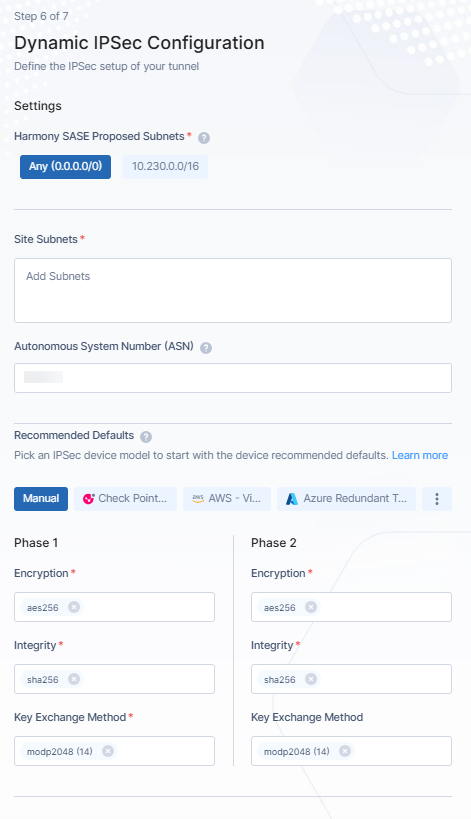
The IPsec Configuration window appears.
-
By default SASE Proposed Subnets is Any (0.0.0.0/0).
Note - The IPsec network selector should be configured to the same value at both ends of the tunnel. -
Enter Site Subnets.
-
Enter Autonomous System Number (ASN).
Note - The Autonomous System Number (ASN) is required for the Border Gateway Protocol (BGP). -
In Recommended Defaults, the values are by default based on the service provider. For more details, refer Connect Cloud Resources and Connect On-Prem Resources.
-
Click Continue.
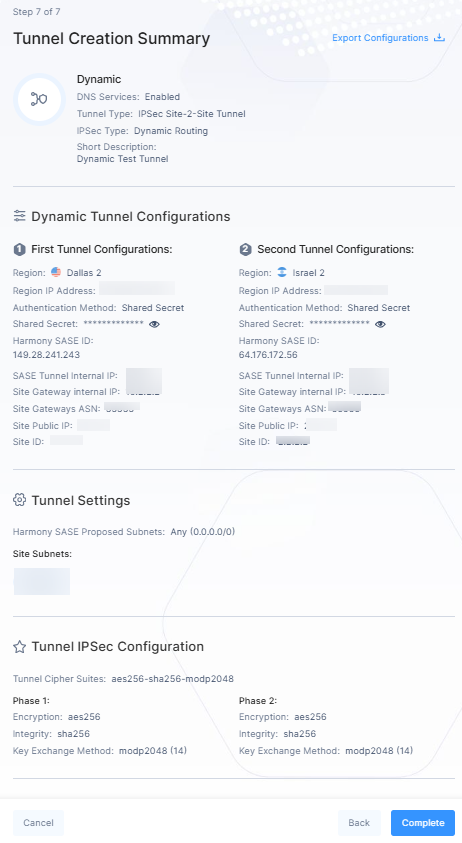
The Tunnel Creation Summary window appears. You can see all the configuration details.
-
(Optional) Click Export Configurations to download configuration JSON file.
-
Click Complete.
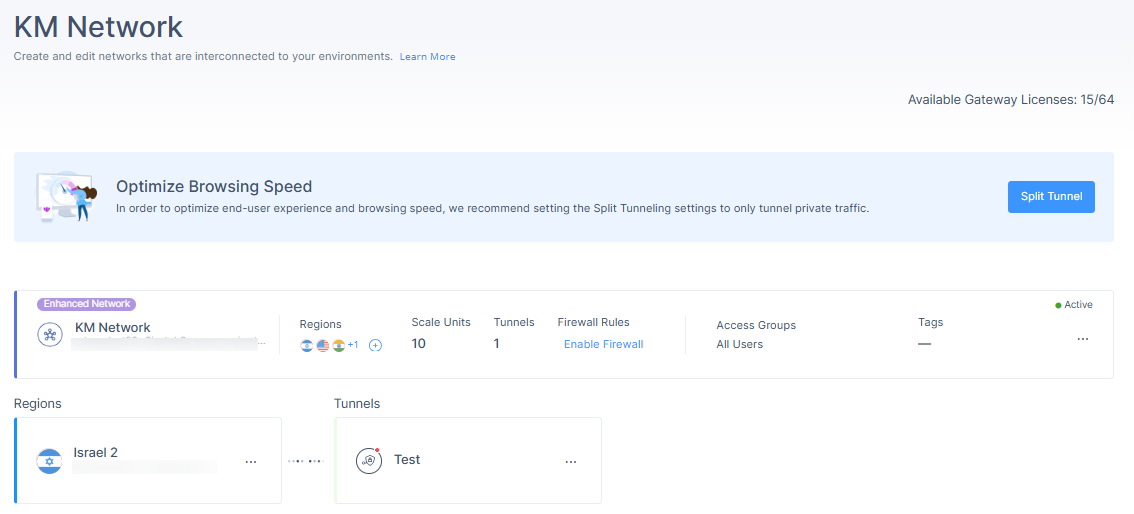
The tunnel is created and listed in your Networks page.
You can add up to eight parallel IPsec terminations for resiliency and load sharing.
Static Routing
-
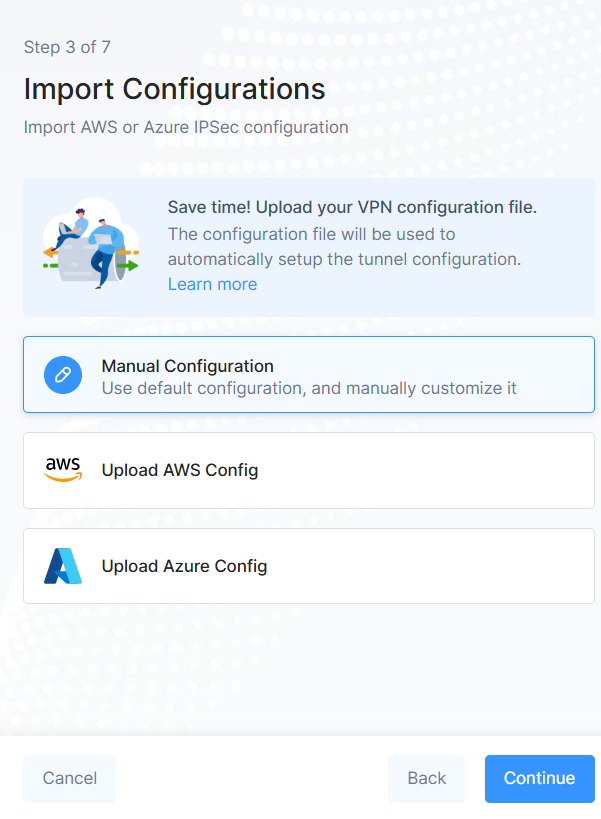
In the Import Configurations window, select Manual Configuration and click Continue.
-
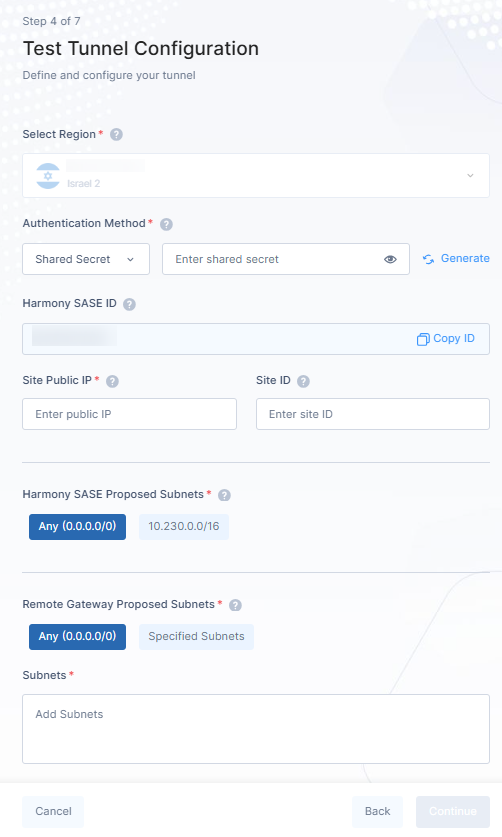
In the Tunnel Configuration window, the Authentication Method is selected as Shared Secret by default.
-
Click Generate to get the Shared Secret key.
-
Enter Site Public IP: It is the Public IP address of the second end of the tunnel.
-
(Optional) Site ID: In most cases, the ID of the tunnel is its public IP. However, it must be configured to the same value on both ends.
-
By default SASE Proposed Subnets is selected as Any (0.0.0.0/0).
-
By default Remote Gateway Proposed Subnets is Any (0.0.0.0/0).
Note - It is not recommended to use Specified Subnets or Policy Based Routing. Consider using Any (0.0.0.0/0), Route Based instead. -
Enter Subnets.
-
Click Continue.
-
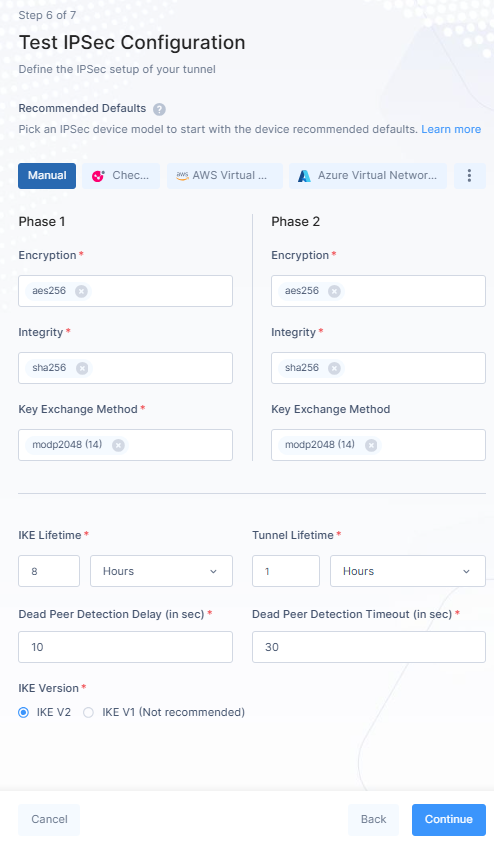
In IPsec Configuration window, the values are by default based on the service provider. For more details, refer Connect Cloud Resources and Connect On-Prem Resources.
-
Click Continue.
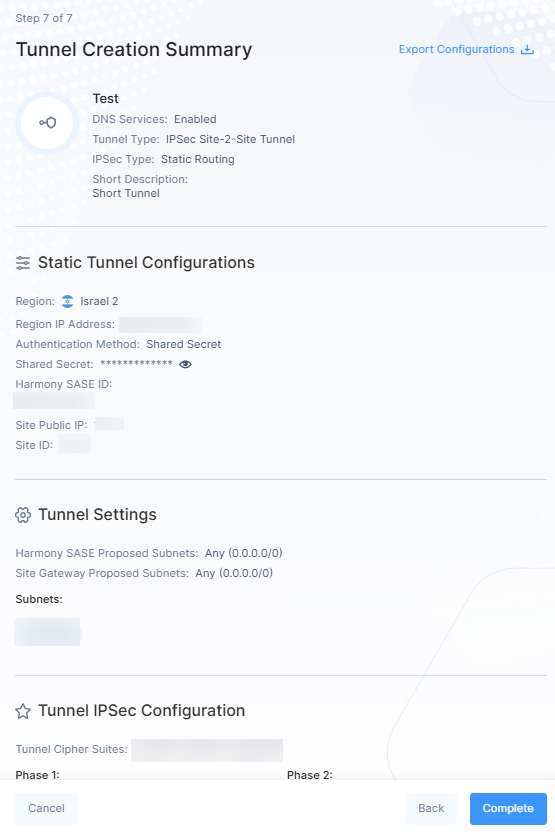
The Tunnel Creation Summary window appears. You can see all the configuration details.
-
(Optional) Click Export Configurations to download configuration JSON file.
-
Click Complete.

The tunnel is created and listed in your Networks page.
Managing a Network
Editing a Network
-
Access the SASE Administrator Portal and click Networks.
-
Select the network.
-
Click
and then click Edit Network.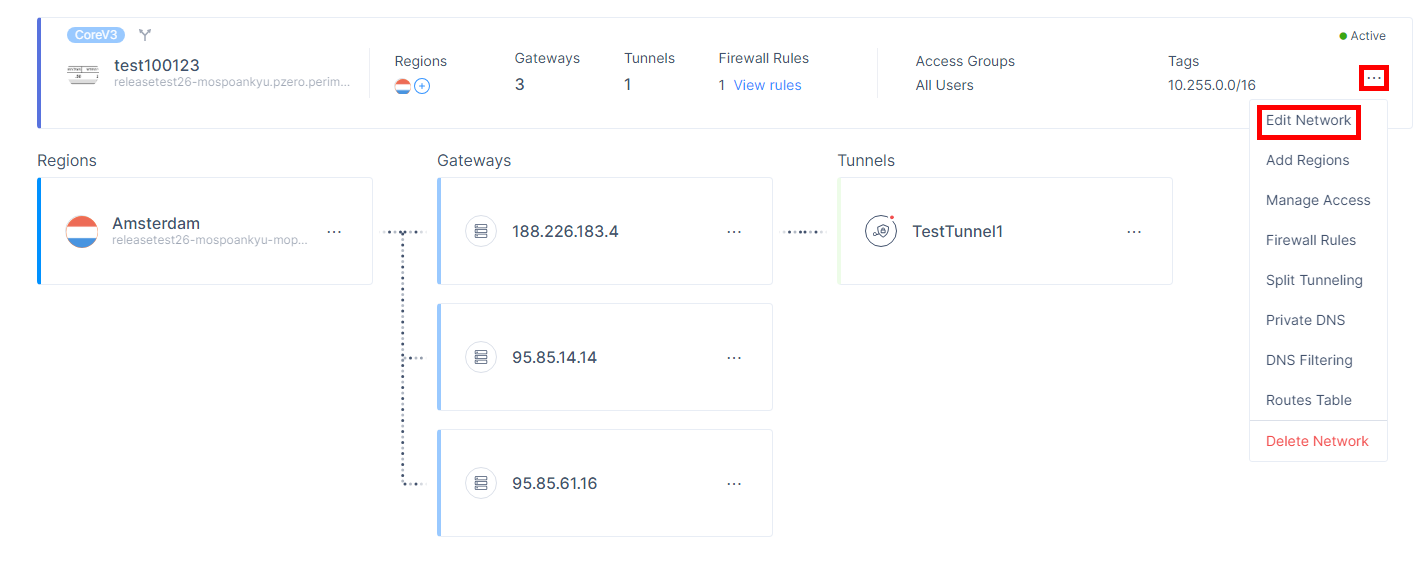
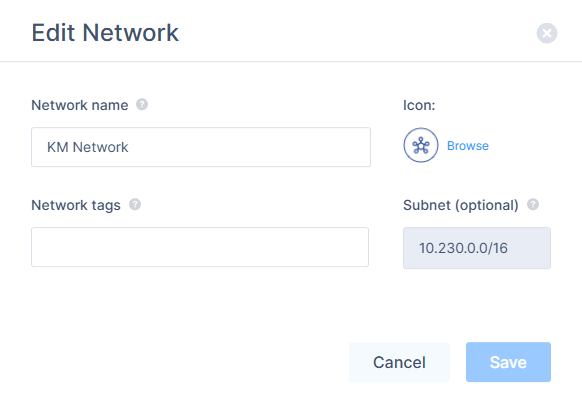
The Edit Network window appears.
-
Make the required changes (Network name, Network tags, Icon) and click Save.
Note - You cannot change the Subnet after network creation.
Adding Regions
-
Access the SASE Administrator Portal and click Networks.
-
Select the network.
-
Click
 and then click Edit Network.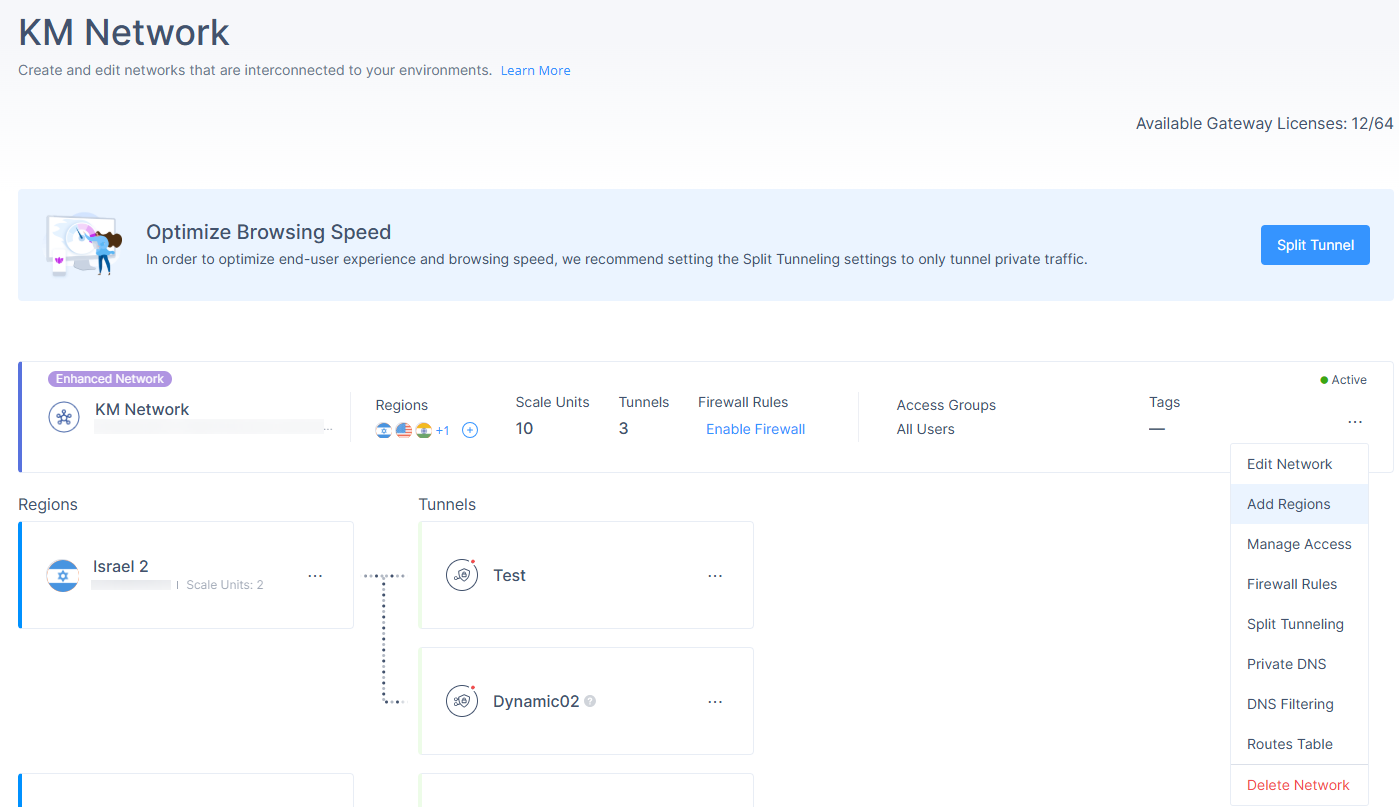
-
The Add Region window appears.
-
From the Region list, select the region to deploy the SASE gateway.
-
In the Scale Units field, enter the number of gateways you want to deploy in the region.
-
To add more regions, click Add Region and repeat steps 4 and 5.
-
To activate the region for users, select the Activate Regions For Users checkbox.
-
Click Add Region.
Managing Access
Manage Access allows you to select the member groups who can access the network.
To manage access to a network:
-
Access the SASE Administrator Portal and click Networks.
-
Select the network.
-
Click
and then click Manage Access.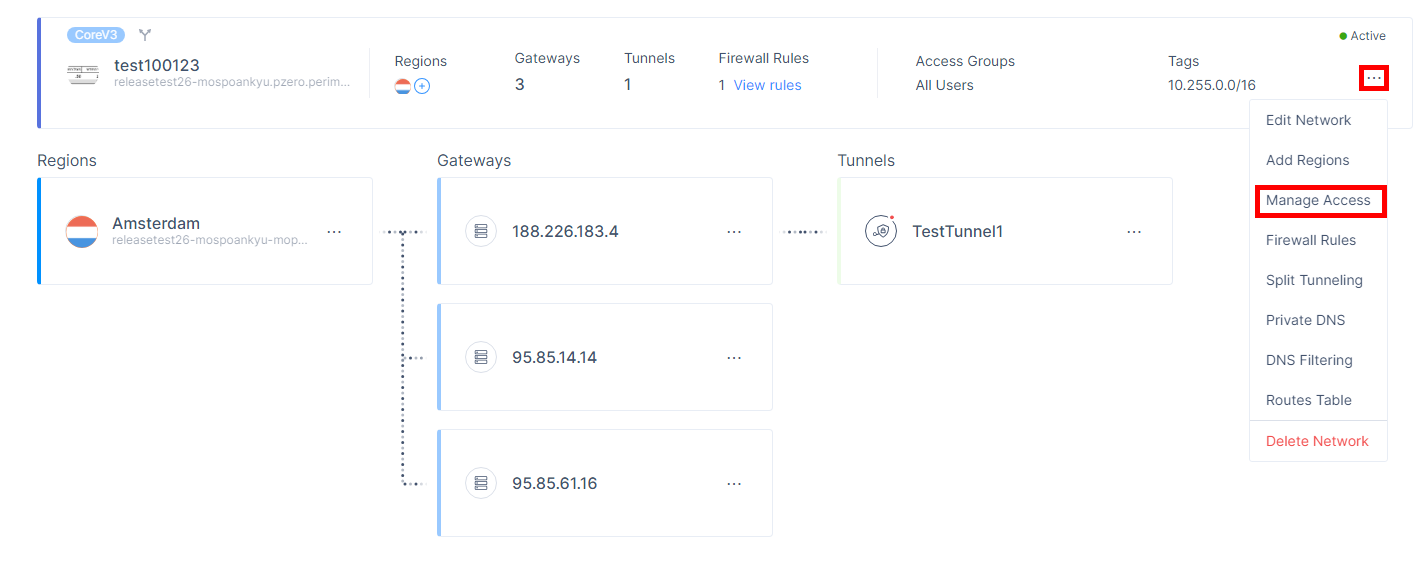
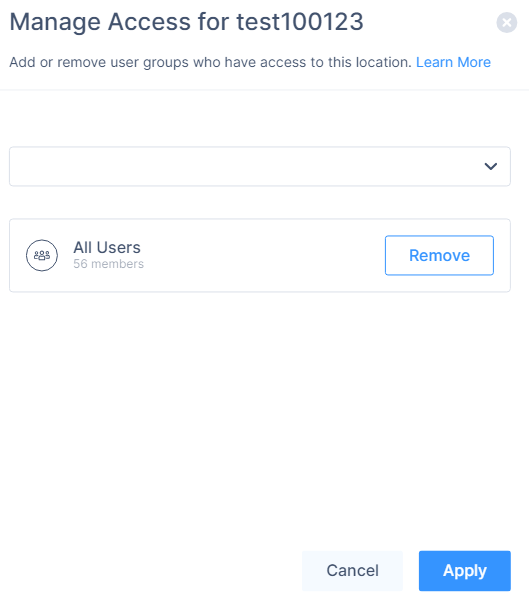
The Manage Access window appears.
-
From the list, select the member groups who can access the network.
-
To remove a member group, click Remove.
-
Click Apply.
Managing Tunnels
In Enhanced Networks, all tunnel operations happen at the Region level (not on gateways).
Editing a Tunnel
-
In the Networks page, select your Enhanced Network.
-
Click
and click Edit Tunnel.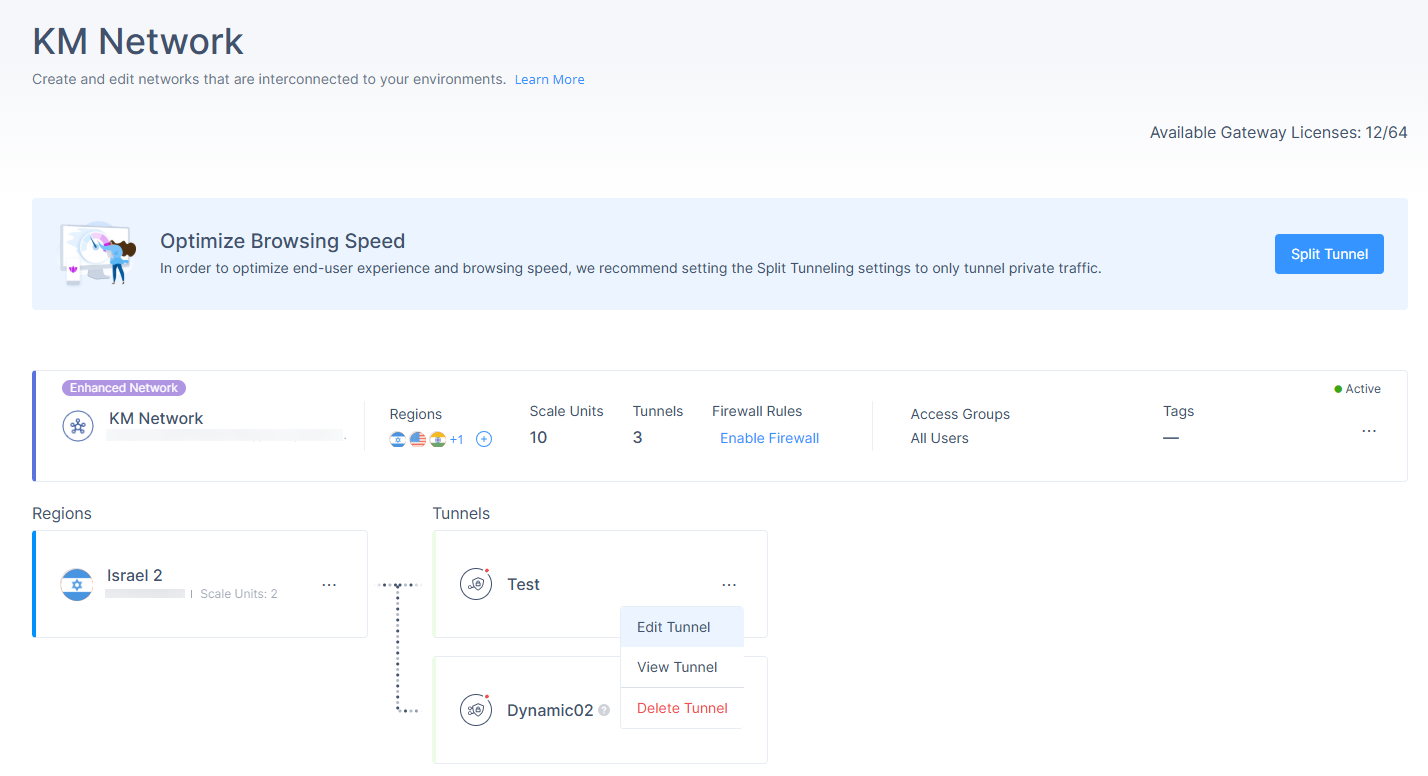
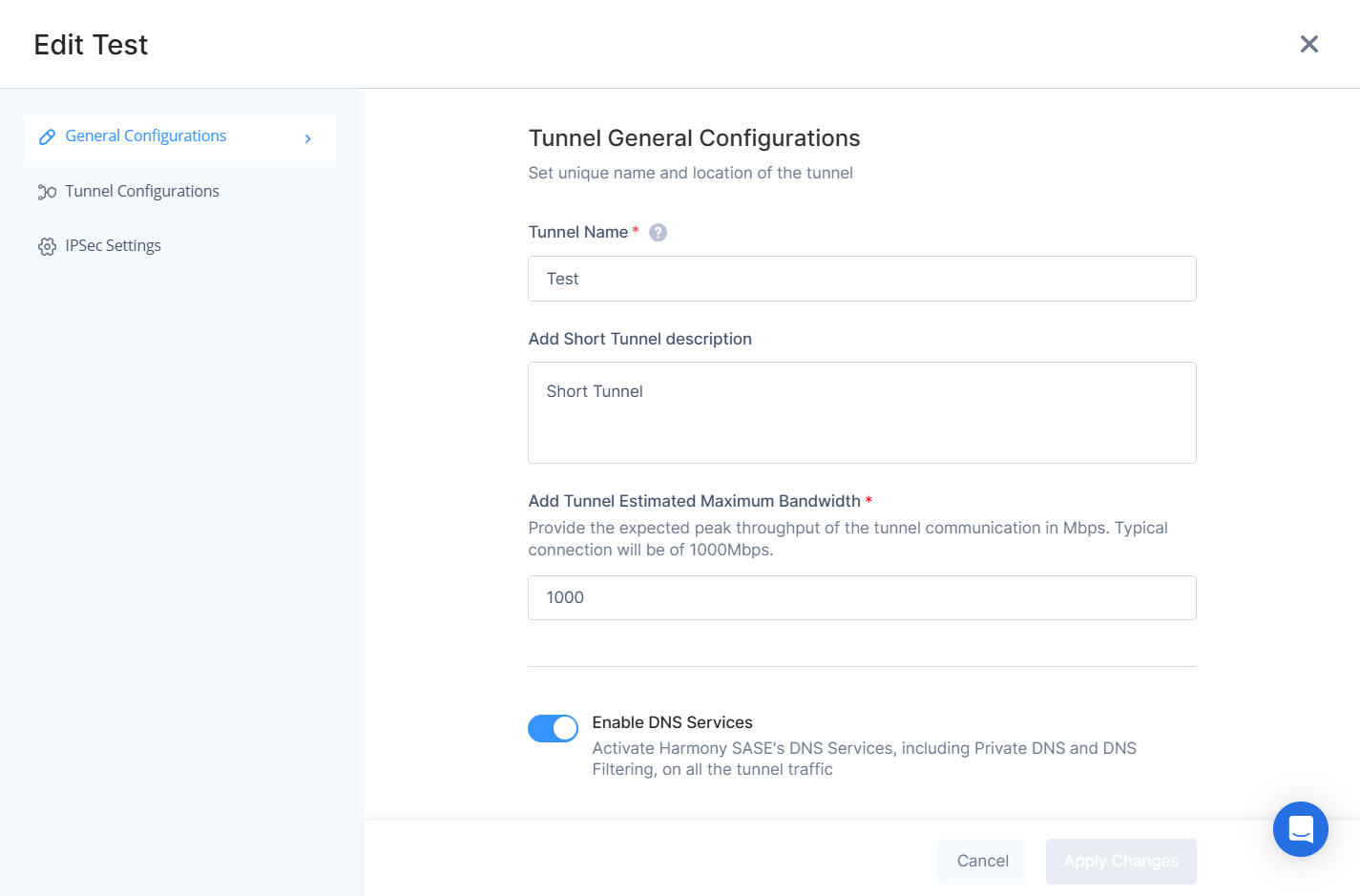
The Edit Tunnel pop up appears.
-
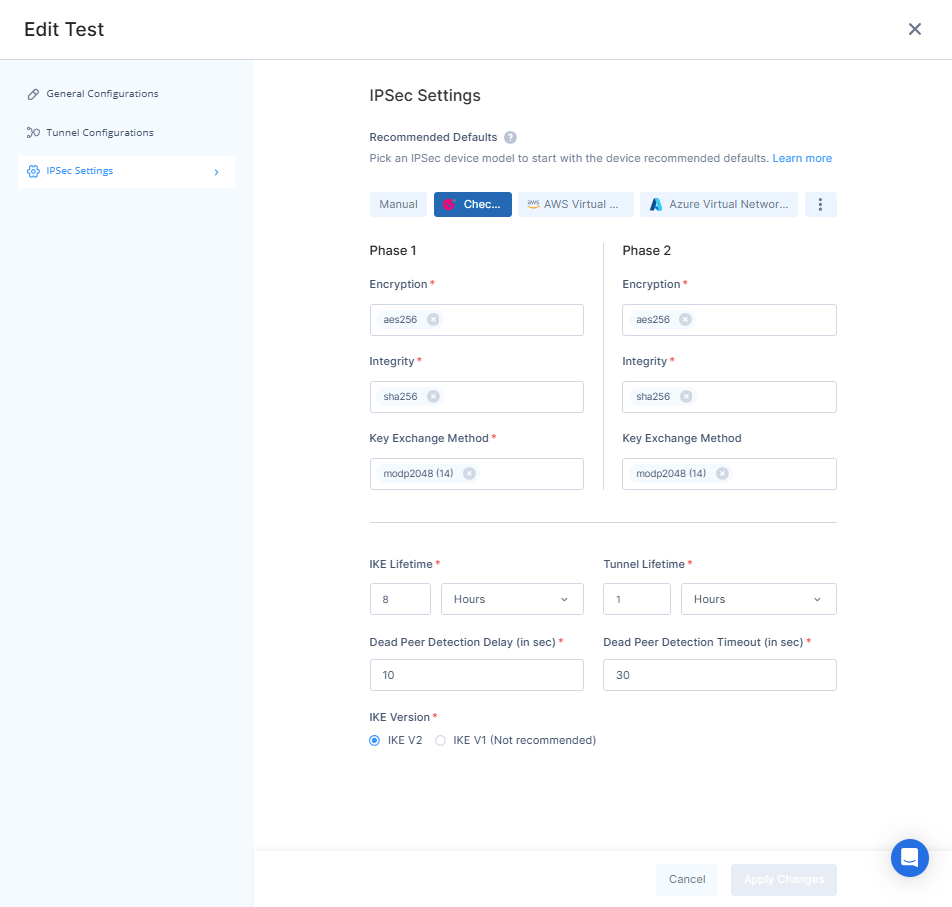
Make the required changes and click Apply Changes.
|
|
Notes - For Tunnel Configurations:
For IPsec settings:
|
Viewing Tunnel Details
-
In the Networks page, select your Enhanced Network.
-
Click
and click View Tunnel.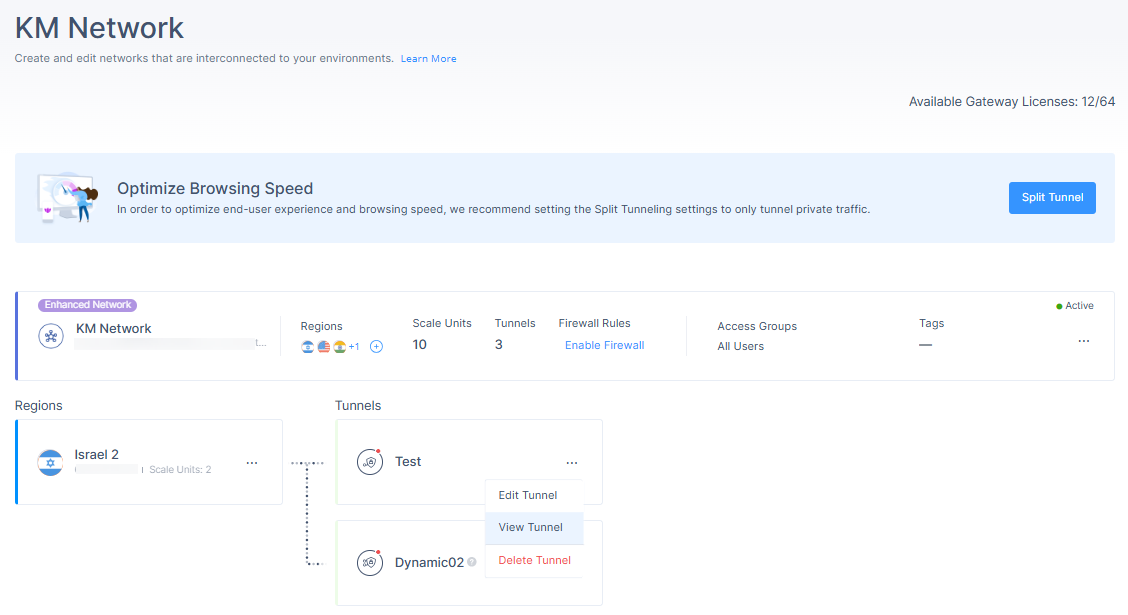
The Tunnel Details pop up appears.

Deleting a Tunnel
-
In the Networks page, select your Enhanced Network.
-
Click
and click Delete Tunnel.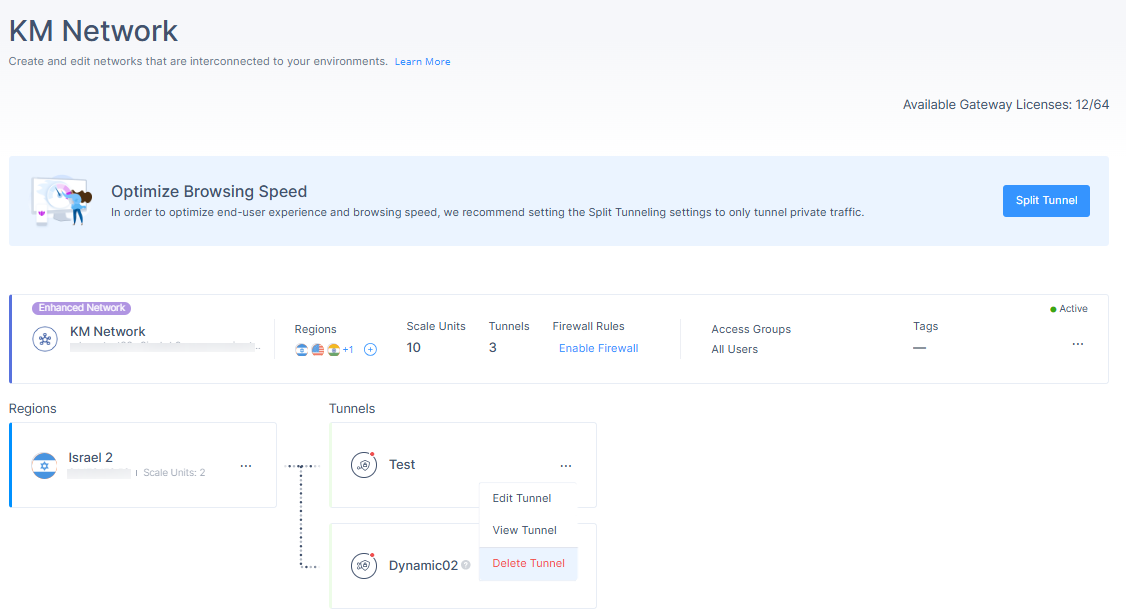
The Delete Dynamic Tunnel pop up appears.
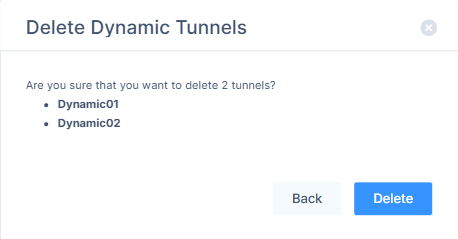
-
Click Delete.
|
|
Note -
|