
Managing Licenses
The Spark Management admin can configure the license type per Plan or Gateway:
-
Pay-As-You-Go (PAYG) - You are charged only for the days that a specific device is in active use.
-
Subscription - A pre-paid yearly subscription purchased through your distributor. Standard license plan with an expiration date.
NFR (Not For Resale) is configured the same way as Pay-As-You-Go. NFR is available only for MSP / MSSP accounts and can contain up to two Gateways.
PAYG / NFR Prerequisites
PAYG - The Check Point Portal account must be an MSSP account or an MSSP child account.
NFR - The Check Point Portal account must be an MSSP account or an NFR eligible for MSP account.
|
|
Important - When the MSSP shares a Plan with PAYG enabled with a child account, the MSSP administrator must confirm in the Check Point Portal that the child account has an active PAYG contract. For more information, Check Point Portal MSSP Administration Guide (Section: Managed Security Service Provider Partners and Distributors > Pay-As-You-Go Contracts). |

Limitations
-
Only 2500 models can use NFR or Pay-As-You-Go. Older models must use Subscription.
-
Customers that manage only one account with no MSP / MSSP hierarchy cannot use Pay-As-You-Go
-
PAYG is supported only for MSPs, or MSSPs that are approved by the distributor, who purchased the dedicated PAYG hardware SKUs (2500 series).
-
When you enable Pay-As-You-Go as an MSP / MSSP, the contract must be per customer.
-
When you import an account that was originally PAYG-eligible, the Plans in that exported account are still PAYG but the administrator must enable the contract.
Workflow for PAYG
-
In the Manage Accounts page in the Check Point Portal, select the desired account and add a PAYG contract for Spark Management.
-
In the Spark Management Plan, go to the License section and select PAYG.
-
After a few minutes, the Gateway that connects to the Plan and the account from the previous steps is seen in Spark Management with a valid PAYG license.
End-to-end procedure to configure PAYG
 Step 1 - Make the account eligible for NFR or PAYG (MSSP)
For more information, see the Check Point Portal MSSP Administration Guide (Section: Managed Security Service Provider Partners and Distributors > Pay-As-You-Go Contracts).
-
Sign in to the Check Point Portal and click this icon
 in the upper right corner of the screen > Manage Accounts.
 -
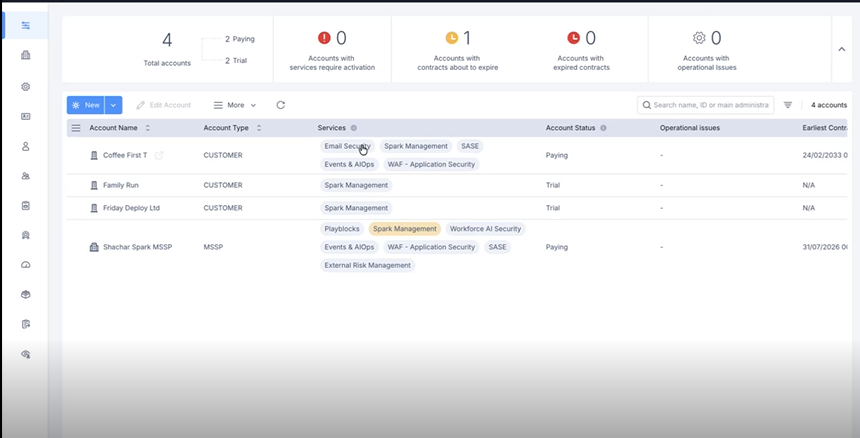
On the Manage Accounts page, you can see all your accounts and the applications and services running in each account.
-
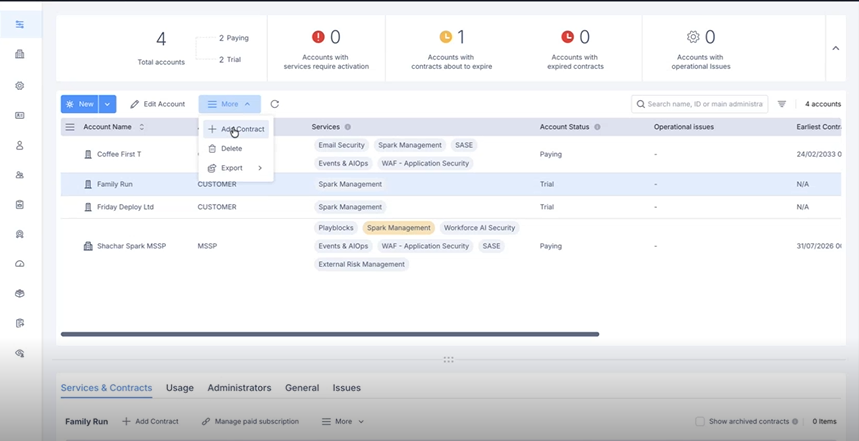
To add a contract to an account:
-
Click the account name > More > Add Contract.
-
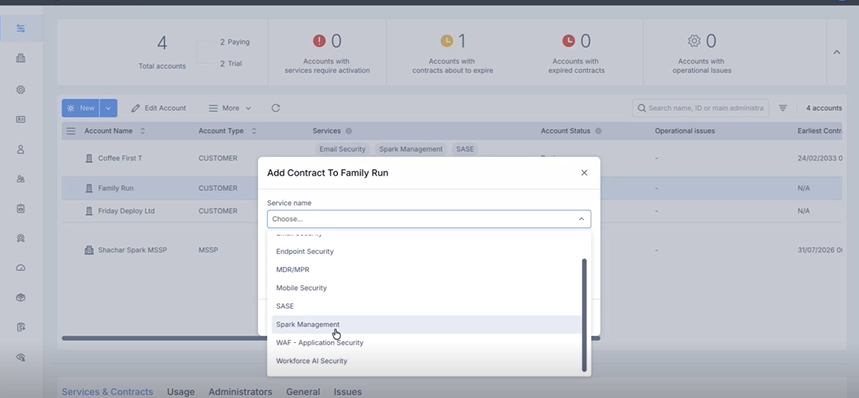
Select the application.
-
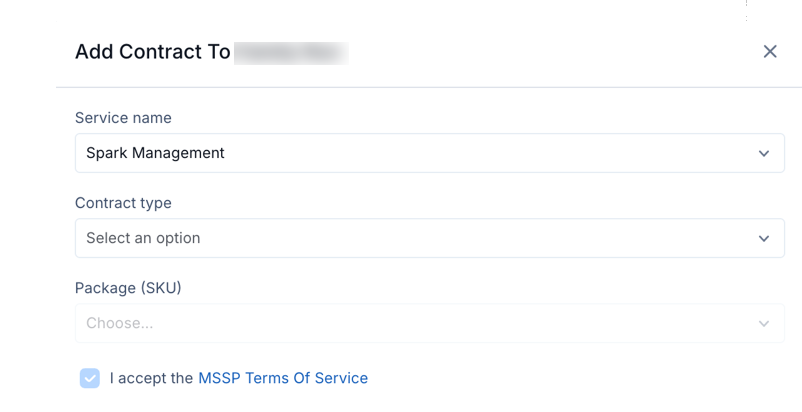
Select the contract type.
-
-
In the Add Contract window:
-
In the Service name field, select Spark Management.
-
In the Contract type field, select one of these:
-
Not for Resale

Note - "Not for Resale" is available on an MSSP account or in an NFR eligible account in an MSP account only. Do not cancel this contract as you can only create it once. This contract is limited to two Gateways.
-
Pay-As-You-Go
-
-
Check the box for I accept the MSSP Terms of Service.
Click Add.
-
Note - When you add this contract, you actually make your account eligible for any of the SKUs listed there. The system automatically connects between the connected model to its relevant SKU.
Step 2 - Configure the license within the Plan
-
Open the Spark Management application in the Check Point Portal.
-
From the left navigation tree, select Plans.
-
In the License section, select Pay-As-You-Go or Subscription.
Confirm and save.
Note - For the NFR option, select Pay-As-You-Go.
|
|
Notes:
|
To view your PAYG usage:
-
To view the usage report, go to the Check Point Portal and click service and contracts.
-
To view all Gateways that are assigned to this Plan but running older versions and therefore cannot use PAYG licensing, open the Plan and on the License page, click View Gateways.
Note - This option does not appear when all assigned Gateways are 2500 series Appliances.
To check the licensing status of each Gateway:
-
Click Gateways in the left navigation bar.
-
The License type and License status columns are hidden by default. To display, click the column selector in the upper-left corner of the Gateways list and enable License type and License status.
-
Click the filter icon to filter by specific license type and status.
Troubleshooting
I don't see the NFR option in the contract types
-
You must use an MSSP account or an NFR eligible account from an MSP account.
-
If you previously had an NFR contract for this account and deleted it, it will not be available again. Contact Check Point Support.
I exported my account from another account's configurations import. Should I configure PAYG again?
Contracts in the Check Point Portal Manage Accounts are not imported. You must create them in the new account. Plans are imported and do not require any change.
I don't see the Pay-As-You-Go contract in Manage Accounts
Ask your distributor to enable this option or contact Check Point Support.
I configured a PAYG plan and shared it with a customer account, and it seems that the Gateway is still not activated with a license.
-
First fetch may take a few minutes.
-
Make sure you have a supported model and are running the recommended version.
-
Validate that the Customer Account has a valid contract.
-
Contact Check Point Support.
If I connect my Gateway to the MSSP account, should I still add a PAYG contract?
Yes, any account running PAYG for a Spark Firewall appliance must have a valid contract.