
Using Third-Party Cloud-Based Discovery Engines
IoT Security allows external vendors to act as third-party discovery engines and adds their device assets to the system through APIs. These assets can include IoT, medical, OT (Operational Technology) assets, also referred to as XIoT (Extended Internet of Things).
The supported vendors are:
-
Armis
-
Claroty xDome
-
Cynerio
-
Lansweeper
-
Nelysis
-
Ordr (on-premises)
-
Phosphorus
-
Saiflow
-
Sapphire
You can give the vendors permissions to manage IoT assets through the Asset Source specific role. For more information, see Specific Service Roles.
Step 1 - Creating a Profile for Third-Party Discovery Engine in the IoT Security Administrator Portal
-
Log in to the Check Point Portal.
-
Click the menu icon in the top left corner.

-
Under Hybrid Mesh Network Security, click IoT Security.
-
Go to IoT > Profiles.
-
To create a new profile, click
 and select IoT Discovery Source Profile.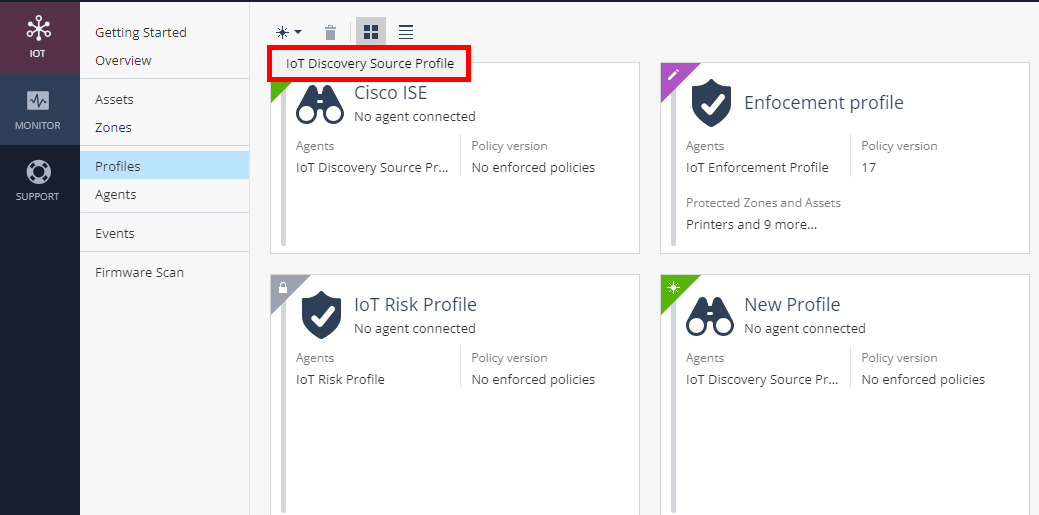
-
In the Discovery Source section:
-
Enter a name for the profile.
-
From the Discovery source type list, select 3rd party discovery engine.
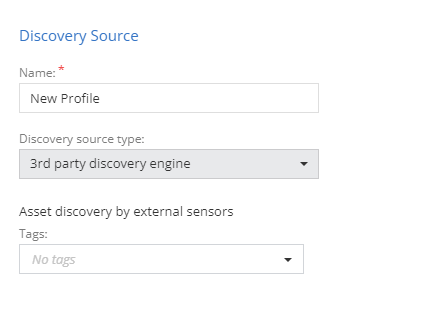
-
-
In the Discovery Source Settings section:
-
Copy the Integration ID.
-
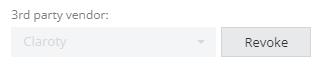
From the 3rd party vendor list, select the vendor.
-
To integrate the vendor with the Check Point Portal service, you must generate an API key. To do that, click Generate.
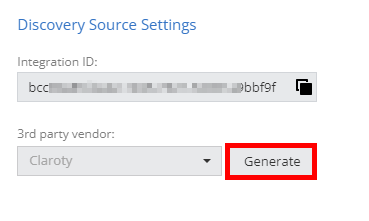
The system generates a new API key.
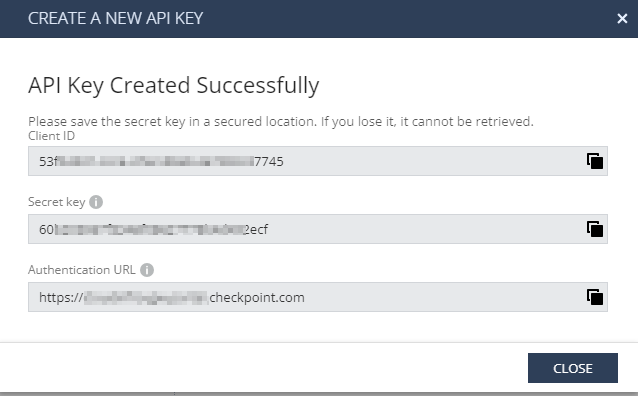
-
Client ID - The identifier for the vendor's account and the client service that uses this API key.
-
Secret key - The password to access the Check Point Portal.
-
Authentication URL - The URL address used to authenticate API requests. In addition, it shows the specific gateway that uses this URL to authenticate the Client ID and Secret key.

Note - To revoke the generated API key, click Revoke.
-
-
Copy and share the Integration ID, Client ID, Secret key and Authentication URL with the vendor.
-
-
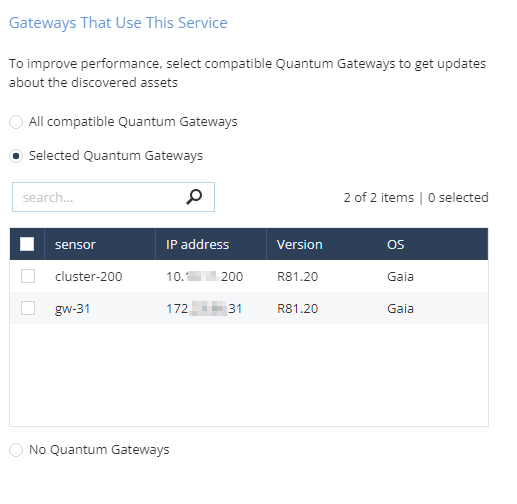
In the Gateways That Use This Service section, select the gateway where you want to add the assets.
-
Click Enforce.
Step 2 - Adding Assets from Third-Party Discovery Engines (External Vendors)
Prerequisites
-
Make sure that the vendor has the following details:
-
Integration ID
-
Client ID
-
Secret key
-
Authentication URL
-
-
An API client or API testing tool to run API calls.
-
API Region URL:
Region
URL
Europe (EU)
https://cloudinfra-gw.portal.checkpoint.com/app/iotprotect/api/v1/asset-gateway
United States (US)
https://cloudinfra-gw-us.portal.checkpoint.com/app/iotprotect/api/v1/asset-gateway
Australia (AU)
https://cloudinfra-gw.ap.portal.checkpoint.com/app/iotprotect/api/v1/asset-gateway
For more information, see IoT External Asset API documentation.