
Creating Automation by AI Copilot
AI Copilot allows you to create custom Playblocks automations using natural language prompts. This topic explains the supported capabilities, limitations, and steps to create an automation.
AI Copilot allows you to create custom Playblocks automations using a natural language prompt. You can design fully tailored workflows from scratch with a single prompt.
It supports all standard automation steps, except these:
-
Scheduled Trigger
-
Run Automation
It can generate automations based on Check Point Firewall logs and supports these log trigger conditions:
-
Count Logs
-
Suppress Logs
-
IP Geolocation
-
The AI customization is supported only on Management.
-
All validations applicable to custom automations also apply to those created by AI Copilot. For example, the automation must start with a trigger and exclude unsupported steps.
-
This feature is limited to creating new automations only and cannot edit existing ones or perform other Playblocks actions. General queries about Playblocks are not supported.
-
AI Copilot enables you to create automations with natural language prompts, requiring no manual setup. The Create a Custom Automation procedure provides a drag-and-drop interface, requiring users to manually configure each step. Both methods achieve the same automation result.
To create an AI Copilot automation:
AI Copilot automation creation is supported only in the EU and US regions.
-
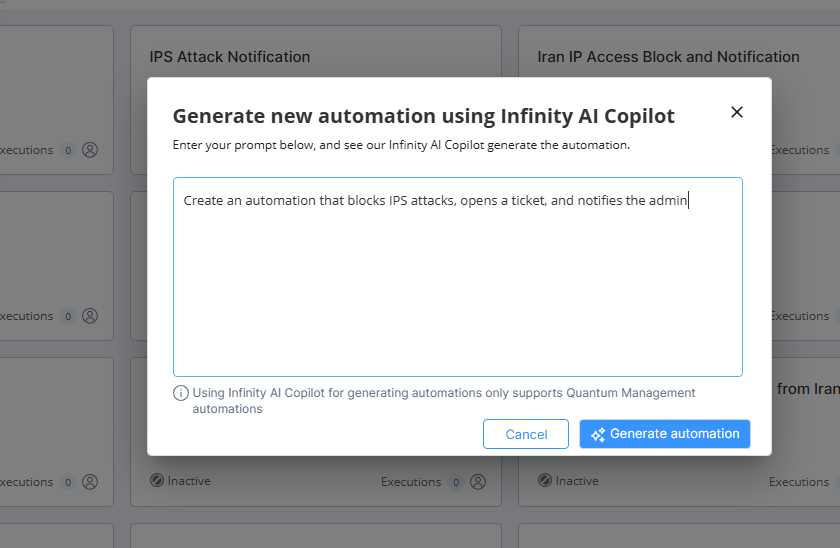
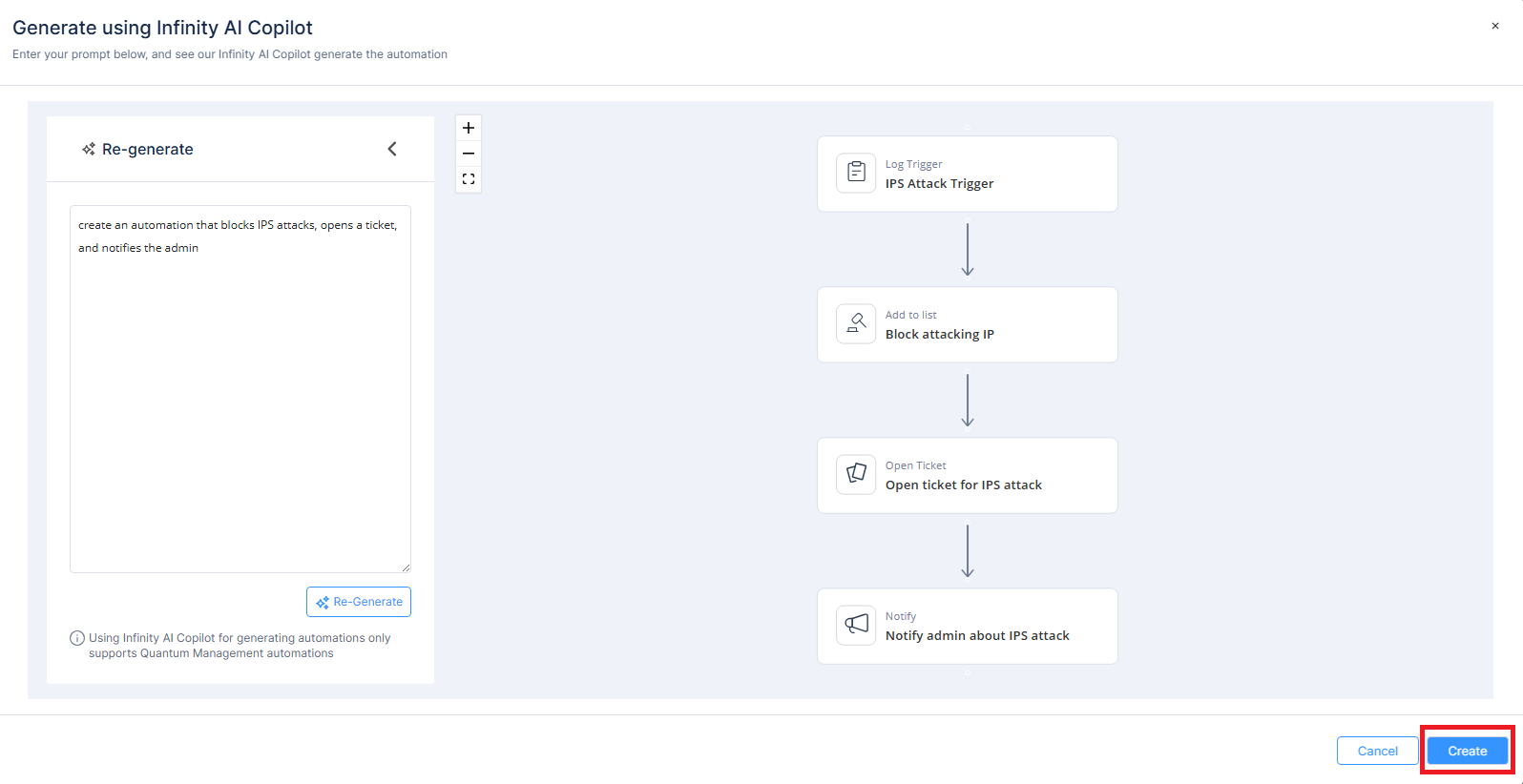
Enter your prompt. For example, Create an automation that blocks IPS attacks, opens a ticket, and notifies the admin.
-
Click Create.
-
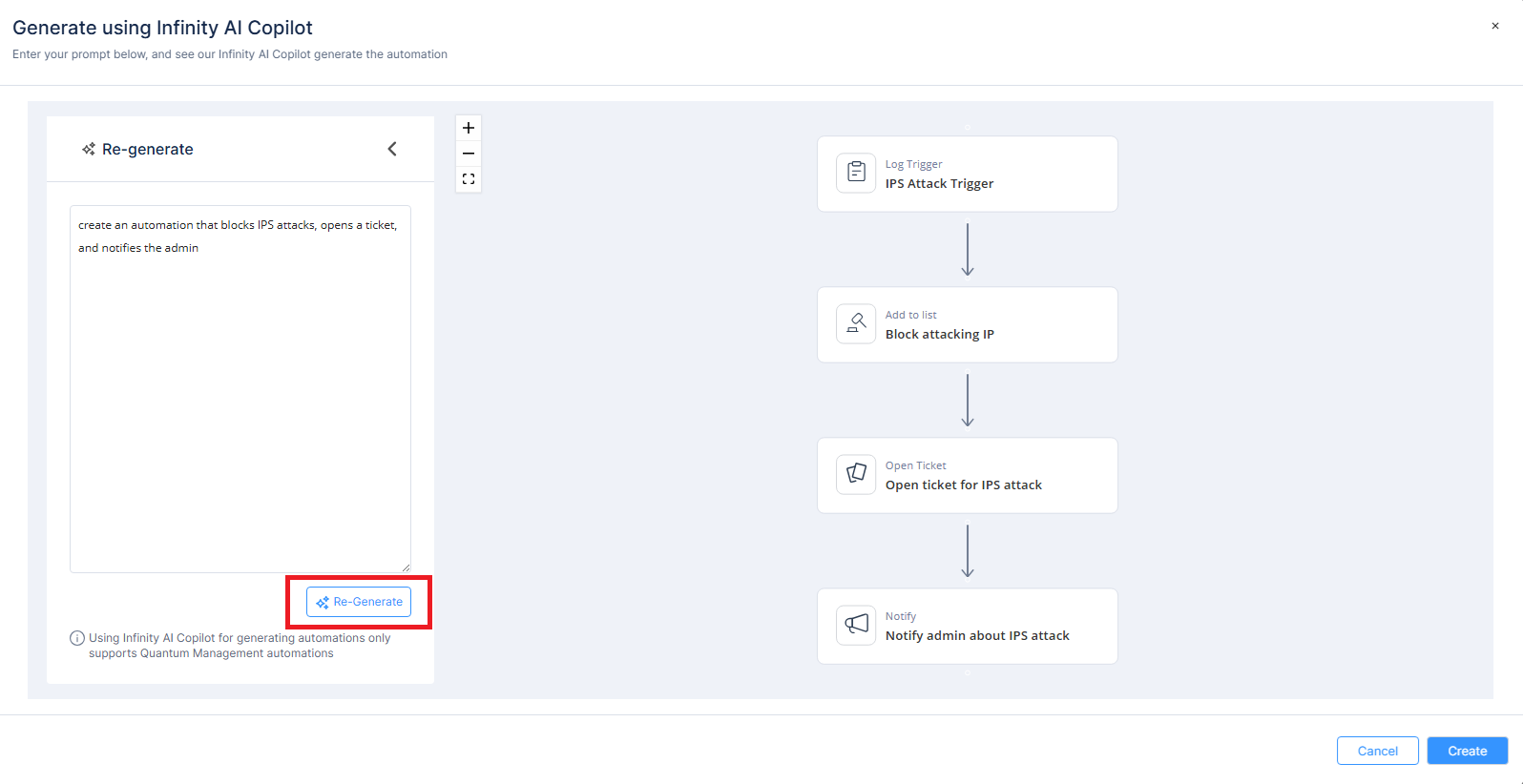
To modify a step, in the Re-generate section, rephrase the prompt you entered and click Re-Generate.
For information on how to use custom automation step schema, see Appendix G - Using Custom Automation Step Schemas.