
MCP Remote Access
This setting allows compatible AI clients, such as ChatGPT and Claude, to securely access this account using the Model Context Protocol (MCP). Only primary administrators can configure this setting.
|
|
Note - To use this setting, you must enable Open Authentication (see OAuth Applications). |

To configure MCP Remote Access:
-
Enable OAuth 2.0 and authorize at least one AI client (ChatGPT, Claude, or a custom client) to connect. For more details, see OAuth Applications.
-
From the MCP Server Endpoint section, copy the URL (https://cloudinfra-gw.portal.checkpoint.com/mcp).
-
Continue the configuration based on your client:
-
Claude desktop
-
Claude code (CLI)
-
ChatGPT
-
 Configuring the Claude desktop
-
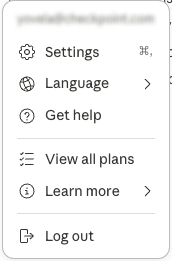
In Claude Desktop, click your profile icon and select Settings.
-
On the Connectors page, click Add custom connector.

-
Enter the name (for example, Check Point Portal).
-
Paste the URL you copied in the Check Point Portal.
-
Click Add.
-
Click Connect.
After logging in, you can access the Check Point Portal through Claude desktop.
Configuring Claude code (CLI)
-
Open your terminal and run this command:
claude mcp add --transport http checkpoint https://cloudinfra-gw.portal.checkpoint.com/mcp -
Make sure the MCP is added successfully.
You can access the Check Point Portal through the Claude code CLI.
Configuring ChatGPT
-
In ChatGPT, click your profile icon and select Settings.
-
On the Apps page, click Advanced settings.
-
Enable the Developer mode.
-
Go back to Apps and click Create app.
-
Enter the URL you copied in the Check Point Portal.
-
Click Create.
After logging in, you can access the Check Point Portal through ChatGPT.
Check Point MCP servers
Supported MCPs:
-
Check Point Management
-
Management Logs
-
Threat Prevention
-
HTTPS Inspection
For self-hosting Check Point MCP servers, see https://mcp.checkpoint.com.