Consumers - Security Gateways Using Identity and Trust for Access Control
After you configure Identity and Trust to collect directory and identity information, you can configure a Security Gateway to act as a consumer of Identity and Trust. The Security Gateway retrieves identity information from Identity and Trust and uses it to enforce identity‑based access control.
This chapter explains the configuration steps and how to use the retrieved identity information in access control rules.
Configuration
 Step 1: Connect the Security Management Server and Security Gateways to the Check Point Portal
If the Security Management Server is already connected with the Check Point Portal, skip this step.
-
Open SmartConsole and log in to your Security Management Server.
-
From the left toolbar, select Infinity Services.
-
In the Connect to Check Point Portal to use Infinity Services section, click Get Started.
The Instructions window opens.
-
In the Create Check Point Portal account step:
-
If you do not have a Check Point Portal account, click Create Account and complete the steps in the Check Point Portal.
-
If you already have a Check Point Portal account, skip this step.
-
-
In the Create trust step, click Get Token.
The Check Point Portal opens.
-
Follow the steps in the Check Point Portal to open the relevant account and copy the token.
-
Paste the token into the Instructions window in SmartConsole.
-
Set Connect your Security Gateways to Infinity Portal to ON.
-
In the GatewaysConnection Details section, select which Security Gateways to connect to the Check Point Portal:
-
All (Default) - All supported Security Gateways managed by the Security Management Server are connected to the Check Point Portal.
-
Specific - Only the selected Security Gateways establish the connection.
-
-
In the GatewaysConnection Details section, select when to establish connection from the Check Point Portal to Security Gateways:
-
Immediately (Default) - The Security Gateways attempt to establish a connection with the Check Point Portal immediately and during every subsequent policy installation.
-
After policy installation - The Security Gateways attempt to establish a connection with theCheck Point Portal only after the next policy installation.
-
-
In the Instructions window, click Connect.
In SmartConsole, the Infinity Services tab shows a card that says "CONNECTED TO INFINITY PORTAL" and shows the name of the Check Point Portal account you connected to the Management Server.
-
In the Check Point Portal, make sure your Management Server is connected.
-
Open the Check Point Portal account that you connected to the Management Server.
-
In the upper left corner, click the menu button
 .
. -
In the Hybrid Mesh Network Security section, click Management & Smart-1 Cloud.
The Security Management screen opens.
-
In the Connected Managements tab, make sure that your Security Management server appears with Active status.
The Identity Provider defined on the Check Point Portal is now available as a read-only object in SmartConsole.
-
Step 2: In SmartConsole, configure Identity Awareness as an identity consumer of Identity and Trust.
-
In SmartConsole, from the left toolbar, click Gateways & Servers.
-
Double-click on the table row for the relevant Security Gateway object.
The Check Point Gateway window opens.
-
From the left tree menu, expand Identity Awareness and click Identity Sharing.
-
In the Identity Sharing section, select Get identities from Identity and Trust.
-
Click OK.
-
Install the policy.
Step 3: In SmartConsole, create Access Control rules based on directories that the Security Gateway gets from Identity and Trust
|
|
Note - If you already created access roles for directories from Identity Collector |

-
In SmartConsole, from the right toolbar, open the Objects tab.
-
Click Users/Identities and then select Access Roles.
-
To create a new Access Role
Access Role objects let you configure network access according to: Networks, Users and user groups, Computers and computer groups, Remote Access Clients. After you activate the Identity Awareness Software Blade, you can create Access Role objects and use them in the Source and Destination columns of Access Control Policy rules., right click an empty area in the Access Roles menu and then click Access Role. Or, double click on an existing Access Role to edit it.The Access Role window opens.
-
Open the Users tab.
-
Select Specific users/groups.
-
Click the + (plus sign) button.
A new window opens.
-
In the top left corner of the new window, next to the search bar, select a directory that the Security Gateway gets from Identity and Trust (for example: My_Entra_ID_Directory).
-
Complete the Access Role creation.
-
Install the policy.
Monitoring and Troubleshooting the Connection between Identity and Trust and Security Gateways
If a user logs in successfully but does not get access to resources located behind a Security Gateway as expected, follow these steps to troubleshoot the issue.
-
In Identity and Trust, from the left toolbar, open the Active sessions tab.
-
At the top of the Active Sessions menu, select By users.Mon
-
Search for the relevant username.
If the username appears in the table, keep Identity and Trust open and continue to the next step.
-
Connect to the command line on the Security Gateway to verify the Nano Agent status:
-
Log in to the Expert mode.
-
Run:
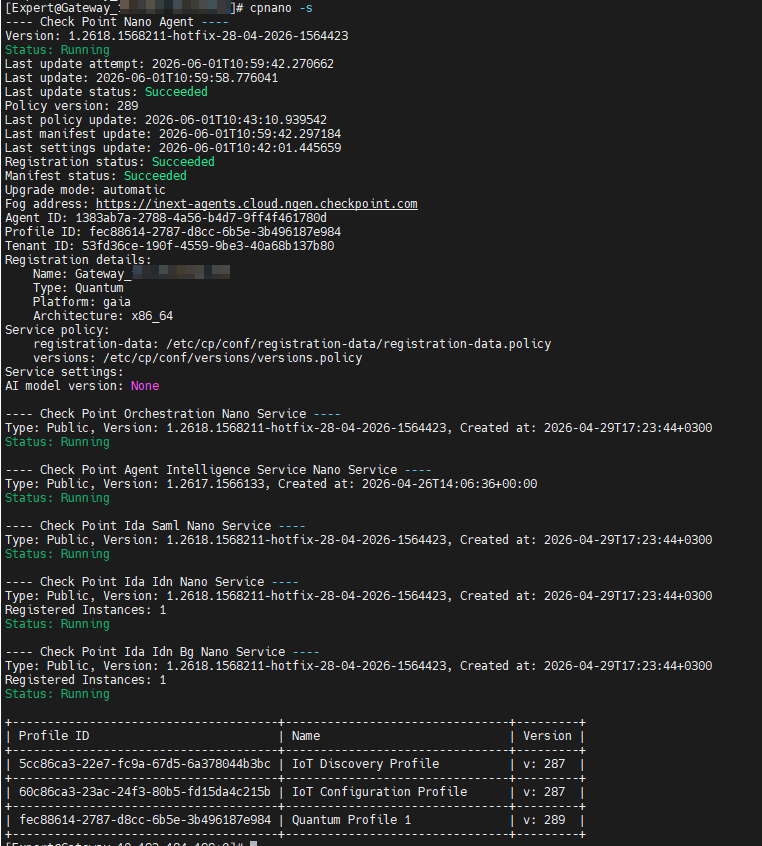
cpnano -s
If the output fields show Succeeded (in green), the Nano Agent is installed, running, and connected to the Check Point Portal. Continue to the next step.
If the output shows
command not foundor empty output, the Nano Agent is not installed. See sk180577 for Security Gateway onboarding instructions.If the output shows various errors, there is a connectivity issue between the Security Gateway and the Check Point Portal. Contact Check Point Support.
-
-
On the CLI of the Security Gateway, run:
pep show network intelligenceIf the username does not appear in the table, then there is a problem with the connection between Identity and Trust and the IdP.
The output of the command is a table. In the
Networkcolumn of the table, look for the network that appears in the table row for the username in the Identity and Trust UI. If you find the network, check if Identity and Trust appears in theRelated Intelligencecolumn.If the user's network appears, continue to the next step.
If the user's network does not appear, then there is a problem with the connection between Identity and Trust and the Security Gateway.
-
On the CLI of the Security Gateway, run:
pep show user allThe output of the command is a table. If the username appears in the
Username@Machinecolumn in the table, and Identity and Trust appears in theID (PDP; UID)column, this means that the Security Gateway received the identity from Identity and Trust. The Access Control rule is not configured properly in SmartConsole, or there is a problem with the connection between the Security Gateway and the internal resource.If the username does not appear in the table, then there is a problem with the connection between Identity and Trust and the Security Gateway.
Verifying Connectivity Between the Security Gateway and Identity and Trust
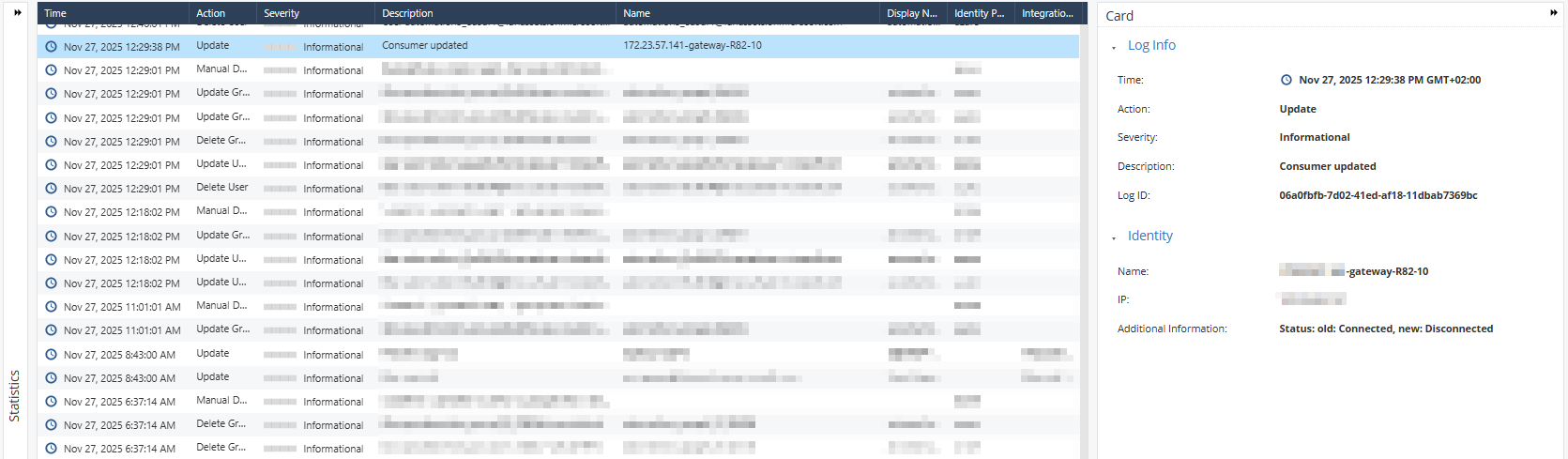
After the Security Gateway and Identity and Trust synchronize information (about 15 minutes), a Security Gateway consumer card appears on the Integrations page.
The logs show related Security Gateway events, including:
-
When a Security Gateway is configured to work with Identity and Trust
-
When a Security Gateway is removed
-
When a Security Gateway status changes from connected to disconnected
Nano Agent CLI Commands
The Nano Agent is the Check Point component that runs on the Security Gateway and connects it to Identity and Trust in the Check Point Portal. Use the cpnano command on the Security Gateway to monitor the Nano Agent status and control its operation during troubleshooting.
Prerequisites
-
Connect to the command line on the Security Gateway or on each cluster member.
-
If the default shell is Gaia Clish, enter Expert mode.
Syntax
cpnano <option>
|
Options
|
Option |
Description |
Comments |
|---|---|---|
|
|
Displays the Nano Agent status and versions. |
Use |
|
|
Uninstalls the Nano Agent from the Security Gateway. |
Use only under Check Point Support guidance. |
|
|
Stops the Nano Agent functions. |
|
|
|
Starts the Nano Agent functions. |
|
|
|
Sets or changes the proxy that the Nano Agent uses to connect to Identity and Trust. |
Use this option to configure the proxy after the Nano Agent is installed. The Nano Agent CLI has the highest precedence and overrides proxy settings configured through Gaia OS or SmartConsole. |
Sample cpnano -s output: