
Managing Integrations
As an administrator, you can use the Integrations page to manage and monitor IdPs and Identity Integrations. You can configure, edit, and monitor connections, ensuring synchronized users, devices, and groups are up-to-date for secure authentication and data collection.
Overview of Integration Cards
The Integrations page shows a card for each configured Identity and Trust integration. These cards are organized into the following sections:
-
Directories
-
External integrations
-
Check Point products
-
Consumers
Each section shows up to four cards. If a section contains more cards, click Show more / Show less to view additional or fewer cards accordingly.
Directories
The Directories section shows integration cards for Identity Providers and Active Directory.
Your configuration determines which cards appear in this section. Possible directories include: AD, Microsoft Entra ID, Okta, OneLogin, Ping, PingFederate, Generic SAML Server, Google Workspace, DUO, and RADIUS.
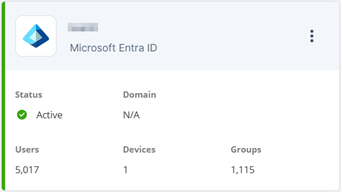
The image below shows an example Microsoft Entra ID card.
|
Name |
Description |
|---|---|
|
Status |
Indicates whether the IdP is configured correctly. |
|
Domain |
The domain associated with the IdP, also used for authentication. |
|
Users |
The total number of users synchronized from the IdP. |
|
Devices |
The total number of devices synchronized from the IdP. |
|
Groups |
The count of groups synchronized from the IdP. |
External Integrations
The External integrations section shows integration cards for third party integrations.
Your configuration determines which cards appear in this section. Possible external integrations include: Identity Collector Check Point dedicated client agent installed on Windows Servers in your network. Identity Collector collects information about identities and their associated IP addresses and sends it to the Check Point Firewalls for identity enforcement, you can download the Identity Collector package from the Support Center., Terminal Server Agent, Microsoft Intune, Microsoft Defender, and CrowdStrike Falcon.
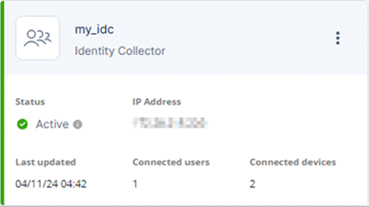
The image below shows an example Identity Collector card.
|
Name |
Description |
|---|---|
|
Status |
Indicates whether the Integration is active. |
|
IP Address |
The IP address associated with the Identity Collector. |
|
Last updated |
The timestamp of the most recent data reception from the Identity Collector. |
|
Connected users |
The total number of users acquired by this Identity Collector. |
|
Connected devices |
The total number of devices acquired by this Identity Collector. |
Check Point Products
The Check Point products section shows available Check Point integrations in your account such as Endpoint Security and Check Point SAML.
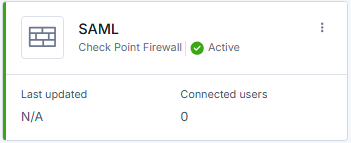
The image below shows an example SAML card.
|
Name |
Description |
|---|---|
|
Status |
Shows if SAML integration is active or inactive. |
|
Last updated |
Displays the timestamp of the most recent user login through SAML. |
|
Connected users |
Shows the total number of users connected to SAML. |
Consumers
The Consumers section shows a card for each Security Gateway in your environment that integrates with Identity and Trust.
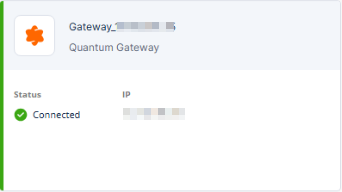
The image below shows an example Consumer card:
|
Name |
Description |
|---|---|
|
Status |
Shows the connection status between a Security Gateway and Identity and Trust. The card name corresponds to the name assigned to the Security Gateway machine. Possible statuses: Connected or Disconnected. |
|
IP Address |
Shows the IP address that the Security Gateway uses to communicate with Identity and Trust. |
|
|
Note - This card is for information only. There is nothing for you to configure in the card. If the card shows Disconnected, troubleshoot the issue on the Gateway side. |

Editing and Managing Integrations
-
Hover over the relevant card and click the three dots to edit or remove the integration.
-
For IdPs, click Edit to go to the IdP setup wizard.
Monitoring Connection Status
Verify the status indicators (colored strips on the left side of the card) to ensure all integrations are functioning properly. For detailed information, review IP addresses, last update timestamps, and the list of connected users and devices.
|
Color |
Meaning |
Context |
|---|---|---|
|
Green |
Normal operation, healthy state |
Integration is active / connected |
|
Yellow |
Warning |
Requires user action; follow the steps on the card |
|
Gray |
Inactive / pending state |
Requires user action to activate / connect an integration or |
|
Red |
Error detected |
Integration is not working and requires troubleshooting |