
Active Sessions
The Active Sessions page displays information about connected users and devices. Administrators use this page to monitor and manage user and device activity. It provides tools for troubleshooting and helps identify and resolve issues or anomalies in user or device behavior. Administrators can review logged-in users, IP addresses, and session details to verify that all activity aligns with security policies and meets compliance requirements.
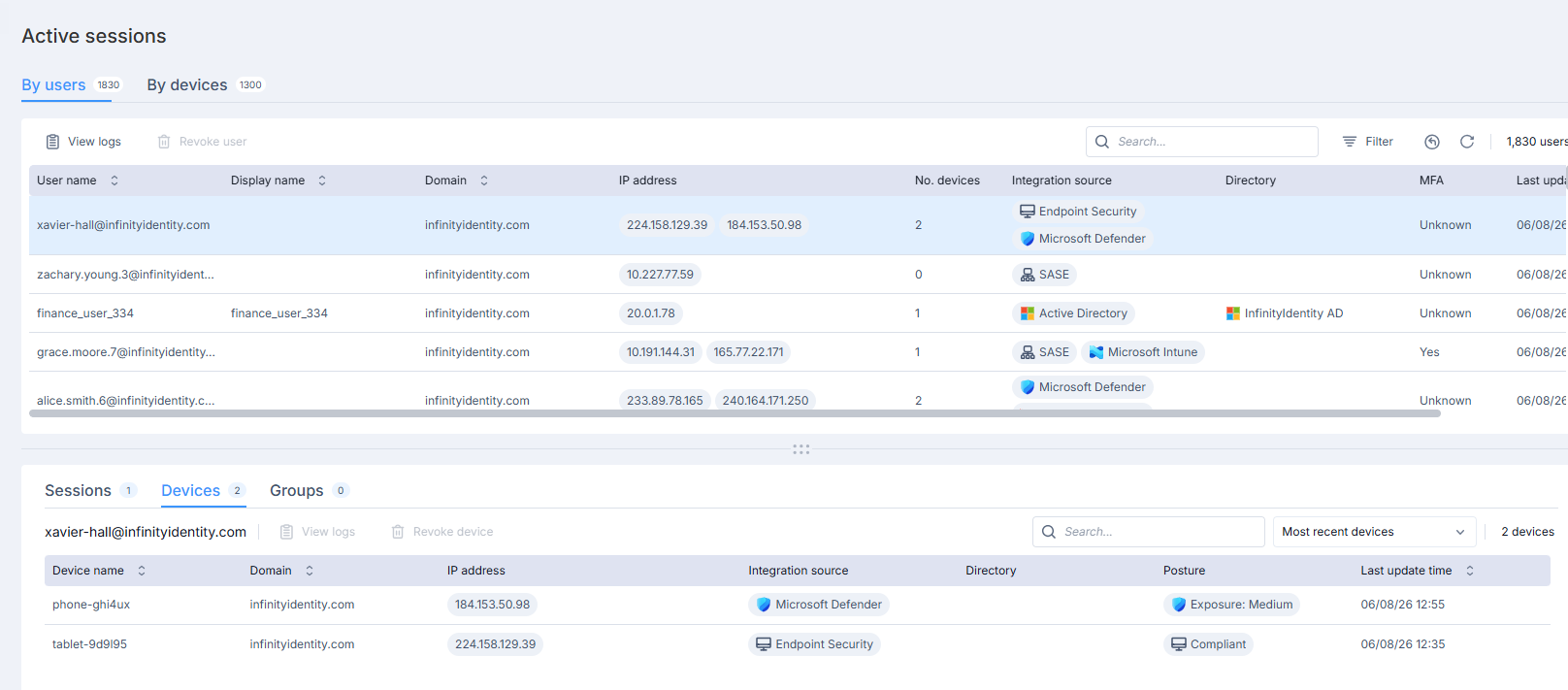
The Active Sessions page contains two tables:
-
The top table displays active sessions by user or by device. Select the relevant tab to view the list of active sessions. The total number of active users and devices appears next to each link.
-
The bottom table shows additional information for the identity that you select in the top table.
The system aggregates session information from multiple login event sources into table rows, including directory and identity integrations. In some cases, table cells may be empty. For example, if the user was not identified in any directory, the Directory cell will be empty.
Monitoring Connections by Users
The top table displays user sessions, with each row corresponding to a specific user. This table is the primary view for examining active sessions. Each row represents an active session for each user, including information from all of the user's connections. When you select a row, it appears with a blue background.
The bottom table displays additional information for a selected row:
-
Devices tab - Shows devices associated with the user's sessions.
-
Groups tab - Shows a user's group associations from all configured Identity Providers.
-
Sessions tab - Shows the active sessions associated with the selected user, including the matched Trust Profiles. For more information, see Monitoring Connections by Sessions.
Example Use Cases
-
Multiple IP Addresses - A single user session may show multiple IP addresses due to distinct activities, such as logins from different networks (for example, office and home).
-
Device Variation - Users log in from different devices (for example, a laptop and a mobile phone) or use the same device at different times or locations.
-
Different identity integrations.
By default, the Devices tab in the bottom table shows the Most recent devices view.
To view all active devices instead of only the most recent device, select All devices.
Monitoring Connections by Devices
When you select By devices, each row in the top table represents a device session. When you select a row, it appears with a blue background.
The bottom table displays additional information for a selected row:
-
Users tab - Shows users associated with the device's sessions.
-
Groups tab - Shows a device's group associations from all configured Identity Providers.
-
Sessions tab - Shows the active sessions associated with the selected device, including the matched Trust Profiles. For more information, see Monitoring Connections by Sessions.
By default, the Users tab shows the Most recent users view.
The most recent user represents the identity currently enforced for an IP address. If multiple users authenticate from the same device or IP address, Identity and Trust uses the most recent user for enforcement and sends that identity to the Security Gateway.
To view all active users instead of only the most recent user, select All Users.
Monitoring Connections by Sessions
|
|
Note - The Sessions tab is available only for customers who use the Trust Profiles feature. The Trust Profiles feature is currently available only through the Early Availability program. To activate this feature, contact your Identity and Trust Customer Success Manager or local Account Manager. For more information, see Trust Profiles. |

The Sessions tab shows the active sessions associated with a selected user or device. A session represents the information that Identity and Trust sends to a Security Gateway for enforcement.
To view sessions:
-
In Active Sessions, select a user or a device in the top table.
-
In the bottom table, click the Sessions tab.
Each row in the Sessions tab represents a single session for a specific IP address. Because a user or device can connect from multiple IP addresses (for example, from a laptop, a VDI, and a mobile device), Identity and Trust displays one session entry for each IP address.
For each session, the Sessions tab shows the information that the Security Gateway uses for enforcement, including:
-
Source IP address
-
Session creation and expiration times
-
Related integrations
-
Matched Trust Profiles
Matched Trust Profiles
Identity and Trust evaluates each session against all active Trust Profiles and adds the matched profiles to the session information sent to the Security Gateway.
A session can match more than one Trust Profile. When this occurs, all matched profiles appear in the Trust Profiles column for the session.
Use the Sessions tab to verify which Trust Profiles match a session and are sent to Security Gateways for policy enforcement.
The Sessions tab is the only location in Identity and Trust where you can view the Trust Profiles that match a session.
Revoking a User or Device Session
If necessary, you can manually revoke a user's or device's active session. This ends the current session by denying access to resources according to the rule base for all the IP addresses of the user or device. A subsequent login from this user or device is saved and will allow access again.
Example use cases:
-
Compromised user - If you suspect that a logged in user is compromised, you can revoke the user to force re-authentication.
-
Inactive user - A user that is out of office, for example, and an administrator wants to revoke the session that should not be active.
-
Resolve an access issue - If a device does not have access to a resource, revoking the device session and re-authenticating may solve the issue.
To revoke a user or device session:
-
Select the table row for the user.
-
In the toolbar above the table, click Revoke user or Revoke device.
Viewing Past Activity of a User or Device
You can also view a user's or device's past activity in Identity and Trust with the log option.
To view all logs for a user or device:
-
Select the table row for the user or device.
-
In the toolbar above the table, click View logs.
Searching the Active Sessions Table
To search the Active sessions table:
On the Active sessions toolbar, enter the search query in the Search box.
Filtering the Active Sessions Table
You can filter the Active sessions table to view only rows that match your preferences: Name, Display Name, Domain, IP Address, Integration Source, and Directory.
To filter the Active sessions table:
-
From the Active sessions toolbar, click Filter.
A Filters pane opens to the right of the Active Sessions table.
-
Select the applicable filter field from the list and enter or select the filter value.
-
To clear a filter value, click the three dots next to the filter field name and click Clear.
-
To clear all filter values, click Clear all.
The Columns of the Active Sessions Table
|
Column |
Description |
|---|---|
|
Username / Device Name |
Shows the username or device name. |
|
Display name |
Shows the display name configured for a user or a device in the directory. |
|
Domain |
Shows the domain used during login. |
|
IP address |
Lists the IP addresses linked to the session, which can include multiple addresses for a single user or device. |
|
No. devices / No. users |
Lists the number of devices per user or users per device for the session. |
|
Integration Source |
Shows integrations associated with the session. |
|
Directory |
Shows the directory in which the user or device is configured. |
|
MFA / Compliant |
For Intune integrations - MFA shows Yes, No, Unknown, or Partially. Partially indicates that only some of the devices connected to a user used MFA (the breakdown is visible in the bottom table). For Intune, Endpoint Security, and CrowdStrike Falcon integrations - Compliant shows the integration icon and Yes, No, or a score based on the vendor's analysis. |
|
Last Update Time |
Shows the latest update time for the session. |
|
Trust profiles |
Shows the Trust Profiles that match the session. A session can match more than one Trust Profile. |