
Mobile Security Protect App Operation
Mobile Security Protect app runs seamlessly in the background without affecting memory or performance. With this app, you get full protection from mobile threats and visibility into the current status of your
Your
State 1 – No Threats/Policy Violations Found – Device Compliant
The main screen of the app reflects its current state. As long as the app protects your device and it is threat-free, the app main page remains Green.

My Device
Tap My Device on the bottom left of the main Mobile Security Protect screen to see the screen of the system settings.
Tap each setting to get more information regarding the setting.
When the Yes/No or On/Off indicator is in Green, then the setting is OK or Good. If it is Red, then the setting or configuration violates the security policy Collection of rules that control network traffic and enforce organization guidelines for data protection and access to resources with packet inspection.. You must adjust them to make your device as secure as possible.

My Apps
Tap the My Apps icon on the bottom center of the main Mobile Security Protect screen to see the overview screen for all the apps on your device.
Tap each number to get the screen of the apps list aligned at the heading you selected, such as App Store
You can see if there are malicious apps that Mobile Security Protect app discovered and you removed.


As you can see for Unknown Sources, these apps are installed as part of the Samsung Android installation. They are not downloaded from the Google Play Store.

My Network
Tap the My Network icon on the bottom right of the main Mobile Security Protect screen to see the list of the Wi-Fi network you currently connect to or the Wi-Fi networks you connected to in the past. It has the overview of the number networks scanned and the number of networks that exhibited suspicious activity, such as possible Man-in-the-Middle attacks.

State 2 – Threats Found – Policy Violations
On discovery of a mobile threat or policy violation, such as malware or network attack, the Mobile Security Protect app makes sure to report you immediately of the threat and takes measures to remove the threat.
There are two notifications methods enabled by default:
-
An on-screen pop-up or banner.
-
A notification entry in the Notification Center.
App Protection (Advanced App Analysis)
When you open the Mobile Security Protect app, you get information regarding the existing policy violation (threat). The section is highlighted in Red. Depending on the violation/threat, the app suggests the necessary form of mitigation.
In the example below, the Mobile Security Protect app discovers a suspicious app.
-
When you tap My Apps, you see that the app detected one malware.
Tap the main threat detected or the 1 THREAT DETECTED section.

The Threat Center screen appears, which displays the tiles for all current threats.

-
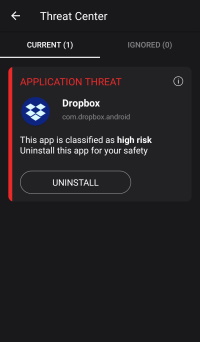
Tap the i to get threat details. In the example, the Dropbox app enters the black list of your organization, and therefore gets a warning of high risk.
-
-
After you remove the app, the status returns to green.
-
Tap My Apps to see that Mobile Security Protect app removes the history of one malicious app.
Network Protection
This section is applicable if the On-device Network Protection feature (local VPN) is enabled. The steps below demonstrate the prevention mechanism when anti-phishing is operative.

When you open the Mobile Security Protect app, it informs you of the existing policy violation (threat). Depending on the violation or threat, the app suggests the necessary form of mitigation.
-
In the example, browse to the URL:
http://threat-cloud.com/test/files/HighConfidenceBot.html
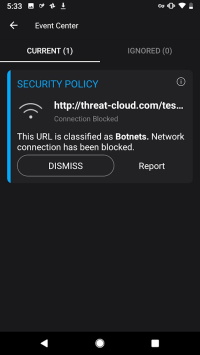
Notice that Mobile Security Protect blocks the access to this test page that simulates a malicious URL.
Important - This URL simulates a malicious page. If you open this URL on a regular computer, it triggers the protection software installed on it.
In the app, you see the Security Event.
-
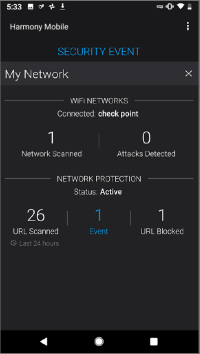
Tap My Network to see in Blue that one event occured. The Blue color indicates that the event is for information update only. No risk is present as the attack was prevented.

-
Tap this event to see how the security policy applies to this threat.
-
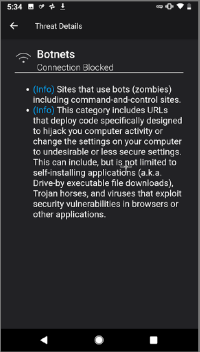
To view more threat details, tap the i icon on the right top corner of the tile.
Preventing SMS Phishing
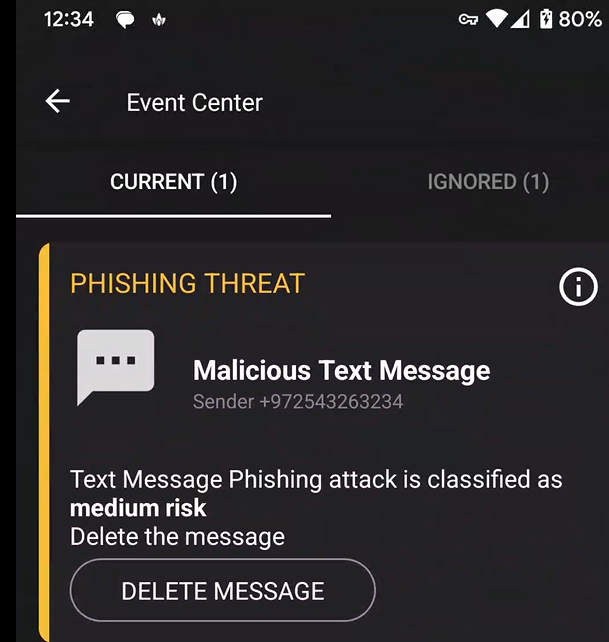
SMS Phishing, also known as Smishing, is a cyber attack where attackers use Short Message Service A Check Point service offering that helps customers with deployments or technical services for Check Point products. (SMS) to deceive individuals to reveal sensitive information, or download malicious software. The attacker sends a SMS with malicious links or attachments and prompts the user to click them.
You can use the Mobile Security Protect app to intercept and automatically scan the SMS received on your device.

Scanning Links
The Mobile Security Protect app allows you to scan and submit suspicious links for analysis and provides a detailed security verdict about the link.
You can scan the links from the Mobile Security Protect app or from the browser application.
To scan a link from the Mobile Security Protect app:
-
Tap the three dots
 > Scan Link.
-
Scan the QR code of the link or manually enter the link and tap Scan.

The verdict screen appears.

-
To send the report to Check Point, tap Report.
|
|
Note - This option is not available if you have set a default browser app on your device. |

-
Tap the link.
-
Tap Scan Link.

The Mobile Security Protect app scans the link and shows the verdict.
QR Code Scanner Widget
The QR code scanner widget lets you scan QR codes that contain web URLs. Before you open a link, the widget scans and analyzes the destination address in real time and helps protect you from phishing sites and malicious redirects.
Scanning QR codes using the QR code scanner widget
Add the QR code scanner widget to your phone's home screen to scan QR codes without opening the Mobile Security Protect app.
Procedure:
|
|
Note - The steps and screens may vary depending on your Android device and launcher version. |
-
Add the QR code scanner widget to your phone’s home screen:
-
Touch and hold an empty space on your home screen.
-
Tap Widgets.
-
From the widget list, search for and select the Protect app and then tap the Scan link widget.
-
Click Add.
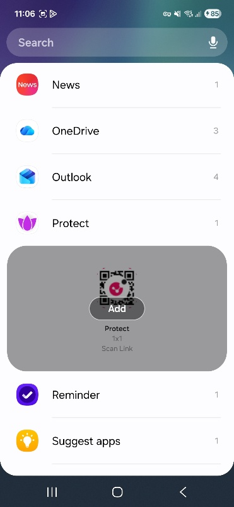
The Scan link widget is added to the home screen.
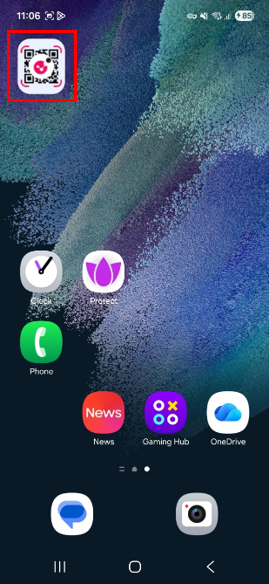
-
-
To scan a QR code:
-
Tap the QR code scanner widget.
-
Scan the QR code.
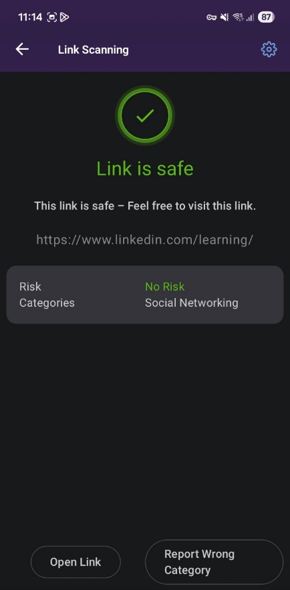
The Mobile Security Protect app scans the link and displays the scan verdict.
-
If the link is safe, tap Open Link to open the destination website.
-
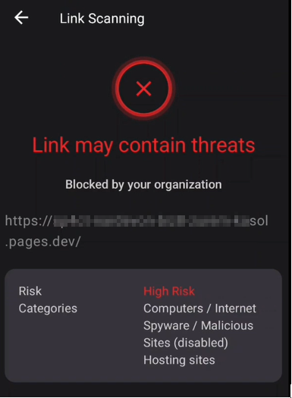
If the app detects a malicious link, it blocks access to the site and protects your device.
-
If you think the scan result is incorrect, tap Report Wrong Category.
The report is sent to the Check Point Mobile Security team for analysis.
-