
Installing the Protect App App
To install the Protect App app:
-
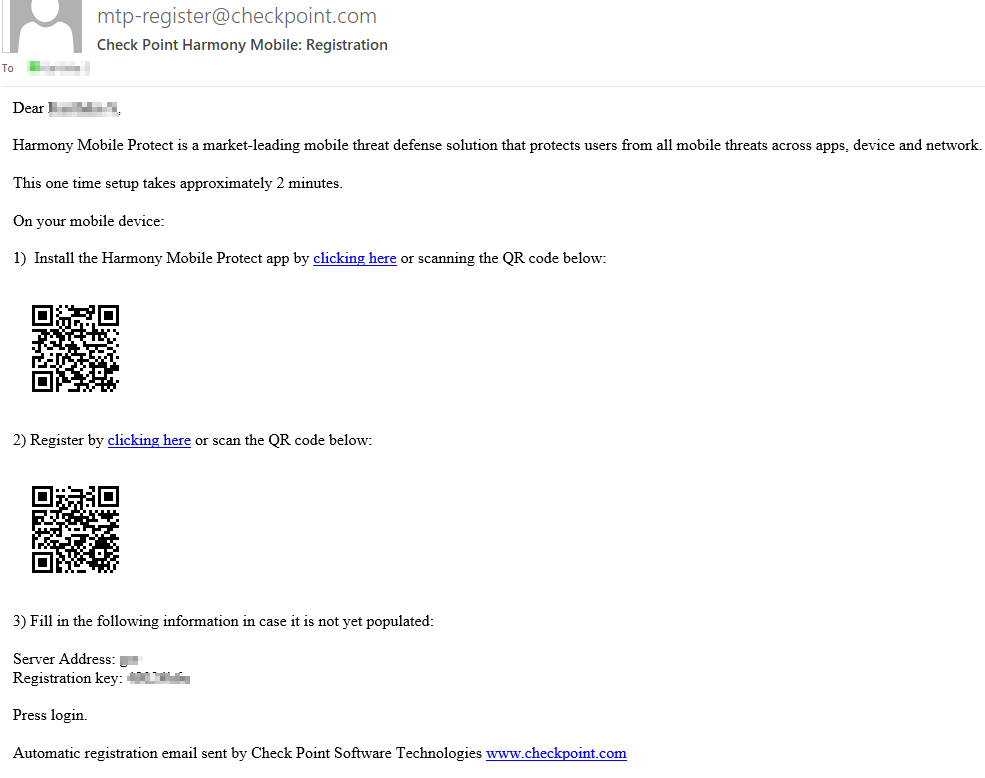
Open the Mobile Security (formerly Harmony Mobile) registration email or the SMS sent by your System Administrator. The email or the SMS contains:
-
Server address and the registration key to register the app.
-
Link and QR code to download the app.
Sample Email:
-
-
Tap the Download link or scan the QR code.
The Google Play Store page for Protect App appears.
-
Tap Install.

-
Tap Open when the installation completes.

The App registers automatically.
-
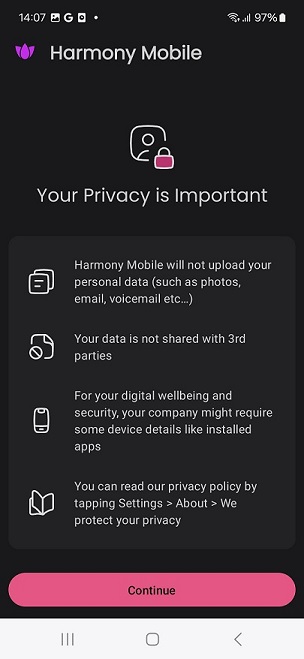
Tap Continue.
-
Enable the security permissions (based on the security policies
 Collection of rules that control network traffic and enforce organization guidelines for data protection and access to resources with packet inspection. of the organization).
-
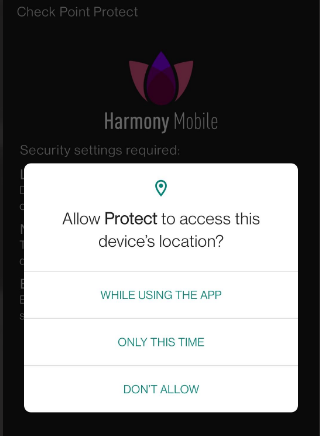
Tap Location and then tap the required option.
-
Tap Network Protection and then tap OK to allow Protect App to configure a VPN connection. This is necessary for the functioning of Network Security Protection features such as Safe Browsing and Anti-Phishing.
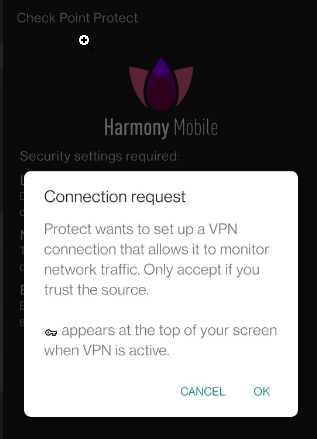

Note - To protect the user privacy, this VPN does not direct the traffic externally. It keeps all data on the device and uses the VPN functionality only to examine the destination, while it makes sure the device does not connect to malicious or fraudulent locations.
-
Tap Background activity and then tap Allow.

-
To enable notification access, tap Enable.

-
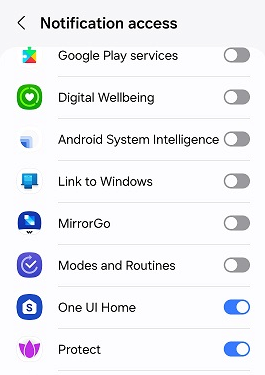
In the Notification access page, enable Protect.
-
Tap Allow.

-
To go back to the Protect App, tap the Back button.
-
(Optional) Tap Install and install the CA certificate.
If not required, tap Skip.

-
If you are installing the CA certificate, after installation, tap the Back button to go back to the Protect App.
-
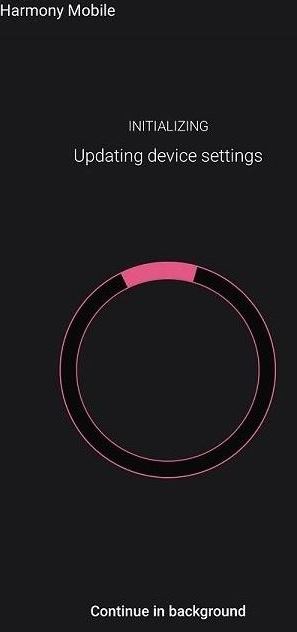
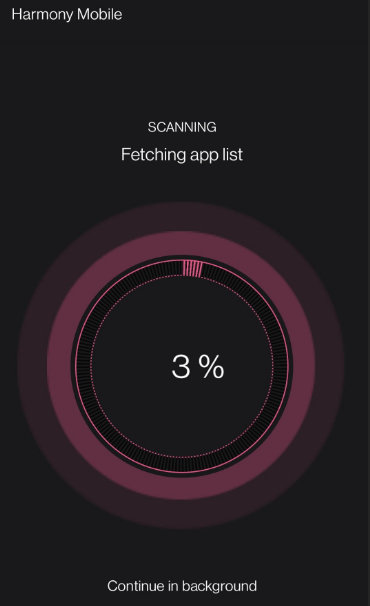
The app starts initialization.
-
When the app completes examining the system, it displays the state of the device. In this example, the device is without malicious or high risk apps, network and OS threats.
