
Appendix A - Differences between Intune MAM and Intune EMM
The table below lists the differences between MAM & EMM Enterprise Mobility Management. A set of tools and processes to secure and manage company-owned or employee-owned (BYOD) devices irrespective of their locations./UEM Unified Endpoint Management. An architecture and approach that controls different types of devices such as computers, smartphones and IoT devices from a centralized command point. deployments when it comes to Mobile Security solution:
|
|
Intune MAM |
Intune EMM |
|---|---|---|
|
Deployment |
||
|
Company Portal installed - Android |
Must |
Must |
|
Company Portal installed - iOS |
Need Authenticator |
Must |
|
Authenticator app installed - Android |
Need Authenticator |
Not needed |
|
Authenticator app installed - iOS |
Need Authenticator |
Not needed |
|
One touch (MSFT Sign in from device) |
√ |
√ |
|
Zero-touch deployment |
X (No App-Config) |
√ |
|
Protection |
||
|
Apps analysis - Android |
√ |
√ |
|
Apps analysis - iOS |
√ |
√ - if personal apps are discoverable by Intune |
|
Network vector (e.g. MiTM) |
√ |
√ |
|
OS Exploits |
√ |
√ |
|
Jailbreak/root detection |
√ |
√ |
|
ONP (Anti-phishing, download prevention, anti-bot, URLF, etc.) |
√ |
√ |
|
√ |
√ |
|
|
Mitigation |
||
|
Intune Conditional Access AAD |
√ |
√ |
|
Mobile SecurityConditional Access (ONP) |
√ |
√ |
|
All Actions supported in Intune * |
According to MSFT Docs |
According to MSFT Docs |

|
Note - See device compliance configurations here. |
Deploying a CA certificate using Zero-Touch for HTTPS Traffic Inspection
-
In your Mobile Security dashboard, go to Policy and expand your policy profile (example, Global).
-
Click any one of these:
-
Device
-
Application
-
File
-
Network
-
-
Click Network Protection.
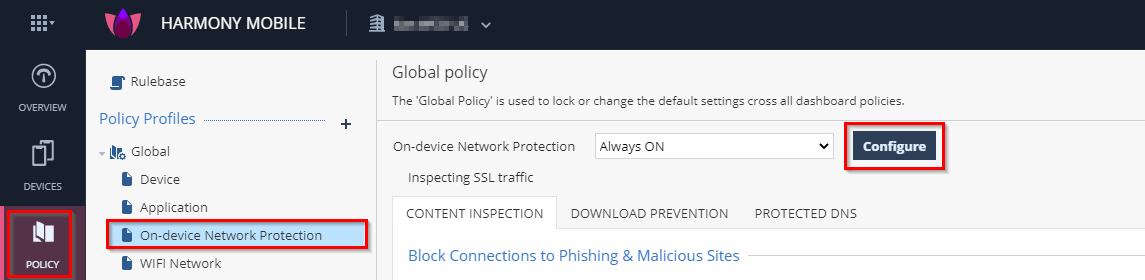
-
Go to HTTPS Settings and select the HTTPS Inspection checkbox.
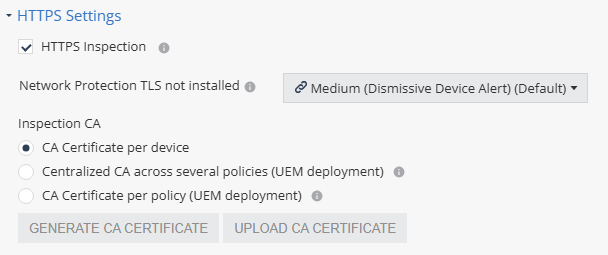
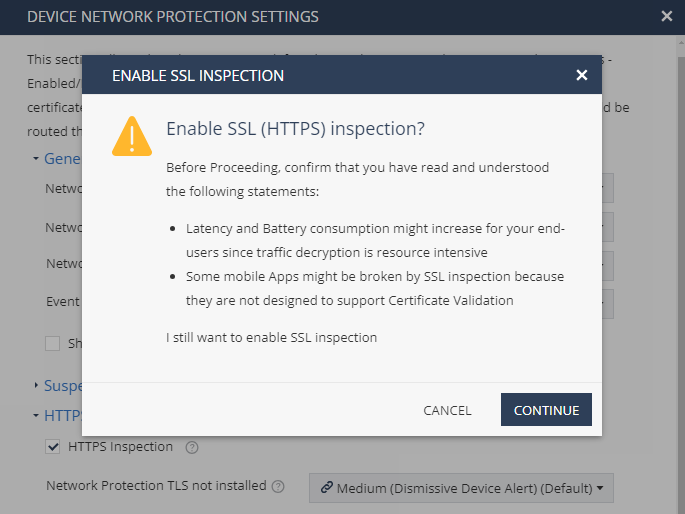
The Enable SSL Inspection window appears.
-
Click Continue.
-
In the Inspection CA section, select the CA certificate that ONP will use to inspect HTTPS traffic on the end-user device.
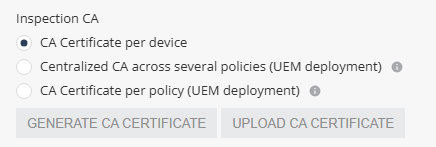
Select one of these:
-
Centralized CA across several policies - Allows you to use the centralized CA certificate across several policies. To generate the centralized CA certificate, go to Settings > Central HTTPS Inspection Root CA.
Note - If you initially chose to use a centralized CA certificate but later changed to a different CA certificate option:
-
The current policy will no longer use the centralized certificate.
-
The centralized CA certificate remains active and continues to be associated with all other policies in your account.
-
-
CA Certificate per policy - If your organization uses a UEM, you can generate a new CA certificate for each policy, download and deploy it on the end-user device through UEM.
-
To generate a CA certificate issued by Check Point, click Generate CA Certificate. The new certificate is valid for one year from the current date, as shown in Expiration date.
-
To use a self-signed or a third-party CA certificate, click Upload CA Certificate.
For the Transport Layer Security (TLS
Transport Layer Security. A security protocol designed to facilitate privacy and data security for communications over the Internet.) certificate to be valid:-
The certificate must have a lifecycle of at least 30 days and not longer than 390 days.
-
The certificate must be valid for more than 30 days from the time it is uploaded to the Mobile Security Administrator Portal.
-
Note - Check Point recommends you renew the CA certificate at least two weeks before the expiration date. To renew the CA certificate, see sk181288.
-
-
|
|
Note - When using different policies for device groups, the enforcement of the certificate pushed by UEM Name may take up to 24 hours on iOS devices. This limitation is not relevant if you use the Global policy for the entire fleet of devices. |