Creating a Mitigation Process for Devices at Risk
This procedure is optional.
Create a mitigation policy based on your requirements and assign it to tagging groups based on their severity.
To let the Blackberry UEM Unified Endpoint Management. An architecture and approach that controls different types of devices such as computers, smartphones and IoT devices from a centralized command point. system identify the devices-at-risk and to enforce the configured compliance policies according to the risk level, you must apply the built-in Risk tags. The Mobile Security Dashboard uses these tags to label any device with the risk level that the Mobile Security analysis determines.
Creating IT Policies
Create IT Policies to be enforced on devices that are at risk. In our example, we will disable the camera, but you might create a policy that disables access to the corporate network or assets.

|
Note - Example enforcement policies are provided for reference only. In production environments, customers should create and configure compliance and IT policies based on their own security requirements and internal policies. |
To add an IT policy:
-
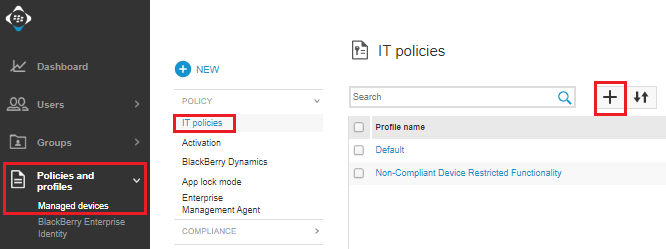
On the BlackBerry UEM console, go to Policies and profiles > Managed devices > Policy > IT policies and click +.
-
On the Add IT policies screen:
-
In the Name field, enter a name for the policy. For example, High Risk Device Policy.
-
For iOS:
-
Select the iOS tab.
-
Under Device functionality, deselect the Allow use of camera option.
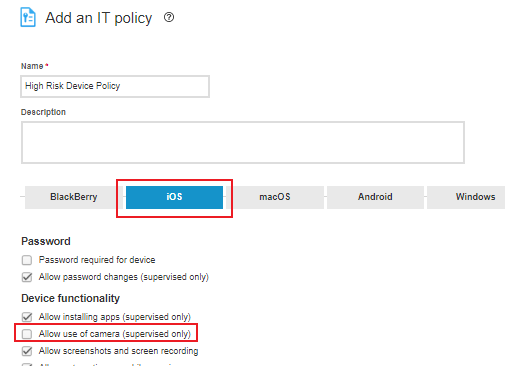
Note - This is only an example. Admins can set the options based on their organization's security needs.
-
-
For Android:
-
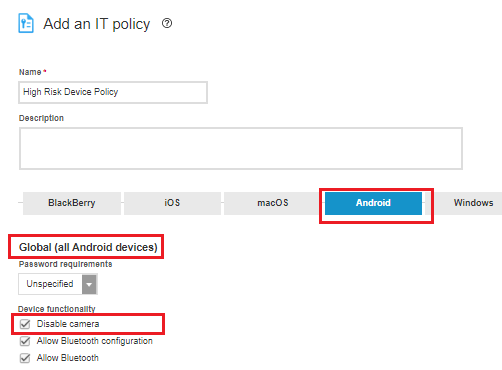
Select the Android tab.
-
Under Device functionality, select Disable camera.
-
-
Scroll to the bottom of the screen and click Save.
-
Applying the Policy to User Groups
After creating the policy (High Risk Device Policy) you want to enforce, link the policy to the relevant user groups.
To assign an IT policy to group:
-
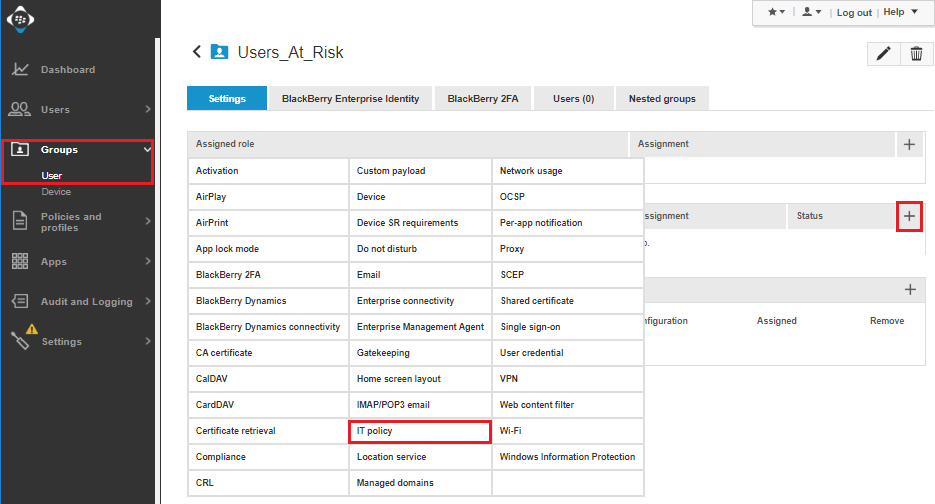
On the BlackBerry UEM console, go to Groups > User.
- Find the user mitigation group created by the Mobile Security integration and click the group name link. In our example, CHKP_Risk_High.
-
On the group detailed view, select the Settings tab.
-
On the Settings tab, click + in the Assigned Profiles section.
-
Select IT policies.
-
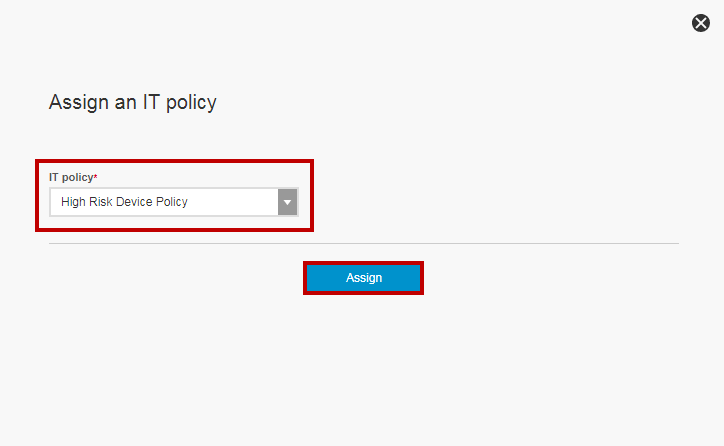
On the Assign IT policies profile window, select the IT policy we created in Creating IT Policies, in our example High Risk Device Policy.
-
Click Assign.
|
|
Note - Any device assigned to the CHKP_Risk_High user group now receives the actions defined in the High Risk Device policy. |