
Appendix E - Renewing a CA Certificate
A certificate trusted by a Certificate Authority (CA) is required for the On-device Network Protection (ONP) to inspect the HTTPS traffic on the end-user device. When the CA certificate expires, you must renew the certificate and deploy it on the device through the Unified Endpoint Manager (UEM Unified Endpoint Management. An architecture and approach that controls different types of devices such as computers, smartphones and IoT devices from a centralized command point.).
We recommend you renew the CA certificate at least two weeks before the expiration date.
Unified Endpoint Management. An architecture and approach that controls different types of devices such as computers, smartphones and IoT devices from a centralized command point.).
We recommend you renew the CA certificate at least two weeks before the expiration date.
|
|
Note - The SSL |
Updating Policy to Disable Device Alerts
To update your policy to avoid device alerts while renewing the certificate:
-
In the Mobile Security Administrator Portal, go to Policy and select a policy profile.
-
Click any one of these:
-
Device
-
Application
-
File
-
Network
-
-
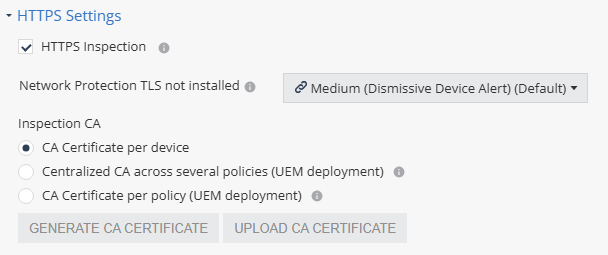
Go to Network Protection > HTTPS Settings and set Network Protection TLS not installed risk level as Medium (No Device Alert).

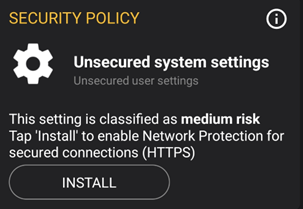
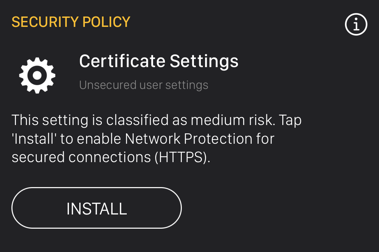
Otherwise, the device receives these alerts:
Android:
iOS
-
Click Save.
Renewing a Central CA Certificate Across Policies
If you are using a centralized CA certificate across policies:
-
In the Mobile Security Administrator Portal, go to Settings > Privacy/Security.
-
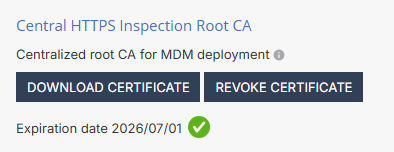
In the Central HTTPS Inspection Root CA section, click Revoke Certificate.
-
Click Yes in the confirmation box.
The system deletes the current central CA certificate.
-
To generate a new central CA certificate, do one of these:

-
To generate a CA certificate issued by Check Point, click Generate CA Certificate.
The system generates a certificate valid for one year from the generation date, as shown in Expiration date.
-
To use a self-signed or a third-party CA certificate, click Upload CA Certificate.
-
In the pop-up window, upload the certificate.

Notes:
For the Transport Layer Security (TLS
Transport Layer Security. A security protocol designed to facilitate privacy and data security for communications over the Internet.) certificate to be valid:-
The certificate must have a lifecycle of at least 30 days and not longer than 390 days.
-
The certificate must be valid for more than 30 days from the time it is uploaded to the Mobile Security Administrator Portal.
-
-
Enter the certificate password.
-
Click Verify.
-
If there are no errors, click Add.
-
-
-
If you have generated a CA certificate by Check Point, click Download Certificate.
The system downloads the certificate to your computer.
-
Upload the new certificate to the UEM.
For more information, see CA certificate deployment using the UEM section for the relevant UEM in Mobile Security Integration Guide.
Renewing a CA Certificate Per Policy
If you are using a CA certificate per policy:
-
In the Mobile Security Administrator Portal, go to Policy and select a policy profile.
-
Click any one of these:
-
Device
-
Application
-
File
-
Network
-
-
Click Network Protection and go to HTTPS Settings.
-
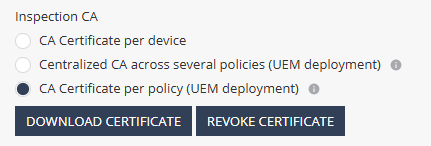
In the Inspection CA section, select CA Certificate per policy.
-
Click Revoke Certificate.
-
Click Yes in the confirmation box.
The system deletes the current central CA certificate.
-
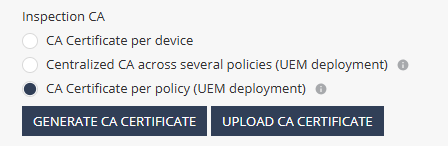
To generate a new CA certificate per policy, do one of these:
-
To generate a CA certificate issued by Check Point, click Generate CA Certificate.
The system generates a certificate valid for one year from the generation date, as shown in Expiration date.
-
To use a self-signed or a third-party CA certificate, click Upload CA Certificate.
-
In the pop-up window, upload the certificate.
Notes:
For the Transport Layer Security (TLS) certificate to be valid:
-
The certificate must have a lifecycle of at least 30 days and not longer than 390 days.
-
The certificate must be valid for more than 30 days from the time it is uploaded to the Mobile Security Administrator Portal.
-
-
Enter the certificate password.
-
Click Verify.
-
If there are no errors, click Add.
-
-
-
If you have generated a CA certificate by Check Point, click Download Certificate.
The system downloads the certificate to your computer.
-
Upload the new certificate to the UEM.
For more information, see CA certificate deployment using the UEM section for the relevant UEM in Mobile Security Integration Guide.
Verifying CA Certificate Renewal
To verify whether all devices have installed the renewed CA certificate:
-
Go to Forensics > Events & Alerts.
-
Filter the Threat Factor column for Network Protection (TLS) to view the list of devices that have not installed the renewed certificate.

-
Make sure that all devices have installed the renewed certificate.
-
If all devices have installed the renewed certificate, then go to Network Protection > HTTPS Settings and revert the risk level of Network Protection TLS not installed to the original value.
-
Click Save.