Customization
Block Page

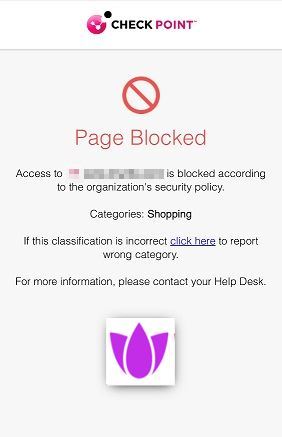
The Block Page setting allows you to customize the content displayed on the block page that appears when a user accesses a web page blocked by the organization's security policy.
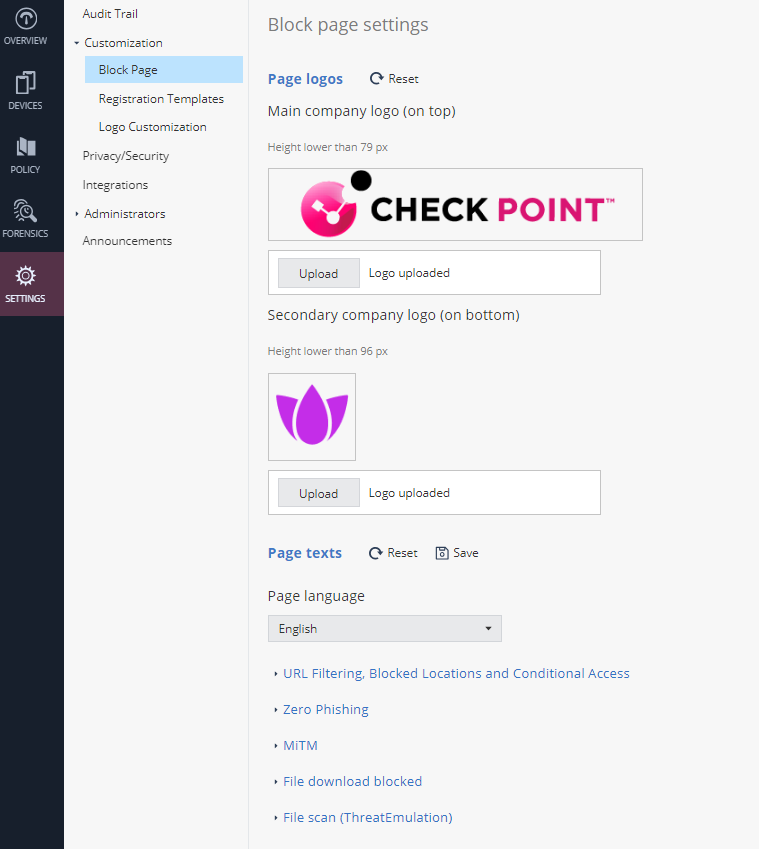
To customize, go to Settings > Customization > Block Page.
|
|
Note - To prevent Cross-Site Scripting (XSS) attacks, the text on the Block Page is always sanitized. Any hyperlinks or URLs added to this page are displayed as plain text on mobile devices. |
To customize the block page:
-
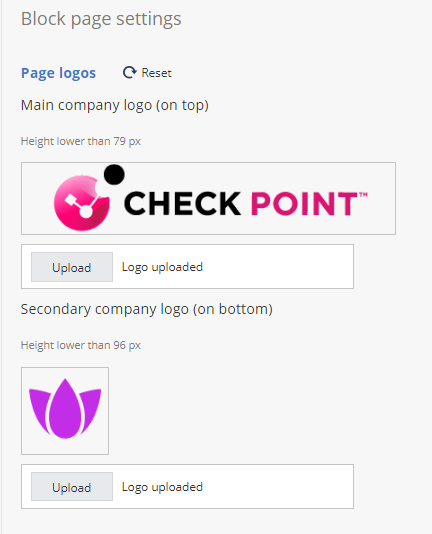
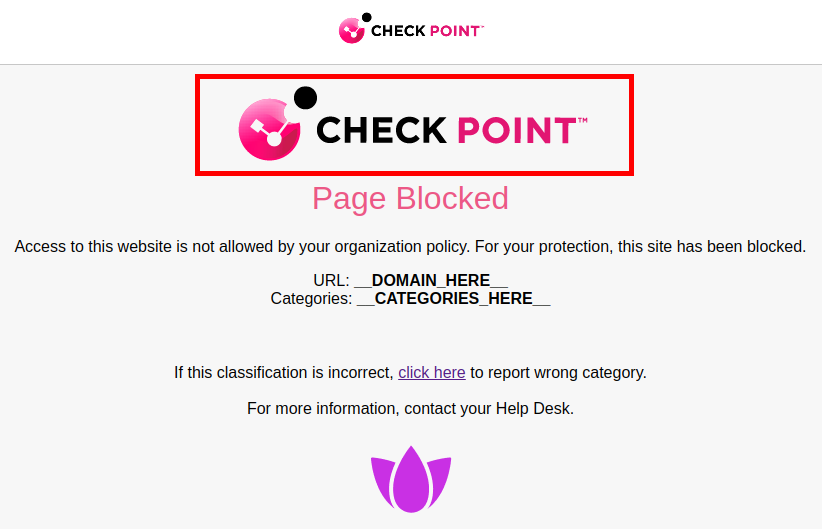
To add the main logo, in the Main company logo section, click Upload and upload the image for the main logo. Check Point logo is the default.

Note - The height of the logo must be less than 79 pixels. Supported file types are .png and .jpeg, with a maximum size of 150KB.
-
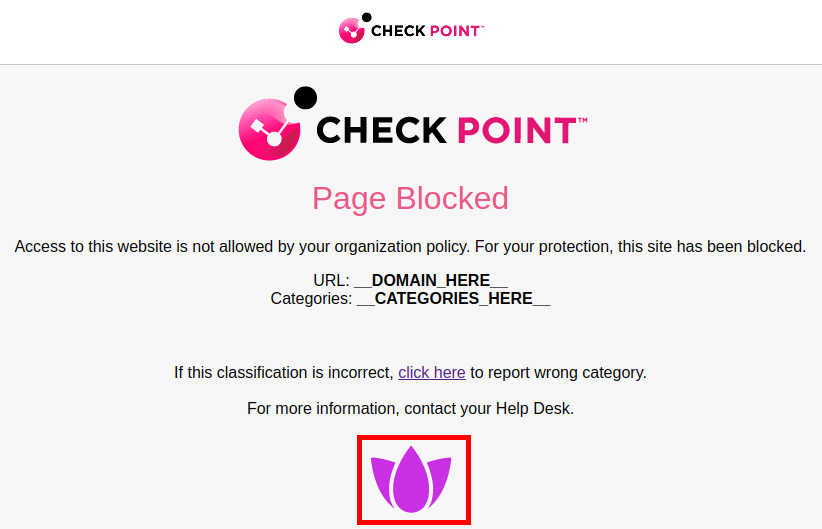
To add the secondary logo, in the Secondary company logo section, click Upload and upload the image for the secondary logo.
Note - The height of the logo must be less than 96 pixels. Supported file types are .png and .jpeg, with a maximum size of 150KB.
-
In the Page texts section, select the language of text to be displayed on the block page and click Save.
The default language is English.
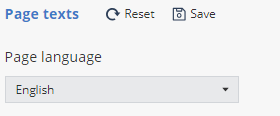
To reset to default language, click Reset and then Save.
Note - If the mobile OS is configured in an unsupported language, the block page is displayed in English.
-
Expand any of these:
-
URL Filtering, Blocked Locations and Conditional Access
-
MiTM
-
File download blocked
-

-
In the Title field, enter the title for the block page.
-
In the Description field, enter the reason for blocking the page.
-
To preview the changes, click Preview.
-
To reset the values to default, click Reset.
-
-
To save the page text in the current language, in the Page texts section, click Save.
Zero Touch Notification
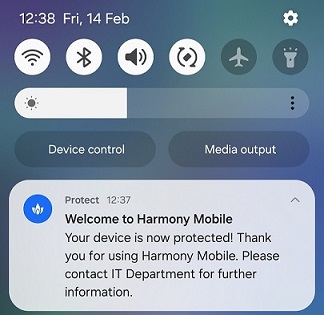
The Zero touch notification setting allows you to notify users when Harmony Mobile Protect app is automatically installed on their device.
|
|
Note - The system sends a Zero Touch notification only if the UEM |
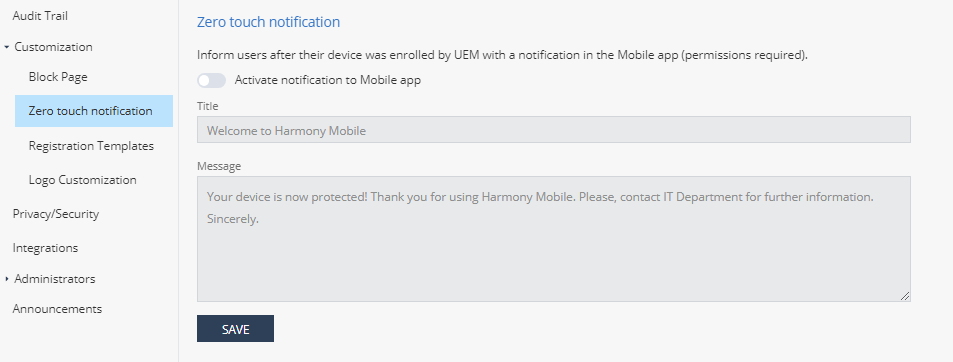
To enable Zero touch notification:
-
Go to Settings > Customization > Zero touch notification.
-
Turn on the Activate notification to Mobile app toggle button.
-
If required, customize the text in Title and Message fields.
-
Click Save.
The system displays this message:

After the Harmony Mobile Protect app is installed and activated on the device, the user receives a notification from the Harmony Mobile Protect.
Registration Templates
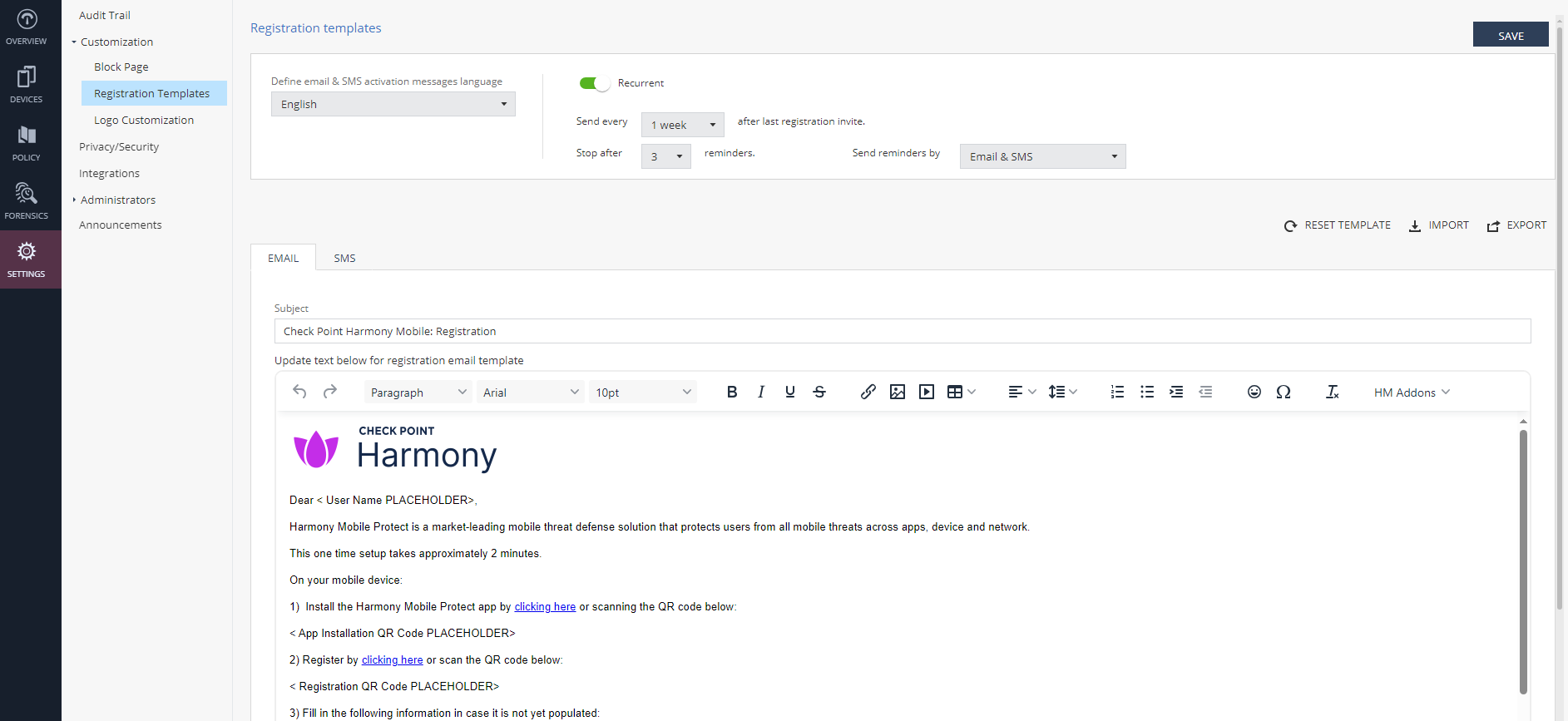
Registration Templates allows you to customize the content of the registration email and SMS sent from the Check Point Portal to users when they register their mobile device to Mobile Security. This lets organizations to use their unique corporate message for device registration.
To configure the registration message templates, go to Settings > Customization > Registration Templates.
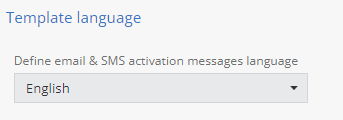
To change the default language of your email or SMS (English or Japanese), select the language from the list.
Sending Reminders for Device Registration
If users do not complete the Mobile Security registration on their devices, you can remind them by resending the registration invitation at specific intervals.

To send registration reminders to users:
-
In the Registration templates section, turn on the Recurrent toggle button.
-
From the Send every list, select the frequency to send the registration invitation.
-
From the Stop after list, select the number of times the invitation should be sent (maximum of 10).
-
From the Send reminders by list, select the method to send the registration invitation.
-
Email & SMS
-
Email
-
SMS
-
-
Click Save.
Configuring Email and SMS Templates
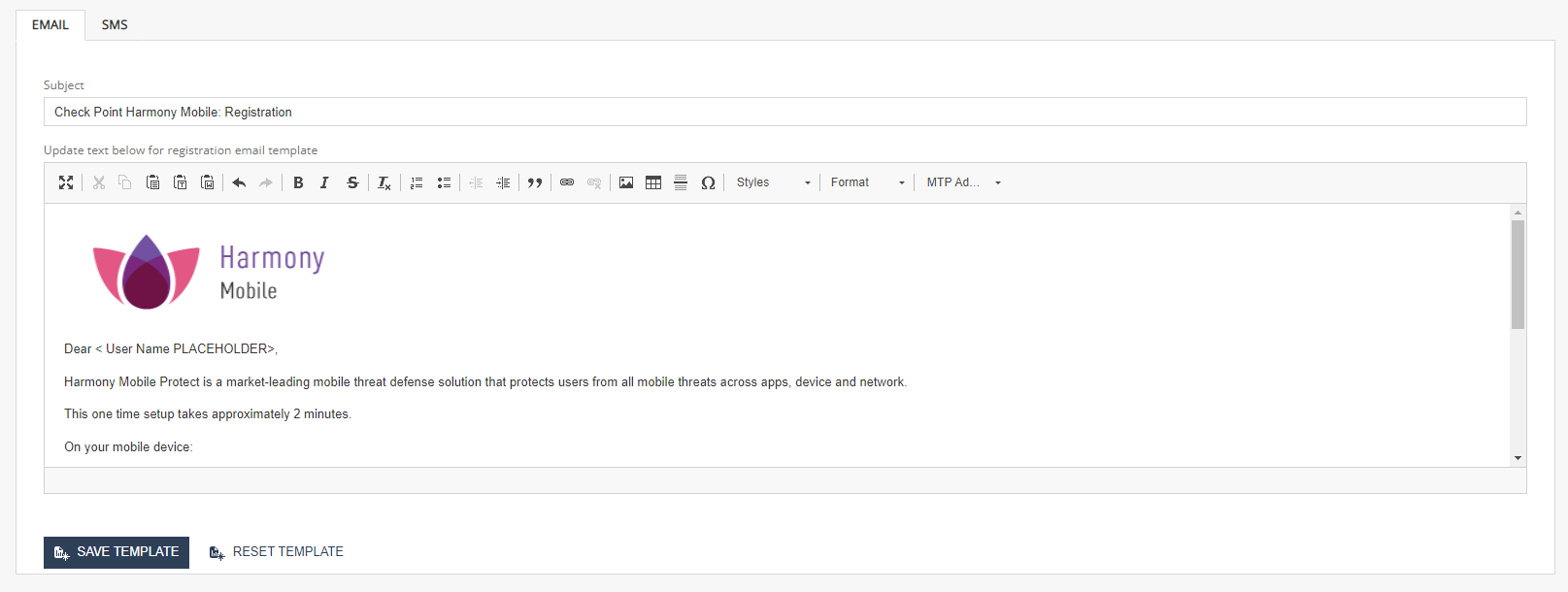
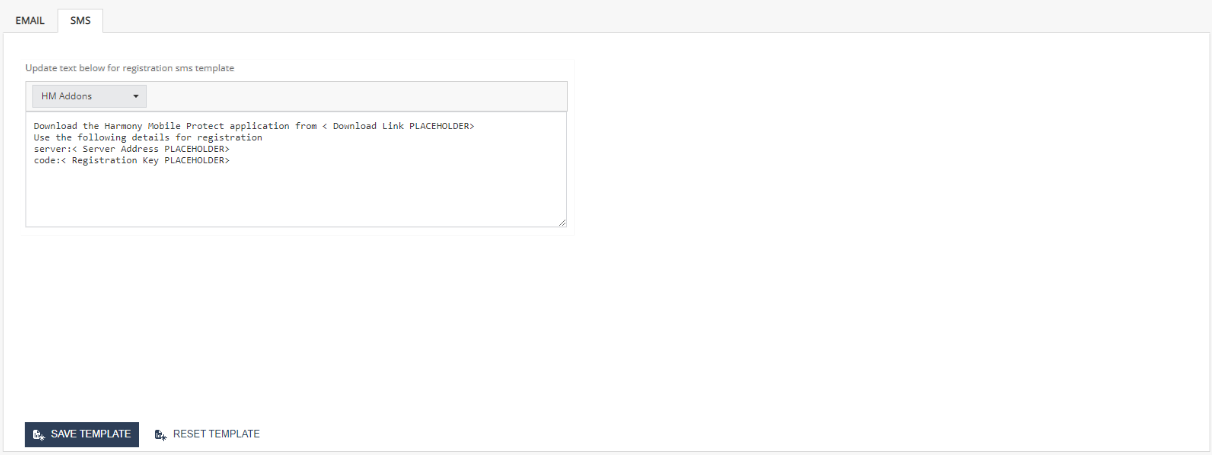
In the EMAIL and SMS tabs, you can view the default email and SMS templates. To customize the content, make the necessary changes and click Save.
To reset to the default template, click Reset Template.
You can also export and import the registration templates.

Email template example:
SMS template example:
Logo Customization
Go to Settings > Customization > Logo Customization to change the logo that appears in the upper left-hand corner of the Mobile SecurityHarmony Mobile Protect on user devices.