
Onboarding AIOps (Automatic Mode)
To monitor your assets with AIOps, you must connect your Security Management Server to your account in the Check Point Portal.
Prerequisites
-
Make sure you have installed the latest Web SmartConsole Package Take 146 or higher. For installation, see sk170314.
Supported Asset Versions
The following table lists the asset versions supported for onboarding AIOps.
| Asset | Supported Version |
|---|---|
| Security Management Server |
R82 and later
|
| Multi-Domain Security Management Server (MDS) |
From R82 and later, MDS can onboard it’s Security Gateways but not the Security Management Server. For limitations, see sk182647. |
|
Security Gateway  Supported Topologies Supported Topologies
|
R81.20 and later
|
|
Cloud Firewall Gateway |
R82 and later |
|
Maestro Security Gateway |
R82 and later |
|
|
Notes: |
Connectivity Requirements
To enable data transmission from the user environment to AIOps, ensure that outbound connections are allowed to the following IP addresses and URLs.
-
Static IPs
Region
Portal URL
Static IP Addresses
CA
portal.checkpoint.com
-
166.117.123.221
-
99.83.217.236
AU
portal.checkpoint.com
-
15.197.214.233
-
3.33.222.204
IN
portal.checkpoint.com
-
15.197.167.248
-
3.33.187.244
US
portal.checkpoint.com
-
52.223.30.193
-
35.71.144.247
EU
portal.checkpoint.com
-
75.2.123.205
-
99.83.172.252
-
-
Check Point Portal URLs
Region
Portal URL
Cloud Infra GW
MaaS Mgmt Connect Tunnels Service
EU
portal.checkpoint.com
cloudinfra-gw.portal.checkpoint.com
maas-mgmt-connect-tunnels-service-2.portal.checkpoint.com
US
portal.checkpoint.com
cloudinfra-gw-us.portal.checkpoint.com
maas-mgmt-connect-tunnels-service-us-2.portal.checkpoint.com
AUS
ap.portal.checkpoint.com
cloudinfra-gw.ap.portal.checkpoint.com
maas-mgmt-connect-tunnels-service-ap-2.ap.portal.checkpoint.com
Onboarding Procedure
|
|
Note - Automatic onboarding enables Security Gateways to securely connect to the Check Point Portal through the Gateways Connector. For more information, see sk180557. |
To onboard AIOps in automatic mode:
-
Log in to SmartConsole.
-
Go to Infinity Services and click Get Started.

The Instructions window appears.

-
To connect your Security Management Server and Security Gateways to Check Point Portal, click Get Token.
The Check Point Portal Sign In page appears.

-
Click Next.
-
Select your Check Point Portal account and click Next.

-
Accept the terms of service and click Next.
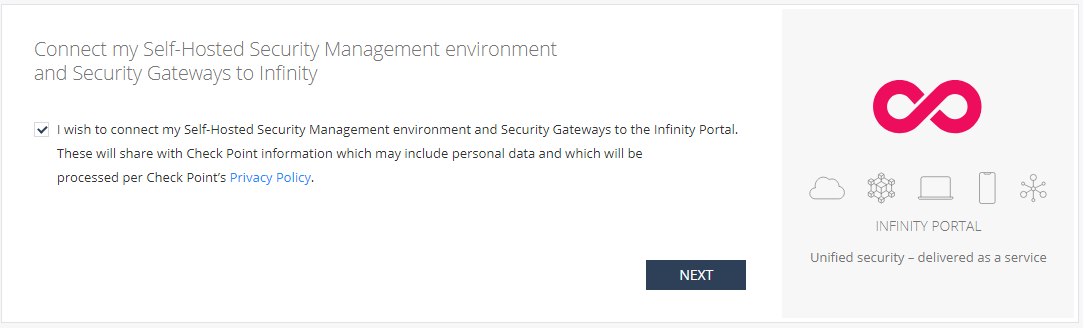
-
Click Copy Token.

-
In the SmartConsole Instructions window, paste the token and click Connect.

When the Management Server is connected to your Check Point Portal account, the Status changes to Active.

-
To activate AIOps, in the Infinity Events - AIOps widget, click Set Up.
-
In the dialog box, select Configuration Sharing and Gateways Connector and then click I Agree.

When the setup is completed, the status of Infinity Events - AIOps card becomes Active.

Note - The initialization process may take some time. To monitor the progress, click the
 icon on the top-right corner.
 -
Log in to Check Point Portal and access the Events & AIOps Administrator Portal.
-
From the left navigation panel, click AIOps.
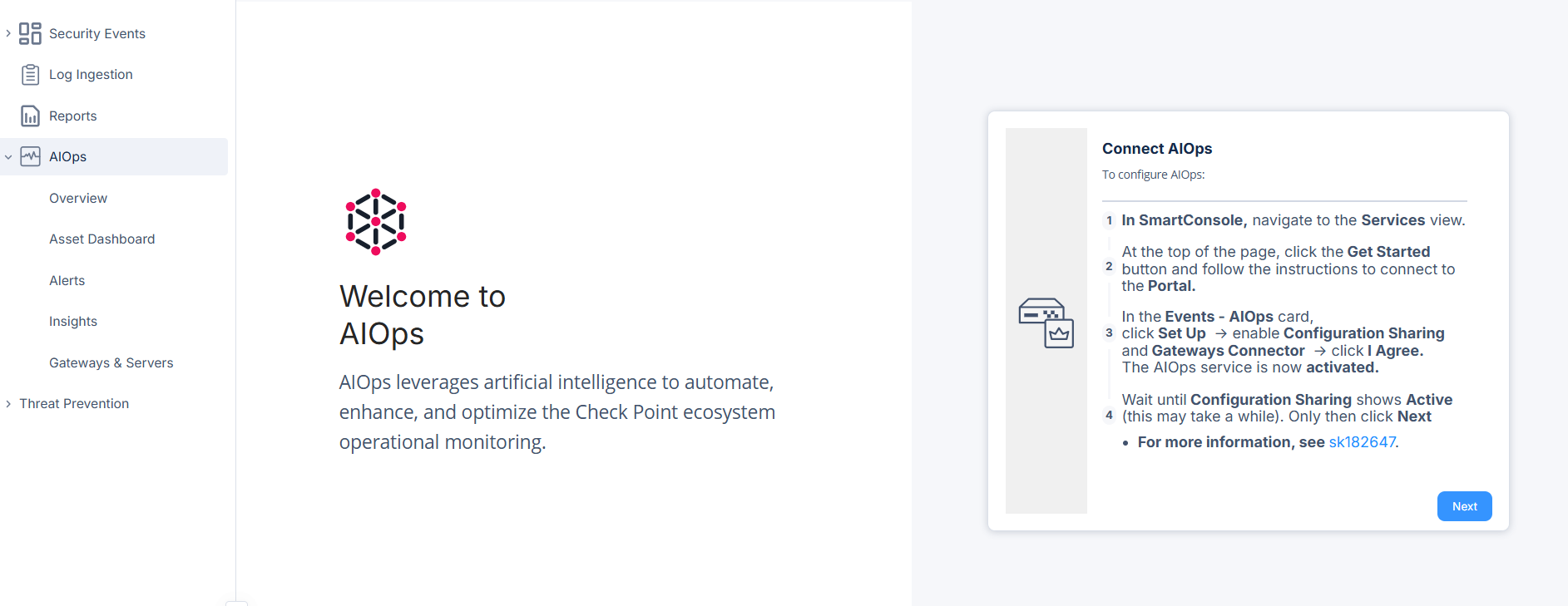
-
In the Connect AIOps widget, click Next.
-
In the Monitored Security Groups and Servers widget, select the required gateways and servers and then click Start Monitoring.
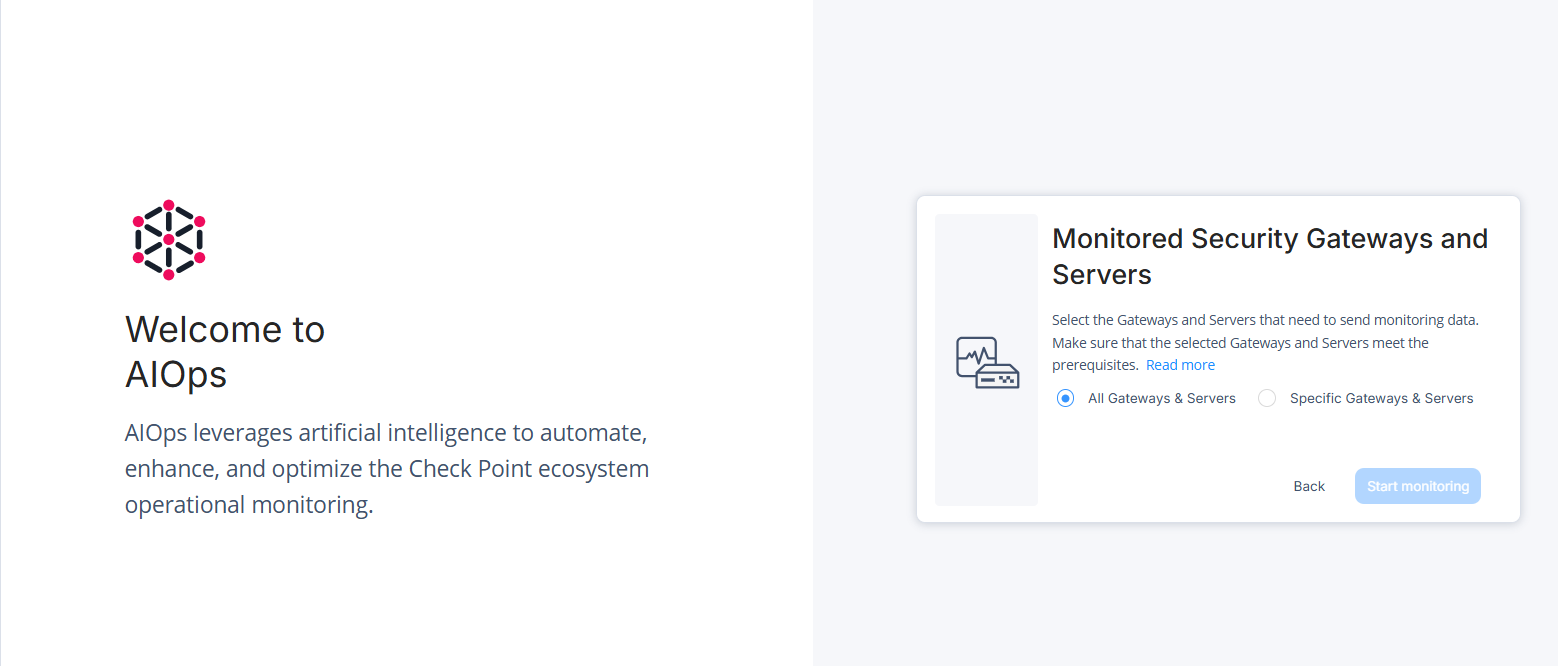
To disable the connection between Security Gateways and Check Point Portal:
-
Click the
icon on the top-right corner and click Gateways connector.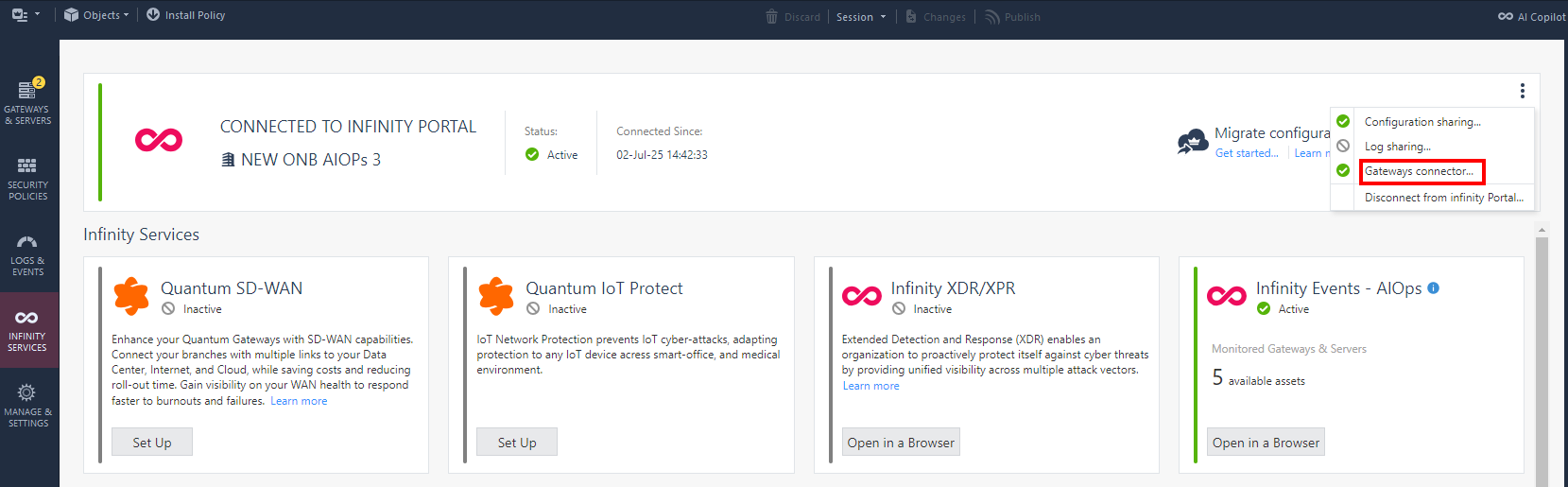
The Gateways Connector window appears.
-
Turn off the toggle button.

-
Click OK.
If you disable Gateways Connector, you need to set up Infinity Events - AIOps again.
Known Limitations
For known limitations in AIOps, see sk182647.