
OneLogin
Use these steps to configure the SSO Single Sign-On (SSO) - A session/user authentication process that permits a user to enter one name and password in order to access multiple applications. authentication with OneLogin.
Prerequisite
-
Permissions to your company's DNS server if you select login-based domain verification as the integration type.
IdP and Title
-
In the Check Point Portal, go to
 > Identity & Access and click the plus icon.
 -
Enter a name for the Integration Title and select OneLogin.
-
Click Next.
Integration Type
In this step of the IdP Integration Wizard, you can configure SSO authentication for Check Point Portal administrators and for end users of Check Point services.
Step 1: Configure SSO for Check Point Portal Administrators
-
Select Enable Administrators to log in to the portal using this IdP.
-
Select one of these options:
-
Login based on domain verification - Check Point Portal Administrators can log in to this Check Point Portal account with SSO from the Identity Provider
A system entity that creates, maintains, and manages identity information for principals and also provides authentication services to relying applications within a federation or distributed network. Acronym: IdP or IDP.. Administrators log in through the Check Point Portal login page. -
Login with a unique URL - Check Point Portal Administrators can log in to multiple Check Point Portal accounts with SSO from the Identity Provider. Administrators log in using the URL that appears at the bottom of the Login with a unique URL section. Copy this URL and keep it in a safe place.
-
Step 2: Configure SSO for Users of Check Point Portal Services
-
In the Service(s) Integration section, select one of these options:
-
No Services - End users of Check Point Portal services cannot authenticate with SSO from the Identity Provider. This is the default configuration.
-
All Services - End users can log in with SSO from the Identity Provider to all Check Point services that support SSO.
-
Specific Service(s) - From the list of services, select service(s) to allow end users to log in with SSO from the Identity Provider. Available services:
-
Connect
-
Quantum Gateways
-
-
-
Click Next (or, if you are editing a configuration, Apply) to complete the Integration Type configuration.
Verify your Domain
|
|
Note - If you selected Login with a unique URL for Integration Type, the Verify Domain step is not necessary. |
-
Connect to your DNS server.
-
Copy the DNS Value from the Check Point Portal IdP Integration wizard > Verify Domain step.
-
On your DNS server, enter the Value as a TXT record.
-
In the Check Point Portal > Domain(s) section, enter a public DNS domain server name and click the plus icon.
Check Point makes a DNS query to verify your domain's configuration.
-
Optional - add more DNS domain servers.
-
Click Next.

Note - Wait until the DNS record propagates and becomes resolvable.
Create an application in the OneLogin Portal
-
Log in to your OneLogin account and select Administration to set to admin mode.
-
Below the Applications tab, select Application and click Add App.
-
In the search box, select one of these:
-
SAML Test Connector (Advanced) - If you do not want to configure Directory Integration, or if you want to configure Directory Integration - Manual Sync
-
SCIM Provisioner with SAML (SCIM v2 Core) - If you want to configure Directory Integration - SCIM (Automatic Sync)
For information about Directory Integration to help you choose, see Directory Integration.
-
-
In the info tab, enter:
Display Name - Check Point Portal.
-
Click Save.
Allow Connectivity
-
On the Allow Connectivity page, copy the Entity ID and the Reply URL.
-
Complete the Settings for the OneLogin application. Go to the Configuration tab and enter this information:
-
Audience (EntityID) - The Entity ID you copied in the Check Point Portal
-
ACS (Consumer) URL* - The Reply URL you copied in the Check Point Portal
-
ACS (Consumer) URL Validator* - The Reply URL domain with backslashes. For example,
https:\/\/cloudinfra-gw.portal.checkpoint.com\/
-
-
Click Save.
-
Go to the Check Point Portal. On the Allow Connectivity page, click Next.
OPTIONAL - Enable IdP-Initiated flow
IdP Initiated lets you connect directly to Check Point Portal from your OneLogin Admin Console. To do this, you must create a Check Point Portal app card in your OneLogin Admin Console. See the OneLogin documentation.
Step 1: In Check Point Portal, enable IdP Initiated flow:
-
In the Check Point Portal > IdP Integration Allow Connectivity step, select the checkbox Enable IDP initiated flow.
The Relay State field appears.
Step 2: In your OneLogin account, configure the IdP Settings:
-
Navigate to your OneLogin Admin Console.
-
Click Applications.
-
Open the application object for the SAML
Security Assertion Markup Language. An XML-based, open-standard data format for exchanging authentication and authorization data between parties, in particular, between an identity provider and a service provider. connection to Check Point Portal. -
From the left toolbar, click Configuration.
-
In the Relay State field, enter the Relay State from Check Point Portal
-
Click Save.
|
|
Important - Before you can test the connectivity between OneLogin and the Check Point Portal, you must complete all of the IdP integration steps in the Check Point Portal. |
 Set User Claims and Group Claims
-
In the OneLogin Portal, go to the Parameters tab and click Add parameter (+) to enter each value.
-
Field Name - groups
-
Select Include in SAML assertion.
-
Click Save.
-
Value - User Roles
-
Click Save.
-
-
Field Name - firstName
-
Select Include in SAML assertion.
-
Click Save.
-
Value - First Name
-
Click Save.
-
-
Field Name - lastName.
-
Select Include in SAML assertion.
-
Click Save.
-
Value - Last Name.
-
Click Save.
-
-
Field Name - email
-
Select Include in SAML assertion.
-
Click Save.
-
Value - Email
-
Click Save.
-
-
Field Name - userId
-
Select Include in SAML assertion.
-
Click Save.
-
Value - Id
-
Click Save.
-
-
-
Click Save
Select Relevant Users and Groups
-
Go to Users > Roles and click New Role to create user roles (groups).
-
Enter the role name and click Save.
-
Click the newly created role to edit:
-
In the Applications tab, click (+) and add Check Point Portal application. Click Save.
-
Go to the Users tab to add users.
In Check existing or add new users to this role, search for applicable users by their names and click Check.
-
-
For each selected user, click Add To Role.
-
The users show in Users Added Manually.
-
Click Save.
-
Go to the Check Point Portal application and make sure the users are added.
Note - Copy the name of the assigned group for use with the Check Point Portal User group IdP ID field.
Configure
-
On the Configure Metadata page, download the Federation Metadata XML from the OneLogin Portal:
-
In your application, go to the Configuration tab and select More Actions > SAML Metadata.
The file downloads.
-
Upload the file to the Configure Metadata page in the Identity Provider Wizard.
Note - Check Point uses the service URL and the name of your Certificate to identify your users behind the sites.
-
-
Click Run Test.
Check Point verifies the metadata of your Identity Provider.
-
Click Next.
Directory Integration
Directory Integration gets information about users and groups for the services you selected in the Integration Type step > Service(s) Integration section.
Directory Integration does not apply to Users and User Groups in the Check Point Portal.
|
|
Important - After you create a Directory Integration, you cannot change it. To create a different Directory Integration, you must create a new Identity Provider (IdP) Integration. |
For the Check Point Portal, this feature is optional. To use OneLogin for SSO authentication only, select the checkbox I want to skip this step and use this IdP for SSO authentication only.
You can manage user identity data with Manual API Sync or with System for Cross-Domain Identity Management (SCIM).
|
Directory Integration Method |
How it Works |
Which Users and Groups are Synced |
|---|---|---|
|
Manual Sync |
Allows Check Point services to query for any change in OneLogin users and groups. The Check Point Portal pulls users and groups from OneLogin. |
All users and groups in OneLogin. Nested groups in OneLogin are supported. |
|
SCIM |
Allows OneLogin to push any change in the user and group directory to Check Point services. |
Only users and groups in OneLogin that are assigned to the SCIM connection you created from OneLogin to the Check Point Portal.
Important - After you delete a group in OneLogin, OneLogin continues to sync users from that group to the Check Point Portal using SCIM. To prevent this, we recommend to remove all users from a group in OneLogin before you delete it. |
Some Check Point services may need a permanent user ID (SID) from your directory. This ID lets the service reliably identify each employee and keep their access and permissions accurate, even when their profile changes.
To use Manual Sync
-
In OneLogin, log in to your admin account.
-
From the menu bar, click Developers > API Credentials.

The API Access page opens.
-
Click New Credential.
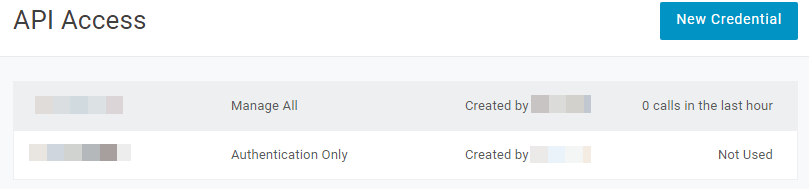
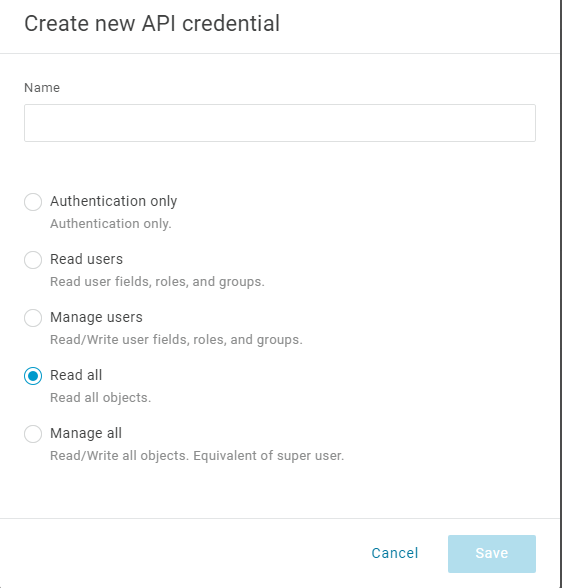
The Create new API credential window opens.
-
Enter a name for the new API credential.
-
Select Read all.
-
Click Save.
A window with the client credentials opens.

-
Copy these values to a separate file:
-
Client ID
-
Client Secret

Best Practice - Check Point recommends that you save the Token Value in a separate, secure file to retrieve it when required.
-
-
Navigate to Users > Custom User Fields to create a new custom attribute On-premises security identifier:
-
Click New.
-
Enter on_prem_sid for Name and Shortname.
-
Click Save.

-
-
Navigate to User > Directories to configure mappings:
-
Select the directory.
-
Click Directory Attributes > Add Attribute.

-
Map objectSID to on_prem_sid and click Save.

-
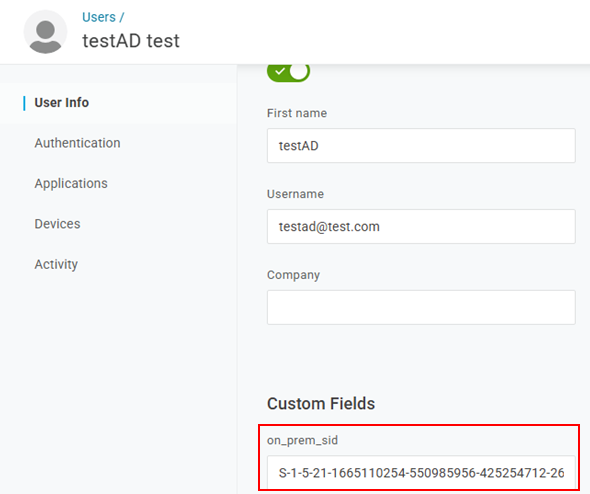
To test the mapping, go to Users and select an AD user. The SID data appears under Custom fields.
-
-
In the Check Point Portal IdP wizard, do these steps:
-
Go to the Set Directory Integration page.
-
In the Client ID field, paste the Client ID you copied from OneLogin.
-
In the Client Secret field, paste the Client Secret you copied from OneLogin.
-
In the Sub Domain field, paste the part of the URL for your OneLogin account that comes before ".onelogin.com".
Example: the Sub Domain for "
theGreatCompany.onelogin.com" is "theGreatCompany".
-
-
To test the users and group synchronization between the Check Point Portal and the IdP, click Test Connectivity.
If the test is unsuccessful, repeat the Set Directory Integration step to configure the user and group synchronization parameters.
-
Click Next.
To use SCIM (Automatic Sync)
|
|
Note - SCIM is supported only for the OneLogin application type SCIM Provisioner with SAML (SCIM v2 Core). |
Step 1 - In the Check Point Portal, copy values and complete the IdP Integration Wizard:
-
In the Check Point Portal > Directory Integration step, select Automatic Sync (SCIM).
-
Copy these values and keep them in a safe place:
-
SCIM API Token
-
URL
-
-
Click Next.
The Confirm Identity Provider step opens.
-
Click Submit.
OneLogin is now integrated with the Check Point Portal. The OneLogin integration appears in the gallery in the Check Point Portal. Complete the SCIM (Automatic Sync) configuration in the OneLogin Portal.
Step 2 - In the OneLogin Application > Configuration section, paste values:
-
In the OneLogin application you created for the Check Point Portal, from the left menu, click Configuration.
-
In the SCIM Base URL field in the OneLogin Portal, paste the URL you copied from the Check Point Portal.
-
In the SCIM Bearer Token field in the OneLogin Portal, paste the SCIM API Token you copied from the Check Point Portal.
-
In the Custom Headers field, enter:
-
In the API Connection section, below API Status, click Enabled.
-
In the SCIM JSON Template field, enter:
CopyValue for OneLogin Portal > "SCIM JSON Template" field{
"schemas": [
"urn:ietf:params:scim:schemas:core:2.0:User"
],
"userName": "{$parameters.scimusername}",
"displayName": "{$user.display_name}",
"externalId": "{$user.id}",
"phoneNumbers": [{
"value": "{$parameters.phone}",
"type": "work",
"primary": true
}]
} -
Click Save.
Step 3: In the OneLogin Application, configure parameters:
-
In the OneLogin application you created for the Check Point Portal, from the left menu, click Parameters.
-
In the Credentials are section, make sure that Configured by admin is selected. This option is selected by default.
-
In the table, click the + button.
The New Field window opens.
-
For Field name, enter phone.
-
Press Enter on the keyboard.
-
For Value, select phone.
-
In the Flags section, select Include in User Provisioning.
-
Click Save.
The window closes. The phone parameter appears in the table.
-
In the table, click the Groups table row.
The Edit Field Groups window opens.
-
Select Include in User Provisioning.
-
Click Save.
The window closes.
-
Click Save.
Step 4: In the OneLogin Application, create rules:
-
In the OneLogin application you created for the Check Point Portal, from the left menu, click Rules.
-
Click Add Rule.
The New mapping window opens.
-
For Name, enter roles.
-
In the Actions section, select Set Groups in [NAME OF YOUR APPLICATION].
-
Create a rule to assign OneLogin roles to the application. To assign all OneLogin roles to the application, create this rule:
For each
rolewith value that matches.* -
Click Save.
The window closes.
Step 5: In the OneLogin Application, enable provisioning:
-
In the OneLogin application you created for the Check Point Portal, from the left menu, click Provisioning.
-
In the Workflow selection, select Enable provisioning.
-
Click Save.
Step 6: In the OneLogin Portal, add users to the application:
You must add OneLogin users individually to the application you created for the Check Point Portal.
-
In the OneLogin Portal, from the top menu, click Users.
-
Select a user.
-
From the left menu, open the Applications tab.
-
Click the + icon.
The Assign new login to [NAME OF THE USER] window opens.
-
Select the application you created for the Check Point Portal.
-
Click Continue.
-
From the top menu, select Users > Provisioning.
-
In the table, click the provisioning task for the user that you added.
A window opens.
-
Click Approve.
The window closes.
Confirm Identity Provider Integration
Review the details of the SSO configuration and click Submit.
|
|
Important - Create a user group with the applicable roles and assign it to the related IdP group name or ID. This depends on the applicable identity provider before you log out. For more information, see User Groups. |