
Security Awareness Training
The Security Awareness Training feature in Avanan helps organizations create awareness among employees on essential security skills. It includes awareness of phishing simulation emails reflecting recent attacks and interactive training modules.
|
|
Note - The Security Awareness Training is supported only for Exchange Online (Microsoft 365 cloud) mailboxes. |
Supported Browsers and Network Requirements
To ensure an optimal user experience when using Security Awareness Training in the Avanan, users must access the Security Awareness Training through supported browsers and maintain sufficient network bandwidth.
Supported Browsers
The Security Awareness Training feature supports the latest stable and the previous major releases of the following browsers on supported operating systems:
-
Google Chrome
-
Microsoft Edge
-
Mozilla Firefox
-
Safari
Issues encountered while using older browser versions or unsupported devices are addressed on a best-effort basis.
Network and Bandwidth Requirements
The quality of the learner experience primarily depends on the available network bandwidth.
-
Minimum requirement: 3 Mbps download bandwidth per active learner.
-
Recommended bandwidth: 5 Mbps download bandwidth per active learner to reduce buffering, especially on congested Wi-Fi or shared networks.
Upload bandwidth is generally not critical for video playback. However, 1 Mbps or higher upload speed is recommended to ensure stable interactive sessions and reliable activity tracking.
Creating Security Awareness Training Policy
To create a security awareness training policy:
-
Log in to the Check Point Portal and access the Avanan Administrator Portal.
-
From the left navigation panel, click Security Training > Policy.
-
Click Create New Policy Rule.
-
From the Choose SaaS dropdown, select the required option.
-
Office 365 Mail
-
Gmail
-
-
Click Next.
-
Make sure the Rule state is Running.
-
(Optional) In the Rule name field, enter a name for the policy.
-
Click Save.

Notes:
-
By default, the security awareness training policy is applied to all the Microsoft 365 users in your organization.
-
Phishing simulations are not sent via SMTP and therefore do not originate from any Check Point IP address. They are inserted directly into user mailboxes via API, so there is no sending IP range to add to the allowlist.
-
Customizing Security Awareness Training Policy
To customize the security awareness training policy:
-
Click on the security awareness training policy you want to customize.
-
In the Users and groups section, select the users and/or group of users for whom the policy is applicable:
-
To apply the policy to all users and groups in your organization, select All Office 365 users or All Google users.
Note - Group selection is currently not supported for Gmail.
-
To apply the policy to specific users or groups, select the users/groups and click Add to Selected.
-
-
Select a Phishing Simulation Strategy:
-
AI Adaptive Simulations - Sends phishing simulation emails that reflect recent attack types faced by the users in your organization.
-
(Optional) To view the phishing email templates used to send simulation emails to users, click Generated Phishing Simulations (samples).
To view generated phishing simulation samples based on a user’s recent communication patterns, enter the user's email address and click Generate.
-
-
Use Custom Templates - Sends phishing simulation emails based on the selected template.
-
To select the specific phishing simulation template, click Select Phishing Simulation Templates.
-
In the Select Phishing Simulation pop-up, select the specific templates or entire categories.
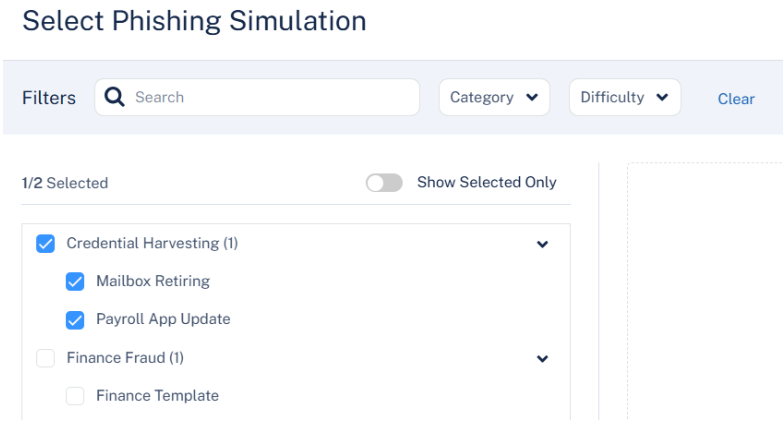
You can use the filters to refine the list by template Category and Difficulty level.
-
Click Apply.
-
-
Do not perform simulation - No simulation emails are sent to the users.
-
-
To exclude simulated phishing scenarios that impersonate internal users, such as executives, managers, or colleagues, select the Include phishing simulations impersonating internal users checkbox in the Simulation Types section.
-
Configure the Simulation Scheduling section.
-
In the Frequency section, select the required frequency of the simulation emails.
-
Daily (Limited) - See Daily Sending Frequency
-
Weekly
-
Biweekly
-
Monthly
-
Quarterly
-
Yearly
Note - By default, the frequency of the simulation emails is set to Biweekly.
-
-
In the Send randomly on section, select the days to randomly send simulation emails to users.
-
Monday
-
Tuesday
-
Wednesday
-
Thursday
-
Friday
-
Saturday
-
Sunday
-
-
In the Time Range section, select the start time to send emails, end time to stop sending emails, and the required time zone on the selected days.
Note - By default, the time range is set to 9:00 AM to 18:00 PM and the time zone is set to (UTC +00:00) UTC.
-
-
Configure the Action on Failure section.
-
In the Automatically enroll users in follow-up training if they fail consecutive phishing simulations section, select one of the following options:
-
Yes
-
No
-
-
From the Consecutive failures dropdown, select the number of consecutive phishing simulation failures that will trigger automatic enrollment for users in follow-up training.
Note - If the Automatically enroll users in follow-up training if they fail consecutive phishing simulations option is enabled, the system automatically enrolls users who fail the specified number of consecutive phishing simulations in follow-up training.
-
In the Due in (days) field, select the number of days to complete the assigned follow-up training.
Note - By default, the due is set to 7 days. After the due date,
-
-
-
Click Select training modules.
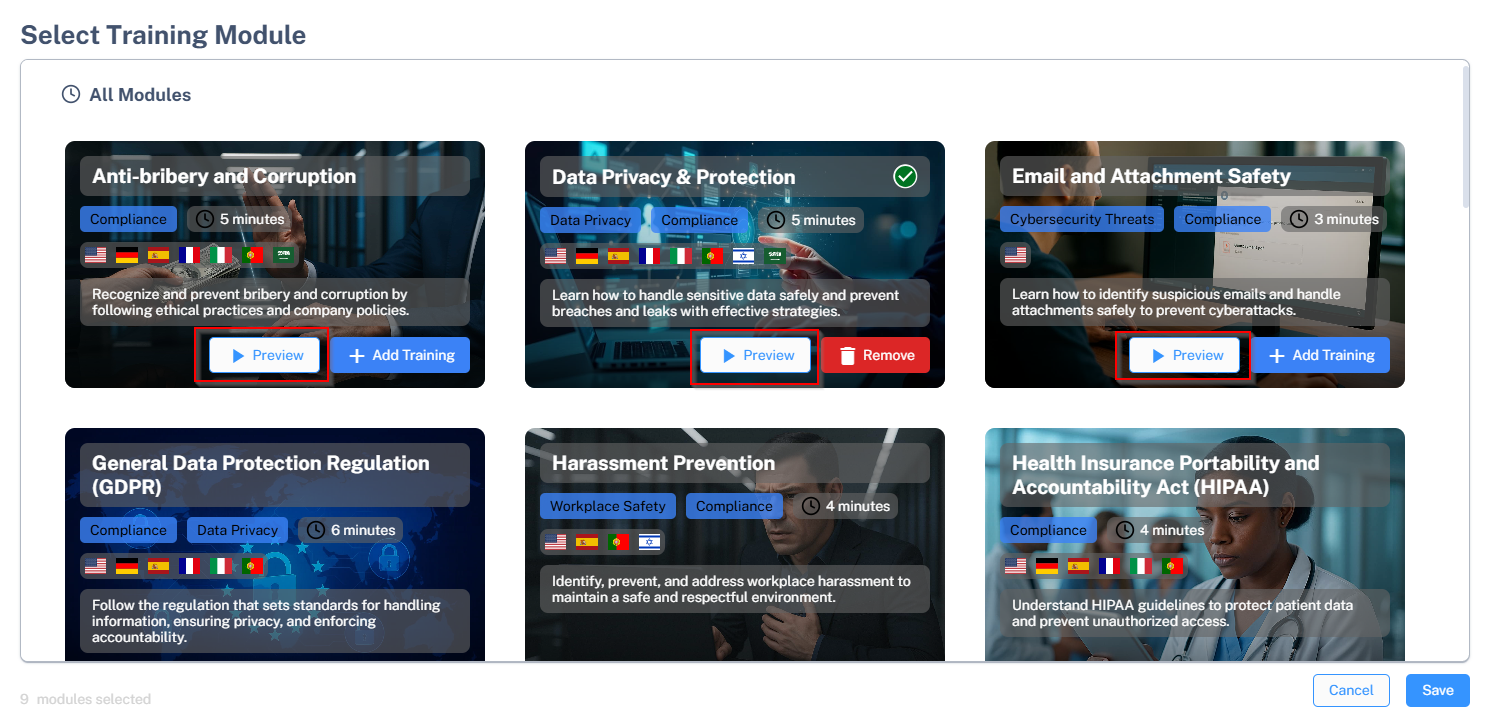
The Select Training Module pop-up displays the available training modules, see Available Training Modules.
Each module provides the following details:

-
The training module name and key concepts in the module.
-
The time duration shows the time required to complete the module.
-
The flags represent the languages available for the training module.
-
(Optional) To view a preview of the training module, click Preview.
After adding a training module to the policy, you must authorize access for the entire organization by granting the necessary permissions. See Authorizing Training Module Access for the Organization.
-
-
Click Add Training for the required modules.
-
Click Save.
Note - The deadline for completing each training is 14 days.
-
-
The Selected training modules section shows the order of the modules assigned to the user.
-
To arrange the training modules in the required order:
-
Click the
 icon.
icon. -
Move the module to the desired position in the order and drop it.
-
-
To remove a selected training module, click the
 icon.
icon.
-
-
To configure settings for the training and reminders for the email notifications, click Advanced settings and do these:
-
In the Training max frequency (days) field, enter the number of days after which the system initiates a new training session.
-
In the Training reminder interval field, enter the number of days after which the system sends a reminder. For example, if you enter 2, the system sends reminder after every 2 days.
-
To configure email notifications for the training and reminders:
-
In the Training invitation subject field, enter the subject for the training invitation email.
-
In the Training invitation body template field, enter the body for the training invitation email.
-
In the Training remind subject field, enter the subject for the training reminder email.
-
In the Training remind body template field, enter the body for the training reminder email.
-
(Optional) In the Phishing simulation banners section, select the Add banner to phishing simulation emails checkbox.
Note - If the Add banner to phishing simulation emails checkbox is enabled, the system adds a banner to every phishing email sent to the user's inbox.
To view the supported placeholders, see Training and Reminder Emails - Supported Placeholders.
-
-
Click Save.
-
-
Click Save.
Notes:
-
Now that the security awareness training policy is configured, the end users receive an email with a link to access the training modules. To allow users to access the training modules, the administrator must authenticate by granting the necessary permissions.
-
When new users are added to an existing Security Awareness Training policy, each user’s completion period starts from the date they are enrolled. Each new user gets the full duration specified in the policy (for example, 90 days) to complete the assigned training course, regardless of when the policy was originally created or when other users were enrolled.
-
Daily Sending Frequency
The Daily sending frequency enables phishing simulations to run daily for short-term campaigns, such as Proof of Concept (POC) or focused security awareness training periods.
|
|
Note - The Daily (Limited) frequency is limited and controlled to prevent misuse. |
Key Limitations:
-
Supports up to thirty total days per tenant.
-
Allows only one active Daily policy at a time.
-
The usage counter starts when the policy is activated.
-
If the policy is deleted early, the system preserves the remaining unused days.
-
Once all thirty days are consumed:
-
The system automatically switches the Security Awareness Training policy to Weekly frequency.
-
The Daily (Limited) frequency becomes unavailable.
-
Customizing the Sender of Security Awareness Training Notifications
Avanan allows you to customize the sender details for security awareness training notifications.
End users receive notifications when they are assigned training modules or when they fail simulated phishing tests. By customizing the sender, organizations can centralize responses to a designated mailbox, which helps security and training managers streamline communication.
|
|
Note - This customization applies only to security awareness training notifications. For simulated phishing emails, the system automatically generates the sender through GenAI to realistically resemble real-world phishing attempts. |
To configure the sender of security awareness training notifications:
-
Access the Avanan Administrator Portal.
-
Go to Security Training > Policy.
-
Click Global Settings.
-
In the Configure Global Settings pop-up, scroll down and configure the Custom Notification Sender section.
-
Friendly-From name
-
If no friendly-from name is required, select None.
Note - Some email clients duplicate the sending address to the Friendly-from name.
-
To use a customized name, select Custom and enter the sender name.
-
-
From address
-
To use the default email address, select Default. The default email address is no-reply@checkpoint.com.
-
To use a custom email address, select Custom and enter the email address.
-
If you use the default sender or any email address under your domain, you must add the
include:spfa.cpmails.com -
The custom domain must be one of the protected domains in your Check Point Portal tenant.
Notes:
-
-
Reply-to address
-
To use From address as the Reply-to address, select Same as From address.
-
To use a custom email address, select Custom and enter the email address.
-
-
-
Click Save.
Custom Phishing Simulation Templates
By default, Security Awareness Training uses GenAI to automatically generate highly personalized phishing simulations based on detailed knowledge of each user. This automated approach mimics real-world attack patterns and enables organizations to deliver scalable, dynamic, and effective training.
In some scenarios, you may prefer to assign manually created templates to specific users or to the entire organization.
Creating a Custom Phishing Simulation Template
To create a custom phishing simulation template:
-
Go to Security Training > Custom Templates.
-
Click Create New Template.
The Select Phishing Simulation Templates pop-up appears.
-
Customize the Template Details section:
-
In the Template Name field, enter a name for the template.
-
From the Attack Type dropdown, select the attack type that best matches your phishing simulation template.
-
Social Engineering
-
Phishing Link
-
-
From the Category dropdown, select an existing category or create a new one. You can create multiple categories as needed.
You can use this field to categorize different templates. It helps you organize custom templates and easily select specific groups when assigning them within a policy. See Assigning Custom Phishing Simulation Templates to Users.
-
From the Difficulty dropdown, select the required difficulty level.
-
Easy
-
Medium
-
Hard
-
Expert
Note - The system currently uses this field for display purposes only. In future releases, the system will use difficulty levels to assign templates. Avanan recommendeds you to assign an appropriate difficulty level to each template.
-
-
(Optional) In the Description field, enter the required description for the template.
-
-
In the Email Details section, define how the simulation email appears to users:
-
In the Subject Line field, enter the email subject line.
-
In the Sender Name field, enter the required user name.
-
In the Sender Email field, enter the sender’s email address. The simulation emails are injected into the user’s mailbox and won’t be blocked for spoofing.
Notes:
-
If you select an internal email address that exists in Microsoft Entra, Microsoft may replace the configured Sender Name with the name attached to this address from Microsoft Entra.
-
The system automatically sets the Reply-to address to prevent replies from being sent accidentally to the impersonated user.
-
-
-
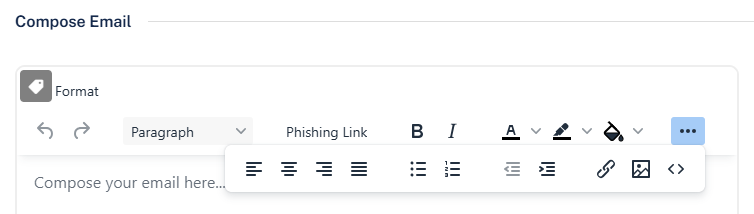
In the Compose Email section, create the email body. Notable capabilities when composing the email:
-
Placeholders – Insert dynamic placeholders that the system populates per user or template. Click the tag
 icon in the top-left corner of the editor to add placeholders. To learn more about placeholders for custom templates, see Custom Phishing Simulation Templates – Placeholders.
 -
Embed Images – Click the three-dots icon and select an image to embed it in the email.
-
Custom HTML Design – Click the three-dots icon and select the source code <> icon to replace the body with custom HTML code.
-
Phishing Link – To add a phishing link, enter the bait text (for example, Click here) in the editor. Select the text and click Phishing Link.
Note - The system does not currently support adding attachments to custom phishing simulation templates.
-
Custom Phishing Simulation Templates – Placeholders
When creating a custom phishing simulation template, administrators can insert placeholders that the system dynamically replaces with user-specific or template-specific values when sending the template.
To add a placeholder, open the Compose Email editor and click the tag icon. Then select the required placeholder from the list. The system automatically replaces the placeholder with the relevant value when it sends the simulation email.
Placeholders can be used in the following fields:
-
Email Subject
-
Email Content
|
Placeholder Name |
Placeholder Value |
Description |
|---|---|---|
|
Sender's name |
{from_name} |
The display name of the sender as defined in the template. |
|
Phishing link URL |
{link} |
A URL automatically generated by Avanan. If an user click this link, the system records the simulation as failed. |
|
Receiver's first name |
{receiver_first_name} |
The first name of the user receiving the email, as defined in Microsoft Entra. |
|
Receiver's last name |
{receiver_last_name} |
The last name of the user receiving the email, as defined in Microsoft Entra. |
|
Receiver's full name |
{receiver_name} |
The full name of the user receiving the email, as defined in Microsoft Entra. |
|
Receiver's organization |
{receiver_org} |
Avanan automatically populates the name of the organization, based on the recipient domain. |
|
Recipient's email address |
{recipient_email_address} |
The email address of the recipient, as defined in Microsoft Entra. |
Importing Template Email Details from an EML
Instead of manually completing the Email Details section of a custom phishing simulation template, administrators can import an existing email into the system.
This option is useful when importing custom phishing simulation templates from a previously used SAT solution or when creating a template based on a real malicious email.
Limitations
-
Only .EML files are accepted.
-
The file size must not exceed 5 MB.
-
Attachments are not supported and will not be imported.
-
Embedded/inline images are not imported.
After the import completes, administrators can manually add the images. See Creating a Custom Phishing Simulation Template.
-
Third-party SAT placeholders – When importing an EML file exported from a supported third-party SAT solution, the system automatically detects and replaces placeholders.
Notes:
-
Supported third-party solutions: KnowBe4, Proofpoint, and Mimecast.
-
Some placeholders may not convert correctly. Always review manually and validate the entire template after the import completes.
-
-
The system does not automatically replace links, phone numbers, bank account numbers, or similar content.
To import an email:
-
Go to Security Training > Custom Templates.
-
Click Create New Template.
The Select Phishing Simulation Templates pop-up appears.

-
Click Import .eml next to Autofill From File.
-
Upload the required file.
Assigning Custom Phishing Simulation Templates to Users
After creating custom phishing simulation templates, administrators can assign them to users through the standard Security Awareness Training (SAT) policy. See Creating Security Awareness Training Policy.
If you want to assign a custom template to specific users while still leveraging automatic AI-based template personalization, configure two policy rules:
-
One policy rule that includes custom phishing simulation templates only (without training modules).
-
A second policy rule that includes AI-based automatic template assignment and the required training modules.
With this configuration, the selected users receive additional phishing simulations within the same training period.
Failing Custom Phishing Simulations
Avanan marks a user as failing a custom phishing simulation template if the user performs one of the following actions:
-
Clicks on a phishing link, see Custom Phishing Simulation Templates – Placeholders.
-
Replies to the phishing simulation email.
Adding a Banner to Phishing Simulation Emails
Avanan allows administrators to add a banner to phishing simulation emails that resembles the external sender warning banner.
To add a banner to phishing simulation emails:
-
Access the Avanan Administrator Portal.
-
Go to Security Training > Policy.
-
Click Global Settings.
-
In the Configure Global Settings pop-up, scroll down to the Phishing simulation banners section.
-
Select the Add banner to phishing simulation emails checkbox.
Note - If the Add banner to phishing simulation emails checkbox is enabled, the system adds a banner to every phishing email sent to the user's inbox.
-
Click Save.
Authorizing Training Module Access for the Organization
Avanan allows users to access the training modules using the link provided in the email notification.
The administrator must authorize access for the entire organization by granting the necessary permissions.
To authorize the Microsoft login permissions for training modules:
-
Click on the link provided in the email.
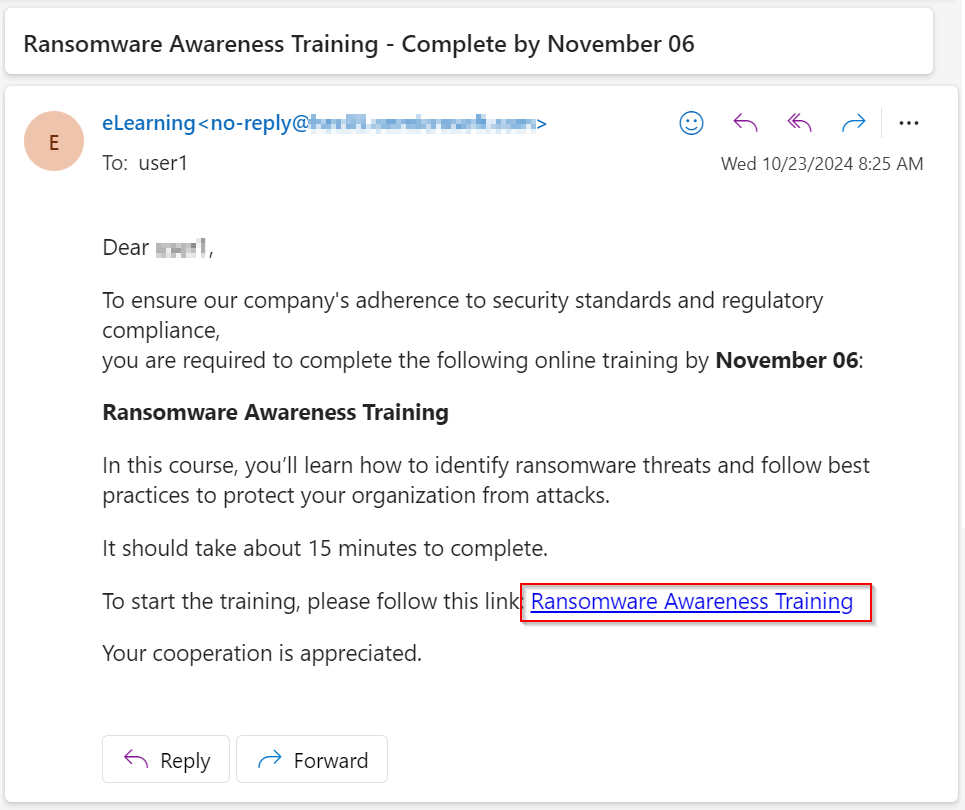
or
You can authorize from the Preview page while configuring the security awareness training policy. See Select the Training Modules.
Click Preview.
-
In the sign in page, click Sign in with Microsoft.
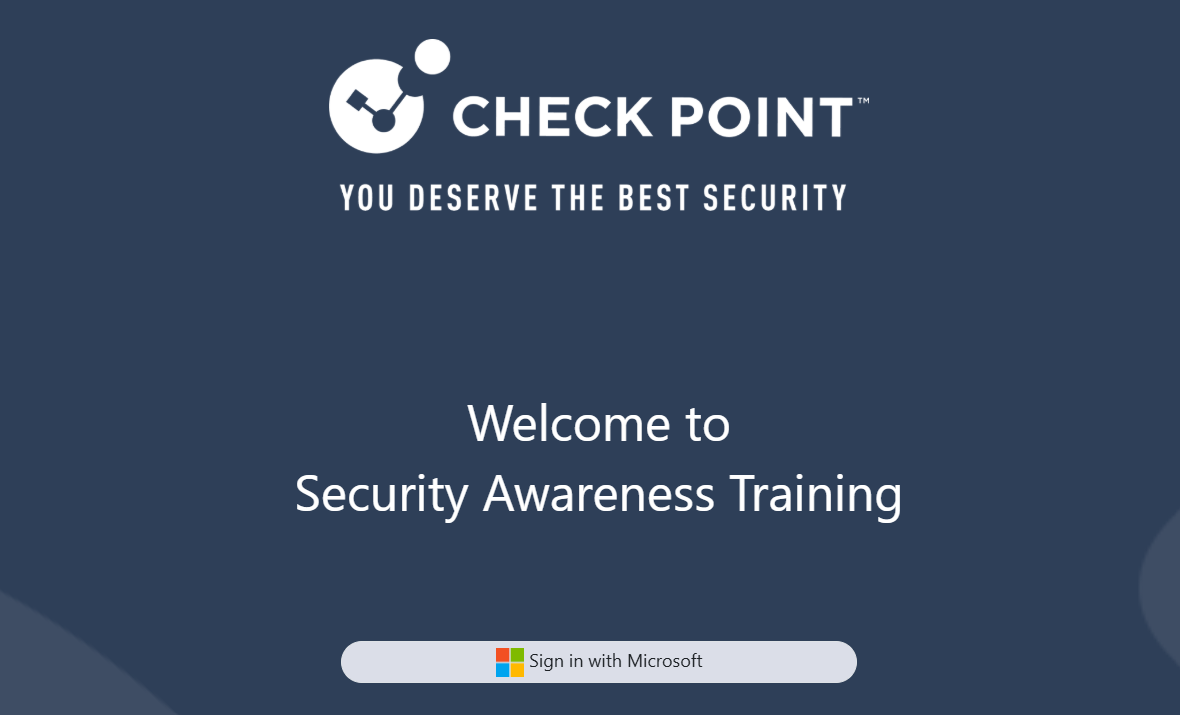
-
Enter the admin credentials and sign in.
The Permissions requested pop-up appears for the
-
To allow end users to sign in using Microsoft credentials, select the Consent on behalf of your organization checkbox.
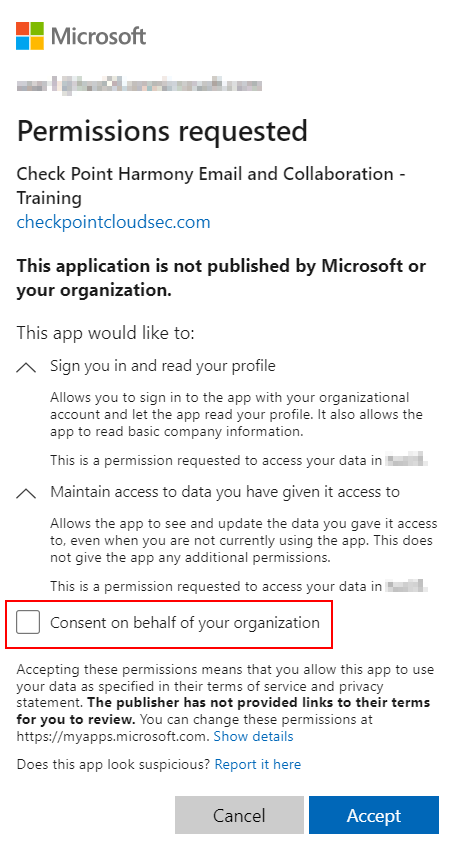
Note - To grant permission by selecting the Consent on behalf of your organization checkbox, allowing users to sign in with Microsoft. The administrator must have one of the following roles:
-
Global Administrator
-
Privileged Role Administrator
-
Cloud Application Administrator
-
Application Administrator
-
A custom directory role that includes the permission to grant consent on behalf of all users
-
-
Click Accept.
End users can now sign in with their organization's Microsoft credentials using the link provided in the email to access the training modules.
Security Awareness Training Email Headers
Header Name:
X-Check-Point-Security-Awareness-Training
Header Values:
-
phishing-simulation – Indicates a simulated phishing email.
-
training-notification – Indicates the email as a training invitation or reminder.
-
phishing-simulation-feedback – Identifies the email as feedback provided to a user after they respond to a phishing simulation email.
Required Permissions for Microsoft Login Authorization
|
Permissions required from Microsoft / Google |
Functions performed by Avanan |
|---|---|
| Sign you in and read your profile | Allows users to sign in to the app and allows the app to read the profile of signed-in users. It also allows the app to read basic company information of signed-in users. |
| Maintain access to data you have given it access to | Allows the app to view and update the signed-in user data even when you are not currently using the app. |
Training and Reminder Emails - Supported Placeholders
While configuring email notifications for training and reminders in Security Awareness Training, the administrators can use these placeholders to replace content dynamically.
|
Placeholder Name |
Placeholder Value |
|---|---|
|
Email recipient name |
{recipient_name} |
|
Training module name |
{training_name} |
|
Training module description |
{training_description} |
|
Date before which the training module must be completed |
{training_due_date} |
|
Length of the training mode in minutes or hours |
{training_duration} |
|
Number of days remaining to complete the training module |
{training_days_left} |
Branding the Security Awareness Training Web Page
To customize the training module interface and phishing simulation web pages to reflect your organization’s branding:
-
Go to Security Training > Policy.
-
Click Configuration next to Security training policies from the top of the page.
-
In the Branding of user interaction (landing pages, course screens) section, select one of these:
-
To show the web pages and course screens that matches your organization's branding, select Auto-brand pages with AI for my domain (recommended). Avanan uses AI and auto-brands the pages based on your organizational domain.
-
To use Check Point's branding, select Use Check Point branding.
-
-
Click Save.
Security Awareness Training Domains
While emails will be delivered, some URLs may be blocked upon clicking due to security tools. To prevent this, allowlist the following domains and their subdomains for both senders and links in your non-
 login-microsoftonline.co
-
us.login-microsoftonline.co
-
eu.login-microsoftonline.co
-
au.login-microsoftonline.co
-
me.login-microsoftonline.co
-
ca.login-microsoftonline.co
-
uk.login-microsoftonline.co
-
in.login-microsoftonline.co
office356.co
-
us.office356.co
-
eu.office356.co
-
au.office356.co
-
me.office356.co
-
ca.office356.co
-
uk.office356.co
-
in.office356.co
office356.email
-
us.office356.email
-
eu.office356.email
-
au.office356.email
-
me.office356.email
-
ca.office356.email
-
uk.office356.email
-
in.office356.email
redeem-amazon.com
-
us.redeem-amazon.com
-
eu.redeem-amazon.com
-
au.redeem-amazon.com
-
me.redeem-amazon.com
-
ca.redeem-amazon.com
-
uk.redeem-amazon.com
-
in.redeem-amazon.com
tracking-amazon.com
-
us.tracking-amazon.com
-
eu.tracking-amazon.com
-
au.tracking-amazon.com
-
me.tracking-amazon.com
-
ca.tracking-amazon.com
-
uk.tracking-amazon.com
-
in.tracking-amazon.com
update-fedex.com
-
us.update-fedex.com
-
eu.update-fedex.com
-
au.update-fedex.com
-
me.update-fedex.com
-
ca.update-fedex.com
-
uk.update-fedex.com
-
in.update-fedex.com
training-cp.com
-
us.training-cp.com
-
ca.training-cp.com
-
eu.training-cp.com
-
uk.training-cp.com
-
au.training-cp.com
-
me.training-cp.com
-
in.training-cp.com
fedex.email
-
us.fedex.email
-
ca.fedex.email
-
eu.fedex.email
-
uk.fedex.email
-
au.fedex.email
-
me.fedex.email
-
in.fedex.email
dnc.cloud
-
us.dnc.cloud
-
ca.dnc.cloud
-
eu.dnc.cloud
-
uk.dnc.cloud
-
au.dnc.cloud
-
me.dnc.cloud
-
in.dnc.cloud
rnc.cloud
-
us.rnc.cloud
-
ca.rnc.cloud
-
eu.rnc.cloud
-
uk.rnc.cloud
-
au.rnc.cloud
-
me.rnc.cloud
-
in.rnc.cloud
avnn.us
-
us.avnn.us
-
ca.avnn.us
-
eu.avnn.us
-
uk.avnn.us
-
au.avnn.us
-
me.avnn.us
-
in.avnn.us
Monitoring User Interactions with Phishing Simulations
The Security Training Dashboard shows an overview of training completion and phishing simulation performance for organization members using widgets, charts, and tables. It also shows individual training statuses and user details, enabling administrators to analyze the organization's security awareness and readiness against phishing threats.
To view the Dashboard page, click Security Training > Dashboard.
To select a time frame for the Dashboard, select an option from the dropdown next to Dashboard at the top of the page.
-
Last 24h
-
Last 7 days
-
Last 30 days
-
Last 12 months
-
Custom
To export the details to a PDF, click Export to PDF.
Overall Training Progress
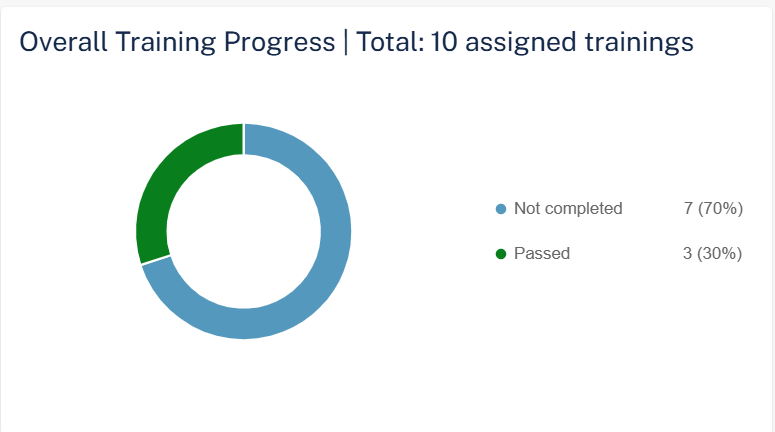
The Overall Training Progress widget shows the number of trainings assigned and their status in the selected time frame.
-
Passed
-
Failed
-
Not Completed
To view specific assigned trainings, click the relevant field in the widget, and the system shows the filtered trainings on the Users page.
Phishing Simulation Overview
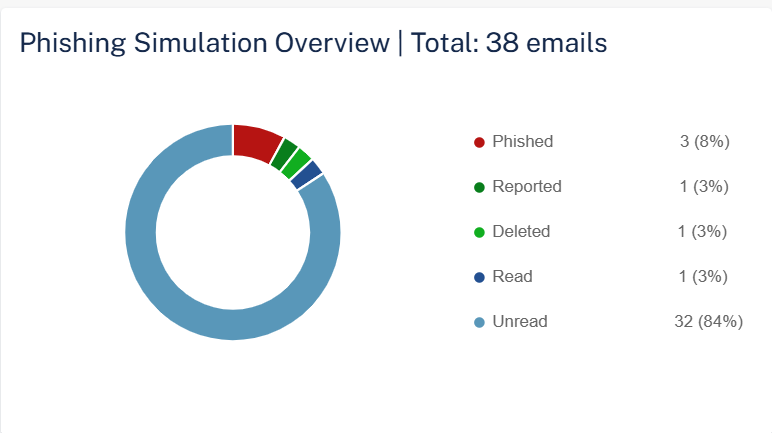
The Phishing Simulation Overview widget shows the number of phishing simulation emails sent and their status in the selected time frame.
-
Unread
-
Read
-
Deleted
-
Reported
-
Phished
-
Clicked
-
Scanned QR Code
-
Replied
-
Forwarded
-
Called unknown number
-
Shared data
-
To view specific phishing simulations, click the relevant field in the widget, and the system shows the filtered phishing simulations on the Users page.
Training Compliance Level Over Time (Entire Organization)
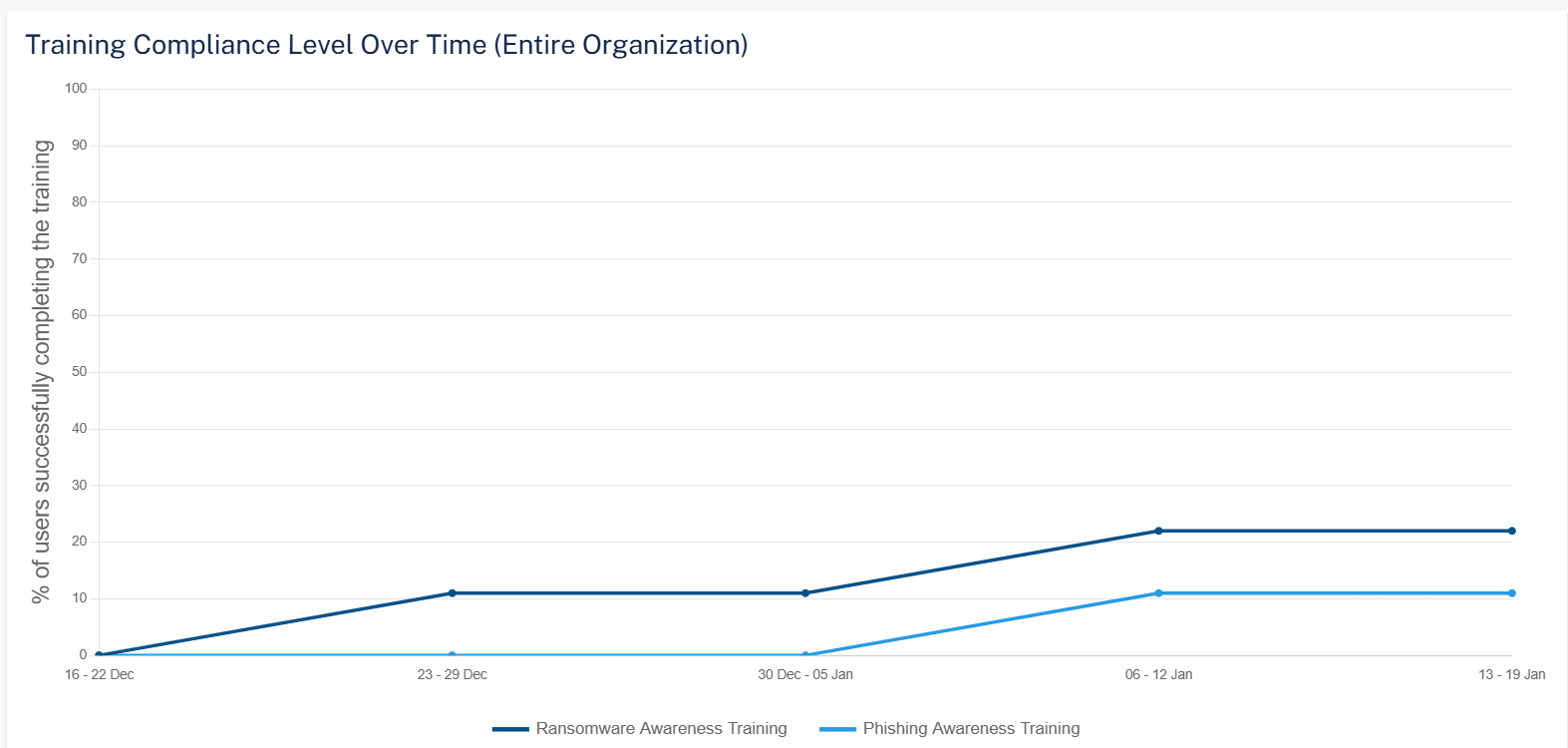
The Training Compliance Level Over Time (Entire Organization) widget shows the percentage of users in the organization who have completed the training in the selected time frame.
Phishing Simulation Emails Sent
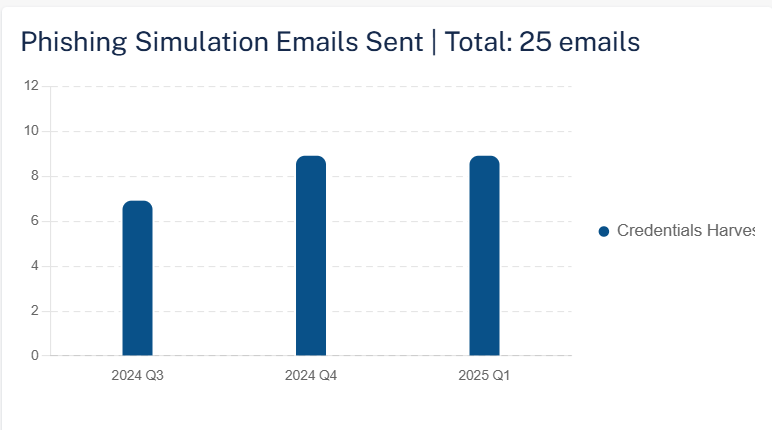
The Phishing Simulation Emails Sent widget shows the total number of phishing simulation emails sent and their status in the selected time frame.
Phishing Simulation by Attack Type

The Phishing Simulation by Attack Type widget shows the number of phishing simulation emails sent based on the attack type in the selected time frame.
To view specific phishing simulation details based on the attack type, click the relevant field in the widget, and the system shows the filtered phishing simulations by attack type on the Users page.
Interaction Patterns of Phished Users
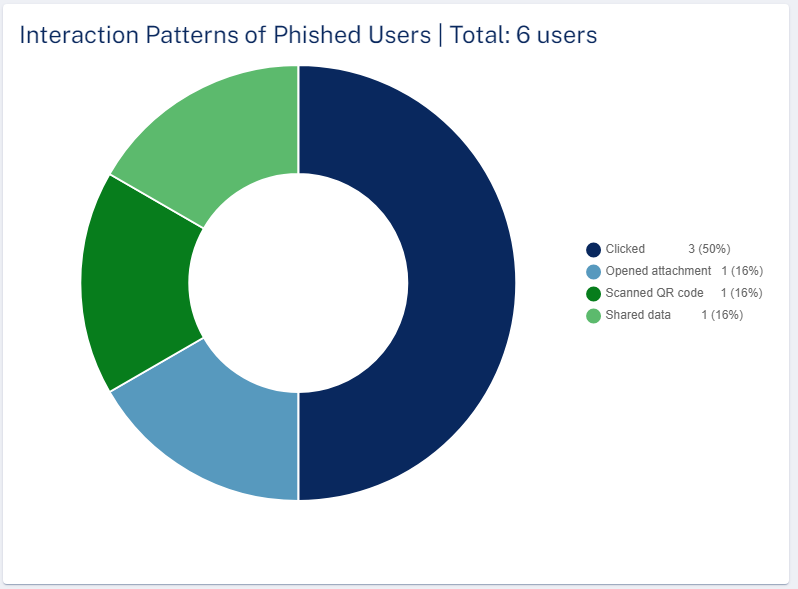
The Interaction Patterns of Phished Users widget shows the total number of phished emails and their interaction status in the selected time frame.
To view specific phished emails and their interactions, click the relevant field in the widget, and the system shows the filtered interactions of phished users on the Users page.
Phishing Simulation - Failure Rate Over Time
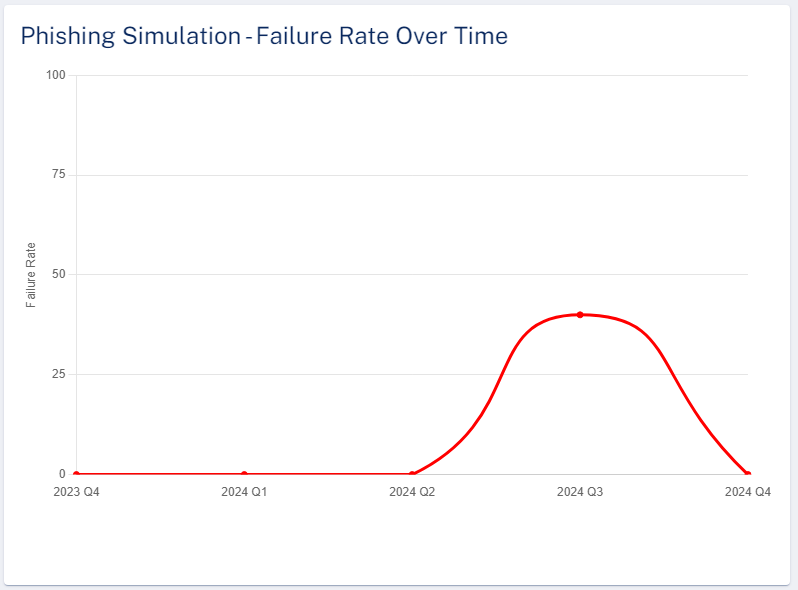
The Phishing Simulation - Failure Rate Over Time widget shows the percentage of emails that have failed the simulation in the selected time frame.
Top Phished Departments
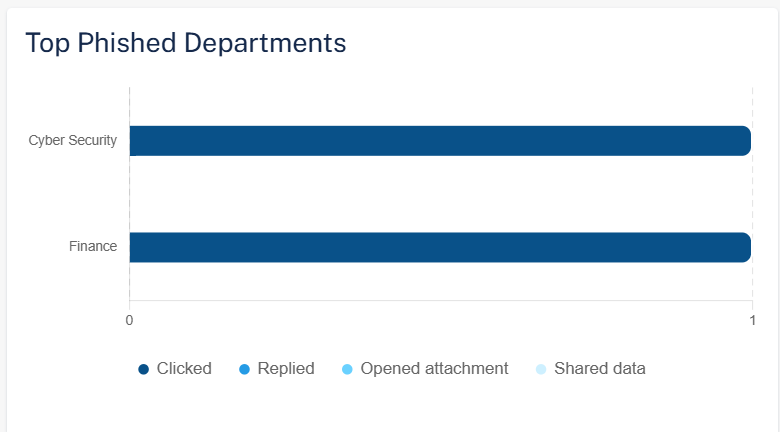
The Top Phished Departments widget shows the top ten departments in the organization with the most phished users in the selected time frame.
To view specific department in the organization with the most phished users, click the relevant field in the widget, and the system shows the filtered departments on the Users page.
Top Phished Users
The Top Phished Users table shows the users that are phished more times in the selected time frame.
|
Column |
Description |
|---|---|
|
Name |
Name of the user in the organization. |
|
Title |
Job title of the user in the organization. |
|
Department |
Department the user belongs to within the organization. |
|
Failures |
Number of phishing emails opened. |
Monitoring User Training Progress
Training Progress
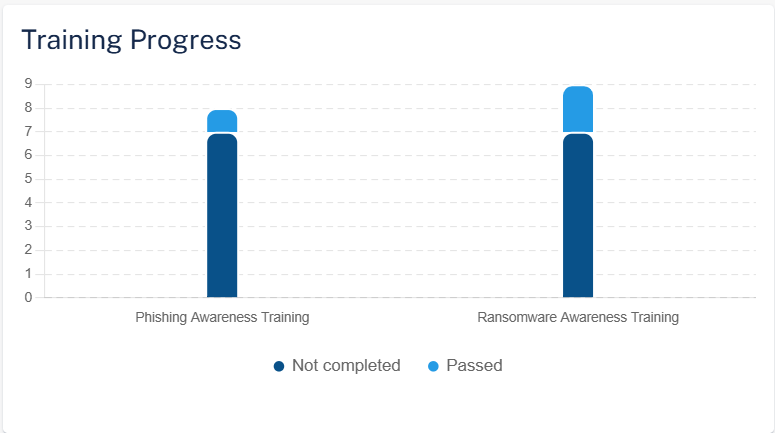
The Training Progress widget shows the training modules and their status in the selected time frame.
Training Status
The Training Status table shows the status of each training module.
|
Column |
Description |
|---|---|
|
Training |
Training module name |
|
Policy |
Name of the policy. |
|
Start Date |
Date on which the training module is assigned to the users. |
|
Training Status |
Training status:
|
|
Users |
Users that are assigned the training module. |
|
Passed |
Percentage of users that have passed in the training module. |
|
Failed |
Percentage of users that have failed in the training module. |
|
Not Completed |
Percentage of users that have not started the training module. |
Users
The Users table shows the phishing simulation emails sent to the users and their training status in the selected time frame.
|
Column |
Description |
|---|---|
|
Name |
Name of the user in the organization. |
|
Title |
Job title of the user in the organization. |
|
Department |
Department the user belongs to within the organization. |
|
Phishing Simulation |
Type of simulation email sent to the user and their status. Click on the simulation name to view analytics filtered specifically for that simulation. See Monitoring Phishing Simulations. |
|
Awareness Training |
Training module name and their status. Click on the training module name to view analytics filtered specifically for that module. See Monitoring User Awareness Training Progress. |
Monitoring Phishing Simulations
To view the details of a specific phishing simulation, click on the required phishing simulation name in the Phishing Simulation column of the Users table.
Avanan redirects you to the relevant phishing simulation dashboard.
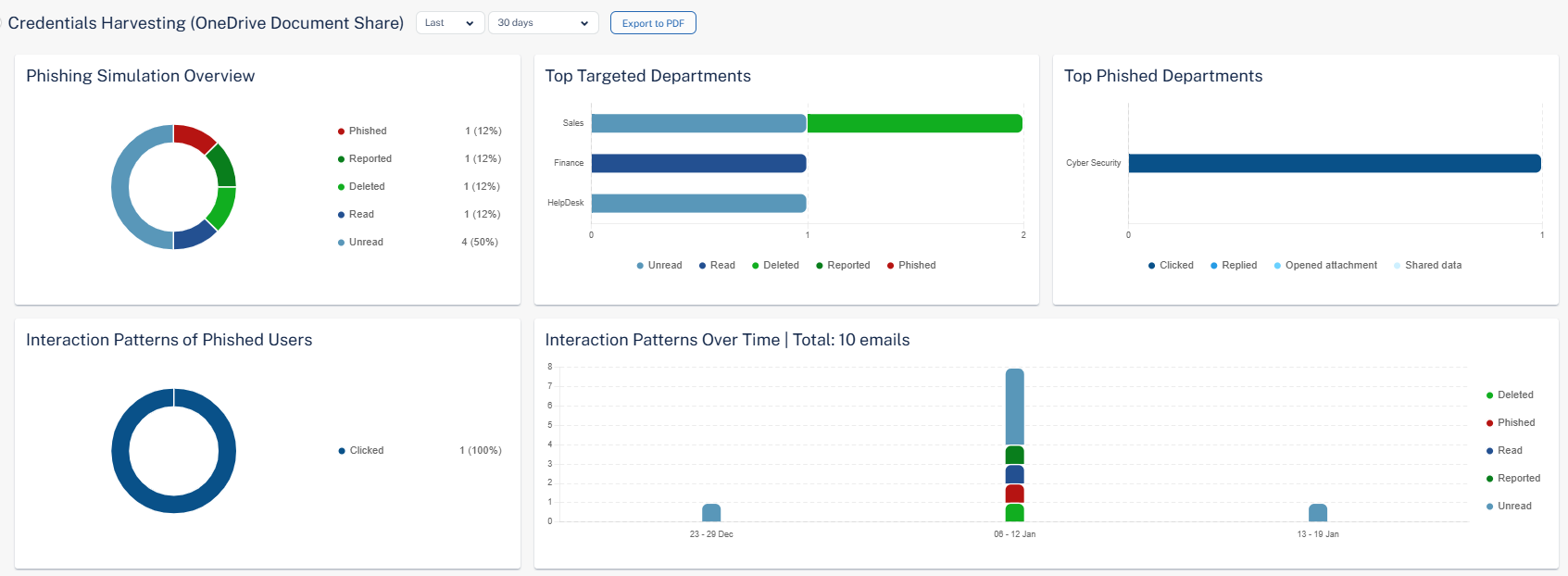
To select a time frame for the phishing simulation, select an option from the drop-down next to the phishing simulation name at the top of the page.
-
Last 24h
-
Last 7 days
-
Last 30 days
-
Last 12 months
-
Custom
To export the details to a PDF, click Export to PDF.
Phishing Simulation Overview
The Phishing Simulation Overview widget shows the number of phishing simulation emails sent and their status for the selected phishing simulation in the selected time frame.
-
Unread
-
Read
-
Deleted
-
Reported
-
Phished
-
Clicked
-
Scanned QR Code
-
Replied
-
Forwarded
-
Called unknown number
-
Shared data
-
Top Targeted Departments
The Top Targeted Departments widget shows the top ten targeted departments in the organization with the most phished users for the selected phishing simulation in the selected time frame.
Top Phished Departments
The Top Phished Departments widget shows the top ten departments in the organization with the most phished users for the selected phishing simulation in the selected time frame.
-
Clicked
-
Replied
-
Shared data
Interaction Patterns of Phished Users
The Interaction Patterns of Phished Users widget shows the total number of phished emails and their interaction status for the selected phishing simulation in the selected time frame.
-
Clicked
-
Replied
-
Shared data
-
Scanned QR Code
Interaction Patterns Over Time
The Interaction Patterns Over Time widget shows the total number of phished emails sent to the users and their interaction status for the selected phishing simulation in the selected time frame.
-
Unread
-
Read
-
Deleted
-
Reported
-
Phished
-
Scanned QR Code
User Interaction
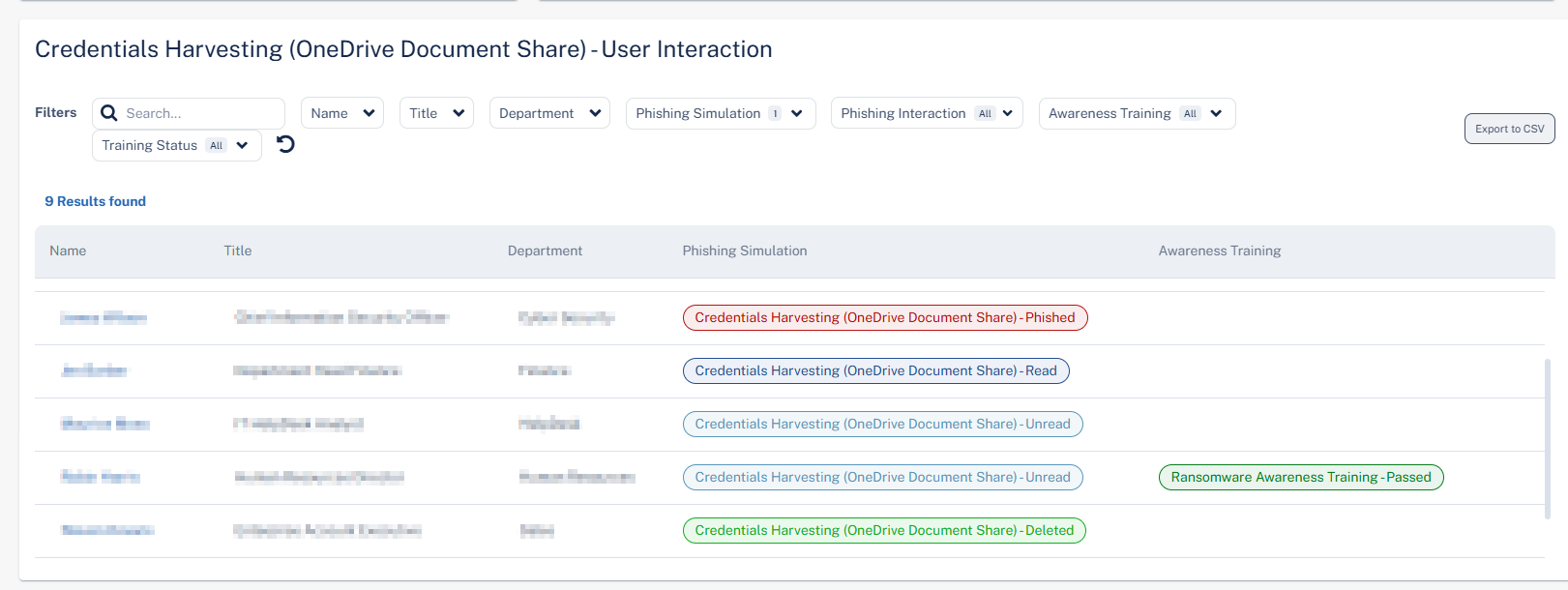
The User Interaction table shows the phishing simulation emails sent to the users and their training status in the selected time frame.
|
Column |
Description |
|---|---|
|
Name |
Name of the user in the organization. |
|
Title |
Job title of the user in the organization. |
|
Department |
Department the user belongs to within the organization. |
|
Phishing Simulation |
Type of simulation email sent to the user and their status. Click on the simulation name to view analytics filtered specifically for that simulation. See Monitoring Phishing Simulations. |
|
Awareness Training |
Training module name and their status. Click on the training module name to view analytics filtered specifically for that module. See Monitoring User Awareness Training Progress. |
Monitoring User Awareness Training Progress
To view the progress of a specific training module, click on the training module name in the Awareness Training column of the Users table.
Avanan redirects you to the relevant awareness training module progress dashboard.
To select a time frame for the training module, select an option from the drop-down next to the awareness training module name at the top of the page.
-
Last 24h
-
Last 7 days
-
Last 30 days
-
Last 12 months
-
Custom
To export the details to a PDF, click Export to PDF.
Overall Training Progress
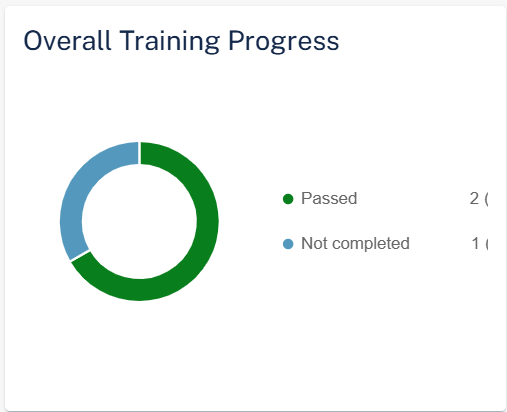
The Overall Training Progress widget shows the number of training modules and their status for the selected training module in the selected time frame.
-
Passed
-
Failed
-
Not Completed
Top Departments Assigned
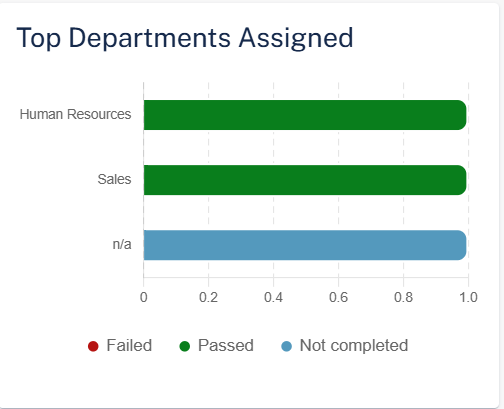
The Top Departments Assigned widget shows the top ten departments in the organization assigned to the selected training module and their status in the selected time frame.
Top Departments Unpassed
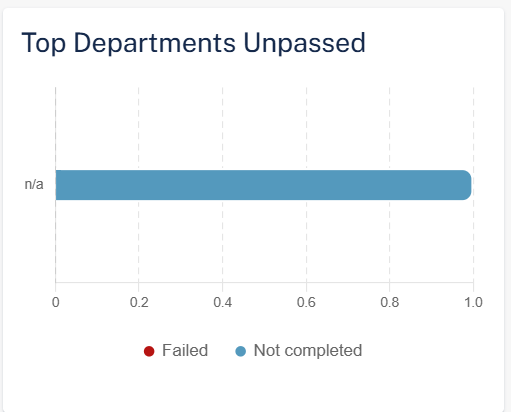
The Top Departments unpassed widget shows the top ten departments in the organization that did not pass the selected training module in the selected time frame.
-
Failed
-
Not Completed
Training Compliance Level Over Time (Entire Organization)
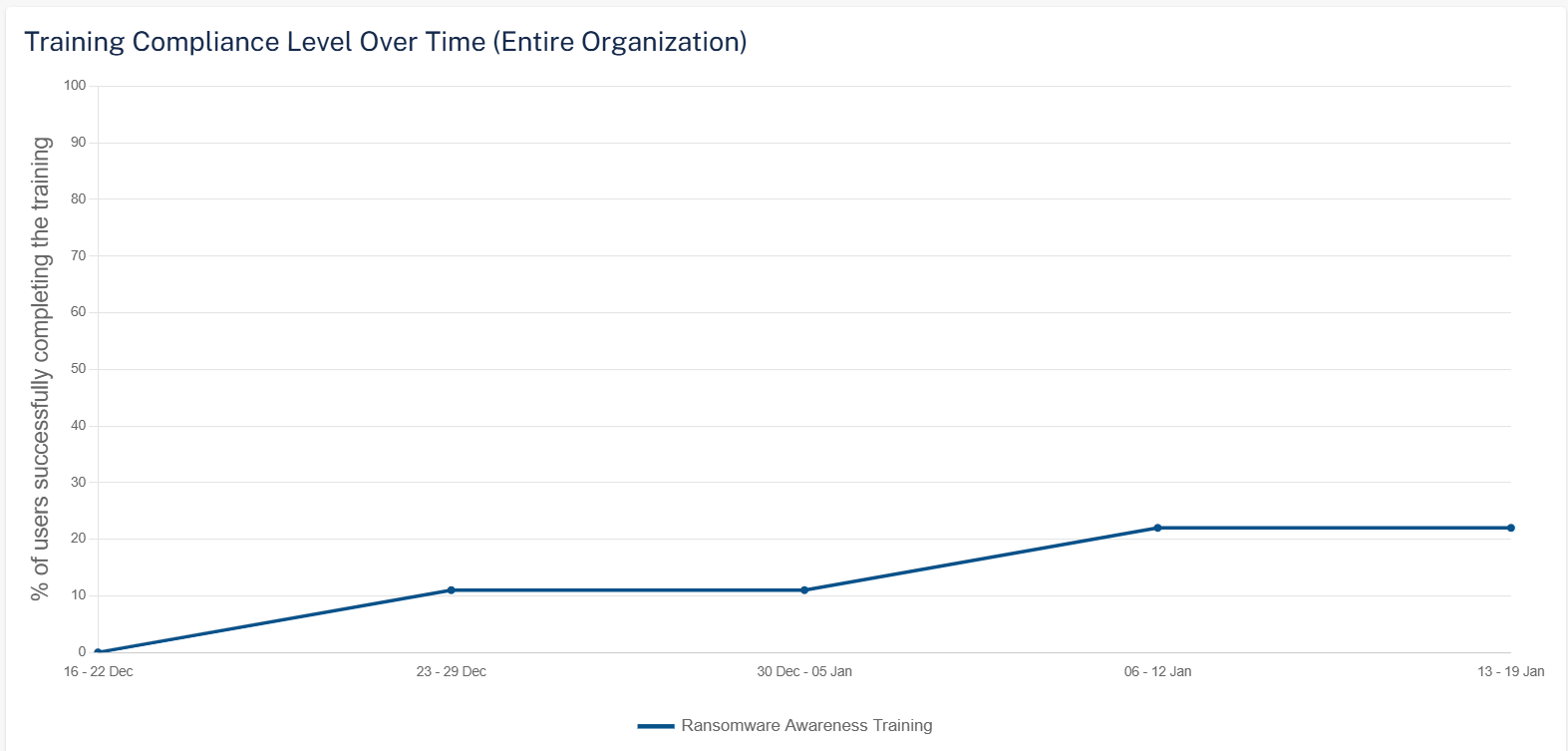
The Training Compliance Level Over Time (Entire Organization) widget shows the percentage of users in the organization who completed the training for the selected training module in the selected time frame.
Training Progress Over Time
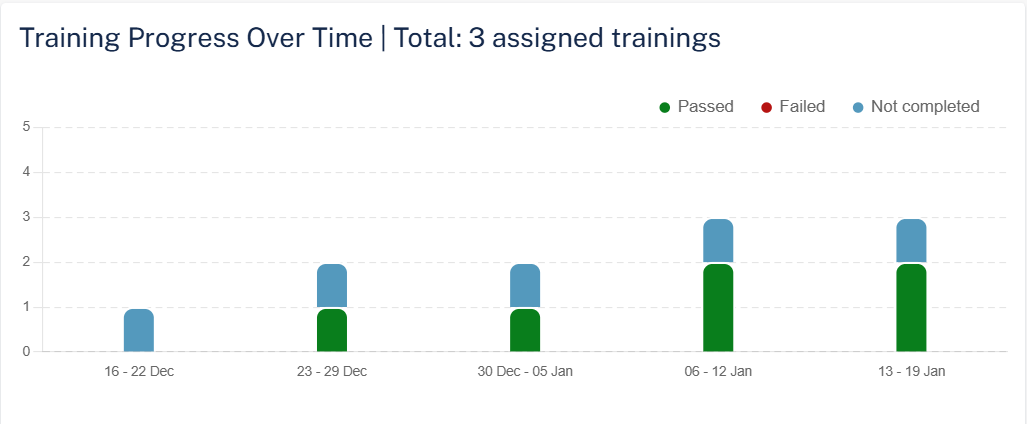
The Training Progress Over Time widget shows the number of trainings assigned and their status for the selected training module in the selected time frame.
User Progress
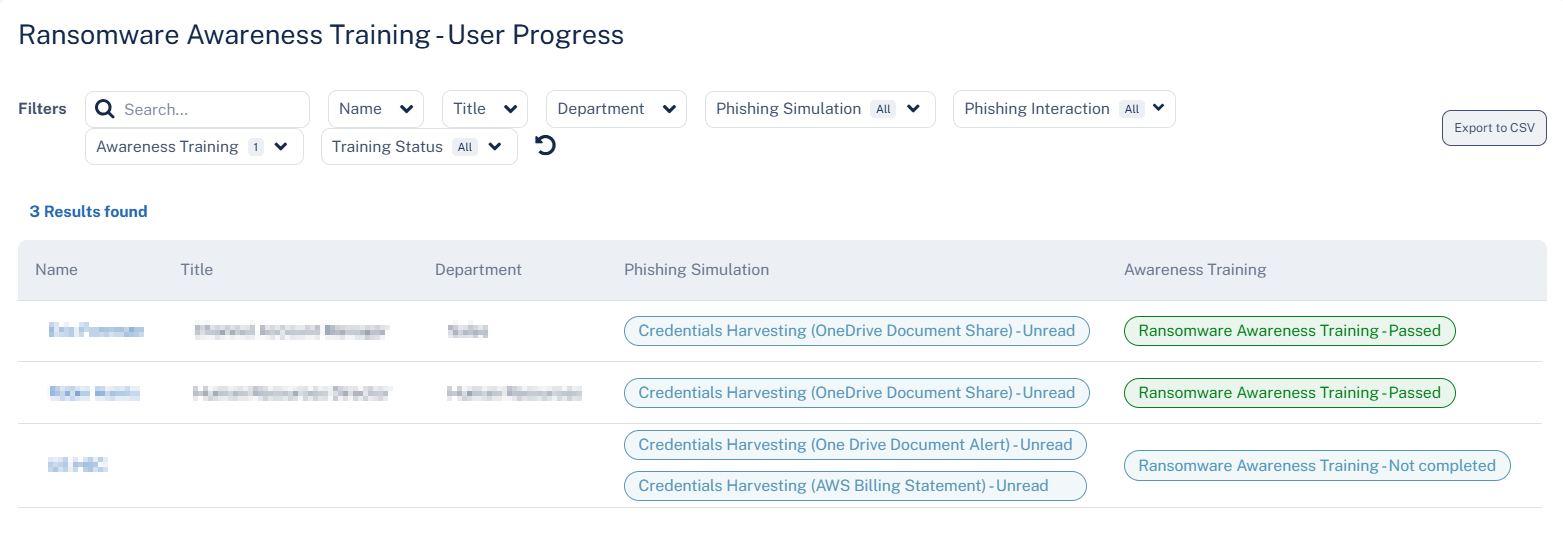
The User Progress table shows the phishing simulation emails sent to the users and their training status in the selected time frame.
|
Column |
Description |
|---|---|
|
Name |
Name of the user in the organization. |
|
Title |
Job title of the user in the organization. |
|
Department |
Department the user belongs to within the organization. |
|
Phishing Simulation |
Type of simulation email sent to the user and their status. |
|
Awareness Training |
Training module name and their status. |
Training Log
The Training Log table shows the users and their training status in the selected time frame.
|
Column |
Description |
|---|---|
|
Name |
Name of the user in the organization. |
|
Title |
Job title of the user in the organization. |
|
Department |
Department the user belongs to within the organization. |
|
Days Left |
Number of days left to complete the training module. |
|
Training |
Name of the training module. |
|
Status |
Status of the training module.
|
|
Status Details |
Detailed information about the status. |
|
Time |
Date and Time of the training started. |
Phishing Simulations Live Activity Log
The Phishing Simulations Live Activity Log table shows the simulation emails sent to the users and their status.
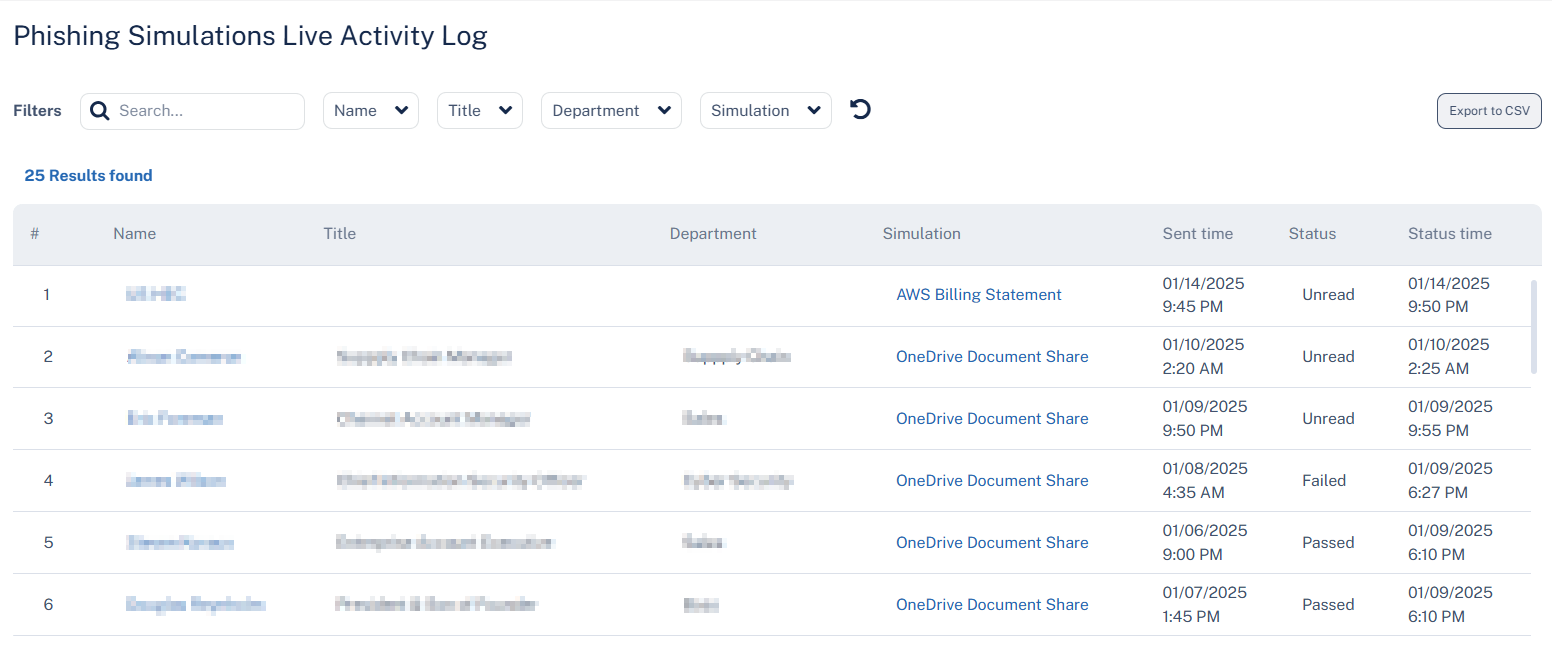
|
Column |
Description |
|---|---|
|
Name |
Name of the user in the organization. |
|
Title |
Job title of the user in the organization. |
|
Department |
Department the user belongs to within the organization. |
|
Simulation |
Type of simulation email sent to the user. |
|
Sent time |
Date and time at which the simulation email is sent. |
|
Status |
Status of the simulation email.
|
|
Status time |
Time at which the status is received. |
Searching for Security Awareness Training Related Emails in Mail Explorer
Administrators can locate emails related to Security Awareness Training activities, such as phishing simulations, simulation feedback messages, and training notifications.
In the
In addition, administrators can also further refine the results by applying more granular filters based on the type of security awareness training related emails.
To filter emails related to security awareness training:
-
Go to Mail Explorer.
-
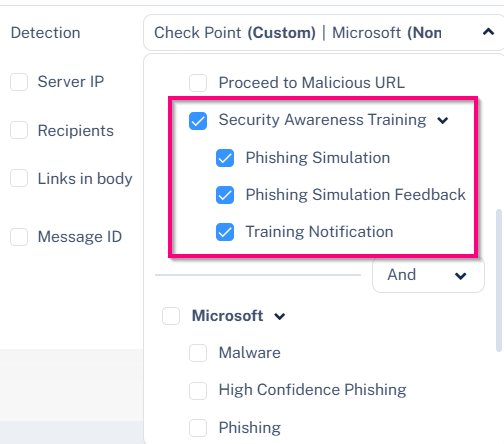
In the Detection section, select the Security Awareness Training checkbox in the
-
Phishing Simulation – Displays phishing simulation emails sent to end users as part of security awareness campaigns.
-
Phishing Simulation Feedback – Displays feedback emails sent to users who clicked or interacted with phishing simulation emails.
-
Training Notification – Displays notification emails informing users that they need to complete specific training modules.
-
Security Awareness Training - End User Experience
As per the security training policy configured by the administrator,
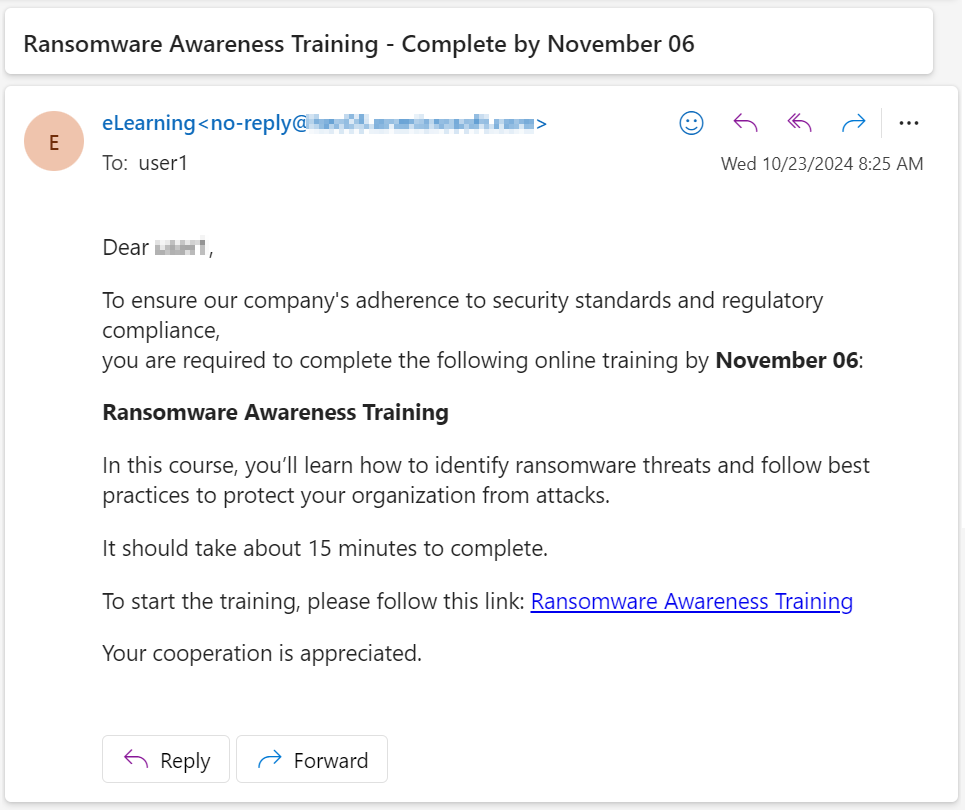
To start the training module:
-
Click the link provided in the email.
The Welcome to Security Awareness Training page appears.
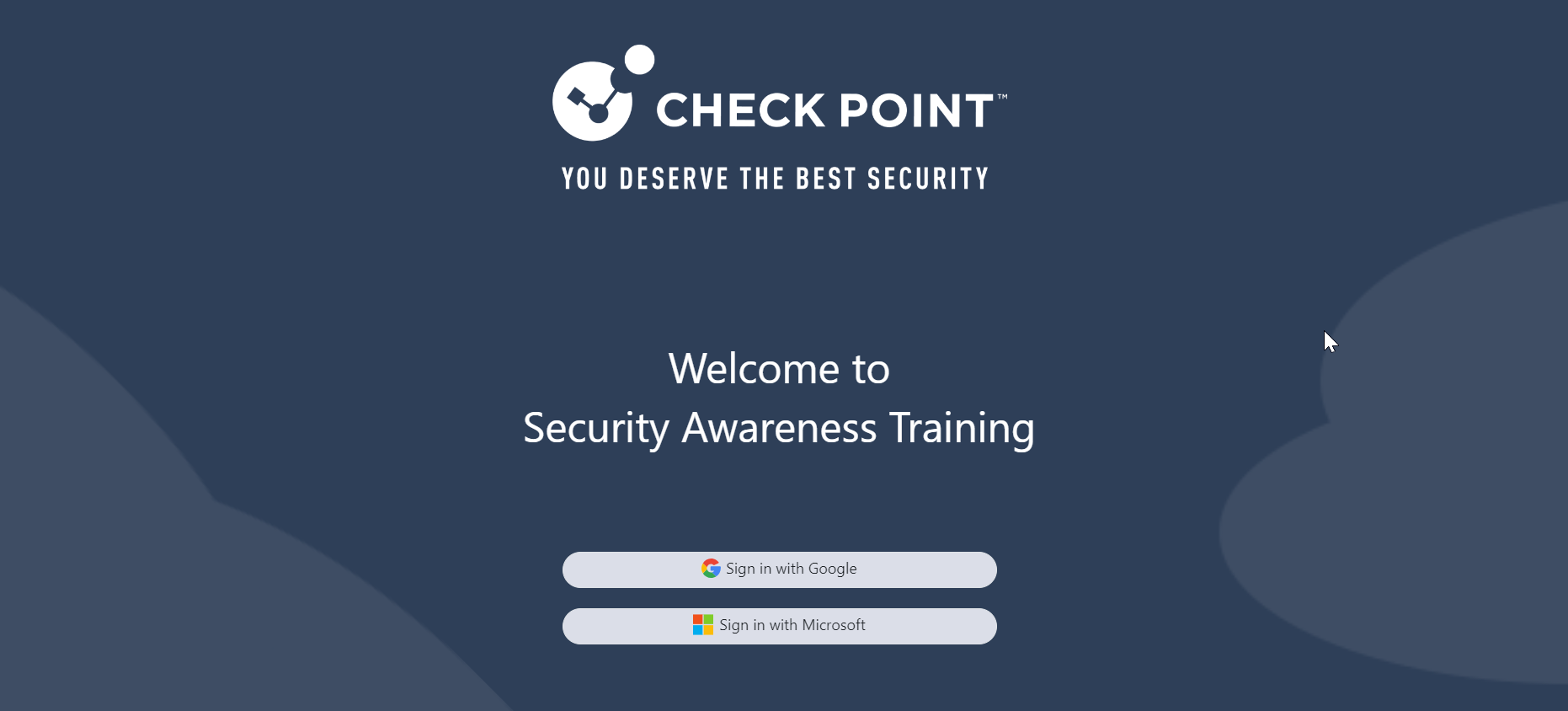
-
Click Sign in with Microsoft.
-
Enter your organization's Microsoft credentials and sign in.
The training module page appears.
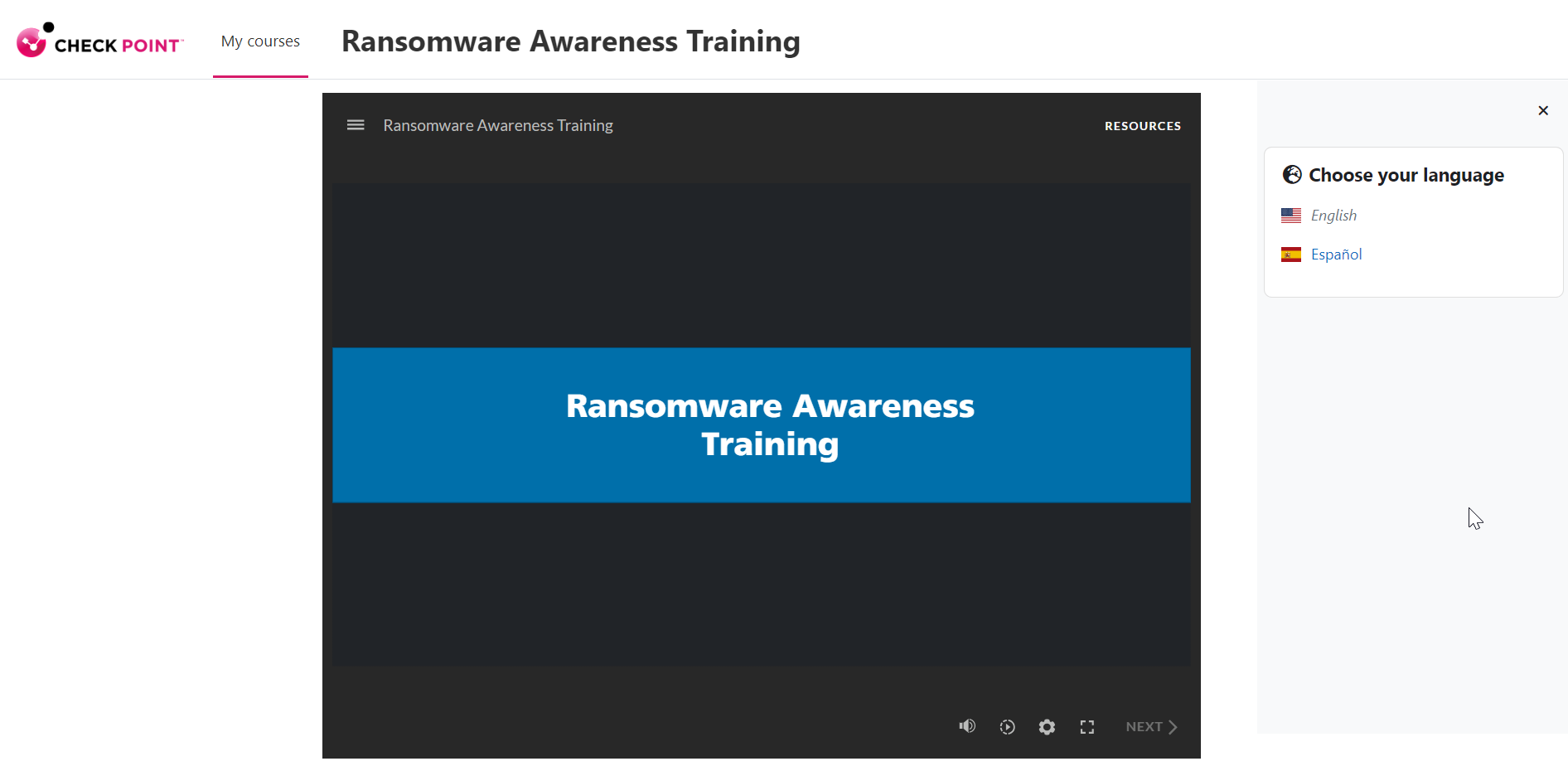
-
(Optional) If the training module is available in multiple languages, the Choose your language widget appears to the right of the screen. Select the required language.
Note - The system determines the user's language for phishing simulation emails and training modules based on Microsoft account attributes:
-
preferredLanguage: If this attribute is set, the system uses it as the primary language (if supported).
-
usageLocation: If preferredLanguage is not defined. By default, the system selects the primary language of the country specified in usageLocation.
For more information about supported languages, see Supported Languages for Phishing Simulations and Supported Languages for Training Modules.
-
-
(Optional) To view the different sections in the training module, click the
 icon.
icon.The Menu appears, displaying the different sections in the training module.
-
If required, click Start to begin the training.
The training includes a quiz with multiple questions to help understand the content. It also covers key use cases and provides strategies to protect against security threats.
Security Awareness Training - Supported Languages
Supported Languages for Phishing Simulations
Avanan automatically generates phishing simulation attacks that are best suited for each user individually. It also automatically selects the most fitting language for the simulated attacks. The list of possible chosen languages are:
-
Arabic
-
Bulgarian
-
Czech
-
Danish
-
English
-
Finnish
-
French
-
German
-
Greek
-
Hebrew
-
Icelandic
-
Italian
-
Japanese
-
Norwegian
-
Polish
-
Portuguese
-
Portuguese (BRA)
-
Russian
-
Slovak
-
Spanish
-
Turkish
Supported Languages for Training Modules
Training modules are available in multiple languages. By default, users see training modules in their preferred language, as defined in their Microsoft / Google account settings, provided that the selected training module is available in that language.
Below is the list of supported languages for training modules.
|
|
Note - Not all modules are translated into every supported languages. If a module is not translated in the language you need, contact Avanan Support. |
-
Arabic
-
Czech
-
English (US)
-
French
-
German
-
Greek
-
Hebrew
-
Italian
-
Portuguese (BRA)
-
Spanish
Phishing Simulation Email - End User Experience
As per the security training policy configured by the administrator, the end-user receives phishing simulation emails periodically. When a user clicks a link in these emails, a web page displays the risk indicators relevant to the simulation and allows the user to take the Phishing Awareness Training.
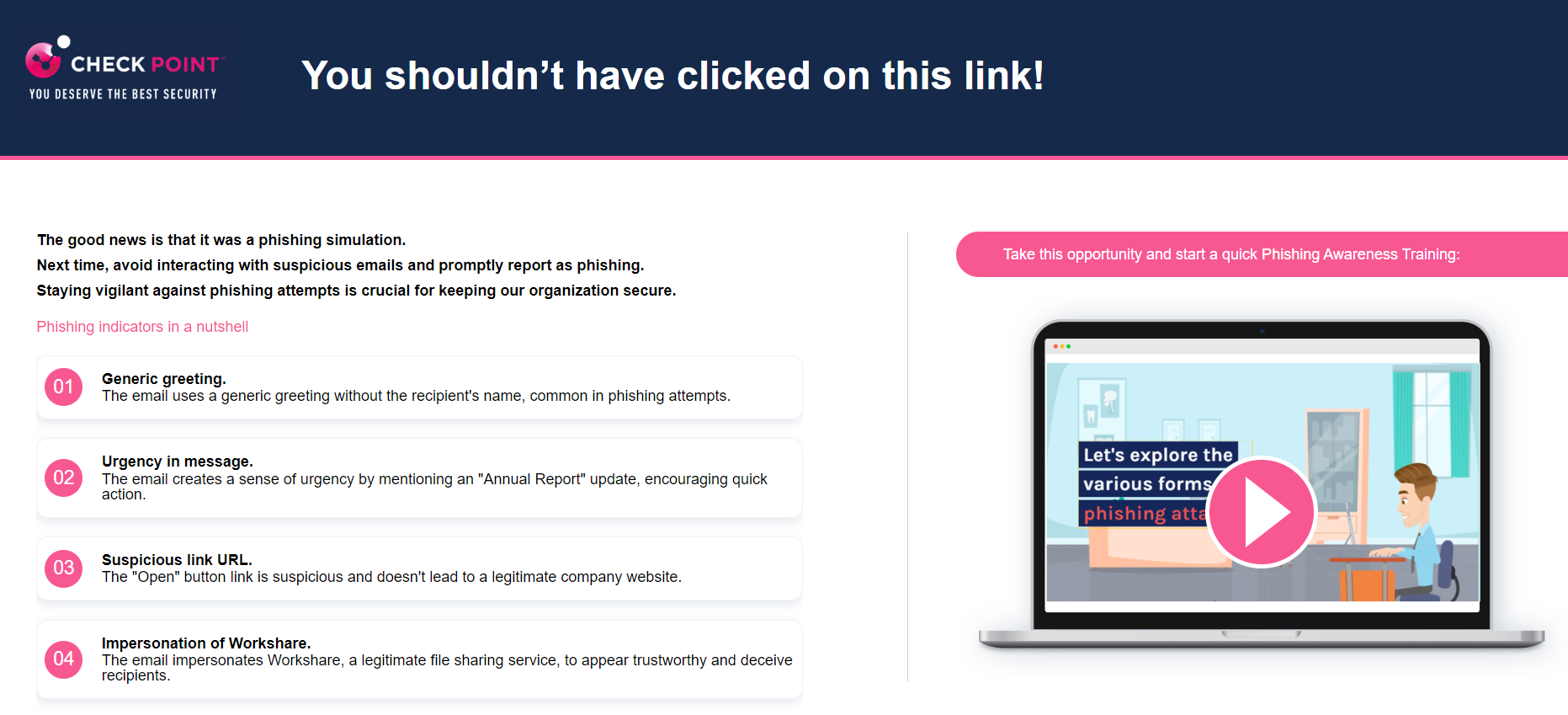
Available Training Modules
|
Training Module Name |
Description |
|---|---|
| Phishing Awareness | Learn how to identify, prevent, and report phishing attacks. |
| Ransomware Awareness |
Understand how ransomware works, its risks, and strategies to prevent or respond to attacks. |
| Safe Browsing |
Discover secure browsing practices to avoid malware, phishing, and online scams. |
| Social Engineering |
Recognize and defend against manipulation tactics used to steal information or gain unauthorized access. |
| Data Privacy & Protection |
Learn how to handle sensitive data securely and prevent breaches and leaks with effective strategies. |
| Mobile Device Security |
Learn how to secure mobile devices with best practices to prevent unauthorized access, data theft, and cyber threats. |
| Password and Authentication |
Learn how to Sstrengthen your passwords and use secure login methods to protect your accounts from unauthorized access. |
|
Physical Security |
Understand workplace security protocols to prevent unauthorized access to facilities and sensitive assets. |
|
Remote Work Security |
Learn how to securely access company resources while working remotely and prevent cyber threats. |
|
Safe Use of AI |
Use AI tools responsibly while ensuring data protection and safeguarding corporate intellectual property. |
|
Anti-bribery and Corruption |
Recognize and prevent bribery and corruption by following ethical practices and company policies. |
|
Harassment Prevention |
Identify, prevent, and address workplace harassment to maintain a safe and respectful environment. |
|
Insider Threats Awareness |
Detect and prevent insider threats by recognizing suspicious behavior and enforcing security best practices. |
|
PCI-DSS Compliance |
Learn how to securely handle payment card data to protect customer information and prevent fraud. |
|
HIPAA Compliance |
Understand HIPAA guidelines to protect patient data and prevent unauthorized access. |
|
GDPR |
Learn how to follow the regulation that sets standards for handling information, ensuring privacy, and enforcing accountability. |
|
Protecting Personally Identifiable Information (PII) |
Learn how to recognize, handle, and protect PII to prevent identity theft and data breaches. |
|
Incident Reporting & Response Basics |
Learn how to recognize security red flags and respond appropriately. |
|
Malware Awareness |
Identify and prevent malware, such as viruses, spyware, and adware, before they cause any damage. |
|
Removable Media & USB Device Safety |
Use removable media safely to prevent data loss, malware, and unauthorized access. |
|
Spear Phishing & CEO Fraud |
Identify targeted phishing and impersonation tactics used to manipulate actions and access sensitive data. |
|
Email and Attachment Safety |
Learn how to identify suspicious emails and handle attachments safely to prevent cyberattacks.
|
|
URL Fundamentals |
Understand URL structures and learn how to identify suspicious or malicious links. |
|
Vishing & Smishing Awareness |
Learn to recognize and respond to phone and text scams that try to steal personal or sensitive information. |
|
Diversity and Inclusion |
Learn how to support diversity and foster inclusion through respectful, day-to-day interactions at work. |
|
Credential Harvesting Awareness |
Learn to spot fake login pages, avoid password traps, and respond safely to credential based scams. |
|
Business Email Compromise (BEC) Awareness |
Understand how attackers exploit trust through email impersonation or account compromise to bypass business processes. |
|
QR Code Phishing Awareness |
Learn how to safely scan QR codes, detect phishing attempts, and prevent data or credential theft. |
|
Calendar Invite Phishing Awareness |
Recognize phishing attempts hidden in calendar invites and respond safely to prevent attacks. |
|
Deepfake and Impersonation Threats |
Learn how AI-generated videos and voices are used to impersonate trusted people and how to spot and handle deepfake threats. |
|
Social Media Phishing Awareness |
Learn how phishing threats spread through social media, how to recognize the signs, and respond safely. |
|
Invoice Fraud Awareness |
Understand how invoice fraud works, identify red flags, and use secure verification practices to prevent financial loss. |
|
Family Educational Rights and Privacy Act (FERPA) |
Protect student privacy and the integrity of education records by following FERPA standards. |
|
Gramm-Leach-Bliley Act (GLBA) |
Learn how to protect customer financial data and handle Nonpublic Personal Information (NPI) securely under GLBA. |
|
California Consumer Privacy Act (CCPA) |
Get to know the California law, when it applies, what data it protects, and how to support privacy in your role. |
|
Third-Party Risk Awareness |
Learn how to work securely with third parties by applying safe access, communication, and reporting practices. |
|
Microsoft Teams Phishing Awareness |
Learn how to detect and respond to phishing attempts within Microsoft Teams. |
|
Social Engineering & Manipulation Techniques |
Recognize and respond to manipulation tactics attackers use to exploit emotions and human behavior. |
|
Cloud Account Security |
Learn how to protect cloud accounts, share files securely, and prevent unauthorized access or data exposure. |
|
AI-Generated Threats Awareness |
Understand how attackers misuse AI to create realistic scams and malware, and how to verify and report them safely. |
|
Link Manipulation & URL Deception |
Identify deceptive links and verify destinations to prevent phishing and credential theft. |